
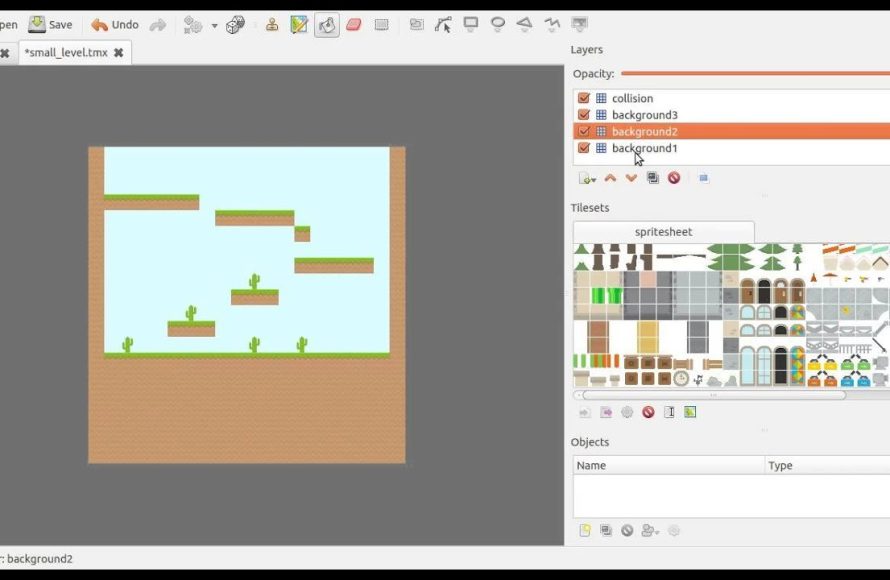
Creating HTML5 games requires using HTML for structure, CSS for styling, and JavaScript for interactivity.
Want to build your own games directly in the browser? It’s totally achievable! The process of learning how to create HTML5 games may seem daunting, but the core concepts are quite manageable.
You’ll be working with familiar web technologies. These are HTML to set up the layout, CSS for visual design, and JavaScript to breathe life into your creations with dynamic actions.
The initial steps might involve drawing shapes on a canvas or responding to keyboard inputs. With a little dedication, you can make engaging games.

How to Create HTML5 Games
So, you want to make your own video game? That’s awesome! With HTML5, you can create games that run right in your web browser. That means people can play your games on their computers, tablets, and even phones, without needing to download anything special. This might sound like a super complicated task, but we are going to break it down and show you how it’s easier than you might think. Let’s get started on your game development journey!
Understanding the Basics: HTML, CSS, and JavaScript
Before we jump into making a full game, it’s important to know the three main ingredients we will be using: HTML, CSS, and JavaScript. Think of it like building with LEGOs. HTML is the structure of the game – where things are placed. CSS is like the paint and decorations, it makes everything look pretty. And JavaScript? Well, JavaScript is the magic that makes everything move and do things!
HTML: The Foundation
HTML is like the blueprint of your game. It uses tags to tell the browser what elements to show on the screen. For example, <canvas> tag is super important because it’s where we draw our games. Other tags might include buttons or input fields, if your game requires them. Here’s a simple example of how to set up a canvas in HTML:
        <!DOCTYPE html>
        <html>
        <head>
          <title>My First Game</title>
        </head>
        <body>
          <canvas id="gameCanvas" width="800" height="600"></canvas>
          <script src="game.js"></script>
        </body>
        </html>
In this code, we created a canvas with an ID “gameCanvas”, an 800 pixels width, and a 600 pixels height. We also include a game.js file, where we will put our JavaScript magic.
CSS: Making it Look Good
CSS is the style guide for your game. It lets you control the colors, fonts, sizes, and positions of all the elements that you made using HTML. You can use CSS to change how the canvas appears, how the text looks, or make your buttons colorful. For our basic game, we will not spend much time on the styling, but you need to understand that you can do a lot using CSS!
        / style.css /
        #gameCanvas {
            border: 1px solid black;
            background-color: lightblue;
        }
In this CSS snippet, we are adding a border and background color to our game canvas.
JavaScript: Bringing it to Life
JavaScript is where the real fun begins. It’s the programming language that allows you to add movement, handle user input, keep score, and basically everything that makes your game interactive. With JavaScript, you can create characters, make them move, detect collisions, and so much more. Below is an example of a basic javascript, that will draw a rectangle on our canvas.
        // game.js
        const canvas = document.getElementById('gameCanvas');
        const ctx = canvas.getContext('2d');

        //Draw a rectangle
        ctx.fillStyle = 'red';
        ctx.fillRect(20, 20, 50, 50);
This javascript file will grab the canvas element and draw a red rectangle on the canvas. This might not look like much, but it shows the basic idea.
Choosing a Game Idea
Before you start coding, it’s a good idea to choose a simple game idea. It’s best to start with something that isn’t too complicated. Here are a few game ideas that are great for beginners:
- Simple platformer: A character jumps and moves on platforms.
- Clicker game: Click an object to earn points.
- Basic puzzle game: Move blocks into the right place.
- Simple endless runner: A character moves forward, avoiding obstacles.
- Simple pong or breakout game.
Pick something that you think would be fun to create. Starting simple will help you understand the concepts better.
Setting up Your Development Environment
You don’t need any fancy software to make HTML5 games. You can actually code using any simple text editor, like Notepad (on Windows) or TextEdit (on Mac). However, it’s usually more convenient to use an editor that’s built for coding, like:
- Visual Studio Code (VS Code): This one is free and very popular.
- Sublime Text: Another great free choice for many developers.
- Atom: A free and open-source option that’s easily customizable.
These editors have features like highlighting your code with colors and suggesting helpful tips. This makes it easier to avoid errors.
Once you have your editor set up, create a new folder for your game and add at least three files:
- index.html – This is the HTML file we talked about earlier.
- style.css – This is where you will put your CSS rules.
- game.js – This is the javascript file where the majority of your game logic will reside.
Basic Game Loop
One of the core concepts in game development is the game loop. This loop is like the heartbeat of your game. It’s a never-ending cycle that updates the game state and redraws the screen again and again. You will need to write Javascript for the game loop. Here’s how the game loop generally works:
- Input Processing: Checks for user interactions like clicks, key presses, or touch events.
- Updating Game Logic: Moves characters, checks for collisions, calculates scores, etc.
- Rendering: Draws everything on the screen based on the updated state.
Here’s how you can implement a basic game loop in JavaScript using requestAnimationFrame():
        // game.js
        function gameLoop() {
            // 1. Input processing - for example movement.
            // 2. Update game logic - calculate how the game changes.
            // 3. Rendering - drawing all the graphics
            render();
            requestAnimationFrame(gameLoop);
        }

        function render() {
          //Draw everything in our game here
          ctx.clearRect(0,0,canvas.width, canvas.height)
          ctx.fillStyle = "red";
          ctx.fillRect(20, 20, 50, 50);
        }

        //Start our gameLoop
        gameLoop();
In this code snippet, the gameLoop() is the heart of the game. We call requestAnimationFrame() at the end of the gameLoop, to repeatedly call the gameLoop function. We also create a render function that clears the canvas and renders our rectangle. Remember that gameLoop will be continuously called and the render function will be continuously drawing on the canvas. This is how we animate our games.
Handling User Input
To make a game interactive, you need to handle user input. In HTML5 games, this usually means detecting key presses (for keyboard input) or mouse clicks. Below is a simple example of how to get the user input by using the keyboard. Let’s make our rectangle move left, right, up and down.
          //game.js
          let x = 20;
          let y = 20;
          const speed = 5;

          document.addEventListener('keydown', function(event) {
              if (event.key === 'ArrowLeft') {
                  x -= speed;
              }
              if (event.key === 'ArrowRight') {
                  x += speed;
              }
              if (event.key === 'ArrowUp') {
                  y -= speed;
              }
              if(event.key === 'ArrowDown'){
                  y += speed
              }
           });

          function render() {
              ctx.clearRect(0,0,canvas.width, canvas.height);
              ctx.fillStyle = "red";
              ctx.fillRect(x,y, 50, 50);
          }
We are adding a listener for the ‘keydown’ event. When the user presses any key, we will check which key was pressed, and we will change the x or y coordinates. The rectangle will move because its coordinates are changed based on the user input. This is an example of how easy it is to add player interaction in our games.
Drawing Graphics
The <canvas> element lets you draw graphics using JavaScript. You can draw shapes, images, text, and more. Let’s go through the different examples.
Drawing Shapes
We have already drawn a red rectangle before, now let’s show you some other things you can draw.
        // Drawing a rectangle
        ctx.fillStyle = 'blue';
        ctx.fillRect(100, 100, 80, 60);

        // Drawing a circle
        ctx.beginPath();
        ctx.arc(200, 200, 40, 0, Math.PI  2);
        ctx.fillStyle = 'green';
        ctx.fill();

        // Drawing a triangle
        ctx.beginPath();
        ctx.moveTo(300, 100);
        ctx.lineTo(350, 150);
        ctx.lineTo(250, 150);
        ctx.closePath();
        ctx.fillStyle = 'purple';
        ctx.fill();
This code shows how to draw a rectangle, circle and triangle. You can easily change colors and coordinates, to place them in the location that you want.
Loading and Drawing Images
Games often use images for characters, backgrounds, and other elements. Here’s how to load and draw an image:
        let characterImage = new Image();
        characterImage.src = 'character.png';

        characterImage.onload = function() {
             ctx.drawImage(characterImage, 100, 100, 50, 50);
        };
In this example, we are creating a new Image object, setting its source to character.png, and adding an onload event that will draw the image on the canvas after it’s loaded. Remember to save your image as character.png to make this code work.
Collision Detection
Collision detection is how you determine if two objects in your game have touched each other. This is important for things like detecting when a player hits an enemy, when a ball hits a wall, etc. A very easy way to detect the collision is by using the rectangle collision detection.
        function checkCollision(rect1, rect2) {
            return (
              rect1.x < rect2.x + rect2.width &&
              rect1.x + rect1.width > rect2.x &&
              rect1.y < rect2.y + rect2.height &&
              rect1.y + rect1.height > rect2.y
            );
        }
This function will return true if the two rectangles are colliding. Let’s suppose that you have two rectangles, player and obstacle. To check the collision, you can do if(checkCollision(player,obstacle)) { //Do something }.
Adding Game Logic and Rules
Game logic refers to the rules of your game. This involves things like scoring, keeping track of health, or knowing when the player won or lost the game. You need to change your variables based on the user’s input. Here is a simple example of game logic, where we increase the score, each time the player touches a special item.
       //global variables
        let score = 0;
        let specialItem = {x: 500, y: 400, width: 30, height: 30}

        function checkCollision(rect1, rect2) {
            return (
              rect1.x < rect2.x + rect2.width &&
              rect1.x + rect1.width > rect2.x &&
              rect1.y < rect2.y + rect2.height &&
              rect1.y + rect1.height > rect2.y
            );
        }

        function update(){
           //Check the collision between player and specialItem
            if(checkCollision(player, specialItem)) {
                score += 10;
                //move the item at random position
                specialItem.x = Math.random()  canvas.width;
                specialItem.y = Math.random()  canvas.height;
           }
        }
         function render() {
              ctx.clearRect(0,0,canvas.width, canvas.height);
              ctx.fillStyle = "red";
              ctx.fillRect(player.x,player.y, player.width, player.height);
              ctx.fillStyle = "blue";
              ctx.fillRect(specialItem.x, specialItem.y, specialItem.width, specialItem.height);
               ctx.fillStyle = 'black';
              ctx.font = '24px Arial';
              ctx.fillText('Score: ' + score, 10, 30);
          }
In this example, we have added a score variable and a special item. Each time the player collides with the special item, we increase the score. We are also showing the score on the screen.
Sound Effects and Music
Sound is a critical component of any game. It makes the experience much more engaging. With HTML5, you can easily include sound effects and music. Here’s a simple way to play a sound:
       //Create a new audio
       const sound = new Audio('sound.wav')
       //Play the sound
       sound.play()
Make sure to have a ‘sound.wav’ file to make it work. You can find a lot of free sounds online, just make sure to get the appropriate file type. Now, you can play your sound effects when the user gets points, or loses a life.
Debugging Your Game
As you develop your game, you’re likely to run into bugs, which means problems in your code. Debugging means finding those errors and fixing them. Here are a few simple things that you can do to help with debugging your code:
- Use
console.log(): Useconsole.log()to print the values of variables in your Javascript. This is very helpful if the game is not doing something that you expected. - Check the browser’s console: The browser has a console where you can see error messages. This can give you clues about what’s going wrong.
- Simplify your code: If you have a lot of code, try breaking it down into smaller pieces. This can make it easier to spot problems.
Testing and Optimization
After you make the game, you need to test it out. Make sure that it runs smoothly and there are no major issues. You should test the game on different browsers to see if it works well everywhere. You should also optimize your code if it’s running too slowly. Here are a few things you can do to optimize your game:
- Don’t draw too much on the canvas: Drawing everything is slow, so instead of drawing everything, you can draw only things that changed.
- Preload assets: Load all images and sounds before the game starts, so the game is not waiting while playing.
- Avoid creating objects inside the game loop: This can be a heavy process. So if you need to create objects, try to do it only once, before the game starts.
These are a few tips that you should keep in mind while building a game.
Deployment
After all the testing, the final step is to publish your game to the world. You can do this by hosting your game on a website or by using a game distribution platform. There are many free websites for hosting a static website, or you can use platforms like itch.io to post your game.
Continuing to Learn
This is just the beginning of your HTML5 game development journey! There are tons of things you can learn:
- Explore game development libraries like Phaser or PixiJS.
- Read articles and tutorials.
- Join game development communities.
- Practice makes perfect! Make many mini-games to improve your skills.
Making games is a fun and exciting process. Keep learning and practicing, and you will be creating wonderful games very soon!
In conclusion, creating HTML5 games is an exciting adventure that merges creativity with coding. We explored essential steps: understanding HTML, CSS, and JavaScript, choosing an idea, setting up an environment, and the game loop. We also covered key elements of game development, such as handling input, drawing graphics, detecting collisions, and adding sound. Finally, we touched on debugging, testing, and deployment, and emphasized the importance of continuous learning. By starting with simple projects, learning from resources, and experimenting, you’ll develop skills to bring your game ideas to life, sharing them with others worldwide. So, go ahead and start creating your own HTML5 games – the world of gaming is waiting for your creativity!
Earn $1000/Month Passively with HTML5 Game – NO CODING
Final Thoughts
Creating HTML5 games involves combining HTML for structure, CSS for styling, and JavaScript for interactivity. You’ll select a game engine or framework to simplify development. Understand game loops, rendering, and collision detection are crucial elements.
Plan your game mechanics and assets before coding. Then, write your game’s logic, handle user input, and render graphics effectively. This approach is key to success when learning how to create html5 games. Finally, test thoroughly for bugs before release.

