
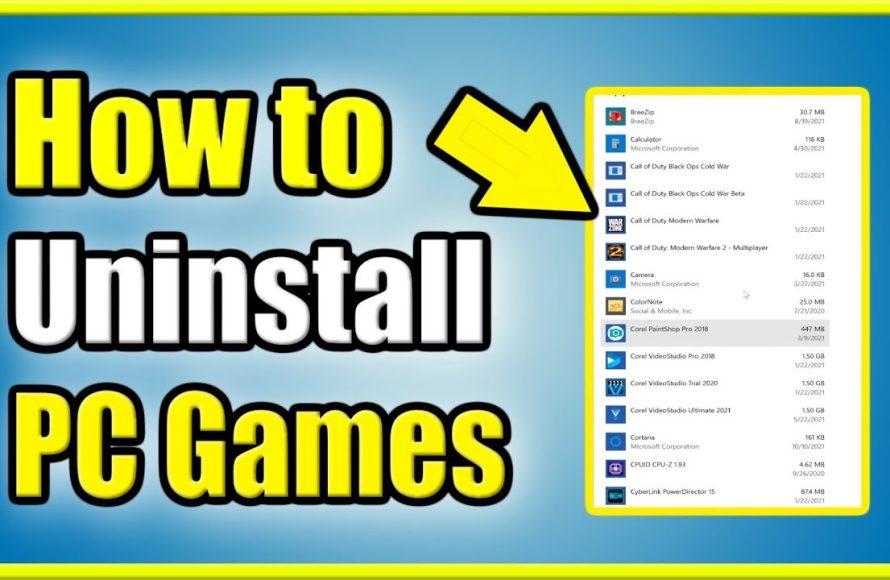
To delete games off PC, you typically use the operating system’s uninstall feature, found in Settings or Control Panel, or sometimes directly from the game’s launcher application.
Running out of space on your hard drive? Or maybe you’re just finished with a game and want to get rid of it. Whatever the reason, knowing how to delete games off PC is a useful skill. It’s simpler than you might think, and we’ll show you exactly how to do it. This process often involves utilizing the built-in tools of your operating system, ensuring the game is removed cleanly and efficiently.

How to Delete Games Off PC
So, your computer is getting full, and you’ve decided it’s time to say goodbye to some games. That’s totally normal! Maybe you’re not playing them anymore, or maybe you need space for new adventures. Deleting games off your PC isn’t hard, but there are different ways to do it depending on where you got the game. This guide will walk you through all the steps, making sure you free up that precious hard drive space safely and easily.
Deleting Games from the Start Menu
Sometimes, games put shortcuts in your Start Menu. If you want to delete the game, starting there is a pretty good place. Here’s how:
Steps for Deleting via Start Menu
- Click the Start button, usually found in the bottom-left corner of your screen.
- Look for the game you want to remove. You might have to scroll through the list.
- Right-click on the game’s name.
- In the menu that pops up, you should see an option like “Uninstall” or “More” then “Uninstall.” Click it.
- Follow the directions on screen. Usually a new window opens to confirm the removal.
This method will work for many games but not all. If you don’t see an uninstall option there, don’t worry; we’ll try other ways!
Using the Control Panel to Uninstall Games
The Control Panel is like the control center for your computer and a popular way to remove apps and games. Here’s how to uninstall games using this method:
Steps to Uninstall Games from Control Panel
- Click the Start button.
- Type “Control Panel” and click on the result.
- When the Control Panel window opens, look for “Programs” or “Programs and Features.” Click on it. (You might see “Uninstall a program” directly, click on it).
- A list of all your programs and games will show up. Find the game you want to get rid of.
- Click once on the game you wish to delete, then click the “Uninstall” or “Uninstall/Change” button at the top of the list.
- A new window will appear asking if you are sure about uninstalling. Follow the prompts to complete the process.
This method is good for most games you have downloaded and is one of the most common ways to remove them. If you still have trouble, don’t sweat it; we have more methods!
Uninstalling Games from the Settings App
Windows 10 and Windows 11 have a Settings app which offers an easier way to remove games and apps. Here is how to do it:
Steps to Uninstall Games from the Settings App
- Click the Start button.
- Click the little gear icon – it’s the Settings button.
- In the Settings window, click “Apps”.
- You’ll see a list of all your installed apps and games. Find the game you’re saying goodbye to.
- Click on the game’s name.
- You’ll see an “Uninstall” button. Click that, and a new window pops up.
- Follow the instructions, and you will remove the game.
This method is quick and easy, especially if you have a newer Windows computer. If you like to keep things simple, this method is for you.
Removing Games from Game Launchers (Steam, Epic, etc)
If you got your game through a platform like Steam, Epic Games, GOG, or the EA app, you’ll usually need to remove it directly through that launcher. Each launcher has its own way of doing things, but generally, the steps are very similar.
How to Remove Games from Steam
Steam is a very popular way to get games, here’s how to delete games from it:
- Open the Steam app and sign in if you aren’t already.
- Click on “Library” at the top.
- Find the game you want to remove in your list of games on the left.
- Right-click on the game’s name.
- In the menu, choose “Manage” then pick “Uninstall”.
- Steam will then remove the game from your computer.
How to Uninstall Games From the Epic Games Launcher
- Open the Epic Games Launcher and log in.
- Click “Library”.
- Find the game you want to uninstall.
- Click the three dots next to the game’s name.
- Choose “Uninstall”.
How to Uninstall Games from GOG Galaxy
- Open the GOG Galaxy application and sign in.
- Click on the “Owned games” or “Installed” section.
- Find the game you wish to uninstall.
- Click the “More” button (it usually looks like three dots) next to the game.
- Choose “Manage” and then select “Uninstall”.
How to Uninstall Games from the EA app
- Open the EA app and log in.
- Click on “My Collection”.
- Find the game that you want to remove.
- Click the three dots on the game tile.
- Select “Uninstall”.
Each game launcher has its own specific way of doing things, but the steps are generally the same: find the game in your library, click a menu, and choose the uninstall option. It’s usually that simple. If you have multiple launchers, you need to remove each game separately from the correct launcher.
Finding and Deleting Leftover Files
Sometimes, even after uninstalling a game, some files might still be left behind. These leftover files can take up space on your hard drive and might cause problems later. Let’s take a look at how to get rid of them:
What are Leftover Files?
Leftover files are basically little bits of the game that the uninstaller didn’t remove. This could include things like saved game data, configuration files, or other supporting files. They are often small but can accumulate over time. Deleting these is not necessary, but good for freeing up the space.
How to Find Leftover Files
Most leftover files are located in the following spots. You have to look for them:
- Documents Folder: Look in your Documents folder (usually found by clicking the “Documents” icon in File Explorer). Inside, you might find folders with the game’s name or the game developer’s name.
- AppData Folder: This folder contains hidden application data. To see it, open File Explorer, type %appdata% into the address bar, and press Enter. Look inside the “Local,” “LocalLow,” and “Roaming” folders for game-related files.
- Installation Directory: Go to the place where you first installed the game. The leftover files might be there. If you don’t remember where you installed it, check its shortcut on your desktop: Right-click the shortcut, choose “Properties”, and look at the “Target” field.
Deleting Leftover Files
- Be Careful: Only delete files from the locations above if you are sure they belong to the uninstalled game. If you are unsure, it’s better to leave them alone.
- Move to Recycle Bin: Drag the folders or files to the Recycle Bin. Or you can right-click on the folder and select “Delete.”
- Empty the Recycle Bin: Once you’ve moved the files to the Recycle Bin, remember to empty it! This actually removes them from your computer. Right-click on the Recycle Bin icon on your desktop, and choose “Empty Recycle Bin”.
Removing these leftover files can help clear up more space on your computer. Keep in mind, it is completely optional to remove these files, but a good practice.
Using Third-Party Uninstallers
If you’re having trouble uninstalling games using the methods above, or if you want a more thorough cleaning, you can use third-party uninstallers. These are programs designed to remove programs and games along with all their associated files. However, be careful which software you choose!
Examples of Third-Party Uninstallers
- Revo Uninstaller: This is a very popular uninstaller. It scans your computer for leftover files after you remove the main game and lets you delete those.
- IObit Uninstaller: This tool works similarly to Revo, finding and removing leftovers from programs and games.
- Geek Uninstaller: This lightweight tool scans for leftover files and makes removal easier.
How to Use a Third-Party Uninstaller
- Download and install the uninstaller you chose.
- Open the third-party uninstaller.
- A list of your installed programs and games will show up.
- Find the game you want to delete from the list.
- Click “Uninstall” or a similar button.
- The uninstaller will first remove the main game and then scan for leftover files.
- Follow the directions to remove any leftover files and clear up more space.
Remember, always be careful when downloading and using software, especially from the internet. Make sure the website you are getting the software from is safe and well known. A good way to know if the website is safe is to look for the lock symbol next to the website’s address in the address bar of the browser.
Tips for Managing Game Storage on Your PC
Here are a few tips to help you manage the games you have on your PC and prevent space issues in the future:
Use an External Hard Drive or SSD
If your computer is running out of storage space, consider getting an external hard drive or SSD to store some of your games. This lets you keep the games you love without filling up your main computer drive.
Uninstall Games You Don’t Play
Make it a regular habit to go through the list of installed games and get rid of games that you haven’t touched for a while. If you ever want to play them again, you can always reinstall them.
Check System Requirements
Before downloading a game, look at its system requirements. Make sure your computer can run the game well, and that you have enough storage space for the game.
Keep Windows Up to Date
Sometimes having an outdated Windows version can cause problems. Keep Windows updated so that your computer is working properly and able to perform tasks as you expect.
Use Storage Sense
Windows has a tool called Storage Sense which helps you manage your computer’s storage. It automatically deletes unneeded temporary files, and even lets you configure settings for clearing files regularly.
By following these tips, you can keep your computer’s storage under control, and you’ll have plenty of room for the games and other things you love!
Deleting games off your PC is easy if you know the right methods. Whether you do it from the Start Menu, the Control Panel, the Settings app, or a game launcher, taking the time to properly remove games and leftover files will help you keep your computer running smoothly. Remember to be careful when deleting files, and if you are unsure, get help from someone experienced.
How to Uninstall PC Game on Windows 10 & 11 (Save Space!)
Final Thoughts
To remove games, you can use the Windows settings or the game’s specific uninstaller. Locate the game in “Apps” then choose uninstall. Alternatively, find the uninstaller in the game’s folder.
Another way to manage space is via Steam, Epic, or other launchers. You will find an uninstall or remove option by right clicking the game in the library. Following these steps will help effectively free up space on your PC.
Knowing how to delete games off pc is crucial for maintaining storage. The multiple methods ensure you have flexibility in managing your system.

