
The reasons why your Sims game won’t open can range from outdated game files and conflicting mods to issues with your computer’s graphics drivers or insufficient system resources.
Frustration mounts when you’re ready for a Sims session, only to find the game refuses to launch. It’s a common problem, and many players ask, “why wont my sims game open?”. This can halt your gameplay plans quickly.
Don’t worry, you’re not alone. Several factors can prevent your game from starting. Identifying the cause is the first step to getting back into the world of Sims.

Why Won’t My Sims Game Open?
It’s super frustrating when you’re all set to dive into the Sims world, build amazing houses, and create unique characters, only to find your game won’t even start! You click the icon, maybe you see a quick flash, and then… nothing. Or maybe it loads halfway and then freezes. Don’t worry, you’re not alone! Lots of players have this problem, and there are many reasons why your Sims game might be refusing to cooperate. Let’s go through some of the most common culprits and what you can do to fix them.
Basic Checks: The First Line of Defense
Before we get into anything complicated, let’s do some quick checks. Sometimes, the fix is much simpler than you’d think.
Is Your Computer Up to the Task?
First, we need to make sure your computer can actually handle the game. Every Sims game has certain minimum requirements. These requirements are like rules for your computer – if it doesn’t meet them, the game might not open or might run very poorly. Here’s a general idea of things to check:
- Operating System: Is your computer using the correct version of Windows or macOS? Older systems might not be compatible.
- Processor: This is your computer’s brain. Does it meet the speed requirements for the game?
- Memory (RAM): This is like your computer’s short-term memory. More RAM allows your game to run more smoothly.
- Graphics Card: This handles all the visual parts of the game. If your card is too old or not powerful enough, the game can’t display things correctly.
- Hard Drive Space: Does your computer have enough space to store the game and its saved files?
You can usually find these minimum requirements on the game’s packaging or on the official website where you purchased it. Check the system requirements first.
The Simplest Fixes
Sometimes it’s the tiny things that cause the biggest headaches. Try these quick fixes:
- Restart your computer: A classic, but often very effective. Sometimes, just rebooting everything clears up a temporary glitch.
- Run as administrator: Right click on the Sims game icon and choose “Run as administrator”. This gives the game special permission to make changes to your computer that it might need to run properly.
- Close other programs: Having too many programs running at the same time can slow down your computer and prevent your game from opening. Try closing any programs you’re not using.
- Check for game updates: Make sure your game is updated to the latest version. Developers often release updates to fix problems and improve performance. You can check for updates in the game launcher or through your game platform (like Steam or Origin).
Dealing With Game Files and Installations
If the simple checks haven’t helped, the problem might lie within the game’s files or the way it was installed.
Corrupted Game Files: What Went Wrong?
Sometimes, the game files can get messed up, like if they didn’t download completely or if something interrupted the installation. This is called file corruption and can prevent your game from opening. Here’s what to do:
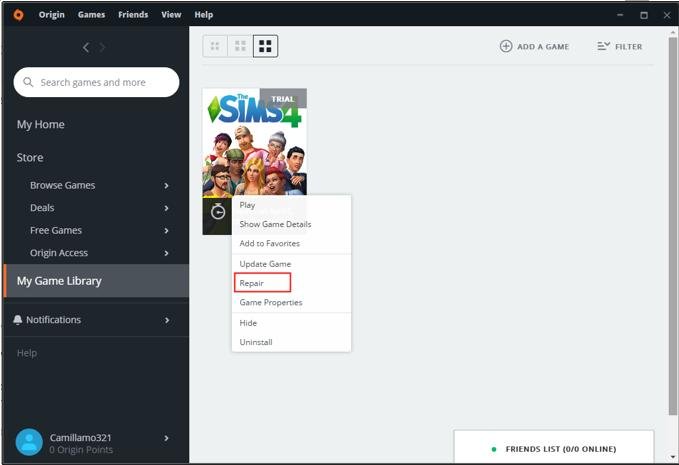
- Verify game files: Most game platforms, like Steam, Origin and the EA App, have an option to “verify” the game’s files. This process scans your game files and redownloads any that are damaged or missing. Look for the “verify integrity” or “repair” option in the settings for your game.
- Reinstall the game: If verifying doesn’t fix the issue, try uninstalling the game and then reinstalling it. Sometimes, starting over from scratch is the best option.
- Antivirus interference: Sometimes, antivirus software can wrongly identify parts of your game as a threat. This can prevent the game from opening. If this is happening try adding your game folder to the exceptions in your antivirus software.
Installation Issues
If the installation itself went wrong, your game might not work correctly. This could be due to a problem with the download, installation, or your hard drive.
- Check your hard drive: Sometimes a hard drive with problems can lead to installation issues. Your hard drive should have plenty of space to install the game, and it should not have any physical issues (if it is an old hard drive).
- Run installer as an admin: When you are installing a new game, be sure to right click and “Run as Administrator”.
- Pause or Disable antivirus: Try to pause your antivirus protection during install. Sometimes an antivirus software can interfere with a new installation of a game.
- Check your connection: Sometimes if your internet connection is spotty it can cause the installation to fail and result in your game being unplayable. Be sure to use a reliable internet connection when installing games.
Problems With Mods and Custom Content
Mods and custom content can add a lot of fun to your Sims game, but they can also be the source of many problems.
Conflicts and Outdated Mods
Mods are created by players and sometimes they clash with the game itself or with other mods. If you are using a lot of mods try disabling some to see if this solves the issue.
- Disable all mods: The easiest way to test if mods are the problem is to temporarily disable them all. If the game works after disabling them, then you know the problem lies with one of your mods.
- Update or Remove Outdated Mods: If a mod is out of date or is not compatible with your version of the game, it can prevent the game from starting. Check with the mod creator for updates or remove the mod altogether.
- Look for mod conflicts: Some mods may not work well together. You may need to do some testing to see which mods are conflicting.
- Test mods in small groups: Instead of disabling all at once, try only disabling a small group of mods at a time. This will make it easier to determine which mod is causing issues.
Custom Content Issues
Custom content, like custom clothing, furniture or even houses can also sometimes cause your game to crash. Try removing your custom content.
- Remove Custom Content: If your game was working before you added custom content try removing this custom content to see if it helps.
- Test individual files: If your game was not working and then you have added new custom content, then you may want to remove your custom content in batches. Sometimes a specific file will be the reason the game is not working.
Driver Issues and Graphics Card Problems
Your graphics card is crucial for your Sims game. If the drivers (the software that helps your computer talk to the graphics card) are old or have problems, it can stop your game from opening.
Updating Graphics Drivers
Your graphics drivers are what allows your computer to send information to your graphics card. If these drivers are outdated you can often have issues.
- Check for updates: Most graphics card makers like AMD, Intel and NVIDIA have tools that will check for driver updates. Be sure to download the correct drivers.
- Download from official website: Try to download your drivers directly from the graphics card maker’s website. Be sure to download the correct driver for your graphics card.
- Restart after updating: Be sure to reboot your computer after you have updated the graphics drivers.
Graphics Card Conflicts
Sometimes your graphics card might not be compatible or may not be capable of running your game. This can happen even if you meet the minimum requirements.
- Test with lower settings: Try running the game with the lowest graphics settings to see if this helps. If the game opens try increasing the graphics slowly until you find the highest setting your computer can manage.
- Check minimum requirements: Be sure to review the minimum requirements of your game to be sure that your graphics card can play the game.
Other Potential Problems
Sometimes the problem might not fit neatly into one of the above categories. Let’s consider a few other possibilities.
Operating System Issues
Sometimes your operating system might have a problem that is preventing your game from opening. Here’s a few things to look into:
- OS updates: Be sure to install the latest updates for your operating system. These updates often contain fixes for known bugs, and other issues.
- Check compatibility: Be sure that your operating system is compatible with your version of the Sims game. Sometimes older operating systems are no longer compatible with newer game versions.
Third-Party Software Conflicts
Sometimes other software on your computer can interfere with the Sims.
- Game capture software: Sometimes game capture software can interfere with the game running correctly. Try closing this software when you are playing.
- Overlays: Some software and programs that have overlays can sometimes interfere with the game. Try closing these down when you play.
Game Launcher Problems
The game launcher for the EA games can sometimes have issues and may need to be troubleshot.
- Clear EA app cache: Try clearing the cache in the EA app. This can often correct a problem with the EA app.
- Reinstall EA app: If clearing the cache didn’t fix the problem, try reinstalling the EA app. Be sure to uninstall and then install the app fresh.
Hopefully, by trying these troubleshooting steps you will have fixed the issue with your game, and you can start playing again.
The ONLY FIX for EA app & Sims 4 NOT launching/loading games (100% WORKS)
Final Thoughts
In short, several issues could prevent your Sims game from launching. Outdated game files, incompatible mods, or damaged game installations are common culprits. Make sure your computer meets the game’s requirements.
Conflicting software or corrupt game caches can also cause problems. Troubleshooting often involves updating drivers, removing mods, and repairing the game files. If your game still refuses to open, “why wont my sims game open” becomes a must investigate.

