
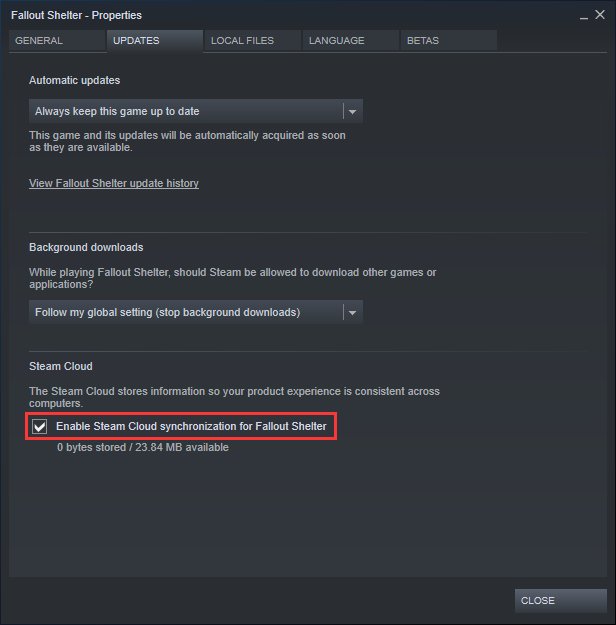
To delete Steam cloud data for a game, you must disable cloud saves for the specific game in Steam’s settings, then potentially delete local save files manually.
Ever felt like your game’s progress is stuck in the cloud? Perhaps you want a fresh start or are troubleshooting save issues. Understanding how to delete Steam cloud data for a game becomes quite important in these situations. This process might seem tricky initially, but we’ll break it down into simple steps.
You can manage game saves and disable cloud synchronization directly within the Steam platform. We’ll cover how to do this safely, ensuring your local progress remains accessible if that’s your desire.

How to Delete Steam Cloud Data for a Game
Ever played a game and thought, “I wish I could start fresh?” Maybe your save file got messed up, or you want to try a new strategy from the very beginning. That’s where Steam Cloud comes in. It’s a really helpful tool that keeps your game progress safe online. It’s like a backup for your games, but sometimes, you might want to say goodbye to that backed-up data and start over. That’s what we’re going to explore today—how to remove your Steam Cloud data for a specific game. It’s not very hard once you know how, and we’ll walk you through every step.
Understanding Steam Cloud and Game Saves
Before we jump into deleting data, it’s good to know a little bit about what Steam Cloud actually does. Think of it like a special piggy bank just for your game saves. When you play a game that uses Steam Cloud, your game progress, settings, and other important stuff are automatically saved to Steam’s servers, which are like big computers somewhere else. This way, you can play your game on any computer and pick up right where you left off. It’s super handy if you switch between your desktop and laptop. This synchronization happens in the background automatically whenever you play, it keeps the save files updated.
Why Would You Want to Delete Steam Cloud Data?
You might wonder, “Why would anyone want to delete this helpful backup?”. Well, there are a few reasons:
- Corrupted Save Files: Sometimes, a save file can get damaged, and the game might not work right. If the bad save is also on the Cloud, it can keep messing things up.
- Starting Over: You may want to start a game from the very beginning, without any of your old progress. Deleting the Cloud data lets you do this.
- Testing Purposes: Some players like to test new game features or strategies, and they want to ensure they’re doing so with a clean slate.
- Issues with Synchronization: Sometimes, the Cloud saves can conflict with your local saves. Deleting the Cloud data might resolve such issues.
- Achievements Reset: While not a direct method, deleting saved data can potentially help in situations where players wish to re-earn achievements. Please note, this method does not guarantee it will work for all achievements and all games, and Steam’s Achievement system is designed to prevent such manipulation.
These are just a few scenarios where you might need to remove Steam Cloud saves, and knowing how to handle this situation is key for having a good gaming experience.
Methods for Deleting Steam Cloud Data
Okay, now let’s get to the good part. There are a few ways you can delete your Steam Cloud data for a game. Some are more straightforward than others, and some might work better depending on the game. We’ll go through each method step by step.
Method 1: Disabling Steam Cloud for a Specific Game
This is the most common method, and it’s usually enough to solve most issues. You’re not actually deleting the data right away, but this stops Steam from syncing the game, and you can then delete the local save files if you need to.
- Open Steam: Start by opening the Steam application on your computer.
- Go to Library: Click on “Library” at the top of the Steam window to see all your games.
- Find Your Game: Find the game you want to stop syncing with Steam Cloud in your list. You can use the search bar if you have a lot of games.
- Right-Click and Select Properties: Right-click on the game and choose “Properties” from the menu that appears.
- Navigate to General Tab: In the Properties window, make sure the “General” tab is selected. This should be the first tab you see.
- Uncheck “Keep games saves in the Steam Cloud”: Look for the box that says “Keep games saves in the Steam Cloud”. It will be in the middle to the bottom portion of the window. Click the box to uncheck it. This will turn off the Steam Cloud for this specific game.
- Close the Properties Window: Now, you can close the properties window. This setting is automatically saved.
Now that you’ve disabled Steam Cloud for your game, it won’t sync with the online saves anymore. If you just wanted to stop the Cloud sync, you’re done! But if you also need to delete the actual save files, then read on.
Method 2: Deleting Local Save Files
After disabling the Steam Cloud for a game, you might also want to delete the local save files that are stored on your computer. This is especially useful if your save files were corrupted or if you really want to start fresh. Here’s how you can do that:
Finding Your Game’s Save Files
The tricky part here is that different games store save files in different places. Some save them in the game’s folder, others in a special folder within your user account, and so on. Here are a few common places to look:
- My Documents: Many games store save files inside a folder named after the game title, often found in the “My Documents” or “Documents” folder.
- AppData Folder: Some games store saves in the “AppData” folder. This is a hidden folder, so you may need to make it visible to see it. Here’s how:
- For Windows: Open File Explorer, click on the “View” tab, and then check the box that says “Hidden items”.
- For MacOS: Open Finder, and press Command+Shift+Period (.) key to show/hide hidden folders, or click “Go” menu and select “Go to Folder…” then type “~/Library”.
Once you made the hidden folders visible, look in these folders within AppData:
- Local: Inside AppData, look for “Local” or “LocalLow” folders and search for your game’s folder.
- Roaming: In AppData you might also find game’s data inside “Roaming” folder.
- Steam Game Installation Folder: Sometimes games will store their save files in the install location where you have the game installed, look in the install folder for specific save game folders.
For example, on Windows, you might find the save files path like this:
C:\Users\[YourUsername]\Documents\My Games\[GameName]
Or:
C:\Users\[YourUsername]\AppData\Local\[GameName]
Keep in mind that [YourUsername] is the name of your user account on your PC, and [GameName] is the title of the game.
Tip: If you are unsure where your specific game stores its save files, search online using terms like “[Game Name] save file location” or “[Game Name] save data folder”.
Deleting Save Files
Once you have found the save file location, deleting save files is simple:
- Open the Save File Folder: Open the location that you found in the previous step.
- Select the Save Files: Select the save files you want to delete by either dragging a box around them or using Ctrl+A to select all the save files.
- Press Delete: Press the “Delete” key on your keyboard or right-click on the selected files and choose “Delete”.
- Empty Recycle Bin (Windows): If you are on a Windows PC and want to make sure the files are completely removed, empty your recycle bin.
- Empty Trash (macOS): If you are on a macOS, remember to empty the trash.
Once done, these save files will be gone from your computer. If you start a new game, it will begin with no prior progress.
Method 3: Using Steam’s Built-in Deletion Option (If Available)
Some games offer a way to reset your save data within the game’s settings menu. This method is simpler because you don’t have to hunt for save files. Not all games have this feature, but it’s always worth checking for.
How to Use in-Game Deletion
- Launch the Game: Open the game using Steam.
- Go to Settings or Options: Look for “Settings,” “Options,” or a similar menu option from the main menu.
- Look for Reset or Delete Option: Look around in the settings menu, specifically in the game save settings or game progress section, for options like “Delete Save Data,” “Reset Progress,” or “New Game.”
Note: Sometimes, game developers include this reset feature within the game’s main menu or a separate character selection screen, rather than in the settings. - Confirm the Action: If you find such an option, select it and confirm that you want to delete the data. Some games may ask you to confirm this multiple times, as it’s a permanent action.
- Close and Re-Launch: After resetting the data, it’s a good idea to close the game and relaunch it for the new settings to take effect.
If you find this in-game deletion option, you don’t need to worry about other steps, such as disabling Steam Cloud or finding specific folders. It’s a convenient way to reset your game progress directly from the game itself.
Method 4: Using Steam’s Cloud Manager (Advanced Method)
Steam also has a Cloud Manager that provides a more in-depth way to see and possibly remove your saves. Note that this method does not directly allow you to delete saves, but it does provide more details about when a save file was last updated, and for troubleshooting purposes, it can be handy to look at.
Accessing Steam Cloud Manager
- Open Steam: Make sure your Steam client is open and you’re logged in to your Steam account.
- Go to View Menu: Click the “View” option from the top menu bar within Steam.
- Select “Steam Cloud”: From the dropdown menu, select the “Steam Cloud” option.
Viewing Cloud Save Details
This opens a window that will show you detailed information for your Steam Cloud saves. In the list, find your game and click on it. You’ll see details like the date/time the save was last modified, and what save files are there. This can provide more information about your save data.
Note: This screen does not allow direct deletion of Steam cloud save files but helps to understand cloud saves, so you can choose which one to remove from your local storage by using the method two.
Important Notes
Before deleting any Steam Cloud data, please keep in mind the following:
- Data Loss: Deleting game saves is a permanent action. You won’t be able to get them back. Be sure you really want to start from scratch before deleting any save files.
- Backup: If you’re unsure about deleting your saves, you can back them up first. Just copy the save file folders to another location on your computer, so you can restore them if you change your mind.
- Game-Specific Differences: Remember that games handle saves differently. Some games might not support Steam Cloud, or they might store save files in unique locations. Always research if you cannot easily find them.
- Steam Cloud Status: After disabling the Steam Cloud for a game, it will not sync any new progress you make. If you want to use Steam Cloud again later, you’ll need to enable it using Method 1.
- Conflicting Data: If you have a copy of a game from other sources, Steam might not recognize the game saves from different sources. Deleting or disabling Steam Cloud in such scenarios could be helpful to ensure proper game save recognition.
Deleting Steam Cloud data for a game can feel a little tricky at first, but once you know the different methods, it’s quite simple. Whether you’re dealing with a corrupted save or just want to experience a fresh start, now you have several ways to clear those old game saves and enjoy gaming again.
The process of deleting Steam Cloud data might seem complex at first, but it is a straight forward process once you get the gist of it. Whether you’re dealing with corrupted save files, trying out a new game strategy from a clean slate, or facing synchronization issues, these steps should help you manage your game data more effectively. Always be cautious when deleting game saves and create a back up if needed, and you should enjoy the game your way.
How To Delete Game Saves from Steam Cloud – Guide
Final Thoughts
To delete Steam Cloud data for a game, disable cloud saves in Steam settings. Then, find the game’s save folder and delete files. If that doesn’t work, try using the Steam console command. Remember these steps for how to delete steam cloud data for a game.
Remember you might lose your game progress by doing this. It’s crucial to proceed carefully. Test to ensure cloud saving is off, before deleting game data.

