
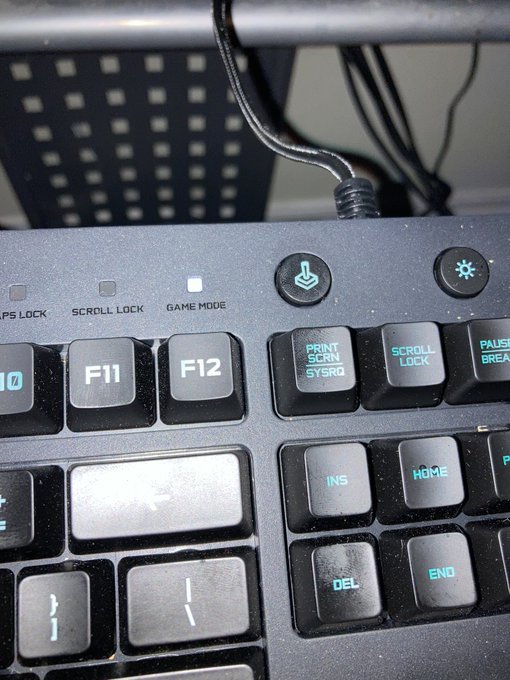
To disable keyboard on games PC, you can use the Device Manager to disable the keyboard device. Alternatively, some third-party applications also offer keyboard disabling functionality.
Ever accidentally hit the wrong key mid-game, ruining a perfect combo? It’s frustrating, and you’re not alone. Many gamers search for solutions on how to disable keyboard on games pc for just that reason. We’ll explore practical ways to prevent such mishaps.
This article guides you through the process, explaining a couple of straightforward methods. You can easily stop keyboard input.

How to Disable Keyboard on Games PC
Sometimes, when you’re really into a game, you might accidentally hit a key on your keyboard and mess everything up! Maybe you have a pet that likes to walk across your keyboard, or perhaps you’re using a gamepad and don’t need the keyboard at all. Whatever the reason, knowing how to disable your keyboard can be a super helpful skill for any gamer. This article will guide you through different ways to stop your keyboard from interfering with your game on your Windows PC, so you can focus on the fun. We’ll cover everything from simple built-in Windows settings to more advanced tools for a complete gaming keyboard lockdown.
Why Disable Your Keyboard While Gaming?
Before we jump into the “how,” let’s talk about the “why.” There are several reasons why you might want to disable your keyboard temporarily when you’re playing games:
- Accidental Inputs: You might accidentally press a key while you are in an intense gaming session. This can cause you to pause, minimize the game, or even perform an unwanted action within the game itself. Disabling the keyboard can stop these accidental hiccups.
- Pet Interference: Cats and other pets can sometimes find your keyboard an interesting place to explore. A simple walk across the keys can interrupt your gameplay. It can also change your game settings by messing up the keybindings.
- Using a Gamepad: When you are using a gamepad (like an Xbox or PlayStation controller), your keyboard becomes unnecessary. Disabling it helps avoid accidental button presses and keeps things clean.
- Kids or Little Siblings: If you have younger siblings or kids who like to play with keyboards, disabling the keyboard prevents them from messing with your game while you’re in the middle of something.
- Cleanliness: When you are just watching a show or not using your computer, disabling the keyboard can keep dust and debris out by removing the need for you to touch the keys.
Simple Methods: Using Built-In Windows Settings
Windows provides some quick and straightforward options to disable the keyboard. These methods are easy to use and don’t require installing any extra software.
Device Manager
The Device Manager lets you manage all hardware connected to your computer, including the keyboard. Here’s how to use it to disable your keyboard:
- Right Click the Start Button: Click on the Windows Start Button using the right mouse button. This will open a context menu.
- Select Device Manager: Choose ‘Device Manager’ from the context menu. A new window will pop up.
- Locate the Keyboards: Find the ‘Keyboards’ category and click on the arrow next to it to expand the list. You might see multiple entries like “HID Keyboard Device” or the name of your specific keyboard.
- Disable the Keyboard: Right-click the keyboard you want to disable (most likely your main keyboard) and select ‘Disable device’. You might be asked to confirm your choice; click ‘Yes’ or ‘OK’.
Now your keyboard should be disabled. To enable it again, simply follow the same steps but choose ‘Enable device’ instead of ‘Disable device’. Remember, this method disables your keyboard completely, meaning you won’t be able to type until you re-enable it.
Troubleshooting Device Manager Method
If you have trouble with this method, like the keyboard not showing up or being unresponsive to enable or disable commands, try these steps:
- Restart the computer: Sometimes, the device manager needs a fresh start to recognize changes you make.
- Scan for hardware changes: In device manager, you can go to the ‘Action’ menu and choose ‘Scan for hardware changes.’ This makes the device manager refresh and show any hardware changes.
- Check keyboard cable/connection: If your keyboard is wired, make sure that it is plugged in well. If it’s wireless, make sure it’s connected properly and batteries are good.
More Advanced Techniques
If the simple methods are not enough, there are more advanced methods that can provide a more customizable way to disable the keyboard.
Using Third-Party Software
Several third-party software programs can disable your keyboard with more precision. These tools often come with extra features like disabling only specific keys or creating different keyboard profiles. Here are a few examples:
- KeyFreeze: This free and simple program is specifically designed to lock your keyboard and mouse. It’s very easy to use, with a single click you can disable your keyboard and mouse.
- Simple Disable Key: This software is easy to use, allowing you to disable specific keys rather than the entire keyboard. It is particularly useful for games where specific keys trigger unexpected actions.
- Kid Key Lock: While it is designed to protect kids from messing with the computer, you can use Kid Key Lock for any purpose you want. It allows you to set up rules to disable the keyboard completely or just some keys.
How to use Third Party Software
The exact steps of using the software will be different, depending on the specific software you pick, but the general process is the same.
- Download Software: Select the software from the list that you think is best. Then, go to their official site and download it.
- Install Software: After the download is done, follow the instructions to install the software. This will be an easy process.
- Start the software: After installing, open the program. You’ll usually see a simple interface where you can choose to disable the keyboard and/or certain keys.
- Configure it: Follow the instructions of the software. Some programs have options to disable the whole keyboard or only some keys.
- Test it: After you configured the settings, check the keyboard settings and make sure it’s working as you want it.
Using AutoHotkey Scripts
AutoHotkey is a powerful scripting language for Windows that lets you automate tasks. You can use it to create a script to disable your keyboard or individual keys. While this method is a bit more advanced, it offers excellent customization.
How to create a script using AutoHotkey
Here is how to create a script to disable your keyboard:
- Download and Install AutoHotkey: Go to the official AutoHotkey website and download the software. Follow the instructions to install it.
- Create a new script file: Right-click on your desktop or in a folder and select ‘New’ -> ‘AutoHotkey Script’. Name it something like ‘disable_keyboard.ahk’.
- Open the script file in a text editor: Right-click on the new .ahk file and select ‘Edit’ or ‘Open with’ -> ‘Notepad’.
- Add the script code: Type this script into the text editor:
; Disable all keyboard input #Persistent Keyboard_Is_Disabled := 0 LWin:: if (Keyboard_Is_Disabled = 0) { Keyboard_Is_Disabled := 1 SendInput, {Blind}{Text}Keyboard Disabled } else { Keyboard_Is_Disabled := 0 SendInput, {Blind}{Text}Keyboard Enabled } return #If Keyboard_Is_Disabled ::return #If - Save the file: Save the text file and make sure it is saved as .ahk file.
- Run the Script: Double-click the .ahk file to run it. A small ‘H’ icon will appear in the system tray.
- Toggle Keyboard Disable: Press the left windows key to toggle the keyboard on and off. A message box will appear saying whether the keyboard is disabled or enabled.
This script uses the left window key to toggle the keyboard disable. You can modify the script to disable a specific key by changing the script. For example, to disable the ‘A’ key, you would add these lines into the script:
 ; Disable the 'A' key
    a::
    return
After this, whenever you press the ‘A’ key, nothing will happen. You can also customize this script to disable multiple keys or combine them. Remember that you can change the hotkey you use to turn on and off the keyboard by changing the LWin:: line to another key.
Using Batch Files (Advanced)
For a more technical approach, you can use a batch file to disable the keyboard using a command-line tool. This method involves using the ‘devcon’ tool, which is a command-line device manager.
Steps for using batch file
This method is a bit more complicated, but here’s how to do it:
- Download Devcon: First, you need to download the Devcon tool from the official Microsoft website. You will have to download the correct version depending on your Windows version. The easiest way to download it is by searching “Microsoft Devcon download” on your web browser.
- Extract Devcon: The downloaded file will be a zip file. Extract it to a folder on your computer. The location doesn’t matter, but make sure you remember it.
- Open a text editor: Open a text editor like notepad.
- Create Batch file: Copy and paste these lines into the text editor:
@echo off title Disable Keyboard Script echo. echo Select an option: echo. echo 1. Disable Keyboard echo 2. Enable Keyboard echo. set /p choice="Enter your choice: " echo. if %choice%==1 ( echo Disabling Keyboard... start "" "pathto\devcon.exe" disable HID\VID ) else if %choice%==2 ( echo Enabling Keyboard... start "" "pathto\devcon.exe" enable HID\VID ) else ( echo Invalid option. ) pause - Modify the Code: Change “pathto” to the path to the folder where you extracted devcon. For example, If you extracted it to the downloads folder, your code would look like this:
start "" "C:\Users\YourUsername\Downloads\devcon.exe" disable HID\VID - Save Batch File: Save the text file as a .bat file. Make sure to select “all files” when saving it.
- Run the Batch File: Run the batch file by double clicking it. It will open a command prompt where you can select 1 or 2 to disable or enable the keyboard.
The advantage of the batch file is that it is simple, and the code only requires one line to disable the keyboard. It also lets you easily turn the keyboard back on by pressing the second option. However, this is one of the most complex methods and is recommended for more tech savvy people.
Choosing the Right Method
The best method for disabling your keyboard depends on your needs and technical expertise:
- Beginners: Start with the Device Manager method. It’s simple, built into Windows, and doesn’t require any extra software.
- Simple Temporary Solution: For a simple on/off switch for keyboard and mouse, KeyFreeze can be a good choice.
- Customization: If you want to disable specific keys, try Simple Disable Key or create an AutoHotkey script for more control.
- Advanced users: If you are comfortable with commands and have to use it on the fly often, batch files can be a good solution.
By using these methods, you will be able to disable the keyboard while playing your games. Whether you choose simple Windows settings, third-party software, or advanced scripting, you can find the perfect solution to keep those accidental keyboard presses at bay and stay focused on your gameplay.
With these techniques, you can prevent accidents, keep your games clean, and focus on enjoying the game without keyboard issues. It’s a simple skill that can have a big impact on your gaming experience.
How to enable and disable Win Lock
Final Thoughts
To disable your keyboard during PC gaming, you can use third-party software or device manager. Many programs provide the ability to selectively disable input devices, which is helpful. Remember to enable your keyboard again afterward so you can navigate your computer.
Disabling through the device manager is also possible. This method requires a few more steps but achieves the same result. Select your keyboard, and disable it. Remember this change will affect the whole system.
In short, there are simple ways for how to disable keyboard on games pc. Choose the method that best suits your needs and enjoy gaming without accidental key presses. Make sure to re-enable it afterward.

