
To disconnect a game from Game Center, you must go into your device’s Settings, find ‘Game Center’, tap on your Apple ID, and then sign out.
Ever wondered how to disconnect a game from Game Center? Sometimes you want to manage your game data or start fresh, and understanding how to do this is key. It’s a simple process, but it can be a bit hidden within your device’s settings. We will guide you through the steps to unlink a game.
This process allows you to regain control of your gaming experience and privacy. We’ll show you where to find the relevant settings and how to properly sign out to stop games from being linked to your account.

How to Disconnect a Game from Game Center
Have you ever played a game on your iPhone or iPad and noticed it’s connected to Game Center? Game Center is Apple’s social gaming network, and it lets you track your scores, compete with friends, and earn achievements. While it’s fun, sometimes you might want to disconnect a game from Game Center. Maybe you want to start fresh, or perhaps you’re sharing your device with someone else. Whatever your reason, this article will guide you through the steps of disconnecting a game from Game Center, step by step.
Understanding Game Center and Its Connections
Before we dive into the how-to, let’s quickly understand how Game Center works. When you play a game for the first time, it often asks if you want to connect to Game Center. If you agree, your game progress, scores, and achievements are linked to your Apple ID through Game Center. This means your gaming data follows you on all your Apple devices where you’re logged in with the same Apple ID.
Why Disconnecting Might Be Necessary
There are several valid reasons why you might want to disconnect a game from Game Center. Here are a few common situations:
- Starting Over: You might want to completely reset your progress in a game and start from scratch. Disconnecting from Game Center can help with this, as it stops the game from automatically loading your previous data.
- Privacy Concerns: Perhaps you want to keep your gaming habits private or want to prevent sharing your game progress with others. Disconnecting a game prevents your scores from being seen by others.
- Sharing Devices: If you are sharing an iPad or iPhone with a sibling or a friend, they might not want to use your account and its linked game progress. Disconnecting allows them to start their own accounts.
- Troubleshooting Issues: Sometimes, game data might get corrupted or cause conflicts. Disconnecting and reconnecting might help fix some of these problems.
The Primary Method: Disconnecting Through Game Settings
Many games provide a direct way to disconnect from Game Center within their settings. This is usually the easiest and most recommended approach. Here’s how to check:
Steps to Disconnect Within the Game:
- Open the Game: Launch the game you want to disconnect from Game Center.
- Find the Settings: Look for a settings menu. It’s often represented by a gear icon, three dots, or a wrench. The settings can also be hidden in the in-game menu.
- Look for Game Center Options: Once in the settings menu, look for something related to Game Center. This could be labeled as “Game Center,” “Achievements,” “Leaderboards,” or it might have the Game Center icon (a colorful, abstract head).
- Disconnect Option: If available, you should see an option to disconnect from Game Center. It might say “Sign Out,” “Disable Game Center,” or something similar. Click this option.
- Confirm Your Choice: The game might ask you to confirm your choice. Follow the on-screen instructions.
- Restart the Game: In some situations, the changes might take effect only after you close and reopen the game.
Important Notes:
- Not all games offer this feature. If you cannot find a Game Center option in the settings, move on to the alternative methods below.
- Disconnecting in-game might not always completely remove your Game Center data. It might only stop further syncing and the option to connect again is available, when you restart the game.
Alternative Method: Disconnecting Through Apple ID Settings
If a game does not have an in-game disconnect option, you need to go through your Apple ID settings to disconnect from Game Center. This approach is more involved but is a universal method that applies to all games linked with Game Center.
Steps to Disconnect Through Apple ID Settings:
- Open the Settings App: Find the gray gear icon on your iPhone or iPad home screen and open it.
- Tap on Your Apple ID: At the very top, you’ll see your name and Apple ID. Tap on it.
- Go to Game Center: Scroll down the menu until you find the “Game Center” option, and tap on it.
- Disable Game Center (Globally): The simplest way to ensure no game is connected is to toggle the “Game Center” switch at the top of the screen to off (grey). This means Game Center is disabled on your device. However, this also prevents all other apps from using Game Center until you enable it again.
- Disconnect Individual Games: If you would not like to disable Game Center globally but just for some specific games, then scroll down this Game Center menu to see the list of games. You will see your profile picture or initials, and below that, a heading “GAME CENTER GAMES”. Under that heading you will see all the games currently connected to Game Center. Tap on a game you want to disconnect.
- Game Center App Settings: You can see that the game is connected with Game Center in the “ACCOUNT” section. At the bottom, there are options like ‘Disconnect from Game Center’, which may vary with the app. If there is an option to “Disconnect from Game Center” then tap on it.
- Confirm and Exit: If it prompts you, confirm that you want to disconnect this game. After that, go back to the general Game Center menu.
- Repeat for Other Games: Repeat the last steps for all the other games you wish to disconnect.
Important Notes:
- Disabling Game Center globally will affect all games that use the service, so only use this option if that is intended.
- Disconnecting through the settings app means that game progress, achievements, and leaderboard data will no longer be synced with your Apple ID and Game Center in that game you disconnected.
- Your game progress is still available locally on the device, unless you delete the game from device.
Managing Game Center Data
Disconnecting a game from Game Center prevents future syncing of data, but what about the game progress already saved? Here are some things to note:
Understanding Saved Game Data
- Local Game Data: Game progress is usually stored both locally on your device and in Game Center. Disconnecting from Game Center doesn’t usually erase your local save data.
- Cloud Game Data: Data already stored in Game Center is still linked to your Apple ID and might re-sync if you re-connect the game later on.
- Starting Fresh: If you wish to really delete any traces of a game’s data, including local data, deleting the app from your device is generally required.
Steps to Completely Delete Game Data
If you want to delete everything, including local data, then follow the steps below:
- Disconnect from Game Center: Follow the instructions mentioned above in previous sections to disconnect the game from Game Center.
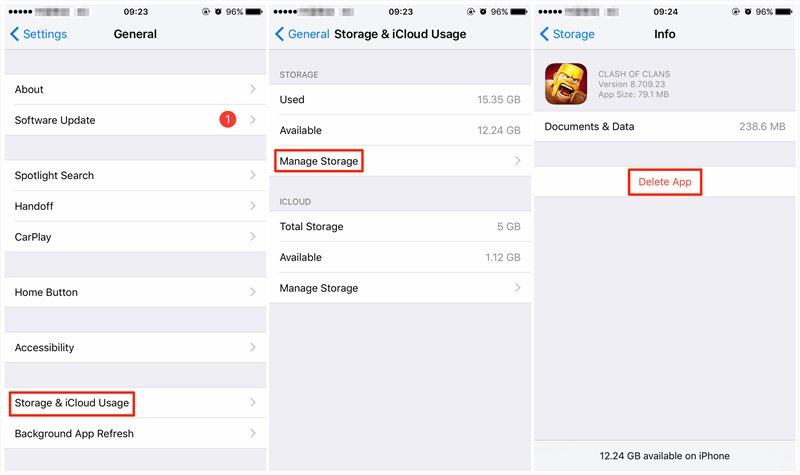
- Delete the Game: Go back to your home screen and find the game you wish to delete. Long press on the game’s icon until a menu pops up and select “Delete App”. If you are prompted with the option, you can also confirm deleting. This removes the game and its local data from your device.
- Reinstall the Game (Optional): If you want to play the game again, go to the App Store and download the game again. When you launch it, it will be like the first time you opened the game. Now the game is not connected to your existing game data.
Troubleshooting Common Issues
Sometimes, disconnecting from Game Center may not work as expected. Here are some common issues and how to solve them:
Common Problems and Solutions
- Game Reconnects Automatically: Some games automatically re-connect to Game Center when you open them. If this happens, try restarting your device and ensure Game Center is turned off in the Settings app before relaunching the game.
- Game Progress Not Resetting: If you still see your old progress after disconnecting, ensure you’ve also deleted the local data of the game as described in the previous section.
- Settings Not Working: If you cannot find the mentioned settings within your device or within the app, update your device to the latest version of iOS or iPadOS. An outdated operating system can cause problems, and some features might not be available.
- Game Center Not Disconnecting: If you’ve tried disconnecting through both the game settings and your Apple ID settings, and the game is still connected, reach out to the game developer’s support team for help. There may be a unique issue on that specific game, or with your Apple ID.
Important Considerations
Before you disconnect a game, there are a few important points to remember:
Things to Keep in Mind
- Data Loss: If you disconnect and then delete the game, your saved game data is usually permanently gone. Ensure that you really want to get rid of your saved data before you take the steps to disconnect and delete.
- Reconnecting: If you reconnect the same game to Game Center again later on, your previous game data might sync back to the device. Make sure you want to go back to that previous progress before reconnecting.
- Developer Differences: Keep in mind that the settings and way of disconnecting from Game Center can vary from game to game.
- Apple ID Settings: Ensure you know your Apple ID login credentials before making changes in your settings, so you don’t get logged out of other services linked with your Apple ID.
Disconnecting a game from Game Center can be useful for various reasons, from wanting to start over to keeping your gaming data private. The steps to disconnect are usually simple, but it’s useful to understand the ways to do it. If the game allows it, you can disconnect directly from the game’s settings, but there is also an option to disconnect from your Apple ID settings. If you follow the steps explained in this guide, you should be able to remove a game from Game Center. Remember to consider the implications of disconnecting the game from Game Center before making the final decision.
How to unlink Games / apps with Game Center
Final Thoughts
To disconnect a game from Game Center, you must navigate to your device’s settings. Locate the Game Center option there. You will then find a list of your connected games.
Select the specific game you want to disconnect. Then, find the option to remove or disconnect the account and press it. This process effectively severs the link, ensuring the game no longer uses your Game Center data. Now, you know how to disconnect a game from Game Center.

