
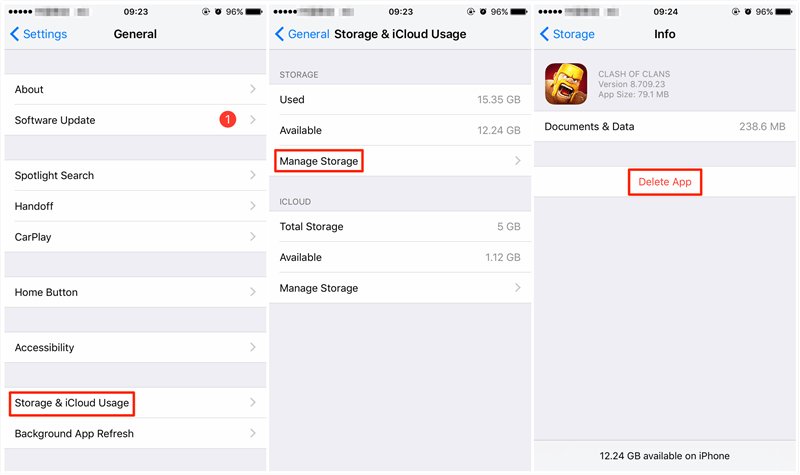
Deleting games from Game Center requires removing the game’s data through the specific game itself, as Game Center doesn’t directly let you delete games.
Ever felt overwhelmed by the clutter in your Game Center? It happens, especially when you try out different games and then find that your list is just too long. You might be wondering how to delete games from game center, and thankfully, there’s a way to manage this, even if it is indirect. This isn’t something Game Center allows you to directly do, but don’t worry it is a simple process within the game itself.
Essentially, you will need to clear the game’s individual data. This process varies slightly depending on the game you are trying to remove. This will remove its record in your game center account.

How to Delete Games from Game Center
Have you ever looked at your Game Center and thought, “Wow, there are a lot of games I don’t even play anymore!” It’s like having a toy box overflowing with forgotten treasures. But unlike a real toy box, you can’t just toss them in a corner. Game Center keeps track of your game achievements and progress, even if you haven’t touched the game in ages. That can sometimes feel a bit cluttered, and you might be wondering how to clean things up. Well, you’ve come to the right place! This guide will show you exactly how to delete those unwanted games from your Game Center, so you can keep your gaming world nice and tidy.
Understanding Game Center and Your Games
Before we jump into deleting games, let’s quickly understand what Game Center is and how it works. Game Center is Apple’s social gaming network. It keeps track of your achievements, leaderboards, and friends’ progress across various games. Think of it as your personal gaming hub on Apple devices like iPhones, iPads, and Macs. It’s designed to make gaming more interactive and fun. When you download a new game that supports Game Center, it automatically links to your account, starting to record your gaming activity.
What Does “Deleting” Actually Mean?
Here’s a crucial point: when you “delete” a game from Game Center, you’re not actually deleting the game app from your device. The game app itself still exists on your phone or tablet. Instead, you are removing the game’s connection to Game Center. This means that your achievements, scores, and other game data that were saved on Game Center will no longer be associated with your account. If you later play the game again, you’ll start fresh.
It’s essential to note that some games might store data in a cloud backup that is separate from Game Center. Deleting a game from Game Center may not remove such cloud saved data. Always check the settings within a specific game, if you want to delete game data thoroughly.
Why Delete Games from Game Center?
You might wonder, “Why even bother deleting games from Game Center?”. There are several good reasons:
- Clutter Control: If you have many games linked to your Game Center account, it can become quite cluttered. Removing games you no longer play makes the list easier to navigate.
- Privacy Concerns: Maybe you don’t want certain game data and your progress visible on your Game Center profile.
- Resetting Progress: Sometimes you want to restart a game completely. While deleting the app can work, it doesn’t always clear Game Center data. Removing it from Game Center can help with that fresh start.
- Simplifying Your Profile: A cleaner Game Center profile can make it easier for you to see the games you do play and their associated data.
The Different Ways to “Delete” Games From Game Center
The methods to remove games from your Game Center list aren’t always straightforward. There isn’t one universal button that says “delete”. Instead, how you manage a game’s connection to Game Center usually depends on the game and your device settings. We’ll explore the various ways you can deal with game clutter in Game Center.
Method 1: Removing a Game from “Recently Played” List
Game Center has a section that displays your recently played games. This list isn’t a full list of all games connected to your account. It only shows the games you’ve recently engaged with. If you want to remove a game from this list specifically, follow these steps:
- Open Game Center: On your iPhone or iPad, find the Game Center app and open it. If you don’t see it, you might need to look in your app library or settings to enable it.
- Go to your Profile: Tap on your profile picture or name at the top of the screen.
- Find “Recently Played”: Look for a section called “Recently Played” or something similar. It displays games you’ve recently played.
- The Game List: The list of games will appear. You might need to scroll down if there are many games.
- Remove The Game: Here, you will not see a “delete” option. The option to delete only shows when the game is removed from your device. This is not the way to remove games from Game Center. You are only able to “Hide” the game.
- Choose Your Action: To hide, tap and hold on the game you want to remove. A new menu should appear. Select “Hide”.
- Verify the Removal: The game will disappear from the “Recently Played” list. Note that it still will be in your overall game list and connected to Game Center.
This method only removes the game from the “Recently Played” list, it does not remove the game from Game Center. If you start the game again, it will appear again in this list.
Method 2: Deleting the Game App Itself
This method has the biggest impact on your Game Center connection. Deleting the app from your device will typically remove most of the game data from the Game Center.
Here’s how it works:
- Find the Game App: Locate the game app icon on your iPhone or iPad’s home screen or in your app library.
- Long Press: Tap and hold on the game app icon until a menu appears.
- Select “Delete App”: From the menu, choose “Delete App”. A confirmation message may appear.
- Confirm Deletion: Confirm your action by tapping “Delete”.
What happens to your game data? When you delete the app, most of its data will be removed from your device. However, Game Center data is often stored separately. When you delete an app the game is not automatically removed from the list of all the game apps linked to the account. To do this you have to disconnect your profile from the game.
Method 3: Disconnecting the Game from Game Center
The most effective way to sever ties between a game and Game Center is to disconnect your Game Center profile from the game. This means telling Game Center to forget about that game’s existence. The steps to do this vary depending on your operating system and the game itself. For some games, this may involve settings within the game.
Disconnecting on iOS (iPhone/iPad)
Unfortunately, iOS does not offer a direct method to disconnect a game from Game Center. This means that your game connection to game center will remain.
Disconnecting on MacOS
On Macs, there used to be an option within the Game Center settings to disconnect games. However, as of current macOS versions, this option is no longer readily available. While the method is no longer supported, these were the previous steps:
- Open the Game Center App: Look for the Game Center app on your Mac, often found in the applications folder.
- Go to Your Profile: Select your profile picture or name, which displays your account details.
- Find Games: There used to be a section labeled “Games,” where you could view all the games connected to your account.
- Select a Game: Find the specific game you want to disconnect.
- Disconnect Option: Previously, there would be an option to remove the game from Game Center, or to remove the game data. If this is still available, select this. If not follow another method.
Note: As of current macOS versions, the “disconnect game” function within Game Center is no longer readily available.
Method 4: Third Party App Solutions
Unfortunately, there is no direct way from your Apple Game Center application to remove the game from your account permanently, as it was done with previous versions of macOS. Many users may still want to be able to remove some of the games from their account. One way to do this is to use a 3rd party software application. These applications have been created by people who saw this feature was lacking from Game Center and developed them to satisfy that gap in the program.
Important Note: Exercise caution when using third-party apps. Always do your research and ensure the app is from a trustworthy source before granting access to your Apple account. Be aware of potential risks associated with sharing your game data with external applications. These 3rd party applications can ask for data that you might not feel comfortable sharing.
What Happens After You Remove a Game From Game Center?
Once you’ve taken the steps to remove or hide a game, here’s what generally happens:
- No More Achievements: Your achievements, high scores, and other game progress are usually disconnected from your Game Center account.
- Cleaned-up Lists: Your Game Center profile should appear less cluttered, making it easier to see the games you are still playing.
- Potential Data Loss: It is important to know that removing games from Game Center may also impact the ability to recover data for certain games, if this was previously stored on the Game Center account.
- Game Specific Data: Some games might have their own way of storing progress. Deleting from Game Center does not always mean you are deleting all saved data of the app. Check in the game settings if you want to delete everything from the game.
Tips for Managing Game Center
Here are some tips that can help you manage Game Center more effectively:
- Regular Clean-Ups: It’s a good idea to occasionally go through your Game Center and remove the games you are not actively playing anymore.
- Control Game Center Settings: On your iOS device go to settings -> game center. Here you can adjust settings, such as who can see your profile.
- Check Game Settings: Always check the specific game’s settings. Many games have their own account systems or cloud saves, which are not connected to Game Center.
- Be Cautious With Third-Party Apps: Use caution when dealing with third party applications. Always be sure they are coming from trusted developers and review the data they are requesting.
Troubleshooting Common Issues
Sometimes, you might encounter issues while trying to remove games from Game Center. Here are a few common problems and their potential solutions:
- Games Reappearing: If a game you’ve removed from the “Recently Played” list reappears, you might have started the game again.
- Data Still Present: If you find that the game data is still there, despite removing the app, this might be a result of the game cloud saving options. Check the settings inside the game for these.
- No Option to Delete: Remember, Apple doesn’t always provide a direct “delete” button within Game Center. You have to go through the different methods shown above.
By understanding how Game Center works, you can efficiently manage your games and maintain a clutter-free gaming space. Always ensure you are taking the correct steps, and always verify any action before committing to it.
How To Erase Game App Data From Game Center For iPhone iOS 16 restart game progress [ 2022]
Final Thoughts
To remove games from Game Center, you must delete the associated game data. This action usually happens within the game’s own settings or through your device’s storage management. There isn’t a direct Game Center option to remove games.
You can delete games by going to your iPhone settings, then General, then iPhone Storage. Locate the game, and tap ‘Delete App’. Remember, ‘how to delete games from game center’ requires deleting the game itself.

