
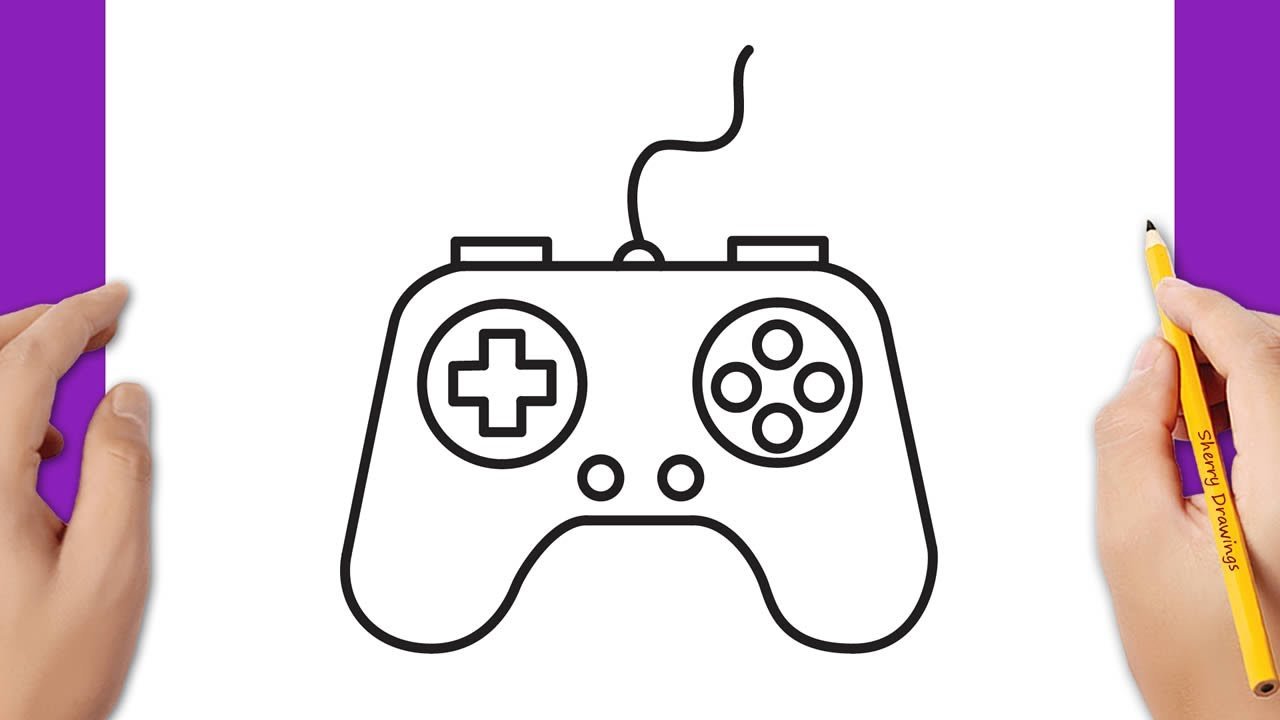
Drawing a game controller involves sketching its basic shape, adding buttons and joysticks, and then refining the details with lines and shading.
Ever wanted to capture the feel of your favorite console in a drawing? You know, that satisfying shape and all those familiar buttons? This article provides a quick guide to help you learn how to draw game controller, from the initial outline to the final details.
We will walk you through each step, making the process simple and enjoyable. So grab your pencil and paper, let’s get started!

How to Draw a Game Controller: A Step-by-Step Guide
Alright, budding artists and gaming enthusiasts! Are you ready to learn how to draw a game controller? It might look tricky at first, with all those buttons and curves, but trust me, it’s totally doable! We’ll break it down into easy steps, and before you know it, you’ll have your own awesome game controller drawing. We’ll explore different types of controllers and learn techniques that will make your drawings pop. Whether you’re drawing for fun or for a video game design project, this guide will be your best friend. So, grab your pencil, paper, and let’s get started!
Understanding the Basics of Game Controllers
Before we jump into drawing, let’s understand what makes a game controller a game controller. They come in all shapes and sizes, but they all have similar key parts. Knowing these parts will make our drawing process a lot easier. Think of it like building with blocks – first you learn about the different blocks and then you use them to build your house.
Common Controller Components
Most game controllers include these common parts:
- The Main Body: This is the core, the part that you hold. It usually has curves and a generally symmetrical shape.
- Buttons: These are often circles or squares and help us interact with the games. They come in different sizes and colors.
- Directional Pad (D-Pad): Usually a plus sign shape, or a single circular pad, this helps you move around in the game.
- Analog Sticks: These are small joysticks that move in all directions for better control.
- Shoulder Buttons (Bumpers and Triggers): These are on the top and back edges and often used for specific actions in games.
Different Controller Types
There are several types of game controllers. Here are a few popular ones that we can think about while we draw:
- Console Controllers (like PlayStation or Xbox): These often have a symmetrical layout with two analog sticks and lots of buttons.
- Nintendo Controllers: These can vary from simple directional pads to unique designs like the Joy-Cons.
- PC Gamepads: These might have a similar design to console controllers, but sometimes include extra programmable buttons.
Understanding these basic differences will help you draw different controller styles later!
Drawing the Basic Shape
Let’s get our hands dirty (or rather, our pencils moving)! We’ll start with a basic controller shape. Think of it as the skeleton of your drawing. This shape will be the foundation for everything else. The goal is to draw a shape that looks like the body of a controller, and we will add details to it later.
Step 1: The Outline
Start by drawing a rectangle or a rounded rectangle. This rectangle will serve as the basic shape of the controller’s main body. It doesn’t have to be perfect – we’re just setting up the space.
Tips for a better basic outline:
- Try using light lines to start so you can erase any mistakes easily.
- Think about how big you want your controller to be in your drawing.
- Make it slightly rounded or more rectangular, based on your preferred controller type.
Step 2: Adding Curves and Ergonomics
Game controllers aren’t just flat rectangles. They usually have curves to make them comfortable to hold. Now we are going to add those curves to our outline.
Steps to add curves:
- Slightly round out the corners of your rectangle.
- Add gentle curves along the sides to make it feel like it’s being held by hands.
- Try to keep it symmetrical (meaning that the left side should be pretty much the same as the right side).
These curves are very important, as they make your drawing look like a realistic game controller. This adds to the realistic feel of the drawing.
Adding the Details: Buttons, Sticks, and More
Now that we have the basic shape, let’s add the fun stuff: the buttons, the analog sticks, and everything that makes a game controller what it is. This is where our controller starts looking more like a real controller.
Step 3: Drawing the Buttons
Buttons are usually in groups and are important for playing the games. Let’s draw those now. There are different types of buttons on a controller. So let’s draw those:
- Action Buttons: Typically, they are four buttons, often in a diamond or square formation. You can draw circles or rounded squares to represent these. Leave some space between them so they don’t look cramped.
- Start/Select Buttons: These are often smaller and located near the center of the controller. Draw them as small rectangles or circles.
- Shoulder Buttons: These are on the top part of the controller, and you can draw them as rectangles coming out from the top edge.
Step 4: Adding the D-Pad and Analog Sticks
These parts allow you to move your characters in the game, so these are really important.
- Directional Pad (D-Pad): Usually found on the left side, draw it as a plus sign (+). If you’re drawing a modern controller, it could be a single disc-like shape.
- Analog Sticks: Draw these as small circles or rounded squares. Make sure to place them symmetrically, usually below the D-pad on the left and action buttons on the right.
Don’t forget to leave a small space between the edges of the controller body and all buttons, D-Pad and analog sticks.
Step 5: Shoulder Buttons and Triggers
These buttons are on the top of your controller and used to perform actions in the game.
- Draw the shoulder buttons on the top of the controller, like small rectangles.
- The triggers, which look like tiny handles, are usually placed beneath these. You can represent them with small, rounded rectangles.
It is important to make sure that these buttons are placed correctly as they have a unique look and are used frequently in most video games.
Adding Details to Make it Pop
Now that we have all the basic parts, let’s make our drawing look even more realistic! Adding details to the controller drawing makes it look more alive and helps the drawing stand out.
Step 6: Adding Depth and Dimension
Give your controller drawing some dimension by adding some depth to your drawing. This is how you can add depth and dimension to your drawing.
- Use slightly darker lines to create a sense of the edges of the buttons and sticks.
- Add small highlights with your pencil or eraser to make the buttons look more 3D.
- Create a shadow under the buttons and the main body to make it look like they’re not just floating on the paper.
Step 7: Including Brand-Specific Details
If you want your drawing to look like a specific type of controller, consider including the design elements of each brand. For example, PlayStation controllers have those unique shapes. Here are a few suggestions
- For PlayStation controllers, make sure to include the distinctive symbols (triangle, circle, square, and cross) on the action buttons.
- Xbox controllers have a unique button layout and the Xbox logo. Include a rounded X for the main button.
- Nintendo controllers (especially the Switch) have their own unique shape and button placement, which you can use in your design.
Adding these specific elements will make your drawings instantly recognizable!
Adding Color and Shading
Coloring and shading will make your controller drawing look even better. It is the secret ingredient that brings life to the drawing. You can use markers, colored pencils, crayons, or even digital tools!
Step 8: Choosing Your Colors
Decide what colors you want to use. You can draw the controller in its original colors, or make up your own fun color scheme. For example, if you are drawing a PlayStation controller, you can go with its original black and gray colors. However, there is no limit for creativity. If you would like to draw it in blue, purple or even rainbow colors, you can do that!
Step 9: Applying Color
Carefully fill in the different parts of the controller with the colors you chose. Remember, if you’re using markers, make sure to be careful not to go outside the lines. If using colored pencils, you can create a layered effect by using different pressure and colors to create a more dynamic texture.
Step 10: Adding Shading
Shading makes the drawing look more 3D and real. To add shading, color in some areas with a darker tone of the same color to show where the light doesn’t hit. Imagine where the light might come from and create shading that corresponds with your source of light. This will make the controller drawing pop up and make it look like a 3D object on the paper.
Tips and Tricks for Better Controller Drawings
Here are some extra tips and tricks to help you make your controller drawings amazing. Practice is the key to drawing awesome game controllers. So keep on practicing and don’t be afraid to make mistakes. Every mistake is a lesson.
Use References
Look at real game controllers when you are drawing! This way you can get the shapes and sizes right. Use actual photos or even have a game controller in front of you as you sketch. You can observe the actual curves, the way buttons are laid out, and the proportions.
Practice Makes Perfect
Don’t get discouraged if your first few drawings aren’t perfect. The more you practice, the better you’ll get. Keep sketching different controller types and different views. This will help you learn and grow as an artist.
Experiment with Different Styles
Try drawing controllers in different styles! For example, you can try a cartoony style or a realistic style, or a very simple sketch style. This will help you improve your drawing skills and also help you find your own unique art style.
Vary Your Line Weights
Experiment by using different line weights. Some lines can be drawn more darkly than the others, especially in the parts that are shaded. This will help add depth to the drawing and make your drawing pop up and look more 3D.
Don’t Be Afraid to Erase
Erasers are your best friend! Don’t be afraid to use an eraser if you are not happy with how a particular line or shape looks. Sometimes the best way to learn is to make a mistake and then improve on it.
And there you have it! You’ve learned how to draw a game controller, from the basic shapes to all the details and coloring. Remember to have fun while you draw and keep experimenting! The more you practice, the better you’ll become. And who knows? Maybe one day you’ll be designing your own video game controllers. Happy drawing!
How To Draw A Game Controller For Kids
Final Thoughts
Drawing a game controller involves starting with basic shapes. Build upon those shapes to add the buttons and joysticks. Pay attention to the curves and proportions.
Next, refine your sketch with detail. Use varying line weights to add depth. This gives a more realistic appearance. Remember that practicing will improve your skills.
Therefore, this technique shows how to draw game controller effectively. Focus on simple shapes and build details patiently. Anyone can create their unique controller drawing.

