
Unfortunately, directly transferring Xbox Game Pass saves to Steam is generally not possible due to different save file formats and platforms.
Want to keep your progress after switching from Xbox Game Pass to Steam? It’s a common question, and many players face this issue. You’ve put in the time, earned those achievements, and now you’re wondering about how to transfer xbox game pass saves to steam.
The bad news is that a simple, direct transfer is often not supported by the different systems. Each platform structures and stores game saves differently, creating an incompatibility problem. This makes seamless migration difficult, but there may be some game-specific workarounds, worth investigating on a per game basis.

How to Transfer Xbox Game Pass Saves to Steam
So, you’ve been having a blast playing your favorite games on Xbox Game Pass for PC, but now you’ve decided to make the jump to Steam. Great choice! But what about all those hours you’ve poured into your games, all those levels you’ve conquered, and those amazing character builds you’ve crafted? You don’t want to lose all that progress, right? Don’t worry, it’s a common issue. Moving game saves between these two platforms can seem a bit tricky, but it’s often doable, and we’re going to walk you through how to try it. It isn’t always easy, and it won’t work with every game, but let’s explore the best methods.
Understanding the Challenge: Why Save Transfers Aren’t Automatic
First, let’s talk about why transferring saves isn’t as simple as clicking a button. Xbox Game Pass for PC and Steam are two separate ecosystems. They often store game saves in different places and sometimes in different formats. Think of it like having two different kinds of puzzle pieces; they don’t always fit together. Here’s a breakdown of the main hurdles:
- Different Save Locations: Xbox Game Pass typically saves game progress in a hidden folder, often linked to your Microsoft account. Steam, on the other hand, usually keeps saves in a specific folder under your user account. This difference in location is one of the primary reasons a direct copy-paste rarely works.
- Varying Save Formats: Even if you find the save files, they might not be compatible. Each game can have its own unique format for saving data. What works for an Xbox Game Pass version of a game may not be recognized by the Steam version. They could be in different file formats, like having a .sav on Xbox, while Steam using a .bin format.
- Cloud Sync Conflicts: Both platforms have cloud save features. Sometimes, these cloud saves can interfere with manual transfers or, worse, cause data corruption. It is important to turn off cloud sync before any file transfer.
The most important thing to know is that while some games can have saves moved, other games might not be transferable at all. It really does depend on the specific game itself.
Game-Specific vs. General Transfer Methods
There isn’t a one-size-fits-all solution. The approach you take will depend on the specific game you’re trying to transfer save files for. Some games have designed-in ways of doing this, while others will require some detective work. Generally, we can break down the transfer process into two main paths:
Game-Specific Transfer Methods
Some games are kind enough to offer an easy route for transferring saves. This often involves a setting or function within the game itself. Let’s take a closer look:
- Built-in Cloud Save Options: Certain games may have their own cloud saving functionality that can bridge the gap between Xbox Game Pass and Steam. For example, some games allow you to link your accounts, which will sync the game saves across platforms. You might need to set it up on the Xbox Game Pass version of the game first. Then, log into the same account on the Steam version of the game and your progress might be there.
Check the game’s settings menu for account linking or cross-save features. Look for terms like “cloud save,” “sync,” or “account link.” If it exists, it will be a smooth way to transfer your saves. - In-Game Import/Export Features: Some games are even more direct, providing an option to specifically export or import a save file, allowing you to manually move them. This function isn’t common in most games, so don’t expect to see this in every game, but it is worth checking.
Manual File Transfer Method
When built-in features aren’t available, you may have to try a manual file transfer. This will be more technical and it does involve a little bit of file hunting. If you are not experienced, it may feel like an adventure, but it’s often the only option left. This method will often require you to find specific folders on your PC.
Important Note: Always back up your save files before attempting any manual transfer. If something goes wrong, you want to have your progress safe.
Detailed Steps for Manual File Transfer
Let’s walk through how to manually transfer files. This will involve several steps to find the save files, copy them, and then put them where the Steam version of the game expects to find them.
Step 1: Locate Your Xbox Game Pass Save Files
Finding your saves can feel like a treasure hunt. Xbox Game Pass games usually store save files in a protected folder. Here’s how to dig them out:
- Enable Hidden Folders: First, you will need to make sure you can see hidden files and folders. Go to your computer’s File Explorer, click the View tab, and then check the “Hidden items” box. This will allow you to see some of the folders you will need for finding the game saves.
- Access the Xbox App Saves Folder: Game Pass saves are often located in a folder associated with your Windows account and the specific game. Here’s an example of what a file path might look like:
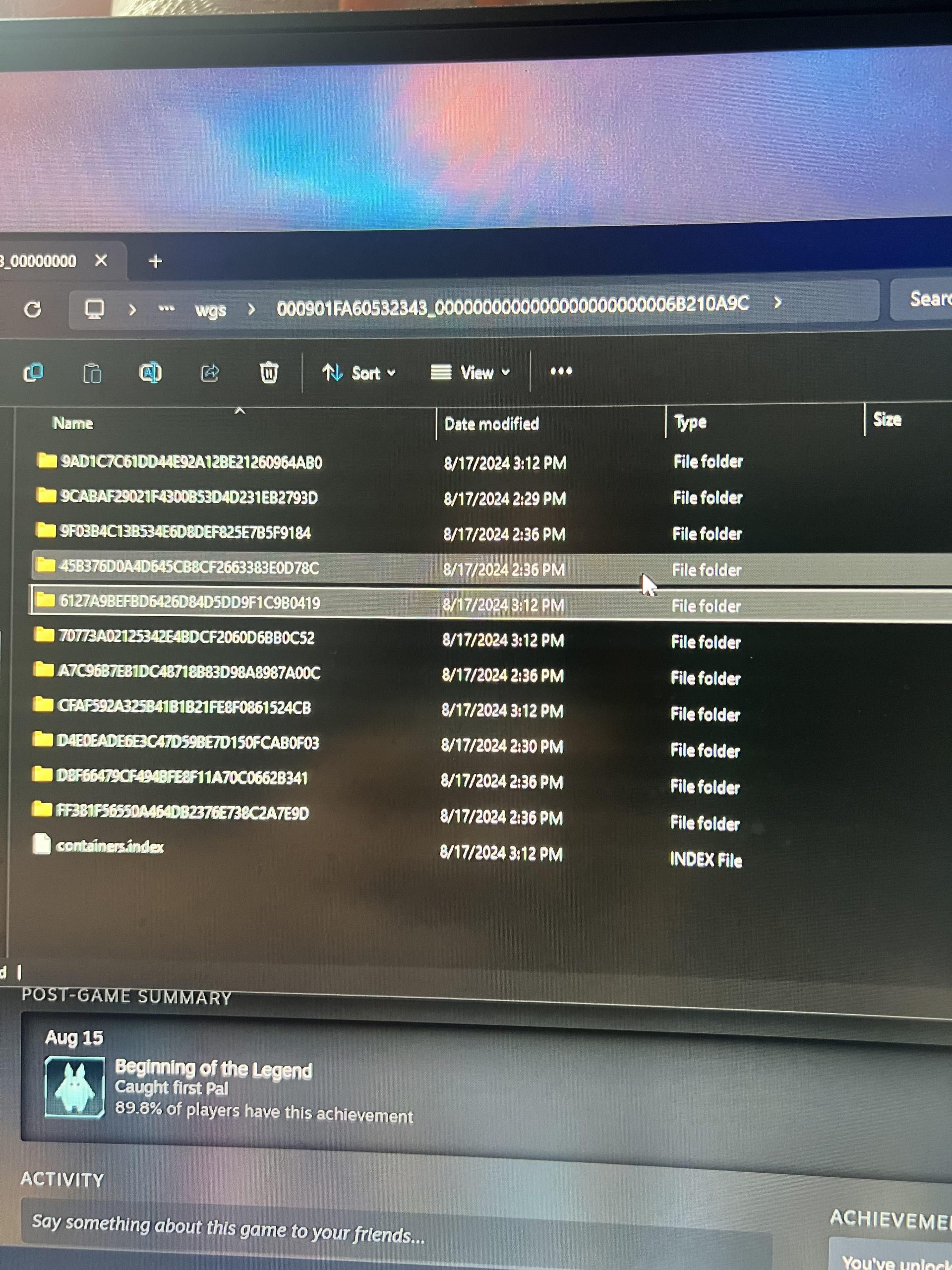
C:\Users\[YourUsername]\AppData\Local\Packages\[GamePublisherName.GameName_RandomCharacters]\SystemAppData\wgs. The ‘RandomCharacters’ string is different for each user.Tips for Finding the correct folder:
- Look for folders with names that include parts of the game name or publisher.
- The folder structure might be slightly different based on the game.
- Some games place saves in the “LocalState” folder inside “SystemAppData”.
- Look for Save Files: Once you’re in the “wgs” folder, you’ll see folders with long strings of numbers and letters. These are your save containers. You may have to dig around a little to find the files you need. Often, save files have extensions like “.sav”, “.bin”, or something specific to the game.
Important: Take careful note of the specific names and locations of these files. You’ll need this information in later steps.
Step 2: Identify Where Steam Stores Its Save Files
Next, we need to figure out where Steam stores save files for the same game. This location will vary from game to game, but there are some common places to look:
- Steam User Data Folder: The most common place is in the Steam user data folder. This folder’s path typically looks like this:
C:\Program Files (x86)\Steam\userdata\[YourSteamID]\. Your SteamID is a unique number. - Game Folder Inside User Data: Inside the user data folder, you will find more folders with numeric names. Each number is an application ID of a game. You will have to find the number associated with the game you are transferring save files for. Once inside the game folder, you may find a “remote” folder, or a “saves” folder, or even just the save files themselves.
- Common Documents Folder: Sometimes, Steam games put save files in the “Documents” folder. Look in folders like “My Documents” or a subfolder named after the game or publisher.
- The Game’s Installation Folder: For some games, the save files might be in the game’s installation folder, usually inside the SteamLibrary/steamapps/common folder.
Finding the Steam App ID: If you are having trouble finding the Steam folder for the game, search on the web for the “[Game Name] Steam App ID”. This is a unique number that Steam uses to identify games. Once you have this number, you can find the correct folder.
Important: Take note of the exact path for where Steam stores the game’s save files. You’ll need this for the next step.
Step 3: Copy and Paste (or Convert) the Save Files
Now comes the trickiest part: moving the save files from their Xbox Game Pass home to their Steam destination. Here’s what you need to do:
- Backup First: Before you make any changes, create a backup of the Steam save files. Put them somewhere safe. This way, if something goes wrong, you can restore the original files.
- Copy Xbox Game Pass Saves: Go to the location where you found the Xbox Game Pass saves, and copy the specific save files.
- Paste to Steam Folder: Paste these files into the Steam game’s save folder that you found in the previous step.
- Rename (If Necessary): This is a tricky part and where you could see some issues. Sometimes, you will need to rename the Xbox Game Pass save files to match the names Steam uses. For example, if the Xbox save file is called “savegame1.sav”, and Steam uses “save001.bin”, you may have to rename it. If the Steam version is missing, create a backup folder of the files from the Game Pass, and run the Steam version to create the save files, this is the safest option.
- Overwriting existing files: You may need to overwrite existing files in the Steam save folder. If it’s a fresh install of the Steam version of the game, you may not have any saves there. But, if you already started a Steam game, you will have to overwrite the save files there. That’s why backing up the Steam save files is so important!
Troubleshooting: If the save transfer doesn’t work the first time, you can try a few things:
- Check the spelling and paths for both the Xbox and Steam save folders to make sure you have copied them to the correct places.
- Use the original Steam files to note the extensions they use, and make sure that the files you are trying to replace have the same extensions and names.
- Check community forums or game-specific help guides. People might have found a specific way to move the saves for a specific game.
Step 4: Test Your Game Save on Steam
Now, close the Steam version of the game, and re-open it. If everything worked correctly, the Steam version of the game should load with your transferred game save. If the save doesn’t show up right away, you can:
- Re-launch the game once or twice.
- Double-check file names and folders again to make sure there are no mistakes.
If the game still doesn’t load the save file, it could mean that the save files are not compatible. Some games encrypt the save files so they can’t be moved from one platform to another. Or, the file structures of the saves may be totally different. In that case, it is not possible to transfer the save files.
Tools and Utilities That Might Help
While there’s no magic software that does this for every game, some tools and resources might help you on your save-transfer adventure:
- Save Converters: For some specific games, communities have made tools or scripts that can convert save files between formats. Search for these tools online, especially if you’re having trouble getting the Steam version of the game to read the Xbox saves. Always be sure to download these tools from trusted sources, as they could potentially contain viruses or malware.
- File Management Utilities: Apps like Total Commander can make it easier to navigate files, and it can make the transfer easier. File management utilities can be helpful with some file types, and might be able to make finding specific files easier. These can be paid or free apps.
- Community Forums: Search online forums like Reddit or Steam communities for your specific game. Other players might have already figured out the save transfer and can provide specific steps or tools.
- Game Specific Mods: Some games, especially those with active modding communities, might have mods or utilities that can assist with save transfers.
Important Tip: Be careful when downloading tools or mods from the internet. Only download things from trusted sources to protect your computer.
Limitations and Things to Keep in Mind
While we’ve talked about how you can do it, there are some big limitations to transferring save files. Here are some of them to be aware of:
- Not All Games Are Compatible: The biggest limitation is that not all games will allow you to transfer save files this way. The game developers might not have made the save file structure the same across platforms. Sometimes the saves are encrypted.
- Updates and Patches: Game updates can sometimes change how save files work. This may cause a previously working transfer method to stop working. You might have to redo your manual save transfer steps if there’s a game update.
- Cloud Save Interference: If the game uses cloud saves on either platform, this could complicate things. Always disable cloud sync on both platforms when doing a manual transfer. After you successfully transfer the save files, then you can turn cloud sync back on.
- Game Edition Differences: Be sure to move the save files between the same versions of the game. If you are trying to move the save from a base version of the game, to a “definitive” version of the game, this may cause issues, or not work at all.
Remember, transferring game saves this way isn’t always guaranteed. If it doesn’t work, try not to feel too frustrated. Some games might simply not allow the saves to be transferred.
Moving game saves from Xbox Game Pass to Steam is not always an easy task, and it isn’t available for every game. The steps outlined here will give you the best chance at moving your saved game progress. Remember to back up your save files before doing any type of transfer. Keep checking community pages for your specific games, as there may be tools or methods that are not always common knowledge.
Convert Xbox to Steam Savegame Guide | Starfield | Continue PC Gamepass save on Steam!
Final Thoughts
Transferring Xbox Game Pass saves to Steam is complex because of different platform architectures. Direct transfers are often not possible for many games. You might need to use third-party tools or manually locate save files if available.
The process varies significantly by game. You must confirm save file location and compatibility between platforms. Research each game individually for specific transfer methods. This will guide how to transfer xbox game pass saves to steam.

