
To exit a game in RetroArch on PS Vita, press the PlayStation button to bring up the Quick Menu, then select ‘Close Content’.
Navigating RetroArch on the PS Vita can feel a little different than on other platforms. Many users are curious about how to exit a game in retroarch ps vita efficiently. It’s not always intuitive right away.
The process involves a specific button press combination, after which you can choose to close the current game. This ensures you don’t accidentally exit the application completely. Knowing this quick trick improves your overall retro gaming experience.

How to Exit a Game in RetroArch PS Vita
Okay, you’ve been having a blast playing your favorite retro games on your PS Vita using RetroArch. That’s awesome! But, sometimes, you just need to stop playing and do something else, right? Figuring out how to exit a game in RetroArch on the PS Vita can be a little tricky if you’re new to it, but don’t worry. This guide will walk you through all the ways to get back to the RetroArch menu or even shut down the program entirely. It’s simpler than you think, and once you know the steps, you’ll be exiting like a pro!
Understanding the Basics
Before we dive into specific methods, let’s understand how RetroArch works on the PS Vita. It’s like a hub for all your retro game emulators. You load a core (the emulator for a specific console like SNES or NES), and then you load the game. When you’re playing, RetroArch is running in a sort of “full-screen” mode. So, there’s no obvious “Exit” button on the screen. That’s why we need to learn the special controls and shortcuts that RetroArch gives us.
The Quick Menu: Your Go-To Place
The main way to exit a game and return to the RetroArch menu is by using the Quick Menu. Think of this as your central control panel for in-game settings and options. This menu is where most of the magic happens when you want to change things up.
How to Access the Quick Menu
To open the Quick Menu while you’re in a game, you need to press a specific button combination. It is often the PS Button + the Start button simultaneously. Press both of these buttons at the same time. Once you do that, you should see the Quick Menu appear over your game. This will give you all kinds of options, including the option to exit the game. If you have any trouble, check Retroarch’s hotkey settings in menu. We’ll talk about this further down in the “Customizing Controls and Hotkeys” section.
Navigating the Quick Menu
After you successfully open the Quick Menu, you’ll see a number of different options. Use the D-Pad or the analog stick on your PS Vita to move up and down in the menu. You’re looking for a specific option, which is usually labeled as “Close Content”, “Close Core” or “Quit Core” or something similar. This option will be in a list alongside other options like “Resume,” “Save State,” and “Load State.” The exact wording can vary slightly based on your RetroArch settings, but this should give you an idea of what to look for.
Exiting the Game with Close Content/Core/Quit Core
Once you have the “Close Content” option highlighted, simply press the “X” button on your PS Vita to select it. This will end the game you were currently playing and bring you back to the main RetroArch menu. From here, you can choose another game, adjust settings, or even exit RetroArch completely. You’ve successfully exited a game! Great job!
Alternative Exit Methods
Sometimes, the Quick Menu might not work as expected, or you might have customized your buttons. Don’t worry; there are a couple of other ways to exit a game in RetroArch on your PS Vita.
Using the PS Button and Select Button Combo
Another very common method is by pressing the PS Button and Select button together. While in game, try to press these buttons simultaneously. This action often acts as a universal “back” or “quit” command for many PS Vita apps. If your configuration is standard, this combination might close the game and return you to the RetroArch menu. However, if you changed your configurations previously, this command might also be customized, so if this way doesn’t work, then check your hotkeys.
Force Quitting the RetroArch Program
If, for some reason, the above methods are not working and your game or RetroArch has frozen or become unresponsive, you may have to forcefully close the program and restart. To forcefully quit RetroArch, you need to press and hold the PS Button on your PS Vita. This will bring up a menu with options to close the running application. Select the option that shows “Close” for RetroArch and tap the “X” button. This will close RetroArch completely. After the app is closed, you can reopen it again.
Important Note: Force quitting the application means that you will not be able to save the game you were playing. Make sure to save your game before force quitting the application, to avoid losing any data/game progress. To save your game in Retroarch, access the Quick Menu and navigate to “Save State”, this creates a snapshot of the exact point you are in the game and it will be saved to your device, you can Load the game from the exact spot you left, by selecting the “Load State” option.
Customizing Controls and Hotkeys
RetroArch lets you personalize a lot of its settings, including button controls. This customization could be why some of the exiting methods explained above may not work as expected. Understanding how to set and edit your button configurations is important.
Accessing the Input Settings
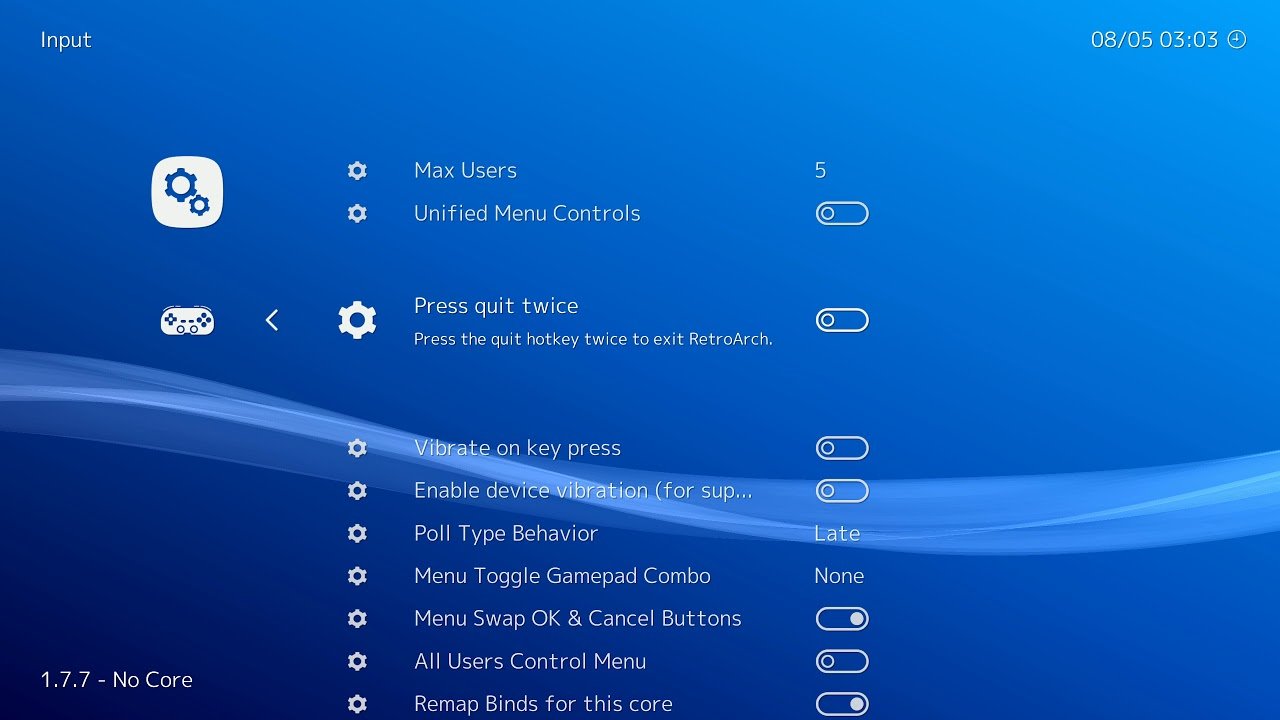
To check or modify your button configurations, you’ll need to be in the main RetroArch menu. The first step is to exit any active game by using the quick menu. Once you’re in the main menu, use the D-Pad or analog stick to navigate to the “Settings” option. Select it using the “X” button and find “Input.” Select this option using the “X” button.
Configuring Hotkeys
Inside the Input settings, you’ll see options that deal with buttons and how they control things in RetroArch. Look for something named “Hotkeys” or “Hotkey Bindings.” There are many hotkeys, and we will check the important ones for this topic. Select that option using the “X” button. Here, you’ll see a whole list of actions and the buttons they’re mapped to. You can find the binding for “Menu (Toggle)” which is used to access the Quick Menu. You can also find the “Quit Retroarch” hotkey, it is important to know what buttons are set for those commands. You can re-assign these buttons to whatever you prefer. Be careful and make sure you remember which button combination you set, because you might forget which buttons you used!
Changing Button Mappings
To change a button mapping, select the specific hotkey option you want to change (like “Menu (Toggle)”). You should be given a prompt asking for a new key input. Now, press the button or button combination you want to set for that command. This button combination will now be used for the function. Make sure you click on “Save Configuration” after you make changes, in this way your changes will be saved for future gaming. If you change a button and you want to undo it, then select “Restore Default Settings”.
Troubleshooting Common Exit Issues
Sometimes, you might run into some problems when exiting a game in RetroArch on your PS Vita. Here are a few common issues and what you can do to fix them.
The Quick Menu Isn’t Appearing
If pressing PS Button + Start is not bringing up the Quick Menu, it is possible that the buttons are set to something else, therefore you might not be able to access the menu. Check your hotkey settings as explained earlier to make sure that this button combination is set as the Menu button. It could also be that one or both of the buttons are not working properly. Make sure to test your buttons on your PS Vita. If you’re not able to get the Quick Menu working you can try the second option which is PS Button + Select, if this one also does not work, you might have to force quit RetroArch.
RetroArch is Frozen
Sometimes RetroArch can freeze, and that means that no button presses are working. This could happen due to an unstable game ROM or a problem with the emulator core. If you cannot access the Quick Menu or quit the game normally you might have to forcefully quit RetroArch. This is explained in the “Force Quitting the RetroArch Program” section. Remember to save your games often, especially before trying to force quit, so that you don’t lose your progress.
Accidental Game Closures
Have you ever accidentally exited a game because you pressed the wrong buttons? That can be frustrating! It happens when the hotkeys are set on a button that you frequently press. The way to solve that is by going to the settings and changing the buttons to a button combination that you don’t normally use during a game. For example, if you tend to press start button very often, then don’t set your Menu button to the start button.
Best Practices for Exiting Games
Here are some useful tips to help you exit games smoothly and avoid problems:
- Save Regularly: Always save your game often using the “Save State” feature in the Quick Menu. This way, if something goes wrong you can load the save and continue where you left off.
- Know Your Hotkeys: Take the time to understand your RetroArch hotkey settings. It will make your life much easier.
- Test Your Settings: After changing your controls, always test them out to make sure they work as intended.
- Keep RetroArch Updated: Make sure you’re using the latest version of RetroArch on your PS Vita to avoid bugs and get new features.
- Save Changes: Don’t forget to click on “Save Configuration” in the settings after changing hotkeys or other settings, so you don’t lose those changes.
Exploring Different RetroArch Cores
While the general exit methods are the same for all RetroArch cores, there might be minor differences. Here’s what you need to know about a few popular cores:
SNES Cores
Super Nintendo games generally work great on RetroArch PS Vita. You should always have the Quick Menu available to exit the game, or the PS + Select button, however there can be some cores that might not function properly, in that case you need to force quit the program.
NES Cores
NES cores should also function properly with standard exiting methods, it should be the same as SNES Cores.
GBA Cores
Same as SNES and NES, GBA cores should function with the same exit methods. If they don’t, then forcefully closing the app is the best option.
Other Cores
Other cores like Sega Genesis, PlayStation 1, Atari and others all should function similarly. If you face issues, there is no other solution but to close the app, and make sure to save your games regularly.
Exiting a game in RetroArch on your PS Vita doesn’t have to be a headache. By following these steps and understanding how to customize your controls, you will be able to stop a game and go back to the menu like a pro. Remember to save regularly, know your hotkeys, and don’t be afraid to explore the settings. Now you can focus on enjoying your retro gaming adventures without worrying about getting stuck in a game!
RetroArch Enable Hotkeys and two button controller exit
Final Thoughts
To exit a game in RetroArch on your PS Vita, press the PlayStation button. This brings up the Vita’s home menu. From there, you can close the RetroArch application, effectively exiting the game.
The standard way to exit a game in RetroArch PS Vita involves the Vita’s main button. Remember, using this method ensures proper closure of both the game and the emulator.

