
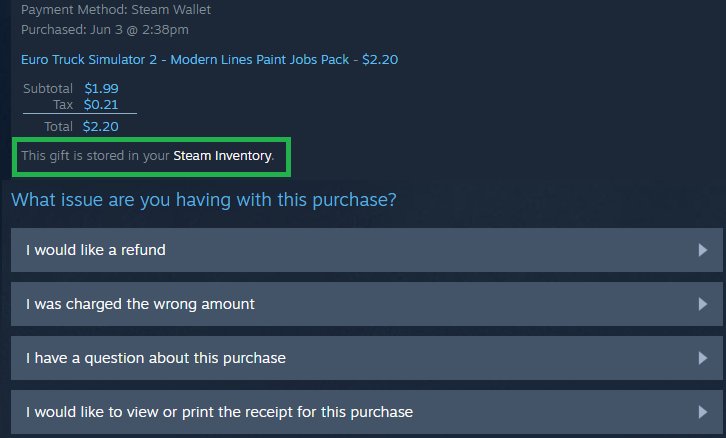
To find gifted games on Steam, you’ll need to check your Steam inventory for any unredeemed gifts or review your email for gift notifications.
Ever wondered how to find those surprise games someone sent your way on Steam? It can be a little confusing navigating the platform to locate them, especially if you have many items. We’ll guide you through the straightforward process.
Knowing how to find gifted games on steam is actually quite simple once you know where to look. We will help you with that by telling you all the steps you need to take. This will prevent any accidental neglect of these presents.

How to Find Gifted Games on Steam
So, you’re on the hunt for some awesome, gifted games on Steam? That’s a great goal! It’s like finding a hidden treasure chest, and who doesn’t love that? Receiving a game as a gift is super exciting, but sometimes, figuring out where those gifts are hiding can be a bit of a puzzle. Don’t worry! This guide will help you become a pro at finding all those gifted games waiting for you in your Steam account.
Understanding Steam Gifts
Before we dive into the “where,” let’s talk a little about what a Steam gift actually is. Think of it like a wrapped present, but instead of physical wrapping paper, it’s digital! When someone buys a game on Steam as a gift, it doesn’t automatically get added to your game library. Instead, it becomes a kind of “item” that you need to accept or claim. Knowing this is the first step to understanding where to look.
Types of Steam Gifts
There are two main ways you might receive a game gift:
- Direct Gift: This is when someone buys a game specifically for you and sends it directly to your Steam account. You’ll see a notification about it.
- Gift Code: Sometimes, you’ll get a code (a bunch of letters and numbers) that you need to enter on Steam to add the game to your library. These are often used when someone buys a physical copy of a game or gets a code from a promotion.
Where to Look for Direct Steam Gifts
Alright, let’s get to the good part: finding your gifted games! If someone sent you a direct gift, here’s where to look:
The Notification Bell
Your first stop should be the notification bell at the top of the Steam client (the app you use on your computer to play games). This bell shows you when you have new messages, friend requests, and, most importantly, gifts! A little number will appear on the bell to show you how many new notifications you have.
- Click the Bell: When you see a new notification, click the bell icon.
- Find the Gift Message: Look for a message that says something like, “So-and-so has gifted you [Game Name]!” It’ll usually have a picture of the game next to it.
- Accept or Decline: You’ll see two options: “Accept Gift” or “Decline Gift.” If you want the game, click “Accept Gift.” The game will then be added to your library.
The Inventory
If you accidentally skipped over the notification or if the notification didn’t appear correctly, your gift will likely be waiting in your Steam Inventory. Think of your inventory as a storage space for items you own on Steam, including games that you haven’t added to your library yet.
- Open Your Inventory: In the Steam client, click on your username at the top and choose “Inventory”.
- Check Your “Gifts” Tab: Once you’re in the inventory, you will see different tabs. Click on the one that says “Gifts.” If you have a gifted game waiting, you’ll see it here.
- Accept Your Gift: Click on the gift item and then click “Add to my library.”
Email Notifications
Sometimes, Steam will also send an email notification when you receive a gift. Check your email inbox (including your spam folder, just in case). The email will have the information about the gift and a link that you can click on to accept it. This email can be a helpful backup if you’re having trouble finding the gift directly on the Steam client.
Redeeming Gift Codes on Steam
Now, let’s talk about gift codes. These work a little differently. When someone gives you a gift code, it’s usually a long string of characters that you need to input on Steam to get your game.
Using Gift Codes
Here’s how to get your gifted game using a code:
- Get the Code: Make sure you have the code handy. This might be on a physical card, in an email, or in a message.
- Open the Steam Client: Start your Steam application on your computer.
- Click “Games”: At the top of the Steam client, click on the “Games” menu.
- Select “Activate a Product on Steam”: In the “Games” menu, you will see “Activate a Product on Steam”. Click on this.
- Agree to the Terms: A window will pop up and you have to click the “Next” button, as it states the terms and condition.
- Enter the Code: In the new window, enter the code exactly as you received it. Be very careful with capital letters and hyphens, as they must be the same.
- Click “Next”: After entering the code, click the “Next” button. Steam will now verify your code and the game will get added to your library.
- Find the Game in Your Library: Once successfully activated, you will be able to see your game inside your library, which you can find by selecting “Library” option at the top.
Important Note: Gift codes are usually single-use. Once you enter it, the code becomes invalid. So, make sure you’re on the right Steam account before activating a code.
Troubleshooting Common Issues
Sometimes things don’t go as planned. Here are some common issues you might run into and how to solve them.
Can’t Find the Notification
If you don’t see the notification about your gift, it might be hiding:
- Check Your Inventory: Go straight to your inventory to see if the gift is there, as described above.
- Restart Steam: Sometimes, restarting the Steam client can help refresh notifications. Close the client completely and open it again.
- Check Your Email: An email from Steam might have the info about the gift, so look through your inbox and spam folders.
- Contact the Gift-Giver: If you still can’t find the game, ask the person who gifted it to you to double-check they sent it to the correct Steam account and email.
Gift Code Doesn’t Work
If your gift code isn’t working, there are a few reasons why:
- Double-Check the Code: Make sure you typed the code exactly correctly. Codes can look confusing, so triple check the numbers and letters.
- Expired Codes: Some codes have expiration dates. If it’s an old code, it might be invalid.
- Region Lock: Gift codes can sometimes be specific to certain countries or regions. If the code is not valid in your region, Steam will tell you.
- Already Redeemed: Codes can only be used once. Make sure that you or somebody else have not previously used this code.
- Contact Steam Support: If you’ve tried everything else and the code still doesn’t work, Steam Support can help you figure out what’s going on.
Accidentally Declined a Gift
Oops! If you clicked “Decline Gift” by mistake, don’t worry, it’s not the end of the world:
- Ask the Gifter to Resend: The gift will be returned to the person who gifted it. Ask them to send it again. They can do this very easily from their side through the inventory.
- Contact Steam Support: In very specific situations, steam support can help you with a gift that you declined. However, it’s usually easier and faster to have the gifter send the gift again.
Tips for Gifting and Receiving Games
Here are some helpful tips that will make giving and getting gifted games much smoother:
Tips for Gifting
- Double-Check Recipient’s Username: Make sure you are sending the gift to the right person! Steam accounts can be very similar, so double-check the username before sending.
- Consider Wishlists: Look at the recipient’s Steam wishlist to see what games they are hoping to play. This helps you choose a game they will absolutely like.
- Send a Message: Send a personal message with the gift to let the recipient know why you chose that game for them.
- Gifting During Sales: The best time to send the game is during steam sale because the game is available at a lower price.
Tips for Receiving
- Keep an Eye on Notifications: Get in the habit of checking your Steam notifications regularly to not miss any gifts.
- Add Games to Wishlist: Add games you would like to play in your Steam wishlist, to help your friend send gifts easily.
- Say Thank You: A thank you to the person who sent the game goes a long way! It lets them know that you’re appreciative and makes gift-giving a better experience.
Staying Organized with Your Games
Now that you know how to find gifted games, here are some ways to stay organized with your ever-growing Steam library:
Using Steam Categories
Steam allows you to create categories for your games. This is a super handy way to sort your library into different groups:
- Right-Click a Game: In your Steam Library, right-click on a game.
- Select “Categories”: In the menu, select “Categories”.
- Create a New Category: You can either select an existing category or create a new one. For example, you could have categories like “Multiplayer Games,” “Single-Player Adventures,” “Completed Games,” etc.
- Add Games to Categories: Add all your gifted games to a special category, like “Gifted” for an easy access to all the games you got as gifts.
The “Collections” Feature
Steam also offers “Collections” feature, where you can create custom collections of games and then sort the games by the collection you created. You can add tags to each game to find them very easily.
Reviewing Your Games
After playing a gifted game, consider writing a review! Your reviews can help other players decide if they want to play the game. Plus, it helps you remember what you thought about each game in the future.
Finding gifted games on Steam is not hard when you know where to look. Whether it’s a direct gift notification or a gift code, Steam makes it pretty straightforward to add these great games to your library. Remember to double check the notifications, your inventory and the emails when searching for a game. And if you have a gift code, remember to enter it carefully. With these tips, you’ll always know where to find your treasure of gifted games and be organized. You can also use the categories and collections features to keep your library organized. And, of course, be thankful when you receive a gift, and spread the gift giving joy to your friends too!
How To Accept/Claim Gifts On Steam (Receive Gifts On Steam)
Final Thoughts
Finding gifted games on Steam involves checking your inventory, specifically the gifts section. Alternatively, a friend can send a gifted game directly to your account. Always confirm that a received game is legitimately obtained.
To be aware of how to find gifted games on Steam, regularly check the gift section. You might receive one unexpectedly from your contacts. Remember to review the sender’s details for safe practice. Enjoy your gifted games!

