
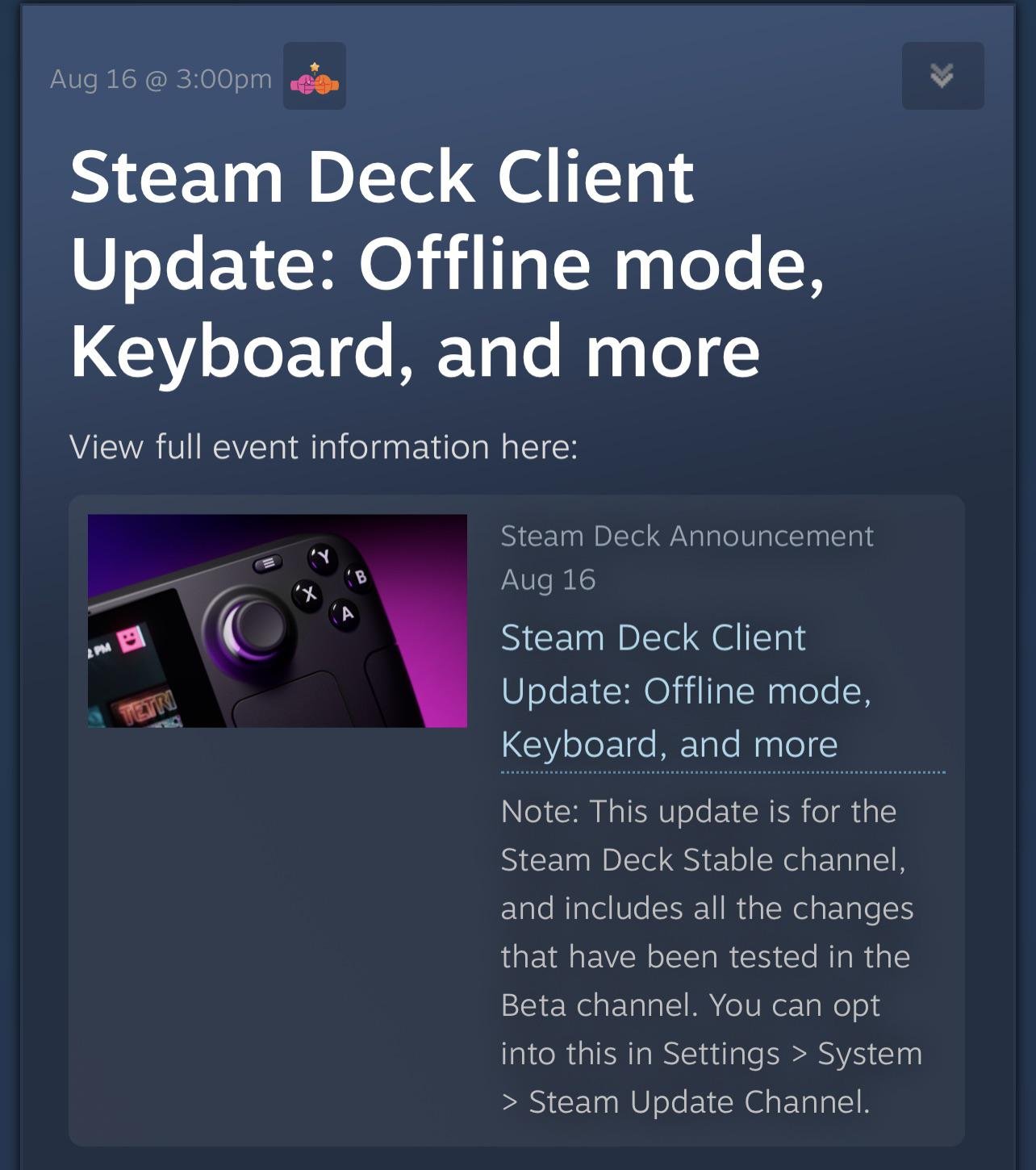
To find offline games on Steam, navigate to your Library, click “View” then “Filter by,” and select “Ready to play.” This displays games currently installed and playable without an internet connection.
Ever felt that pang of boredom when your internet dips? Knowing how to find offline games on Steam can be a real lifesaver. We all love diving into our games, but sometimes, the online world just isn’t an option. That’s where your installed games step up.
Finding them is actually quite simple. Steam has made it easy to filter your library. This feature helps you to see what you have available for those moments you are disconnected from the web.

How to Find Offline Games on Steam
So, you want to play some awesome games without needing the internet? That’s totally understandable! Sometimes, you’re on a trip, your internet is down, or you just want to escape the online world. Luckily, Steam, the popular game platform, has plenty of games you can play offline. But how do you actually find them? It’s not always obvious, and that’s why we’re here to help! This guide will walk you through the different ways to locate and enjoy offline games on Steam.
Understanding Offline Play on Steam
Before we dive into finding games, let’s understand what offline play means on Steam. Not every game on Steam works offline. Games that need a constant internet connection to play are usually online multiplayer games or games that require server-side processing. However, many single-player games, and some multiplayer ones, can be enjoyed without an internet connection. It all comes down to how the game was built by the developers.
How Does Steam Know if a Game is Offline Playable?
Steam doesn’t have a specific “offline game” category. It relies on the developers to indicate if their game works offline. When you download and install a game, Steam stores a lot of important files on your computer. If a game is designed to work offline, it means all the necessary parts for single-player mode are on your computer too, and don’t need to be downloaded each time you play. When you go into offline mode (we’ll explain how in a bit) Steam basically checks if the game has everything it needs locally to function and then lets you play it!
Steam Offline Mode: The Key to Offline Gaming
Steam has a special feature called “Offline Mode.” This mode lets you play games without an active internet connection. Before you can use this feature, you need to make sure you have already logged into Steam online and have downloaded and played the game at least once. This is important because it allows Steam to save all the data needed to run the game on your computer. Here’s how to get Steam ready for offline play:
- First, make sure you’re logged into Steam and connected to the internet.
- Start any games that you plan to play offline. Playing them once before going offline ensures the files are ready for offline mode.
- Then, close the game and the Steam app completely.
- Now, start the Steam app again.
- Click on the word “Steam” on the very top-left corner of your screen and select “Go Offline…” from the menu.
- A window will appear, and you’ll click “Restart in Offline Mode”.
Steam will restart, and now you can play all your supported offline games without the internet!
Finding Games that Work Offline
Now that you understand offline mode, let’s explore ways to find games that work without internet. Finding these games can feel like a bit of a treasure hunt, since Steam doesn’t have a special “offline games” list. But don’t worry, you’ll be playing your favorite games offline in no time.
Using the Steam Store Page
The first place to check for offline capabilities is the game’s store page. Here’s how:
- Go to the Steam store. You can do this within the Steam app or using your web browser.
- Search for the game you’re interested in.
- Scroll down on the game’s store page to the “Features” section. This section is usually on the right side of the page, a bit below the screenshots and videos.
- Look for the words “Single-player” and, sometimes, “Offline play.”
- If you see “Single-player” and no mention of online only requirements, there’s a good chance it’ll work offline. However, the best way to be sure is to look for the “Offline Play” tag.
Sometimes, developers will also write about offline capabilities in the description of the game, so it’s always good to have a quick look at that as well. Some game developers might have extra features that can be played offline, like AI battles in a strategy game. Be aware that sometimes the game may need internet for updates, but not for the whole gameplay.
Searching Steam Forums
Another way to find out if a game works offline is to check the Steam community forums. Here’s how:
- Go to the Steam store page of the game you’re interested in.
- Look for the “Community Hub” button near the top.
- Once in the Community Hub, go to the “Discussions” tab.
- Use the search bar in the Discussions forum, and type phrases like “offline”, “play without internet” or “can I play offline?”.
- Check through the threads that pop up. Sometimes other players will have already asked about this and received an answer. This is great because you get answers from actual users, not just what is written on the store page.
Keep in mind that sometimes older discussions might not have current information. Still, forum searching is a good way to gather more evidence about offline play.
Using Third-Party Websites
There are some websites created by gamers that help track which games work offline. These sites don’t always have every single game, but they can be a great place to start. These sites are often powered by the community, which makes them helpful because you get real feedback on what works. Here’s a brief overview of how to use them:
- Search on the web for “Steam games offline list” or something similar.
- Go to some of the search results.
- Browse the websites, and find if the game you’re looking for works offline.
Remember that information from these third-party sites might not be 100% correct all the time, so always double-check on the Steam page or forums before downloading. Always consider these sites as an aid, but not a completely trustworthy source. It’s a good idea to compare the information you find on different sites with what you see on Steam.
Checking Your Steam Library
Once you’ve played a game once, and made sure it supports offline play, you can easily check which of the games in your personal Steam library will work offline. Here’s how to see it:
- Open Steam.
- Go to the “Library” section.
- Select the “Games” option from the dropdown menu in the left side.
- Choose the “Installed” category.
- Sort your games with the “Ready to Play” column heading.
- Steam shows the games that can work without internet with a specific “Ready to Play” tag in the same column.
This is a quick way to see which of your games will work offline after you’ve installed them. If a game doesn’t show up as “Ready to Play,” it’s likely not going to work in offline mode.
Tips for Offline Gaming on Steam
Now that you know how to find offline games, here are some extra tips to make your offline experience better:
Prepare Ahead of Time
The most important thing is to download and test all the games you want to play offline before disconnecting from the internet. Run each game at least once, so that Steam has saved all the necessary files to work properly. You don’t want to get stuck offline with nothing to play or with games that don’t work.
Keep Games Updated
Game updates usually fix problems and add new features. It’s best to make sure your games are updated to the latest version while you’re online before going offline, so you have the best experience. This is also necessary because some updates might contain files needed for offline play.
Manage Your Storage
Downloaded games can take up a lot of space on your computer, so it’s important to keep an eye on how much space you’re using. Before you go offline, check how much free storage you have and remove games you won’t be playing. You don’t want to have your computer’s storage full of games that you are not currently playing.
Be Aware of Cloud Saves
Cloud saves are great for backing up your game progress, but it means Steam needs to be online to sync them. When you’re offline, Steam can’t sync your progress to the cloud. This means that when you go online again, your local saves and cloud saves will sync, and you’ll have the latest save data from the cloud. It is important to remember that progress made offline will be saved locally on your computer until you connect to the internet again, which is when the local save files will sync with your cloud saves.
Experiment with Different Games
Use this opportunity to play a variety of game genres and titles. There are many great single-player games on Steam, such as puzzles, RPGs, strategy, and adventure games, all perfect for offline play. Maybe you’ll even find a new favorite while you are offline!
Check System Requirements
Make sure your computer is up to the task before downloading games, whether you play offline or online. Check that your computer meets the minimum system requirements on each game’s store page before you download. This will help you enjoy a smoother offline gaming experience and keep games running well.
Finding offline games on Steam doesn’t have to be difficult. By using the methods above you will find a ton of great games to play when you’re not connected to the internet. Take your time, get ready ahead of time, and you’ll have plenty of entertainment without needing to go online.
How to Play STEAM Games OFFLINE
Final Thoughts
To find offline games on Steam, first navigate to your library. Then, use the filters and select “Ready to play.” This will display titles playable without an internet connection.
Another method involves checking individual game pages. You can find offline information in the “Details” section, look for the “Single-player” or “Offline play” tag. Remember, ‘how to find offline games steam’ requires these steps.
Finally, ensure your Steam client is also set to offline mode. This guarantees all compatible games become accessible when you lack internet.

