
To fix a game on Epic Games fatal error, try verifying game files, updating your graphics drivers, or reinstalling the game.
Experiencing a fatal error while trying to enjoy your favorite game on Epic Games can be incredibly frustrating. It disrupts gameplay and can leave you wondering what went wrong. Often, simple solutions exist that quickly get you back into the action. Knowing how to fix a game on epic games fatal error doesn’t have to be complicated.
Sometimes, corrupted game files are the culprit. Updating graphics drivers ensures compatibility. A clean reinstall can remove stubborn issues. These methods usually solve many fatal error problems.

How to Fix a Game on Epic Games Fatal Error
It’s super frustrating when you’re excited to play your favorite game, but instead of launching into action, you’re met with a dreaded “fatal error” message from the Epic Games Launcher. Don’t worry, you’re not alone! Many players encounter this problem, and luckily, there are lots of things you can try to get your game running smoothly again. This guide will walk you through some common causes and simple fixes to help you get back into the game. We’ll tackle everything from basic checks to more advanced troubleshooting steps. So, let’s get started!
Understanding the “Fatal Error”
Before we dive into solutions, let’s talk a bit about what a “fatal error” actually means. This type of error typically signals that something went very wrong, causing the game to crash. It’s like a giant roadblock preventing the game from continuing. There are many possible reasons why this could happen, and we’ll explore the most common ones to help you figure out the cause behind your specific issue.
Common Causes of Fatal Errors
Fatal errors can be tricky because they don’t always pinpoint the exact problem. Here are some of the usual suspects:
- Outdated Graphics Drivers: If your graphics card drivers are old, they might not be compatible with the game, leading to crashes. Imagine trying to use a very old key on a new lock – it just won’t work!
- Corrupted Game Files: Sometimes, files get damaged during installation or updates. It’s like having a puzzle where some pieces are bent or missing – it just won’t fit together correctly.
- System Incompatibility: Your computer might not meet the minimum requirements to run the game properly. It’s like trying to fit a grown-up’s shoes on a small kid – it won’t work well.
- Software Conflicts: Other programs running on your computer might interfere with the game, causing it to crash. It’s like having too many cooks in the kitchen – sometimes it just causes chaos.
- Insufficient System Resources: Your computer might not have enough RAM or processing power to handle the game. Think of it like trying to fill a big swimming pool with a small bucket – it’s very slow and sometimes it just doesn’t work.
- Overheating: If your computer gets too hot, it can cause errors and crashes. It’s like running a car engine for a long time without any cooling – it will overheat and stop working properly.
- Operating System Issues: An outdated or corrupted operating system can also cause issues.
Basic Troubleshooting Steps
Before you start digging into complicated fixes, let’s try some basic solutions that often solve the problem.
Restart Your Computer and the Epic Games Launcher
Sometimes, the simplest solution is the best. A quick restart can clear temporary glitches and resolve minor software conflicts. Shut down your computer completely, wait a few seconds, and then power it back on. After that, try restarting the Epic Games Launcher too. Close it completely, and then open it again.
Check Game System Requirements
Make sure your computer can actually run the game you’re trying to play. Look at the game’s page in the Epic Games Store. There, you will see the minimum and recommended system requirements. Here are the things you should be looking for:
- Operating System: Is it Windows 10, 11, or something else? Make sure your computer is running the correct version.
- Processor: Does your computer’s processor (like an Intel Core i5) meet the game’s needs?
- Memory (RAM): Does your computer have enough RAM? Games can use a lot of RAM to run smoothly.
- Graphics Card: Does your graphics card (like an NVIDIA GeForce GTX) meet the minimum requirements?
- Storage Space: Do you have enough space on your hard drive for the game?
If your computer doesn’t meet these requirements, you might have to upgrade some components or try playing a different game.
Verify Game Files
The Epic Games Launcher has a built-in tool to check if all the game files are okay. Here is how to use it:
- Open the Epic Games Launcher.
- Go to your Library.
- Find the game that’s giving you the fatal error.
- Click the three dots next to the game’s name.
- Select “Verify.”
The launcher will check all the files and download any that are missing or damaged. This process can take a few minutes, so be patient.
Run the Game as Administrator
Sometimes, games need extra permissions to run correctly. Running the game as an administrator gives it those permissions. Here is what to do:
- Find the game’s executable file (.exe) in its installation folder. This can be usually be found in C:\Program Files\Epic Games\[Game Name]
- Right-click on the game’s .exe file.
- Select “Run as administrator”.
If this solves your problem, you might want to go back to the executable file, right-click, select “properties”, then click the “compatibility” tab and tick the “Run this program as administrator” box, to run it this way every time. This will make the game always open with administrator privileges without you needing to right-click it every single time.
Advanced Troubleshooting Steps
If the basic steps didn’t solve the problem, don’t worry! Let’s explore some more advanced fixes.
Update Your Graphics Drivers
Outdated graphics drivers are a very common reason for fatal errors. It’s like using old, outdated maps in a new city – it will not show you the most recent and correct way. Here’s how you can update them:
Updating NVIDIA Graphics Drivers
- Go to the NVIDIA website.
- Find the “Drivers” section.
- Choose your specific graphics card and operating system.
- Download the latest driver.
- Install the driver. Follow the instructions on screen.
Updating AMD Graphics Drivers
- Go to the AMD website.
- Find the “Support & Drivers” section.
- Choose your specific graphics card and operating system.
- Download the latest driver.
- Install the driver. Follow the instructions on screen.
Updating Intel Graphics Drivers
- Go to the Intel website.
- Find the “Support” section, then find drivers.
- Search for your specific Intel graphics card.
- Download the latest driver.
- Install the driver. Follow the instructions on screen.
After updating the graphics drivers, restart your computer and try launching the game again.
Reinstall the Game
If verifying the game files didn’t work, try completely uninstalling and then reinstalling the game. This ensures you get a fresh and clean installation of all the game’s files. Follow these steps:
- Open the Epic Games Launcher.
- Go to your Library.
- Find the game you’re having trouble with.
- Click the three dots next to the game’s name.
- Select “Uninstall”.
- Once the uninstall is complete, click the game again in the launcher to install it.
Reinstalling can take a bit of time, but it often resolves many fatal error issues caused by corrupted files. Be sure to check that the folder the game is installed to doesn’t have any writing restrictions, or that you have the appropriate read and write permissions to the install folder.
Check for Software Conflicts
Other programs running on your computer could sometimes interfere with the game. Here’s how to check for conflicts:
Close Unnecessary Background Programs
Close any programs that you are not currently using. Sometimes, even programs running in the background can cause conflicts. Here’s how to close them:
- Right click your taskbar.
- Open “Task Manager”.
- Look at the “Processes” tab to see all of the programs currently running on your computer.
- Click any program you don’t need running and then click the “End task” button in the lower right-hand corner of the Task Manager window.
Close anything that you’re not using, especially if it’s resource-intensive or has an overlay.
Perform a Clean Boot
A clean boot starts Windows with only the essential programs and services. This can help you identify if a third-party program is causing the fatal error. Here’s how to do it:
- Press the “Windows key” + “R” on your keyboard.
- Type “msconfig” and press “Enter”.
- Go to the “Services” tab.
- Check the box that says “Hide all Microsoft services”.
- Click the “Disable all” button.
- Go to the “Startup” tab.
- Click “Open Task Manager”.
- Disable all startup programs by right-clicking and selecting “Disable”.
- Close Task Manager and click “Apply” and “OK” in the System Configuration window.
- Restart your computer.
After doing a clean boot, try launching the game. If it works, then one of the disabled programs was the problem. You can then re-enable them one by one to find the specific software that caused the issue.
Check for Operating System Updates
Make sure your operating system is up to date. Outdated systems can have bugs that affect game performance. Here’s how to update Windows:
- Click the “Windows” button in the bottom-left corner of your screen.
- Click on the “Settings” icon.
- Click on “Update & Security”.
- Click the “Check for updates” button.
- Download and install any available updates.
- Restart your computer.
Check Your Hardware
If you’re still experiencing errors, it’s worth taking a look at your computer’s hardware.
Overheating
If your computer gets too hot, it can cause errors and crashes. Here’s how to check if this is happening:
- Make sure your computer’s fans are clean and working correctly.
- Check the temperature of your computer’s CPU and GPU using monitoring software.
- Make sure your computer is well-ventilated to allow heat to escape.
RAM Issues
Problems with your RAM can sometimes cause game crashes. You can test your RAM using the Windows Memory Diagnostic tool. Here’s how:
- Type “Windows Memory Diagnostic” into the Windows search box.
- Select the “Windows Memory Diagnostic” app.
- Select “Restart now and check for problems”.
Your computer will restart and run a memory test. If any issues are found, you might need to consider replacing your RAM.
Specific Game Issues
Sometimes, specific games have their own unique issues. Here’s how to find specific help:
Check Game Forums and Communities
Look up the game’s official forum or community pages. Other players might have encountered the same issue and shared solutions. There’s a good chance you’ll find helpful information there. Sometimes developers will also provide information on specific issues.
Contact Epic Games Support
If none of the above solutions work, it might be time to contact Epic Games Support. They can provide specialized help based on the game you’re trying to play and your computer setup. Be sure to give them as much detail as you can about your computer, what errors you’re getting, and any steps you’ve taken to try to resolve the issue.
Dealing with fatal errors can be annoying, but with a bit of patience and following these steps, you can often fix the problem and get back to gaming. Remember to check the game’s specific requirements and communities, and don’t hesitate to reach out for help if needed. Happy gaming!
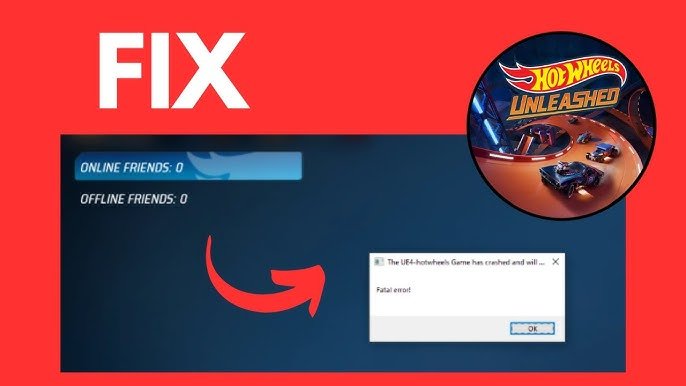
Fix HOT WHEELS UNLEASHED Fatal Error on Epic Games
Final Thoughts
To fix a game experiencing a fatal error on Epic Games, first, verify the game files. This action checks for and replaces any corrupted data. Next, update your graphics drivers, ensuring they’re current. Sometimes, outdated drivers can trigger such issues. If problems persist, try reinstalling the game completely. This often resolves underlying file corruption problems.
These steps will guide you on how to fix a game on epic games fatal error. This method can solve most fatal error problems.

