
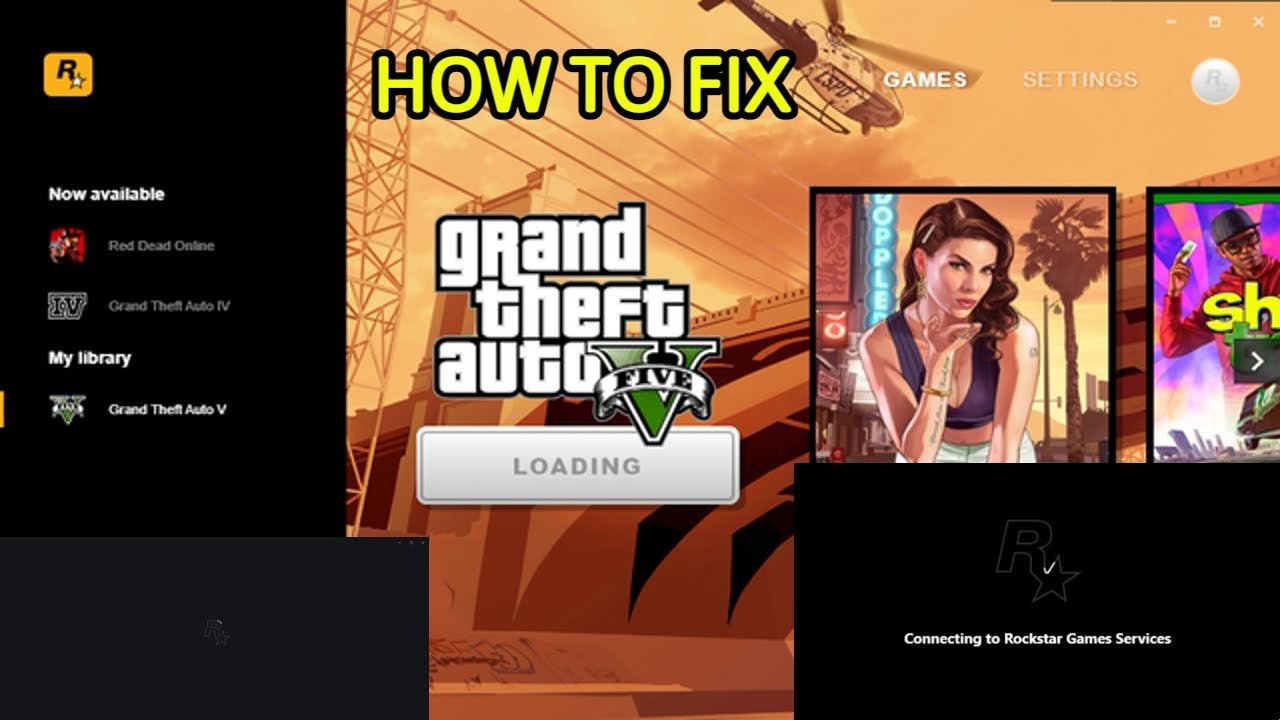
To fix your Rockstar Games, try verifying game files, updating drivers, or reinstalling the game.
Is your favorite Rockstar title acting up? Frustration builds when glitches, crashes, or performance problems interrupt gameplay. Many players wonder how to fix their Rockstar games when issues arise. Luckily, common solutions exist to get you back in the game.
Let’s explore some simple steps you can take to troubleshoot and resolve problems. You will find these solutions are often effective. These will help you get back to playing without further problems.

How to Fix My Rockstar Games: A Comprehensive Guide
Having trouble with your favorite Rockstar Games? It’s super frustrating when a game you love isn’t working right. Maybe it’s crashing, freezing, or just not starting up at all. Don’t worry, we’ve all been there! This guide will walk you through common problems and how to fix them, step by step. We’ll cover issues with Grand Theft Auto, Red Dead Redemption, and other Rockstar hits. Let’s get your games back up and running!
Common Issues and Quick Fixes
Before diving into more complex solutions, let’s look at some common problems and their quick fixes. These are often the easiest ways to get back into the game.
Game Crashing or Freezing
If your game keeps crashing or freezing, it could be due to several reasons. Here’s what to try:
- Restart Your Computer or Console: This is the oldest trick in the book, but it often works wonders! Completely shut down your device and then power it back on.
- Close Other Programs: Having too many programs running at the same time can overload your system. Close any unnecessary apps before starting your game.
- Check Your System Requirements: Make sure your computer or console meets the minimum requirements for the game. If your system is too old, you may experience problems.
You can usually find these requirements on the game’s packaging or on the official Rockstar Games website.
Tip: For PCs, use the Task Manager (Ctrl+Shift+Esc on Windows) to see which programs are using the most resources. End any you don’t need.
Game Won’t Start
Sometimes the game just refuses to start. If this happens, try these solutions:
- Verify Game Files: Game files can get corrupted, causing them not to launch. Most game platforms, like Steam and the Rockstar Games Launcher, have a “verify game files” option. Use this to check and repair any damaged files.
- Run as Administrator: Sometimes, games need special permissions to run correctly. Try right-clicking the game’s icon and select “Run as administrator”.
- Update Your Graphics Drivers: Outdated graphics drivers can cause many problems. Make sure your drivers are up to date. You can usually get the latest drivers from the website of your graphics card manufacturer (NVIDIA, AMD, Intel).
- Temporarily Disable Your Antivirus: Antivirus software can sometimes mistakenly identify game files as a threat, blocking them from running correctly. Try temporarily disabling your antivirus, and run the game. Remember to turn your antivirus back on after.
Slow Game Performance
Is your game running slowly or lagging? Here’s how you can attempt to make it faster.
- Lower Graphics Settings: High graphics settings can really strain your system. Try turning down the detail levels, resolution, and other visual settings. See if this helps improve speed of the game.
- Update Your System: Make sure your operating system is completely up to date. Windows Updates often include performance improvements and bug fixes.
- Upgrade Your Hardware: If you’ve tried everything and the game still runs slow, it might be time to consider upgrading parts of your computer like the RAM, graphics card, or processor, if you are on a PC.
Deeper Troubleshooting for PC Games
Let’s dive into more specific solutions for PC players. We’ll address some of the more common issues and how to fix them on your computer.
Dealing with Rockstar Games Launcher Issues
The Rockstar Games Launcher is often the starting point for many games, and when it has problems, it can be a hassle. Try these fixes.
- Reinstall the Launcher: Sometimes, the best solution is to simply start fresh. Uninstall the Rockstar Games Launcher and then download and reinstall the newest version from the official website.
- Check for Updates: Make sure you’re using the newest version of the launcher. It could also be causing the game not to launch. Check for updates within the launcher settings, or by simply downloading the new version.
- Internet Connection Problems: The Rockstar Games Launcher needs a stable internet connection to work. If your internet is shaky, it may cause errors. Make sure your connection is working.
- Conflicting Software: Third-party apps can sometimes interfere with the Rockstar Games Launcher. Try closing apps like screen recorders and overlay programs before launching the game.
Graphics Card Problems
Issues with your graphics card often cause problems in the game. Here’s how to deal with this:
- Clean Installation of Drivers: When you update your graphics drivers, it’s best to do a clean install to remove old, potentially conflicting files. You can usually find this option when installing new drivers for your graphics card.
- Graphics Card Overheating: If your graphics card gets too hot, it can cause crashes and slowdown. Make sure your computer has good airflow. You can also try cleaning the dust from the inside of your computer.
- Test the Graphics Card: You can run tests to check the performance of your graphics card. Some manufacturers have their testing tools. If tests show issues, the problem might be with your graphics card, not the game.
RAM and Storage Issues
Not enough RAM or a full hard drive can also cause problems with games.
- Check RAM Usage: When you’re playing games, close unnecessary apps. A full RAM usage can cause your game to crash. The task manager is a good way to check your RAM usage.
- Free up Disk Space: Make sure you have plenty of free space on your hard drive. Games need space to run and often use disk space to store temporary files. Having less space can cause performance issues.
- Run Disk Cleanup: Windows has a built-in disk cleanup tool to remove temporary files and other unneeded data, which can increase available space. Search for “disk cleanup” in the start menu.
Troubleshooting for Console Games
Console games are a bit different from PC games, but they can still have problems. Here’s what to check if you are playing on a PlayStation or Xbox.
Console System Software Issues
Just like PCs, consoles need to be up-to-date to work properly.
- Update Console System: Make sure your console is running the newest software. Updates often include important fixes and performance improvements. You can find these in your console’s settings menu.
- Restart your Console: A simple restart can often fix many problems. Completely turn off the console, wait a few minutes, and then power it back on.
Game Data Issues
Sometimes the game data on your console can become corrupted.
- Reinstall the Game: Delete the game and all its data from your console and reinstall it. This is often a good solution for many problems.
- Clear Console Cache: Your console stores data in a cache to make games run faster. If that gets full or corrupted, it can cause problems. You can clear your console’s cache in the system settings.
Hardware Issues
Problems with the console itself may also cause issues.
- Check Console Overheating: Just like PCs, consoles can overheat. Make sure your console has good airflow. Don’t put it in enclosed spaces.
- Test Other Games: If only one game has problems, the issue is probably with that specific game. If all games have issues, the problem is probably with the console itself.
- Check Your Disc (If Applicable): If you have a physical game disc, make sure it’s not scratched or damaged. A damaged disc may cause problems when loading a game.
Specific Game Troubleshooting
Let’s focus on some specific problems you might encounter with some popular Rockstar games.
Grand Theft Auto Series
Grand Theft Auto games are big and complex. Here are some solutions for common problems:
GTA V Problems
- Social Club Errors: The Social Club is necessary to play GTA V. Make sure it’s updated and running correctly. You may need to login again.
- Online Connection Issues: If you’re having trouble connecting to GTA Online, check your internet connection. Make sure your game ports are open. Check Rockstar’s website for a list of ports.
- Game Mods Issues: Mods can add fun things to games, but some mods can cause problems with GTA. If you are using mods, try uninstalling them, and see if this fixed the issues.
GTA Online Issues
- Slow Load Times: Try cleaning your game cache. Also, make sure you have enough free hard disk space.
- Connection Timeouts: Make sure you have a stable internet connection. Restarting your router can fix some connection issues.
Red Dead Redemption Series
Red Dead Redemption games are known for their detail and stories. Here’s how to address issues with these games:
Red Dead Redemption 2 Problems
- Graphics Problems: If the game looks strange, try updating your graphics drivers. Try changing graphics settings within the game menu.
- Crashing in Specific Areas: These can be fixed by updating your game, or your console software. Also check on the Rockstar support website to see if they have any specific info about the issues you’re having.
- Online Problems: If you have problems with Red Dead Online, the solutions are similar to those for GTA Online. Check your internet connection and make sure the game’s servers are up and running.
Red Dead Online Issues
- In-game glitches: These are common with any big online game. Make sure that your game is always updated, and keep checking the community for info.
- Issues with Player Connection: Make sure your internet connection is stable, and try restarting your router.
Seeking Help from Rockstar Support
If you’ve tried everything here and nothing works, it’s time to reach out to Rockstar Support. They have a lot of information on their support website. They also have a support form for getting in touch with a customer support agent.
How to Contact Rockstar Support
- Visit the Rockstar Support Website: Find answers to common problems here. There is a vast knowledgebase that may help resolve your issue.
- Submit a Support Ticket: If you can’t find an answer, use the support form. Explain your issue clearly. Include as much detail as possible.
- Check the Rockstar Forums: Other players may have had similar issues. See what worked for them.
When contacting support, here is some info that may be useful.
| Information | Why it’s Useful |
|---|---|
| Game Name and Version | Helps the support agent find the specific info on your game. |
| Platform (PC, PlayStation, Xbox) | Helps them with platform specific issues. |
| Computer/Console Specifications | Helps with figuring out if your hardware meets the game requirements. |
| Description of the Problem | The more detail the better, the support agent can better understand your problem. |
| What Steps You’ve Already Taken | Helps the support agent with identifying which solutions you already tried. |
Dealing with game issues is never fun, but with a systematic approach you can fix most problems. Start with the basic solutions and work your way to the more difficult ones. Don’t give up; keep trying! And remember, Rockstar Support is there to help if you need it.
How to fix Rockstar Games Launcher not working (any issue with Rockstar Games Launcher)
Final Thoughts
To fix your Rockstar games, start by verifying game files. Reinstalling the game is another good method. Check for driver updates, specifically your graphics driver. Sometimes, a simple computer restart solves many issues.
For persistent problems, review Rockstar’s support website. Their guides contain specific solutions for various errors. Remember that compatibility issues can be a problem so, you can check them. Following these tips should help resolve your ‘how to fix my rockstar games’ problem.

