
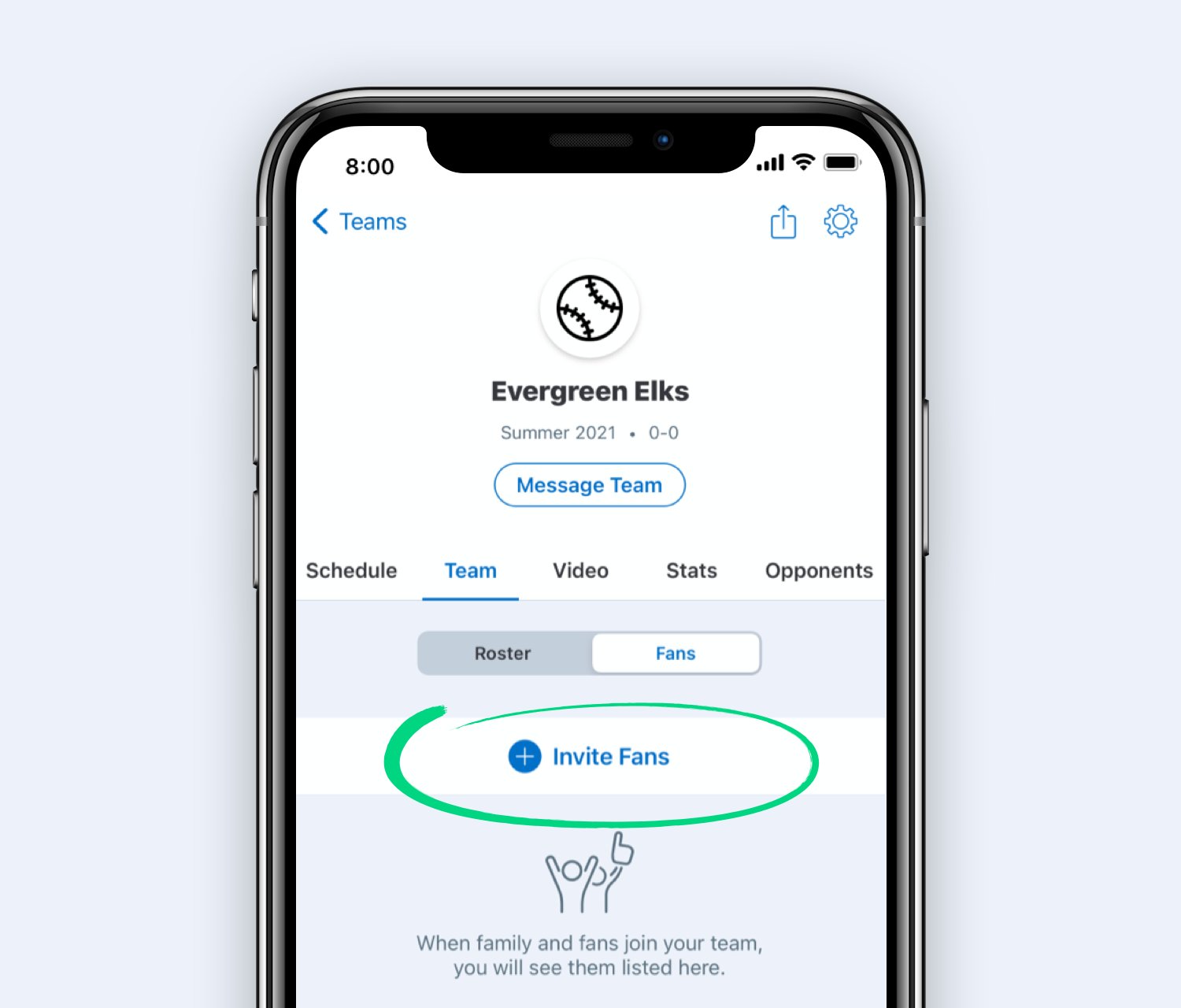
To follow a team on GameChanger, locate the team’s page using the search function or a direct link, and then select the “Follow” button.
Ever felt like you’re missing out on the action? GameChanger makes it easy to stay connected with your favorite sports teams, but understanding how to follow a team on GameChanger isn’t always obvious. This guide provides the simple steps you need to never miss a game.
We’ll walk you through the straightforward process, ensuring you get real-time updates, scores, and schedules. You’ll be in the know and ready to cheer them on, no matter where you are.

How to Follow a Team on GameChanger
Okay, sports fans! Ready to keep up with your favorite team like a pro? GameChanger is a super cool app that lets you follow all the action, but sometimes finding and following a team can feel a little tricky. Don’t worry, we’re going to walk you through it step-by-step, so you can cheer on your players with all the live updates you need. Get ready to learn how to follow a team on GameChanger like a champ!
Finding Your Team: The Search Bar is Your Friend
The first step in following your team is actually finding them on GameChanger. The app has a great search feature that makes it pretty easy. Here’s how to use it:
Using the GameChanger App
If you’re using the GameChanger app on your phone or tablet (which is where most people use it), here’s the deal:
- Open the App: Start by tapping the GameChanger app icon. It looks like a blue icon with a white “GC” inside.
- Look for the Magnifying Glass: Once the app is open, you’ll see a little magnifying glass icon somewhere on the screen. This is usually at the top or bottom. Tap on it. This is the search button.
- Type in the Team’s Name: A text box will appear. Use this box to type in the name of the team you are looking for. Be as specific as possible! For example, instead of just “Eagles,” try “Springfield Eagles 12U Baseball.”
- Browse the Results: GameChanger will show you a list of teams that match your search. Look through the list carefully. You might see multiple teams with similar names. Pay close attention to things like the age group (10U, 12U, etc.), the sport (baseball, basketball, etc.), and the location (city, state).
- Select the Right Team: When you’ve found the correct team, tap on their name. This will take you to their team page.
Tips for Better Searching
Sometimes finding the correct team can be tricky if you’re not super specific, here are some things to try
- Use Exact Names: Try searching for the exact team name. If you’re unsure ask the team coach or a teammate.
- Try different search variations: If you’re not finding the team with one search term try different variations. You might try a shortened version of the team name.
- Check League Information: if you know the league or association your team is in, you can try adding that to the search query.
Following a Team: Becoming a Fan
Okay, you have found the right team. Now, it’s time to become a fan and get all those live updates and scores! Here’s how to follow a team:
The Follow Button
Once you are on the team’s page look for a button that says “Follow” or sometimes a little heart icon. This button is usually at the top of the team’s page and quite easy to find. Click on this button and you are now following the team.
What Happens When You Follow
When you follow a team, some cool things happen:
- Get Game Notifications: You will receive notifications whenever a game starts or ends, or when there are any score updates.
- See Schedule Updates: You will have the team’s game schedule right in your GameChanger app.
- Access Rosters and Stats: You can easily see who is on the team and their stats (if the team chooses to share them).
Understanding the Team Page
Once you follow a team, the team’s page on GameChanger becomes your hub for all things related to that team. Let’s take a quick tour of the different things you might find there.
The Schedule Tab
This is where you will see all the upcoming and past games for the team.
- Upcoming Games: The schedule usually has the game date, time, the opponent, and location. This helps you plan when to follow the team live.
- Past Games: You can also look back on past games to see how the team performed and see game results.
- Location: GameChanger will usually show you the address or location of the game so you know where to go if you’re watching in person
The Roster Tab
The roster tab lets you see a list of all the players on the team.
- Player Names: You’ll find all the names of the players on the team. This is helpful when you are watching a game to know who is playing.
- Player Stats (If Available): Sometimes, teams choose to share player stats, like batting averages in baseball or goals scored in soccer. If they do you can see them here.
The Feed or News Tab
This section is like the team’s social media feed. It is where you can see recent updates
- Game updates: Teams may post short updates in this section to inform fans about game status
- Announcements: Coaches or team managers may post team announcements in this section
- Other Updates: You might see other things like photos, videos, or messages from the team in this feed.
Following Multiple Teams
What if you have more than one favorite team? No problem! GameChanger lets you follow as many teams as you want. Just repeat the steps we talked about earlier for each team you want to follow. This way, you can keep track of all the sports action that is important to you.
Managing Your Followed Teams
As you follow more and more teams, you might need to keep your list organized. Here is how you can manage your followed teams:
Unfollowing a Team
Sometimes you might not want to follow a team anymore. Maybe the season is over, or maybe you’re not interested in that team anymore. Here’s how to unfollow:
- Go to the team’s page: Find the team in the list of teams you’re following. Tap on the team to go to their page.
- Find the Following Button: The “Follow” button or heart will now look different. Instead of asking you to follow the team, it will say “Following” or it might be a highlighted heart.
- Tap to Unfollow: Tap this button. The button will switch back to “Follow” or the heart will no longer be highlighted. Now you are no longer following that team.
Keeping Track of All your Teams
GameChanger typically shows you a list of the teams you are following on your main account screen. This is usually a very easy way to see your followed teams. You can easily click through the team pages to see updates.
Privacy on GameChanger: Keeping it Safe
GameChanger is a great way to keep up with your team, but it is also important to understand how privacy settings work on the app.
Team Privacy Settings
Teams can control how public they want their information to be. Some teams might choose to keep their information private for just the team members and families.
- Private teams: If a team is private, you might need an access code or team invitation to follow them.
- Public teams: Most teams are public, so you can simply follow them using the methods we talked about earlier.
Your Own Privacy
Remember that your own profile information is also visible on GameChanger. Choose a profile picture and name that you are comfortable with for other users to see. It is very good to be safe when using online applications.
Troubleshooting: When Things Don’t Go as Planned
Sometimes, things might not work perfectly on the app. Here are some common problems you might have and what you can do about them:
Can’t Find the Team
If you can’t find the team, double check the spelling and be as specific as you can. You can ask a coach or teammate for the exact team name or an access code. It is also possible that the team might not use game changer. Double check the communication app the team is using.
Not Getting Notifications
If you are not getting notifications, make sure you have notifications enabled in your phone or tablet’s settings. You can also check that you have notifications enabled in your GameChanger app settings.
The app is acting strange
If the app isn’t working properly, try closing the app and then reopening it. You can also check to see if there is an app update available, or restart your device.
Making the Most of GameChanger
Following a team on GameChanger is a super easy way to keep up to date. Now that you have this knowledge, you can be the best fan and keep up to date with everything. Here are some tips to maximize your GameChanger experience:
- Be an Engaged Fan: Cheer on your team, share updates with your friends and family. GameChanger is for everyone, so have some fun.
- Share your Excitement: If the app allows you to comment, do it. Let your team know you are watching and supporting them.
- Explore: Take the time to click around the app and explore all of its features.
Following a team on GameChanger is a simple way to stay in the loop and be an awesome supporter. Now that you have mastered the steps for searching, following, and managing your teams, you are ready to enjoy all the live action! Keep an eye on the schedule, cheer on your players, and have fun watching the games. Happy cheering!
GameChanger – Adding Parents
Final Thoughts
Following a team on GameChanger is simple. Search for the team name in the app’s search bar. Then, tap the follow button. You will then receive updates about their schedule and results.
To quickly find your team, check any emails you received with GameChanger links. These links directly connect you. This way, you get the most recent information about games.
Finally, how to follow a team on game changer is easy. Enjoy staying connected. The application makes game updates really accessible.

