
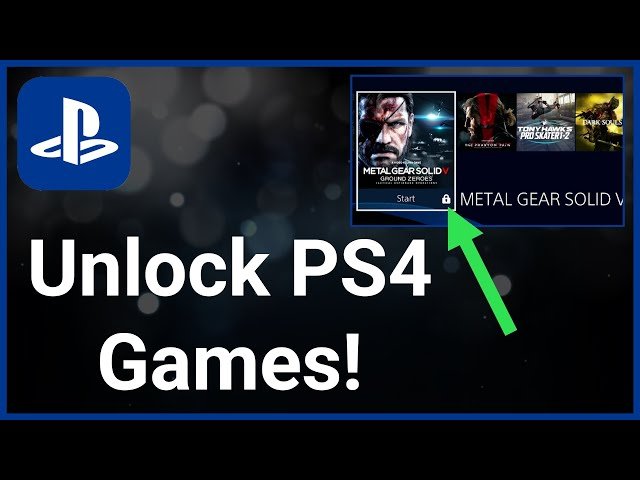
To unlock a game on PS4, you typically need to purchase it either digitally from the PlayStation Store or acquire a physical disc. After purchasing, install the game and it will be playable.
Ever been itching to dive into a new game but found yourself stuck? Figuring out how to unlock a game on PS4 can seem confusing if it’s your first time, but it’s a simple process. Whether you prefer digital downloads or physical copies, getting access to new gaming adventures is straightforward. Let’s explore the usual paths to quickly enjoy your new Playstation game.

How to Unlock a Game on PS4
So, you’ve got a brand new PlayStation 4 game, and you’re itching to play it! But sometimes, it’s not as simple as popping the disc in or hitting the download button. There are a few different reasons why a game might seem locked, and we’re here to walk you through each one. We’ll show you how to get that game running so you can jump right into the fun. Let’s get started and learn how to get into your games.
Understanding Game Lock Situations on PS4
Before we dive into the fixes, it’s important to know why a game might be locked in the first place. Think of it like a door that needs the right key – in the PS4 world, that key could be a disc, a digital license, or even an internet connection. Here are the most common reasons why your game might be stuck:
- Disc Not Recognized: Your PS4 might not be reading the game disc properly. This can happen if the disc is dirty, scratched, or if there is a problem with the PS4’s disc drive.
- Digital Game License Issues: If you bought a digital game, your PS4 needs to verify that you own it. Sometimes this verification can go wrong, leading to a locked game.
- Account Region Problems: Games are sometimes region-locked. This means a game bought in one country might not work on a PS4 from another country.
- PlayStation Network (PSN) Issues: Sometimes, problems with the PSN can stop your game from starting. This is especially common for games that require a constant internet connection.
- System Software Updates Needed: Your PS4 needs to be running the latest software to play new games and function properly.
Troubleshooting Disc-Based Games
Okay, let’s start with disc-based games. If your PS4 isn’t reading the disc, don’t panic! There are a few things you can try before you start thinking of a bigger issue.
Checking the Game Disc
The first step is always to check the game disc itself. Think of it like checking if your key is dirty before trying to open a door.
- Look for Scratches and Smudges: Carefully examine both sides of the disc. If you see any scratches or smudges, that could be the issue. Try to gently clean the disc with a soft, lint-free cloth. Wipe from the center outwards in a straight line. Never in circular motions as this can cause more damage.
- Check for Damage: Look for cracks, bends, or other damage. If the disc is physically damaged, it may not work.
- Try Another Game Disc: If you have another disc-based PS4 game, try it out in your console. If the second disc is also not working, then it’s likely an issue with the disc drive itself, rather than the game.
Cleaning the PS4’s Disc Drive
Dust or debris can sometimes get into your PS4’s disc drive, causing it to not read discs properly.
- Use a Cleaning Disc: You can buy disc-drive cleaning kits for gaming consoles. These kits usually come with a special cleaning disc and instructions on how to use it. Follow those instructions carefully.
- Professional Cleaning: If you are not confident cleaning the disc drive by yourself or if you tried a cleaning disc and the console still not reading discs, then you should seek a professional assistance. They will have proper tools and expertise for the job.
Restarting Your PS4
Sometimes, just restarting your PS4 can clear out temporary glitches that might be stopping a disc from working. It’s like giving your computer a quick refresh.
- Power Cycle Method: Turn off your PS4 completely and unplug the power cord from the back of the system. Wait for one minute and then plug it back in. Turn your PS4 back on and try the game again.
- Using the Power Menu: You can restart your PS4 by pressing and holding the power button on the controller until you see the power menu on the screen. Select “Restart PS4” and try the game again after restarting.
Fixing Digital Game License Problems
If you have a digital game that isn’t working, the problem is most likely related to your account and its digital license. Here’s how to get that sorted.
Restoring Licenses
Restoring licenses is like re-registering your digital games with your PS4. It’s a good first step when a digital game is locked.
- Go to Settings. You can find this by tapping the top of the screen on the main PS4 menu
- Go to “Account Management,” scroll down and tap on “Account Management”
- Select “Restore Licenses.”
- Wait for the process to complete. Then, try launching your game again.
Checking Your PSN Account
Make sure you are using the correct PSN account. It’s common to have multiple accounts on one console.
- Verify Account: Double-check that you are logged into the same PlayStation Network (PSN) account that you used when you bought the digital game. If you are not logged into correct PSN account, then it will not allow you to play the game.
- Switching Accounts: If you have multiple accounts, try logging out of your current account and log in to the account you used when you purchased the game.
Verifying Internet Connection
Your PS4 needs a good internet connection to verify digital game licenses. If your internet is not working, your game might not work.
- Test Internet Connection: Go to “Settings,” then “Network,” and then “Test Internet Connection.” This will tell you if your internet is working properly.
- Check Router: If your internet is not working, make sure that your router is plugged in and working properly. Restart your router to try to refresh your internet connection.
Addressing Region Lock Issues
Region locks are less common nowadays, but it’s still a possibility. If your game was bought in a different country, here’s what to do:
Confirming Game Region
The first step is to make sure that the game and console are from the same region.
- Check Game Case: Look for any symbols or indicators on the game’s case that show which region it’s from.
- Check Console Region: Your PS4 console has a region, although PS4 is not strict about region locks. You can check the region of the console if you go to settings.
Dealing with Region Incompatibility
If you discover that you have a game from another region, then you may face some issues. Here is what you can do
- PSN Store: Check if the game is available in your local PSN store, and then buy the digital version.
Resolving PlayStation Network Problems
Sometimes the PlayStation Network itself is having problems. This can lead to games not starting, especially those that need an online connection.
Checking PSN Status
The first step when you are having issues with a game due to internet connection is to check the server status.
- Check the PSN Status Page: You can go to PlayStation’s website and check the PSN status.
- Wait and Try Later: If the PSN is down, there is nothing much you can do other than wait for the issue to be resolved. Try again later to check if the PSN is back online.
Restarting Your Internet Modem and Router
Your internet modem or router can sometimes have issues, which causes problems with playing games.
- Power Cycle Internet Devices: Turn off your modem and router by unplugging them from the power outlet. Wait for about a minute and plug them back in. Wait for your internet to come back online and try your game again.
Ensuring System Software is Up to Date
Your PS4 needs the latest software updates to run properly, play new games and also to fix bugs. Older software can sometimes cause issues with games
Checking for Updates
Here is how to check for new software updates
- Go to “Settings”
- Go to “System Software Update”
- Select “Update System Software.”
- If there is an update available, it will download and install automatically. If it says you have the latest update then you are good to go.
Manual Updates
If your PS4 cannot connect to the internet, you can update your console manually using a USB drive
- Download the Update File: Visit the PlayStation website and download the latest PS4 software update to a USB drive.
- Install Update From USB: After that, plug the USB into your PS4 and follow the onscreen instructions to install the update.
Other Helpful Tips
If you’ve tried all of the above steps and are still having issues, here are a few other things to try.
- Try another HDMI cable: If your TV or monitor is not displaying the game, try using a different HDMI cable.
- Contact PlayStation Support: If nothing else is working, the best option may be to contact PlayStation support. They have customer service representatives who are experts and can help you fix your issues.
- Check game forums: Try going online to some game forums, maybe other people have encountered the same issue and you can find their solution, or you can create a new thread for others to see and help you resolve the issue.
Getting your PS4 game to work shouldn’t be a big challenge. By understanding some basic troubleshooting, you can quickly get back to having fun. Remember to always keep your system updated, your discs clean, and your internet connection strong. Following these steps can ensure that the game is ready for you to play it. Don’t let these technical issues get in your way of enjoyment. Hopefully, this guide will help you get through the issues you are having, and get your game going in no time.
How to Fix Locked Games on PS4! PS4 Unlock Games Easy Fix!
Final Thoughts
To play a game purchased digitally, simply find it in your library and download. For physical copies, insert the disc. You may need to wait for installation. That’s how to unlock a game on ps4; it is a very simple process.
Sometimes, a game needs activation via a code. Enter this code on the PlayStation store to access your content. Always ensure your console has the latest software for best functionality.

