
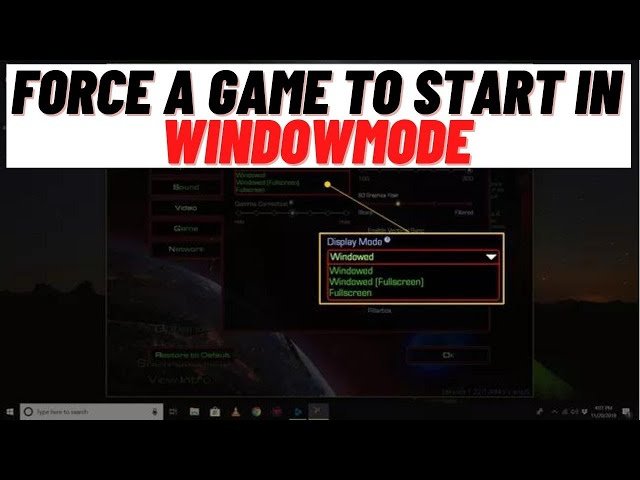
To force a game into windowed mode, typically you can press Alt + Enter while the game is running, or use the game’s settings menu if available.
Ever get stuck with a game hogging your entire screen? It can be frustrating when you need to quickly access other applications. The good news is, figuring out how to force a game into windowed mode is usually pretty straightforward. Many games offer built-in options, and there are also some helpful tricks you can try.
Let’s explore some common methods. We will see how you can quickly make the change, so you can enjoy seamless multitasking while gaming.

How to Force a Game into Windowed Mode
Sometimes, when you play a game, it takes up your whole screen. This is called fullscreen mode. It can be great for getting really into the game, but what if you need to switch to another app quickly, or you want to watch a video while gaming? That’s where windowed mode comes in. Windowed mode lets you play your game in a smaller window, like a regular app. This makes it easier to move between different things on your computer. But, some games don’t have an easy setting to switch to windowed mode. Don’t worry! There are lots of ways to get your game to play in a window. Let’s look at some simple ways you can do this.
Why Use Windowed Mode?
Before we jump into how to force a game into windowed mode, let’s talk about why you might want to. Windowed mode offers a bunch of advantages:
- Easy Multitasking: You can quickly switch between your game and other applications like your web browser, chat app, or document editor. This is great for looking up hints, talking with friends, or taking notes.
- Screen Recording: If you want to record your gameplay, windowed mode can sometimes make it easier to capture the game screen, especially when you’re using screen recording software.
- Dual Monitors: When you have two monitors, playing in windowed mode lets you keep your game on one screen while doing other things on your second screen.
- Troubleshooting: Sometimes, playing in windowed mode helps fix problems, like black screens or crashes, that might happen in fullscreen.
Using In-Game Settings
The easiest way to switch to windowed mode is usually inside the game’s settings. Most modern games offer a “Display” or “Graphics” menu where you can change how the game looks. Look for options like:
- Display Mode: This is where you can choose between Fullscreen, Windowed, or Borderless Windowed.
- Windowed Mode: Check if this setting is available, and select it.
- Borderless Windowed: This option makes the window look like fullscreen but still allows easy switching between windows.
How to Find the Settings:
- Start the game you want to play.
- Look for a settings button (it often looks like a gear or a menu icon).
- Click on the settings button and look for an option called “Graphics,” “Display,” or “Video”.
- Browse the options and find the display mode, and then change the setting to “Windowed Mode”.
- Save the settings and restart the game if required.
- Play your game!
Many games have this option right in their menu, making it a simple process. Check your game’s options menu before trying other methods.
Using Keyboard Shortcuts
Sometimes, a game won’t have a clear setting to change to windowed mode. In this case, keyboard shortcuts can be your best friend. The most common shortcut is:
Alt + Enter: This key combination often toggles between fullscreen and windowed mode. While it does not work with every game, you should try this first before trying other complex methods.
How to use keyboard shortcut:
- Start the game.
- Press the “Alt” key and the “Enter” key at the same time.
- See if the game switches to windowed mode.
If that works, great! If not, there are a couple other shortcuts that are worth testing. Some games might respond to:
- Windows Key + Shift + Enter: This less common shortcut sometimes works for forcing games into a window.
Try them one at a time to see if they work. If keyboard shortcuts don’t work, no need to worry, other methods are available.
Modifying Game Configuration Files
If the in-game settings and shortcuts do not work, then you can try editing the game’s config files. Many games store their display settings in files on your computer. You can change these files to force a game to launch in windowed mode.
Finding the Config File
The tricky part is finding the correct file. These files are usually located within the game’s installation folder or within your documents folder. Here are some common locations:
- Game’s Installation Folder: Navigate to where the game is installed. Look for folders called “config,” “ini,” or similar, usually within the main game folder.
- Documents Folder: Sometimes, game settings are saved in a folder within your “Documents” folder. You might find a folder with the game’s name or the name of the game developer.
- Appdata Folder: On Windows, many applications store their settings in a hidden folder called “AppData”. You can usually get there by typing
%appdata%in your file explorer address bar, then looking for the game’s folder under the Local or Roaming subfolders.
How to Edit the File
Once you find the file (it often has a name like settings.ini, config.ini, or similar), follow these steps:
- Open with Notepad or a text editor: Right-click on the file and select “Open with” and choose Notepad or any text editor.
- Find the display setting: Look for settings related to display or graphics. These often use names like “fullscreen,” “windowed,” or “displaymode”.
- Change the value: If you see a setting like
fullscreen=1, change it tofullscreen=0.
If you seewindowed=0, change it towindowed=1.
If you seedisplaymode=fullscreen, change it todisplaymode=windowed. - Save the changes: Save the file and close it. Make sure you select the same file type (.ini) when saving the file.
- Try your game: Start the game and check if it launches in windowed mode.
Important Notes:
- Be careful when editing config files. Changing the wrong settings can mess up your game. If you are not comfortable editing the config files, it might be better to try other methods.
- Before making any changes, make a copy of the original file. That way, if something goes wrong, you can restore the original settings.
Using Launch Options
Some games, especially those on platforms like Steam, allow you to use launch options. These are special commands that you can add when you launch a game, telling it to start in a specific way.
Steam Launch Options
For games on Steam, follow these steps:
- Open your Steam library and find the game you want to change.
- Right-click on the game and choose “Properties”.
- Click on “General” tab.
- Look for a section called “Launch Options” and click in the blank box.
- Add the following command (one at a time) and then press the play button:
-windowedor-window: This is the most common command to force windowed mode.-popupwindow: This forces the game to launch in a borderless windowed mode, which often is very good for alt+tab.-w [width] -h [height]: Example:-w 1280 -h 720. Replace[width]and[height]with the desired resolution of the window.
- Close the properties window and launch the game.
Other Game Launchers
Other game launchers, such as the ones used for specific titles (Ubisoft, EA, Epic Games, etc.) or even standalone game launchers, often have ways to add custom launch parameters too. Look for similar options within their interfaces, usually within game properties or settings.
Third-Party Software
If none of the above solutions work, there are third-party programs that can help force a game into windowed mode. These applications can often work where other methods fail, but use these at your own risk.
Windowed Borderless Gaming
Windowed Borderless Gaming is a very helpful program specifically designed for this purpose. It can force many games into a borderless windowed mode. This mode still looks fullscreen but behaves like a window, making it easy to switch between other apps. Many people use this tool since it is easy to use. You can find it by doing a web search.
How to Use:
- Download and install Windowed Borderless Gaming.
- Launch the software, making sure that is running in the background.
- Start your game.
- Right-click on the “Windowed Borderless Gaming” icon in your taskbar.
- Click “Add Window (F3)” and click on the game window.
- The game will be automatically changed to borderless windowed mode.
Other Third-Party Options
There are other similar tools available. A few to consider are “DXWnd”, and other tools that are designed to manipulate how applications are displayed on your computer. Be cautious when using third-party software and make sure to download from trusted sources to prevent any potential problems with your computer.
Troubleshooting
Even with these methods, you might encounter some issues. Here are some tips to address common problems:
- Game Won’t Start: If a game won’t launch after changing settings, restore the original configuration files, remove launch options, or reinstall the game. This ensures that there’s no problem in the game files.
- Screen is too small: If the window is very small, try adjusting the window size by dragging the window borders.
- Graphic Glitches: If you see graphical issues, update your graphics drivers, change the game resolution, or try a different display mode (e.g., borderless windowed).
- Game freezes on switching windows: Some games have issues with alt-tab, where they freeze. Try borderless windowed mode, since many times it resolves that issue.
By understanding how to change games to windowed mode, you’ll have a better gaming experience. You’ll be able to easily switch between applications while gaming, make it easier to multitask, record your gameplay, use multiple monitors, and more. If the initial methods don’t work, don’t give up! Try the other techniques. With a little bit of trying, you should find one of these methods that suits your particular needs and specific game.
How to Force a Game to Start in WindowMode
Final Thoughts
You can usually force a game into windowed mode using Alt + Enter. This keyboard shortcut is the easiest method. If that does not work, try adding -windowed to the game’s launch options.
Sometimes, you can also modify the game’s configuration file to specify windowed display. These methods cover the basic ways for how to force a game into windowed mode.

