
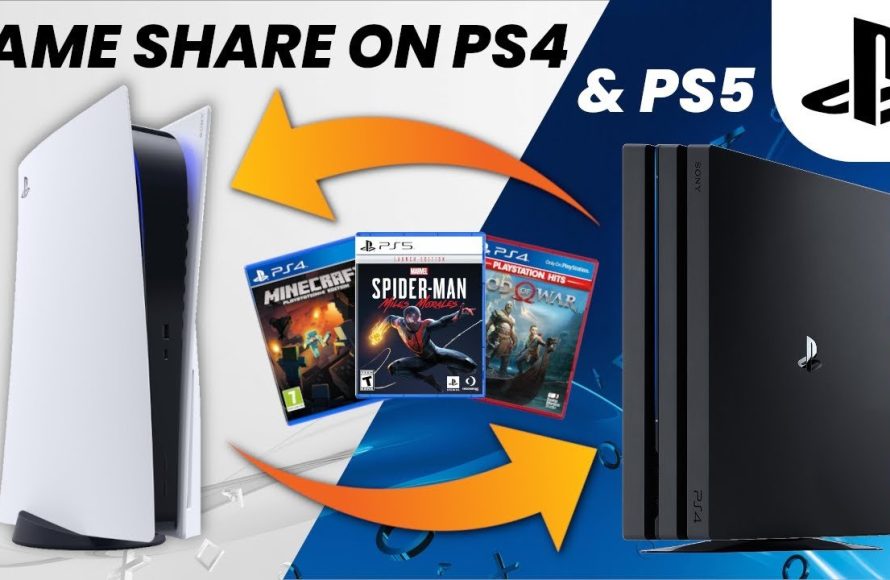
To game share MW3 on PS5, you need to activate console sharing and offline play on the account that owns the game, then log into that account on the second console.
Want to enjoy Modern Warfare 3 with a friend on separate PS5 consoles, but only one of you bought the game? You’re probably wondering how to game share MW3 ps5. This process allows you to share your digital games library with someone else, which is a fantastic way to play together without double purchasing.
It involves a few steps with your PlayStation settings, ensuring you both can access the purchased content. The core idea is designating one console as the primary one for your account, so others can utilize your games. Let’s get into the detail of how it is done.

How to Game Share MW3 on PS5
So, you want to share the fun of Modern Warfare 3 (MW3) on your PlayStation 5 with a friend or family member? Great idea! Game sharing on the PS5 is a fantastic way to let others experience your games without needing to buy a separate copy. It’s like lending a game, but digitally. This article will walk you through exactly how to do it, step by step. We’ll cover everything from the basic settings you need to know to troubleshooting common problems. Let’s get started and get you both playing MW3!
Understanding PlayStation 5 Game Sharing
Before diving into the process, it’s helpful to understand how game sharing works on the PS5. Basically, you’re giving another console access to the games you’ve purchased on your account. This is accomplished by activating “Console Sharing and Offline Play” on the other person’s console with your account. It’s important to know that you can only have one console set as your primary console at a time. This means you can’t share with multiple people simultaneously, and there are a few rules to keep in mind.
Key Things to Remember About Game Sharing
- Only one console can be designated as your primary console at a given time.
- The account that owns the games must be present on the shared console.
- Both consoles must have a reliable internet connection for initial setup and to verify licenses.
- While you can play on any console using your account, playing your games offline will only work on your designated primary console.
- When sharing, you can still play your games on your own console using your main account.
Preparing for Game Sharing: Accounts and Consoles
Before we begin the sharing process, let’s get the basics in order. You’ll need the following:
- Your PSN Account: This is the account that owns the digital copy of MW3. Make sure you know your email and password.
- Your Friend’s PSN Account: This is the account that will gain access to your copy of MW3.
- Two PlayStation 5 Consoles: One is yours (the game owner), and the other is your friend’s (the recipient of the share).
- Reliable Internet Connection: Both consoles should be connected to the internet for setup and license verification.
Ensuring Security
It’s very important to only share your account with people you trust. Sharing your account information can potentially give access to other sensitive information such as your payment details. Always remember to change your password if you suspect that someone else may know your account details.
Step-by-Step Guide to Game Sharing MW3 on PS5
Now, let’s get to the fun part – actually sharing MW3. Follow these steps closely:
Step 1: Logging into the Recipient’s PS5 with Your Account
First, you will need to go to your friend’s PS5 and log in using the credentials of the account that has purchased MW3 (your account). If your account is already on their PS5, skip this step.
- Turn on your friend’s PlayStation 5.
- Go to the home screen and navigate to the profile icon (usually on the top right corner).
- Select “Switch User” or “Add User”.
- Choose “Add User” and follow the onscreen instructions to log into your account.
You have now logged in your account onto the receiver’s PS5.
Step 2: Activating Console Sharing and Offline Play
Once logged in, you’ll need to activate “Console Sharing and Offline Play” for the recipient’s PS5.
- Go to “Settings” from the main PS5 menu. This can be found by clicking the gear icon at the top right of your screen.
- Navigate to “Users and Accounts”.
- Select “Other” and click on “Console Sharing and Offline Play”.
- Click “Enable” on “Console Sharing and Offline Play”. If it says “Disable,” then it’s already activated.
This step makes your friend’s PS5 your designated primary console for game sharing. Your friend will be able to access your downloaded games, like MW3, from their own account.
Step 3: Logging out and Switching Users
Now that you have made your friend’s console as your primary console for game sharing, you need to log out of your account and let your friend login.
- Press the PS button on the controller to access the control center.
- Navigate to your profile.
- Select “Switch User”, and then choose your friend’s account.
Your friend should now be able to locate and launch MW3 without any further steps.
Step 4: Testing the Game
Your friend should be able to find and start MW3 from their game library. The game might have to download, but it should be available. If your friend is able to access the game and play it, the game sharing was a success! If not, make sure to redo steps one to three again carefully.
Playing Together and Separately
After successfully setting up game sharing, you might wonder if you both can play MW3 simultaneously and under which circumstances. Here are some things to keep in mind:
Playing Simultaneously
Yes, it is possible for both of you to play MW3 at the same time. You will use your PSN account on your console and they will use their PSN account on their console. It doesn’t matter that their console is set as your primary console.
Playing Separately
Yes, you both can play MW3 on your own schedules since you have different accounts and consoles now.
Offline Play
Keep in mind that if you want to play your games offline, it must be on the primary console. The account that purchased MW3 needs to be logged in with the PS5 that is set as their primary console to be able to play offline.
Troubleshooting Common Game Sharing Issues
Sometimes, things don’t go as smoothly as planned. Here are some common problems you might encounter and how to fix them:
Game Is Locked
If your friend can see the game, but it’s locked, check the following:
- Console Sharing is Not Enabled: Make sure “Console Sharing and Offline Play” is enabled on your friend’s console with your account.
- License Verification Issues: Ensure both consoles are connected to the internet. Sometimes, the PS5 needs to re-verify the license.
- Incorrect Account: Confirm your friend is using their account on their console and not yours.
Game Won’t Download or Install
If you have trouble downloading or installing MW3, try these solutions:
- Insufficient Storage: Make sure there is enough free storage space on your friend’s PS5 for the game.
- Network Issues: Check your internet connection. A slow or unstable connection can interrupt downloads. Restart your router and console.
- PlayStation Network Issues: Sometimes, the PlayStation Network itself might be having issues. Check their status on the official PlayStation website.
Account Login Errors
If you have trouble logging into your account on the recipient’s PS5, try these steps:
- Incorrect Password: Make sure your password is correct. If you’re unsure, try resetting it.
- Internet Connection: Stable internet is required to log in successfully.
- Two-Factor Authentication: If enabled, you may need to enter a code from your authenticator app.
“You Cannot Use This Content Because Your License Can’t Be Verified”
If you receive this error message, try these steps:
- Restart Consoles: Turn off both your PS5 and the receiver’s PS5, and then turn them back on.
- Log Out and Log In: Log out of your account on both consoles and log back in.
- Restore Licenses: Go to Settings > Users and Accounts > Other > Restore Licenses on both consoles.
Important Security Considerations
While game sharing is convenient, it is important to take precautions to keep your account safe:
Password Management
Choose strong, unique passwords for your PSN account. Avoid using passwords that are easy to guess, and never reuse passwords across multiple websites or platforms.
Who to Share With
Only share your account with people you know and trust. Sharing your account with strangers can pose serious risks to your security.
Keeping Your Information Safe
Never share your payment information or other sensitive details with anyone who is using your account for game sharing.
By following these steps, you can easily share the gaming fun of MW3 with your friends or family members on their PS5. Remember to keep security in mind, and enjoy playing!
MW3 PS4/PS5: How to Gameshare Full Tutorial! How to Play Multiplayer, Campaign, & Zombies Free!
Final Thoughts
To game share MW3 on PS5, you need to activate console sharing and offline play on the account that owns the game. The other player then accesses the game using their own profile on the same console. Remember that this method allows one person to play at a time, not simultaneously.
For effective game sharing, always ensure the primary console is set correctly. This step will make ‘how to game share mw3 ps5’ easier. Enjoy playing Modern Warfare 3 with a friend by following these steps.

