
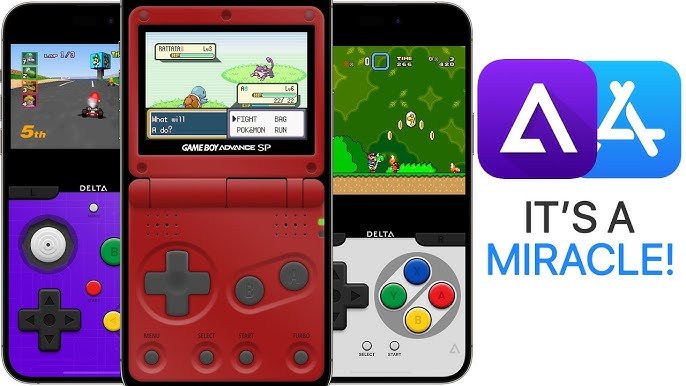
To get DS games to work on Delta, you’ll need to import the appropriate ROM files into the app. Ensure the ROM is compatible and then load it from within the Delta application.
Want to play your favorite DS games on your phone? Many people ask how to get ds games to work on Delta. The process is quite simple and allows you to relive classic gaming experiences on your iOS device. You just need the right files and a little know-how.
First, obtain the game ROM from a safe and reputable source. Then, transfer this file to your device so that Delta can access it. After that, opening the ROM via the Delta app will allow you to play almost instantly. Enjoy your classic game!

How to Get DS Games to Work on Delta
So, you’re excited to play your favorite Nintendo DS games on your iPhone or iPad using Delta, the awesome retro emulator? That’s fantastic! Delta lets you revisit classics like Mario Kart DS, Pokémon Diamond, and The Legend of Zelda: Phantom Hourglass. But sometimes, getting those games up and running can feel a little tricky. Don’t worry; this guide is here to walk you through all the steps. We’ll cover everything from finding the right files to troubleshooting common problems, ensuring you can dive right into your DS adventures. Let’s get started!
Understanding the Basics: What You Need
Before we jump into the specifics, let’s make sure you understand the essential ingredients for playing DS games on Delta. Think of it like baking a cake; you need the right ingredients to get the perfect result. Here’s what you’ll need:
- Delta Emulator: Obviously, you need the Delta emulator installed on your iPhone or iPad. It’s available as an alternative app, often through methods like AltStore or other sideloading options. We won’t go over the steps to get Delta, assuming you already have it.
- DS ROM Files: These are the actual game files. They usually come in a
.ndsformat. Think of these as the game cartridges, but in digital form. We will talk about finding these later. - BIOS Files: These are special files that Delta needs to pretend it’s a real Nintendo DS. These files are required for the emulator to work correctly with the ds games and are important for the emulation process. They also have to be in the correct format. We will discuss how to obtain and what format are they.
Finding Your DS ROMs
This part is a bit like treasure hunting! You’ll need to find the .nds files for the games you want to play. This can be the trickiest part because you cannot get them from the appstore or any official sources. Remember, downloading ROMs of games you don’t own is not right and could get you into trouble. However, if you own the game cartridge, you may create a digital backup for personal use. You will have to do some research on how to create a backup of your own games. After finding the required rom, it is better to keep the files organized. It will help you to find them later and it is best way to ensure proper loading of games in emulator.
Where to Look for ROMs
The internet has many places where people share ROM files. A simple Google search might point you in the right direction, but be very careful of where you download files. Some websites could have viruses or other harmful stuff, so be extra cautious! There are many community forums that may help you to find the ROM files. Remember, only download files you’re sure about. It’s like checking both ways before crossing the street – safety first!
Important Tip: When you find a game, look at the file name. It should end in .nds. If it ends in something else, like .zip or .rar, you might need to extract the .nds file from it. Extracting files is like opening a gift to find the actual toy inside.
After you have the file, you can add it to your Delta emulator.
Getting the Right BIOS Files
The BIOS files are critical because they help Delta understand how a Nintendo DS works. You’ll need three specific files: bios7.bin, bios9.bin, and firmware.bin. Think of these as the brain, heart and soul of the Nintendo DS that the emulator uses to run the game.
Finding the BIOS Files
Just like with ROMs, you’ll need to search for these files. You can find these files from sources same as the ROMs. These files are very small in size so the download should not take much time. Be very careful when downloading these files from internet as these files are very important to run the emulator properly.
Important Note: Make sure the files are named exactly bios7.bin, bios9.bin, and firmware.bin. Delta is very picky, like a cat with its food. If the names are even a little bit different, it might not recognize them.
Proper Placement of BIOS Files
Once you have the BIOS files, you’ll need to put them in a special folder where Delta can find them. Here’s how to do that:
- Connect your device to your computer. If you’re using AltStore, you’ll typically use a program that manages your device’s files.
- Navigate to Delta’s folder. Look for a folder named “Delta” or similar. Inside that folder, you should find a folder called “BIOS”.
- Place the files in the BIOS folder. Copy
bios7.bin,bios9.bin, andfirmware.bininto this folder.
After these steps, you can disconnect your device. Now, Delta should be able to find the required BIOS files. It’s like putting the batteries in a toy car – it won’t work until you do!
Adding Games to Delta
Now that you have your ROMs and BIOS files ready, it’s time to add games to Delta. Here’s how to do it:
- Open the Delta app. Launch the Delta app on your iPhone or iPad.
- Tap the “+” button. Look for a plus sign, usually in the top-right corner of the screen. This is how you add new games to the emulator.
- Choose “Import File”. Select the option to import a file from your device’s storage.
- Find your .nds game file. Browse to the folder where you saved your
.ndsfile, and select the game you want to play.
After doing these steps the selected game will be visible in the Delta emulator. You can repeat this step to add more games to your emulator.
Troubleshooting Common Problems
Sometimes, things don’t go as smoothly as we’d like. If you run into problems getting DS games to work on Delta, here are some common issues and how to fix them:
Game Not Loading
- Check BIOS Files: Make sure that the BIOS files are correct and are located in the correct directory. Delta won’t work correctly without the BIOS files. The BIOS files should have the correct name –
bios7.bin,bios9.bin, andfirmware.bin. - ROM File Issues: Verify that the ROM file is not corrupted or damaged. Try to download the same ROM from another source and load it to the emulator.
- Incorrect File Format: If a game is compressed in another format, try to extract it and then load the extracted
.ndsfile to the emulator.
Game Freezes or Runs Slowly
- Close Other Apps: Sometimes, having too many apps open can slow down your device. Close any unnecessary apps before playing your game.
- Restart Device: Restart your device sometimes help to clear out anything that is slowing down the app.
- Check Game Compatibility: Some very demanding DS games might not run perfectly smoothly, depending on the power of your device. If other games are running smoothly it is best to accept that a particular game is not compatible with your current device.
Audio Problems
- Check Volume Settings: Make sure the volume on your device is turned up.
- Restart App: Sometimes restarting the Delta app can fix audio glitches.
- Check Device Sound Settings: Sometimes issues with sound occur due to device settings. Make sure there is no issue in the device sound settings.
Tips for a Better Gaming Experience
Once your games are working, here are some extra tips to make your gaming sessions even better:
- Use a Controller: Connect a Bluetooth controller to your iPhone or iPad for a more comfortable gaming experience. Delta supports several types of controllers. Playing using a controller is better because the touchscreen is not the best interface for playing some of the games.
- Save Often: Always save your progress in-game. You never know when you might need to close the app.
- Explore Delta Settings: Look at Delta’s settings. You can make changes to the look of the game, controller settings, and much more.
Keeping Everything Up-to-Date
It’s important to keep your Delta emulator up-to-date. Updates might add new features, fix bugs, and improve how well your games run. Always make sure you get updates when you see them.
Also keeping your device software up to date will help to improve the experience of the emulator. Try to check the official developer’s website of the emulator and your device for any software update.
That’s it! By following these steps, you should be well on your way to playing all your favorite DS games on Delta. Remember, be patient, take your time, and always double-check your files. Now, go have some fun playing those classic games!
How To Import DS Bios Files Inside Delta!
Final Thoughts
To get DS games running on Delta, you must first acquire the correct game ROM files. Ensure these are compatible with Delta’s emulator. Place them in the designated folder. Finally, refresh the app.
If the games do not appear after refreshing you need to check file format or compatibility with Delta. Try different ROM sources if necessary. ‘How to get ds games to work on delta’ becomes easier with practice.

