
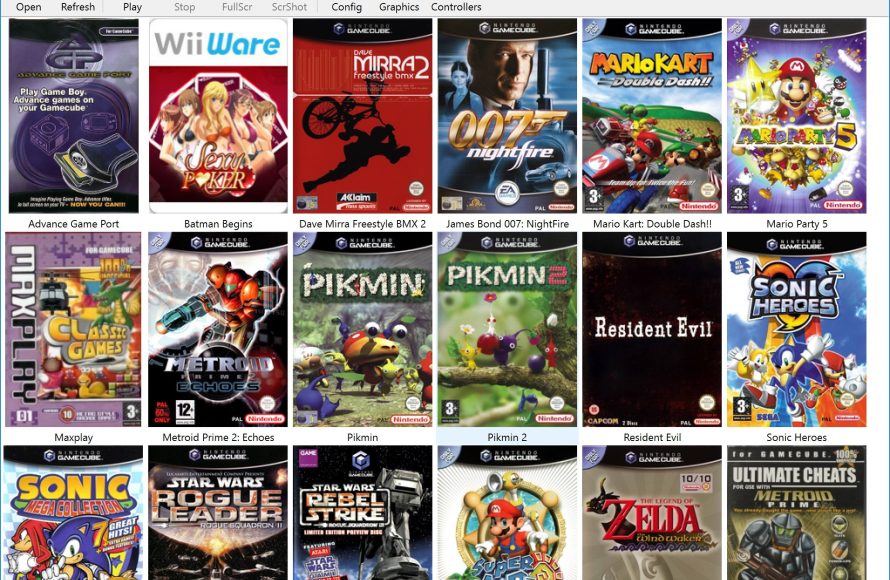
You obtain games for Dolphin emulator by acquiring ROM files, often from websites offering these files or by extracting them from your own legally obtained game discs.
Diving into the world of emulators can be incredibly exciting, especially when you want to replay some classic games on your computer. One of the more popular options is the Dolphin emulator, allowing you to experience GameCube and Wii titles. A common question that arises quickly is how to get games for dolphin emulator.
It might seem complicated at first, but it’s actually quite straightforward. There are a few paths to take, all involving obtaining the digital game files. This guide helps point you to the right steps to get those desired games.

How to Get Games for Dolphin Emulator
So, you’ve got Dolphin Emulator ready to go, and you’re probably super excited to play some classic GameCube and Wii games! That’s awesome! But now you’re probably wondering, “Where do I actually get the games?” It’s a common question, and this guide will walk you through it. Getting games for Dolphin isn’t as simple as downloading an app from a store; there are some important things to know and some ethical considerations we need to think about. Let’s jump right in!
Understanding Game ROMs and ISOs
Before we dive into how to get games, let’s talk about what game files for Dolphin actually are. They typically come in two formats: ROMs and ISOs. You’ll hear both terms often, and it’s important to understand the difference. Think of them like this:
- ROMs: ROM stands for “Read-Only Memory”. These are basically digital copies of the data found on game cartridges for older systems (like Nintendo 64 or Game Boy). While technically the GameCube and Wii used discs, the term “ROM” is often used loosely in the emulation community.
- ISOs: ISO files, on the other hand, are exact copies of optical discs – like your old GameCube or Wii game discs. They are like taking a snapshot of the entire disc, including all the game data and files. Most of the time for GameCube and Wii games, you will encounter the ISO format.
Whether it’s a ROM or ISO, these are the files that Dolphin Emulator needs to be able to play your favorite games. They are not the emulator itself, but data for game software.
The Legal Side of Things
Here’s the big thing we need to talk about before getting into where to find game files: Copyright and legality. This is super important. Games are intellectual property, and the companies that made them (like Nintendo) own the rights to those games. Sharing or downloading games you don’t own is considered copyright infringement, and that’s illegal. It’s like taking a book from a library without checking it out, or like copying a movie without paying. You don’t have the legal permission to do that.
The only legally acceptable way to get ROMs or ISOs for games to use with Dolphin is if you own an original physical copy of that game. If you own the disc, you have the right to make a digital backup for personal use. This is like copying your CD onto your computer so you can listen to it in different places. You are still using your personal copy of the software.
So, before you go on the search for game files, make sure you actually have a copy of the game.
How To Create Your Own Game Backups
The most legally sound method to obtain game files is by creating backups of your own legally purchased games. The concept might seem a bit technical, but it’s pretty manageable and involves a few crucial steps. Let’s break down the process for both GameCube and Wii discs. You will need a PC equipped with an optical disc drive.
Backing Up GameCube Games
GameCube discs are relatively smaller compared to DVDs, and the process is fairly straightforward. Here’s what you’ll need:
- Your original GameCube game disc
- A PC with an optical disc drive (DVD-ROM is sufficient)
- Software to rip the disc (like ImgBurn, which is free and easy to use)
Here’s how to do it:
- Install the Ripping Software: Download and install ImgBurn. You can download it from its official website or a trusted source. Make sure you download the correct file and from a safe website.
- Insert the GameCube disc: Place your original GameCube game disc into your PC’s disc drive.
- Open ImgBurn: Start the ImgBurn software. You will see its simple user interface.
- Choose ‘Create Image file from disc’: In ImgBurn, you’ll find different options. Choose the “Create image file from disc” option. This will create an ISO file (the snapshot of your disc).
- Select the Destination Folder: Choose where to save the new ISO file on your computer and give it a name.
- Start the Ripping Process: Click the read button or similar, and ImgBurn will start reading the disc data and saving the copy to the file you selected. The process can take 10 to 20 minutes, depending on your computer and disc drive speed.
- Wait until done: Let ImgBurn do its job and wait until the progress is complete and you receive a message. Once complete, you have a backup of your GameCube game!
Now, you have a digital ISO file of your GameCube game, which you can use in Dolphin Emulator.
Backing Up Wii Games
Wii discs are DVDs, so the backup process is similar to GameCube but might involve additional settings. Here’s what you need:
- Your original Wii game disc
- A PC with a DVD optical disc drive
- Software to rip the disc (ImgBurn works well here too)
The process is very similar to backing up GameCube games, with small changes.
- Install the Ripping Software: Download and install ImgBurn (or another disc ripping program you prefer).
- Insert the Wii disc: Place the Wii game disc into the disc drive of your PC.
- Open ImgBurn: Start ImgBurn.
- Choose ‘Create Image file from disc’: Again, choose the “Create image file from disc” option.
- Select the Destination Folder: Tell ImgBurn where to save your ISO copy, and assign a filename for it.
- Start the Ripping Process: Start the ripping process, it might take a while (30 to 60 minutes depending on your disc drive and computer).
- Wait until done: After the ripping is complete, the application will notify you.
After this, you now have an ISO file of the Wii game ready for use in Dolphin Emulator.
Where to Not Get Games: The Dangers of Downloading
Okay, so now we’ve covered the legal way to obtain games. But, you might be tempted to just find them online on some download websites. We are going to go over why that’s a very bad idea. Many websites will claim to offer “free ROMs” or “free ISOs.” This is a common way for people to try to get game files, but it is always risky. Here are some of the reasons why downloading games is risky:
- It’s Illegal: As we said before, downloading games you don’t own is against copyright law and it can have serious consequences.
- Malware & Viruses: Many of these websites are full of dangerous software, like viruses or malware. These things can really mess up your computer, steal your information, or even cause your computer to stop working properly.
- Fake Files: Not everything is what it seems online, many of these so-called game files are actually just junk files, and they don’t contain the actual game data. You will download a bunch of random files you can’t use.
- Security Risks: Some sites can try to install things on your computer without you knowing, like software that tracks your internet activity. This can lead to a loss of privacy or other security risks.
- Shady Websites: You could land on some websites that aren’t safe, full of pop-up ads, or trying to steal your personal information.
Bottom line: Steer clear of download websites. They’re just not worth the risk. It’s safer and more responsible to create your own backups of the games you legally own. The dangers of these websites are not worth the chance of downloading files.
Using your Game Backups with Dolphin Emulator
Now you’ve legally obtained game files! Let’s get them working in Dolphin Emulator. Using your backup files with Dolphin is the same, whether it’s an ISO of a GameCube game or a Wii game.
- Open Dolphin Emulator: Start the Dolphin Emulator application on your computer.
- Navigate to your Game File: In the main Dolphin screen you should see an option to “Open” or “Add Games to the List”, Click this and navigate to the folder where you saved your game ISO/ROM file, and select the file.
- Your Game appears in Dolphin: After doing the above, your games should appear in Dolphin’s main window, along with any other games you’ve added previously.
- Start Playing: Click on the game in the list to start playing. Dolphin will load it up and you’re ready to go!
That’s it! You have now successfully played your backed-up game with Dolphin Emulator. Remember to always respect the hard work of game developers, make sure you obtain copies of your own owned games only. Enjoy your nostalgic gaming journey!
Tips For a Better Dolphin Experience
Now that you know how to get games into Dolphin, here are a few extra tips to help you have an even better gaming session:
- Graphics Settings: Dolphin has a lot of graphic settings that you can tweak. Playing with them can make games look even better than they did on the original hardware. Try increasing the resolution or enabling some enhancements.
- Controller Setup: You will have to set up your controller in the input settings. You can use your real GameCube or Wii controllers (if you have the right adapters), or use controllers you already have.
- Emulation Settings: Sometimes, games don’t run perfectly with the default settings. Don’t be afraid to experiment with different emulation options to get the game running smoothly. There are many great guides online that can show you how to optimize the settings for specific games.
- Keep your Dolphin Updated: The Dolphin team is always working to make it better. Downloading the latest version can sometimes fix bugs and improve performance.
- Community Support: If you’re having issues, there are tons of helpful people in the Dolphin community. There are forums, discussion boards, and videos with people sharing their knowledge. Don’t be shy about asking for help!
Using Dolphin Emulator is a great way to relive your favorite GameCube and Wii games on modern computers. Making sure you have the games legally, and understanding the risks of obtaining game files is important. By backing up your legally owned games, you can play safely and responsibly and enjoy everything that Dolphin has to offer.
How to Add Games to Dolphin (Updated)
Final Thoughts
Finding game files, often in ISO or WBFS formats, is necessary for playing on Dolphin. You can legally obtain these by dumping your own game discs. This involves specific software and a compatible disc drive, ensuring it’s your copy.
Websites offering downloads exist, but be cautious; many contain illegal or harmful content. It’s important to understand copyright laws regarding game distribution. Therefore, properly acquiring game files is crucial to enjoy Dolphin.
So, remember, to get games for dolphin emulator, consider using legitimate methods first. Ensure you are playing games legally and securely.

