
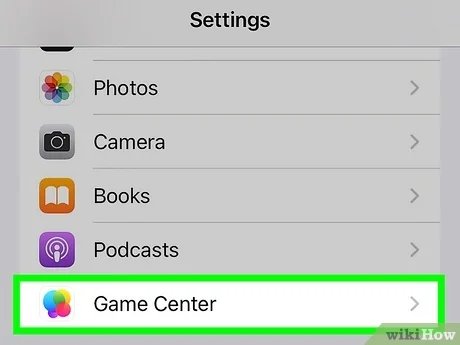
To get rid of Game Center, you must disable it within your device’s settings app.
Are you finding Game Center a bit bothersome? Maybe you’re not into mobile gaming, or it keeps popping up when you don’t want it. Whatever the reason, many people search ‘how to get rid of Game Center’ and you’re not alone.
It’s actually quite simple to make it disappear. You don’t need to install third party software or perform any complicated tech wizardry.
This guide will show you exactly how to remove Game Center from your device in just a few quick steps.

How to Get Rid of Game Center
Game Center, Apple’s social gaming network, is a place where you can connect with friends, track your scores, and compete in multiplayer games. While it can be a lot of fun, some of you might find it annoying, especially if you don’t actively use it. Maybe you get too many notifications, or you simply want a cleaner, less cluttered experience on your device. Whatever your reason, you’re in the right place! This guide will walk you through the various ways you can minimize, modify, or even completely get rid of Game Center. Let’s dive in and learn how to make your gaming experience more your own.
Understanding Game Center
Before we start figuring out how to remove or reduce Game Center’s presence, let’s talk about what it actually does. Game Center is built into your Apple devices, like your iPhone, iPad, and Mac. It keeps track of your game achievements, allows you to invite friends to play, and even lets you find new games. It also sends notifications about game progress and friend activity, which can be helpful for some, but a distraction for others. Understanding how Game Center works will help you decide what changes you want to make.
Game Center’s Core Functions
- Achievements: Game Center tracks your progress in games and awards you badges or points for completing certain tasks.
- Leaderboards: Compare your scores with friends and other players around the world.
- Multiplayer Games: Easily invite friends to play games together.
- Profile: Create a gaming profile with a nickname and avatar.
- Friend Requests: Add friends to your Game Center network.
Different Approaches to ‘Getting Rid’ of Game Center
It’s important to know that you cannot completely delete Game Center from your Apple device since it is a system-level application. However, you can definitely make its impact on your device much less noticeable. There are a number of ways to manage Game Center. You can turn off notifications, disable some features, or even unlink your Apple ID. We’ll go through each approach step-by-step to make it simple and easy for you to follow.
Disabling Game Center Notifications
One of the most common reasons people want to ‘get rid’ of Game Center is the constant flow of notifications. These can be particularly distracting if you don’t play games that often. Thankfully, it’s very simple to turn these off. Here’s how to do it:
On iPhone and iPad
- Open the Settings app on your iPhone or iPad.
- Scroll down and tap on Notifications.
- Scroll down again to find and tap on Game Center.
- You’ll see a toggle switch at the top of the page that is labeled “Allow Notifications.” Slide the switch to the left to turn it off. When it’s gray, notifications are off.
- You can also customize notifications further. Under the “Options” section, choose whether you want alerts to appear on the Lock Screen, in Notification Center, or as banners. Turn off what you don’t want.
On Mac
- Click on the Apple menu in the top-left corner of your screen.
- Select System Settings (or System Preferences on older macOS versions).
- Click on Notifications in the sidebar.
- Scroll down and find Game Center in the list.
- Turn off the “Allow Notifications” switch. You can also customize banner styles and other options from here.
By disabling notifications, you won’t see alerts about achievements, friend requests, or game invites, which can really clean up your notification experience.
Turning Off Game Center Features Individually
If you’d like to keep Game Center active but tone down some of its features, you can customize it in the settings. Let’s walk through what you can turn off individually.
Disabling Game Center Features on iPhone and iPad
- Open the Settings app.
- Scroll down and tap on Game Center.
- Here, you will see a number of options to customize:
- Profile Privacy: Tap on “Profile Privacy” to manage who can see your profile and activity. You can choose from “Everyone”, “Friends Only,” or “Only Me”.
- Nearby Players: If you don’t want to be visible to players nearby, turn off the “Nearby Players” toggle switch.
- Friend Requests: If you don’t want to receive any friend request, you can turn off “Allow Friend Requests”.
- Connecting with Friends: You can change “Allow Invites From” and choose who can send you game invites.
- Screen Sharing: You can disable the ability for friends to see your screen when playing multiplayer games.
Disabling Game Center Features on Mac
- Click the Apple menu.
- Choose System Settings (or System Preferences).
- Click Game Center in the sidebar.
- You’ll find similar options to the iOS/iPadOS settings. Adjust “Profile Privacy,” “Nearby Players,” “Friend Requests,” “Allow Invites From” and “Screen Sharing” to your preferences.
By managing these specific settings, you can control how visible you are in the Game Center world and reduce its intrusiveness, without completely eliminating it.
Unlinking Your Apple ID from Game Center
If you’d prefer to completely disconnect from Game Center, you can unlink your Apple ID. This is a more drastic step than turning off notifications, but it can be useful if you want to completely separate your gaming activity from your Apple ID. When you unlink, your game progress and data might be saved, but will not be associated with the device. This means it might not be available for games that uses Game Center save and sync.
Unlinking Your Apple ID from Game Center on iPhone and iPad
The option to unlink Apple ID from game center is not available on iOS and iPadOS. You can only do that on Mac OS.
Unlinking Your Apple ID from Game Center on Mac
- Click the Apple menu.
- Choose System Settings (or System Preferences).
- Click Game Center.
- Click on the “Sign Out” button. It’s located at the bottom of the Game Center window.
After you sign out, your Apple ID will be unlinked from Game Center on your Mac. If you sign in again using your Apple ID, Game Center will start working again. You may lose access to some game data.
Managing Game Center in Specific Games
Some games directly use Game Center for saving progress and multiplayer functionality. If you’re facing problems with Game Center in a specific game, you might have to manage it within the game’s settings.
Managing Game Center in Individual Games
- Check the Game Settings: Open the game and navigate to its settings menu. Look for any options related to Game Center or social integration. You might find choices to disable Game Center for that game specifically, or to control how it interacts with the service.
- Disconnect Within the Game: In some games, you can sign out from your Game Center profile directly within the game’s menu. This will usually stop the game from using your Game Center account until you sign back in.
By looking in the game’s settings, you can prevent a game from sending Game Center notifications or using your profile. This gives you granular control over your game experience.
Dealing with Game Center Pop-ups
Occasionally, you might still see Game Center pop-ups, even after adjusting settings. These can be requests for your profile or notifications to sign in. This usually occurs when a game tries to use Game Center and your device is not signed in or Game Center is not fully setup.
How to Minimize Pop-ups
- Sign Out of Game Center: If you’re seeing sign-in requests, signing out of Game Center completely (as described in the section on ‘Unlinking your Apple ID’) can prevent these pop-ups from appearing.
- Review Game Permissions: You might need to check the permissions given to individual games. In your device’s settings under “Privacy & Security”, check for “Game Center” and turn off any games you don’t want using it.
- Keep Your Software Updated: Make sure your device’s operating system and your games are up to date. Sometimes, bugs or outdated software cause these pop-ups.
Alternative to Game Center
If you don’t like Game Center, you might be wondering about alternatives. There are no direct alternatives to Apple Game Center at system level, as it is tightly integrated with Apple products. But, there are in game platform that some games provide as an alternative to Game Center. These platforms usually use their own login and friends features, which is not linked with your Apple ID and you may use this platform as an alternative of Game Center.
Why You Might Not Want Game Center
There are multiple reasons why you might want to get rid of Game Center. Some common reasons are:
- Distracting Notifications: Constant alerts about achievements, friend requests, and game invites can become overwhelming and interfere with your focus.
- Privacy Concerns: Some people may not feel comfortable sharing their gaming activity with others and want to keep it private.
- Clutter: If you don’t use Game Center or play games often, it just becomes clutter on your device.
- Battery Drain: Game Center can sometimes use background data, which might impact your device’s battery life.
- Personal Preference: Some users simply prefer a minimalist approach to technology and want to keep things as simple as possible.
Reactivating Game Center
If you decide later that you want to use Game Center again, you can always reactivate it by going through the same settings. Here’s how:
Reactivating Game Center on iPhone and iPad
- Open Settings.
- Scroll down to Game Center.
- Tap on your Apple ID, located at the top of the Game Center menu, if you are signed out or in “Not Signed in” mode.
- If you were previously signed out, enter your Apple ID credentials to sign back into Game Center.
Reactivating Game Center on Mac
- Click the Apple menu.
- Go to System Settings (or System Preferences).
- Click on Game Center.
- Click the “Sign In” button and enter your Apple ID and password.
Once you’ve signed back in, Game Center will work as usual.
Getting rid of Game Center doesn’t mean you can’t enjoy games. It means making your device work better for you, reducing distractions, and focusing on the things you love. By turning off notifications, adjusting privacy settings, or even unlinking your Apple ID, you can take control of your gaming experience and reduce the presence of Game Center on your devices. Whether you want a little less or completely want it out of your sight, there are options for you. Remember that you are in charge and should make the tech work best for you, rather than letting it bother you!
How to Delete Game Center Account Easily
Final Thoughts
To effectively eliminate Game Center, you must first navigate to your device’s settings. Find the Game Center option within the settings menu. Then, disable it by toggling the switch.
This action prevents Game Center from appearing, removing its features. For complete removal, you can also sign out of your Apple ID in the Game Center section. These steps describe how to get rid of game center. This will allow for a cleaner gaming experience.

