
To Xbox share games, you need to set your console as the home Xbox for the account you want to share with, and that account needs to be on a different console.
Want to enjoy your digital Xbox library with friends or family? It’s easier than you might think to make your purchased games accessible on another console. You can have your favorite titles played by different people, without purchasing multiple copies.
This simple feature allows you to share your gaming experiences. Follow this straightforward guide for how to Xbox share games with others.

How to Xbox Share Games: A Simple Guide
Sharing games on your Xbox can be super cool! It means you and a friend or family member can play the same games without buying them twice. This is called “game sharing,” and it’s a great way to save money and enjoy more games. But how do you actually do it? Don’t worry, it’s easier than you might think! This guide will break down all the steps so you can start sharing your games today.
Understanding Xbox Game Sharing Basics
Before we dive into the how-to, let’s talk about what game sharing really means. Game sharing on Xbox lets you share your digital games and Xbox Game Pass subscriptions with one other person. It works by designating one console as your “Home Xbox.” When you set this up, anyone who logs into your Home Xbox can play any games that you have purchased digitally. They can also use your Xbox Game Pass subscription on that console.
What You Need to Know
- One Partner: You can only share with one person at a time. This isn’t meant to be a free-for-all for everyone you know, it’s a one-to-one sharing system.
- Home Xbox: One of your consoles needs to be designated as your Home Xbox. This is where the sharing magic happens.
- Digital Games: Game sharing works for digital games only. If you have physical game discs, they can’t be shared this way.
- Xbox Game Pass: Sharing also includes your Game Pass subscription. This is awesome because your friend can play all those games too!
Setting Up Your Home Xbox: The Key to Sharing
The first thing you need to do is choose which Xbox console will be your Home Xbox. Typically, this is the console that someone else in your household uses the most. It’s important that you know the login details for the Microsoft account that owns the games. Let’s get started setting it up:
Step-by-Step Guide to Setting Up Home Xbox
- Turn On Your Xbox: Make sure the console you want to set as your Home Xbox is turned on and ready to go.
- Sign In to Your Account: Use the Microsoft account that owns the games you want to share to sign into your console.
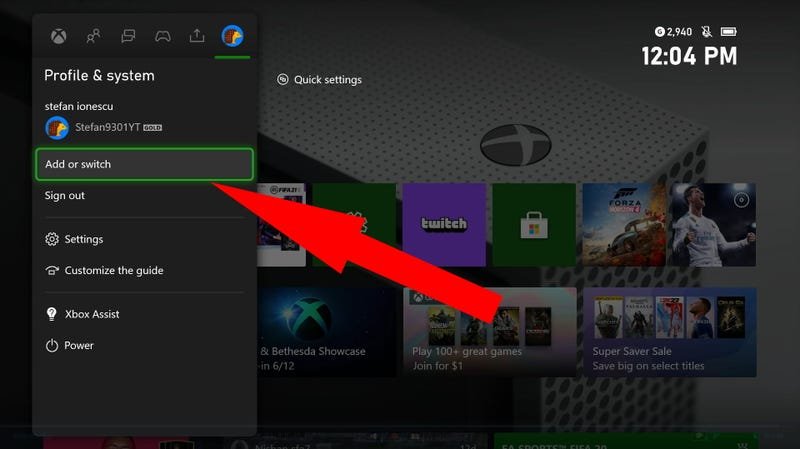
- Open the Guide: Press the Xbox button on your controller to open the guide menu.
- Go to Settings: Use the shoulder buttons (RB or LB) to navigate to the right-most tabs, until you select “Settings.”
- Select “Personalization”: Choose “Personalization” in the settings menu.
- Choose “My Home Xbox”: Select “My home Xbox.”
- Make it Your Home Xbox: If it is not already your home xbox, Select “Make this my home Xbox.”
- Confirm: A screen will appear to verify your decision. Select “Make this my home Xbox” again.
That’s it! You’ve just made that console your Home Xbox. Now, anyone who signs in on this console can play your digital games and use your Game Pass subscription, even when you are not signed in. You can switch your Home Xbox up to five times each year.
How Your Friend Sets Up Game Sharing on Their Console
Now that you’ve set up your Home Xbox, it’s time for your friend to set up their console. Here’s how they can access your games and subscription:
Steps for Your Friend’s Console
- Sign In: Your friend needs to sign in to their Xbox console using their own Microsoft account. This account is how they will track their game progress.
- Add Your Account: You now need to sign into their console, using the Microsoft account which owns the games you want to share.
- Don’t set this console as your Home Xbox: Make sure that this console is not made your home xbox. This must remain your Friend’s Home Xbox.
- Sign Back Out: Now sign out of your account from your Friend’s console. You are done here.
- Start Playing: Your friend can now start playing all the games that you own and use your Xbox Game Pass subscription on that Xbox.
Important Things to Remember About Home Xbox
Setting up Home Xbox is simple but there are some key points to keep in mind:
Key Points
- Only One Home Xbox: Remember, you can only have one Home Xbox at a time. If you switch it to another console, the previous console will lose access to your games.
- Account Ownership: Game sharing works based on account ownership. The account that purchased the games must be the one designating the Home Xbox.
- Internet Connection: Both consoles need an internet connection to verify game licenses. However, after verification, games can usually be played offline for some time, before another check is required.
- Playing At The Same Time: You can play the same game at the same time on different consoles, but you need to be logged in, in order to do so. For example, you play on the console that is not your Home Xbox and your friend plays on your Home Xbox
- Switching Home Xbox: You can only switch your Home Xbox five times a year. So, choose wisely!
- Privacy: Be careful about sharing your account details. Ensure you’re sharing with someone you trust.
Troubleshooting Common Issues
Sometimes, even if you follow all the steps correctly, things might not work perfectly. Here are some common issues and how to fix them:
Troubleshooting Tips
- Game Lockout: If a game is locked on your friend’s console, make sure that your account is not signed into another console. Also try signing your account in again on your friend’s console, if it still doesn’t work, sign out and try again.
- Incorrect Home Xbox: Make sure that you have set the Home Xbox correctly. Double check the steps outlined earlier.
- Internet Connection Issues: Ensure both consoles have a stable internet connection. Sometimes a simple router restart can solve the issue.
- Account Sign-In Issues: If you’re having trouble signing in, verify the spelling of your email address and password. Reset your password if needed.
- License Issues: Sometimes the game licenses can take a bit to update. Wait a few minutes or try restarting the console.
Benefits of Xbox Game Sharing
Sharing games is not just about saving money, it has other great benefits:
Why Game Sharing is Great
- Save Money: Instead of buying two copies of the same game, you only need to buy one!
- Share Game Pass: Share the large library of games included with the Xbox Game Pass with a friend or family member.
- Play Together: Play your games with others, without having to buy games separately.
- Try Before You Buy: Your friend can try a game on your account before buying it for themselves.
- Expanded Library: It’s like having access to two game libraries at the same time.
Ethical Game Sharing
Remember that game sharing is meant for sharing with one other person. Keep in mind that you should share with people you know and trust. Try to be fair and avoid sharing with too many people at once. If you are buying the games, let your friend know if you plan on switching consoles or want to end the game sharing arrangement, to ensure transparency.
Switching Your Home Xbox
As mentioned earlier, you can only change your Home Xbox five times per year. If you want to switch your Home Xbox, follow these simple steps:
How To Switch Home Xbox
- Sign into the New Xbox: First, sign in to the console you want to make your new Home Xbox. Remember to use the Microsoft account that owns the digital games.
- Open the Guide: Press the Xbox button on your controller.
- Go to Settings: Navigate to “Settings.”
- Select “Personalization”: Choose “Personalization.”
- Choose “My Home Xbox”: Select “My home Xbox.”
- Make it Your Home Xbox: Select “Make this my home Xbox.”
- Confirm: Confirm your choice. The other console will lose access to your games, now that it is no longer designated as your Home Xbox.
Remember that the number of times you can switch is limited. Choose carefully before making any changes.
Game sharing is a fantastic way to enjoy more games with your friends and family, and you can save money at the same time. Just be sure to follow all the steps, pay attention to the key details, and share responsibly. Happy gaming!
How to Game Share on Xbox ~The Easy Way~
Final Thoughts
Game sharing involves designating a home Xbox, allowing others on that console to play your digital games. This setup lets you share your entire library with those using your designated home console. Remember, you also must be logged in to your own account for games to work on any console other than your designated one.
Essentially, ‘how to xbox share games’ requires you set your console as someone’s home Xbox, giving them access to your library. This benefits households where multiple users share one main console. Sharing lets family and friends enjoy your purchases without buying multiple copies.

