
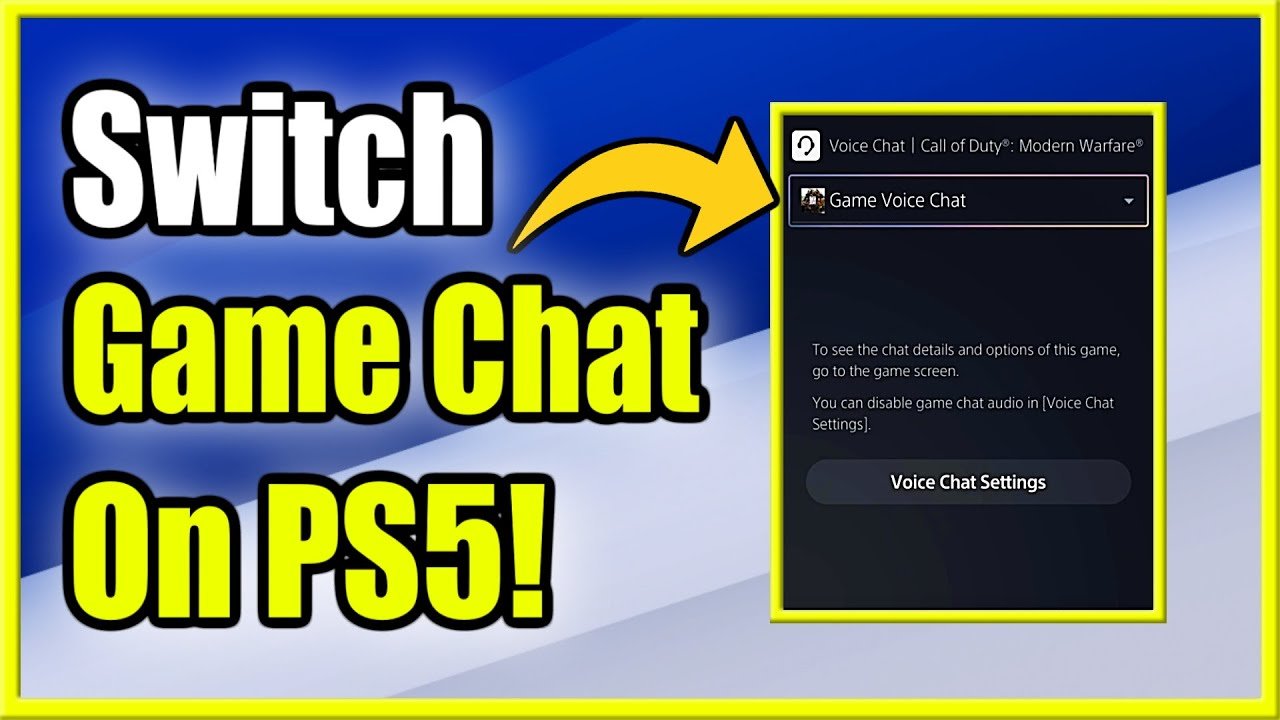
To go in game chat on PS5, press the PlayStation button, navigate to the ‘Game Base’ card, and select the party or player you wish to chat with.
Ever found yourself wanting to coordinate with your squad during a crucial match but unsure how to do it? Figuring out how to go in game chat on PS5 can feel a bit confusing initially. It’s a common question among new and veteran players alike.
Don’t worry, the process is simpler than you might think. We’ll guide you through the steps to jump into voice communication, so you can effectively strategize and connect with others in your game.

How to Go In Game Chat on PS5
Getting into a game chat on your PlayStation 5 is a super important part of playing online with friends. It’s how you strategize, laugh together, and maybe even make new pals! But sometimes, figuring out how to do it can feel a little tricky. No worries, we’re here to help! We’ll walk you through all the different ways you can jump into a game chat, making sure you’re never left out of the conversation. From starting a party chat to using the in-game chat itself, we’ve got you covered. Let’s jump right in and become chat masters!
Understanding the Different Chat Options
Before we dive into the “how,” let’s look at the “what.” The PS5 offers a few different ways to chat with others while you’re playing. Knowing the difference between them will help you pick the right one for the situation.
Party Chat
Think of party chat as your private hangout spot. You can invite your friends, and everyone in the party can talk to each other, even if they’re playing different games. This is great for coordinating before you start a game together or just hanging out. It’s like having your own little voice call going on in the background. Party chats aren’t limited to just in-game; you can be chatting away while on the PS5 home screen too. It’s your constant connection point.
In-Game Chat
In-game chat, on the other hand, is specific to the game you’re playing. It lets you talk to other players who are also in the same game session as you. This is ideal for chatting with teammates during a match. You might be working with strangers, or even friends who joined you. The in-game chat is integrated right into the gameplay experience.
Game Base
The Game Base is another way you interact with your friends. It’s like a hub on the PS5 where you can find your friends, create parties and even start a voice chat from here. You can see what games your friends are playing, invite them to join you, and have a conversation all in one place. It’s like your one-stop shop for all things social on your PS5.
How to Start a Party Chat on PS5
Party chat is often the go-to method for chatting with friends. Here’s how to get a party started.
Using the Quick Menu
The quickest way to start a party is through the quick menu. Here’s what you do:
1. Press the PlayStation button on your controller to bring up the Control Center.
2. Navigate to the “Game Base” icon. It looks like two little people standing together.
3. Select “Parties.”
4. If you want to start a new party, choose “Start Party.” Otherwise select an existing party.
5. Invite your friends by selecting their names from your friends list.
6. Select “Start Voice Chat.”
Now you are all in voice chat together and can hear each other. Remember, you can invite more friends to the party even after it’s started. You can also adjust your audio settings within the party, like muting yourself, or adjusting volume levels.
Using the Game Base Menu
You can also access parties through the full Game Base menu. Here’s how:
1. Press the PlayStation button to go to the control center.
2. Go to “Game Base” on the control center.
3. Select “See All.”
4. From this larger screen, select the “Parties” tab.
5. You can create a new party here or select existing party.
Now you can invite friends, or start voice chat. The interface is bigger here, so some people might find this way easier than the quick menu, but it achieves the same outcome.
Managing Party Settings
Once you’re in a party, you can adjust some settings. For example, you can:
Mute yourself: Sometimes you need a moment of silence!
Adjust the party volume: If someone is too loud or too quiet, you can adjust the volume.
Leave the party: When you’re done chatting, you can easily leave the party.
Invite more people: Even after you’ve started a party, you can still invite more friends.
Share Screen: You can show your game screen to others in party, or even watch them.
Start Share Play: Share Play allow you to give other people in the party control of your game, or even play a local co-op game online.
These settings can usually be found by pressing the “options” button on your controller while in the party screen. Take a little time to familiarize yourself with these options.
How to Use In-Game Chat on PS5
In-game chat is very game dependent. The way you join a voice chat will vary a bit from game to game.
Understanding Game-Specific Voice Chat
Each game handles its voice chat a little differently. Some games will automatically put you into a chat with your teammates. Others might require you to turn it on in the game’s settings. Some games have push to talk, which requires you to hold a button to talk, and others have an open mic all the time.
Here are some common methods in games:
Automatic Connection: Some games connect you to the voice chat right away as soon as you join a game.
Settings Menu Activation: Many games allow you to enable or disable voice chat within their specific settings menus.
Push-to-Talk vs. Open Mic: Some games use push-to-talk, while others have open microphones. With push-to-talk, you press a button to speak, which can be useful in noisy environments.
Proximity Chat: Some games feature proximity chat where you only hear players near you in the game world.
Enabling In-Game Chat in Settings
1. Go to the main menu of the game you are playing.
2. Look for an options or settings menu.
3. Find the audio or voice chat section.
4. Look for an option to enable in-game chat and turn it on.
5. You might find options to adjust the volume or voice input method (like push-to-talk).
By ensuring the voice chat is turned on within your game’s settings, you will ensure that you can talk to other players.
Troubleshooting In-Game Chat Issues
If you are having issues with in game chat, you should try these things:
Double-check your settings: Make sure in-game chat is enabled in the game’s settings and that your microphone is set up correctly.
Verify headset connection: If you’re using a headset, ensure it’s properly plugged in or connected via Bluetooth, and that your microphone is not muted.
Check your PS5’s audio settings: Go to the system settings on the PS5 and check the “Sound” settings to make sure your input and output devices are correctly selected.
Restart: If all else fails, try restarting the game and/or your PS5. This can often fix the problem.
Test your mic: Go to the system settings on your PS5 and do a mic test to see if your mic is working properly with your PS5.
Important Things to Remember About PS5 Chat
Microphone Choice
The quality of your microphone can really affect your chat experience. Here are a few tips:
Use a headset: Headsets with built-in microphones usually provide clearer audio compared to just using the controller microphone.
Check Mic Quality: Your mic should have settings that will help you use it properly.
External Mic: If you’re really serious about sound quality, you can use an external microphone.
Check that it’s unmuted: Mics can often be muted on a headset, make sure you check.
Muting and Volume Control
Controlling your audio is key to a smooth chat experience. Here’s how:
Use the quick menu: You can quickly mute your mic or adjust the volume using the quick menu while in a party or game.
Adjust game volume: If the game is too loud or too quiet compared to the chat, adjust the volume within your settings.
Mute Other Players: Sometimes, other players might have too much noise, so you can also mute them individually in the party.
Privacy and Safety
Remember to be safe and respectful when chatting online. Here’s how to do it:
Don’t share personal information: Avoid sharing your real name, address, or other private details with strangers.
Report inappropriate behavior: If someone is being disrespectful or abusive, report them to PlayStation.
Use the mute button: If someone is annoying or disruptive, use the mute option on them.
Check your privacy settings Make sure your profile and activity settings are only viewable by people you know.
Making the Most of Your PS5 Chat Experience
Chatting on your PS5 can be an awesome experience when you get the hang of it. Here are a few things you can do to really make the most of it:
Communicating Effectively
Good communication can really make the game better for you and your friends.
Be clear and concise: When communicating about gameplay, be clear about what you’re trying to do.
Listen to your teammates: Pay attention to what your friends or teammates are saying.
Use code words: If you play games often with friends, try using code words, to quickly communicate certain things, this will help you in game.
Staying Connected with Friends
Staying in touch with your friends is simple on the PS5.
Join parties often: Make sure you’re often in party chats with your friends, even when you are not gaming, just to hang out.
Game together: There’s nothing like playing a game with your pals.
Share fun moments: Use the screen share feature to show your friends your best moments.
Exploring Chat in Different Games
The experience can vary greatly from game to game.
Experiment: Try the chat features in different games.
Learn how they handle chat Each game will manage chat differently, so take a look at settings and see how they manage audio.
Help other players If you see someone is having issue with chat, try helping them.
By making sure you’re following these steps, you’ll be able to be a master in game chat in no time. Chatting with friends can make gaming much more fun, so spend the time to familiarize yourself with this. You’ll soon be able to get into a party, join in game chat, or find new friends to chat with!
Using these steps, you will become a pro in no time.
PS5: How to Switch From Party Chat to Game Chat Tutorial! (For Beginners) 2024
Final Thoughts
To engage in game chat on PS5, simply press the PlayStation button to access the control center. Then, select the “Game Base” option, this is must. Choose your party or the game you are playing.
Inside, you will see a microphone icon. Press that to either mute or unmute your mic. That’s all you need to do to learn how to go in game chat on ps5.

