
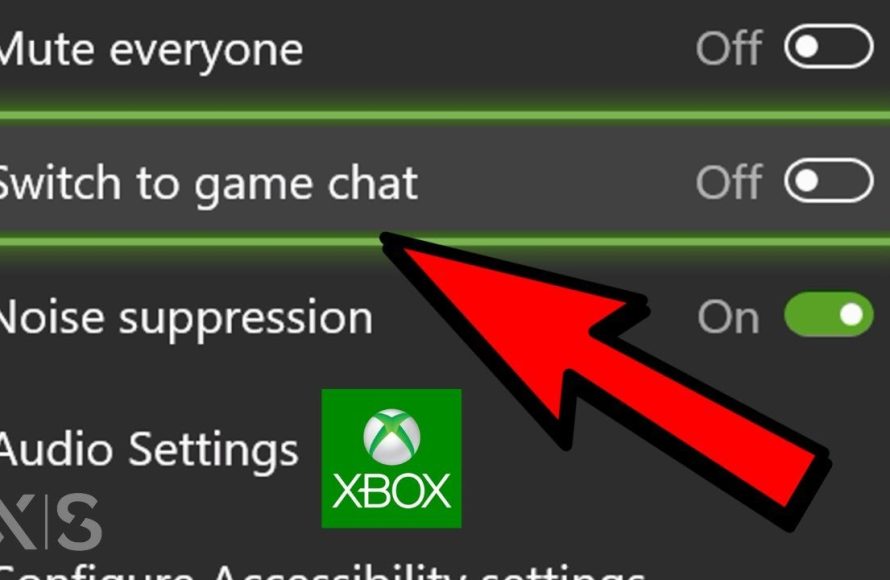
To go to game chat on Xbox, press the Xbox button, navigate to “Parties & chats,” select the party or friend you wish to chat with, and then choose “Join game chat.”
Have you ever been deep in an intense multiplayer match and needed to coordinate with your teammates? Figuring out how to go to game chat on xbox can sometimes feel tricky. We have all been there, trying to get in on the communication action so you can actually win.
This guide will give you the simple steps to jump right into the game chat and get connected. Soon you will be strategizing and having a great time with your friends. We will make sure it’s quick and easy for you.

How to Go to Game Chat on Xbox
Getting into a game chat on your Xbox is super easy, and it’s the best way to talk to your friends while you’re playing! Whether you’re strategizing for a big battle, sharing funny moments, or just hanging out, game chat makes the experience way more fun. This guide will walk you through all the different ways you can jump into a conversation with your fellow gamers, covering everything from using your headset to troubleshooting any problems that might pop up.
Understanding Xbox Chat Basics
Before we dive into the how-to, let’s quickly go over the main types of chat available on Xbox. There are primarily two kinds of chat you’ll use: Game Chat and Party Chat. Game chat is designed to let you talk to everyone playing the same online game, while party chat allows you to converse with a select group of your friends, regardless of the game you are playing. Knowing the differences is the first step towards seamless communication with other players.
Game Chat vs. Party Chat
It’s crucial to understand which chat type is best for your situation. Here’s a simple breakdown:
- Game Chat:
- You talk with all the other players in a match or game session.
- Great for coordinating with teammates in team-based games.
- Good for making new friends who love the same games as you.
- Voice activity is visible to other players, as your name pops up when you speak.
- Party Chat:
- You talk only with the people invited to your party.
- Ideal when you want to have a private conversation with friends.
- You can continue talking even if you switch to different games.
- Lets you stay connected with your group, even outside of gameplay.
Getting Started with Game Chat
Now, let’s get into the practical steps of joining a game chat. The method you use can depend on the specific game you’re playing, but these instructions will cover the basic approach that works most of the time.
Using Your Headset
The most common method to use game chat involves using a gaming headset. Here’s what to do:
- Plug in your headset: Make sure your headset is properly connected to your Xbox controller or console. Most headsets use a 3.5mm jack, or connect wirelessly.
- Join a game: Launch the game you want to play. If the game supports online multiplayer, that’s what you’ll need to select.
- Join an online match: Once you are in a game session with other players, game chat is generally turned on automatically. You’ll often see an icon next to your name or gamertag when you speak.
Adjusting Game Chat Volume
Sometimes, game chat can be too loud or too quiet. Here’s how you can adjust the volume:
- Press the Xbox button: Press the glowing Xbox button on your controller.
- Navigate to the Audio & Music section: Using the left stick or D-pad, go to the right side menu and select “Audio & music”.
- Adjust the sliders: Here you’ll find sliders for adjusting the game volume and the chat volume. Move the chat volume slider left to lower the sound or right to make it louder.
- Test it: Try talking and listening to make sure the volume level is comfortable. If it’s still not right, repeat the process until it sounds good.
Muting Yourself or Others
There are times when you might need to mute yourself (maybe you need to cough or talk to someone in the room), or mute another player because of background noise. Here’s how to do it:
- Muting Yourself:
- When you’re in game chat, your name lights up when you talk.
- Press the Xbox button to bring up the guide menu.
- Go to the “Parties & chats” section.
- Select your name, then you’ll see an option to “Mute” yourself.
-
Muting Others:
- Press the Xbox button.
- Go to “Parties & chats” section.
- Find the name of the person you want to mute.
- Select the name and choose the “Mute” option.
- You won’t hear that player until you unmute them, but they can still hear you.
Joining a Party Chat
Party chat is super useful when you want to talk privately with a specific group of friends. Here’s how you create and participate in party chats:
Starting a Party Chat
- Press the Xbox button: On your controller, press the Xbox button to open the guide.
- Go to “Parties & chats”: Move the highlight to the “Parties & chats” icon.
- Select “Start a party”: Choose this option to create a new party chat.
- Invite friends: A list of your friends will appear. Select the friends you want to invite.
- Start chatting: Once your friends join, you can start chatting.
Joining an Existing Party Chat
If one of your friends has already started a party, you can easily join their chat:
- See the invitation: If someone invites you to a party, a notification will pop up.
- Accept the invite: Click the notification, or go to “Parties & chats” and select the active party invite.
- Join the party: You’ll now be in the party chat with your friends.
Managing Party Chat
Like game chat, you can also control the volume and mute members in party chat.
-
Volume Control:
- Press the Xbox button.
- Go to “Parties & chats.”
- Select the active party.
- You can adjust the chat volume using the mixer options.
-
Muting Players:
- Press the Xbox button.
- Go to “Parties & chats.”
- Select the name of the player you want to mute.
- Choose the “Mute” option.
Troubleshooting Common Game Chat Issues
Sometimes, game chat might not work as smoothly as we want. Here are some common problems and how you can try to fix them:
Problem: Can’t Hear Anyone
- Check Your Headset Connection: Make sure your headset is securely plugged in or properly connected wirelessly.
- Adjust Volume: Verify your chat volume is turned up and that your game volume isn’t drowning out the chat.
- Restart the Game: Sometimes, a simple game restart can fix connection glitches.
- Check Mute Settings: Ensure that you haven’t accidentally muted yourself or others.
- Xbox Network Status: Check that all Xbox services are working fine on the Xbox status page, as network issues can stop chat from working.
Problem: Mic Isn’t Working
- Check Mic Connection: Verify that your microphone cable is connected and is seated properly, or that wireless connections are working correctly.
- Mic is Not Muted: Make sure that your microphone isn’t muted using the buttons on your headset or controller.
- Test Your Mic: On your Xbox settings, you can test your mic to ensure it’s picking up sound.
- Headset Issues: Try using a different headset to see if the issue is with your hardware.
Problem: Echo Issues
- Lower Your Microphone Sensitivity: Reduce the sensitivity of your mic in your Xbox settings.
- Headset Not Properly Connected: If you are using two microphones, like your headset and Kinect, that might also cause echo. Try unplugging one of them.
- Chat Volume Adjustment: Adjusting the chat volume or mic volume can sometimes help.
Problem: Game Chat Not Available
- Game Settings Check: Ensure game chat is enabled within the game settings, as some games require specific settings to be turned on in order to access game chat.
- Game Issues: Some games might have their own specific issues with voice chat, in which case you can check online forums to see if others have the same problems.
- Restart Xbox: Turning the Xbox off and back on again can help with temporary problems.
Advanced Tips for a Better Chat Experience
Here are some bonus tips to make your game chat even better:
Using the Xbox App on Your Phone or PC
Did you know that you can use the Xbox app on your phone or PC to chat with your friends, even if you’re not near your console?
- Download the App: Get the official Xbox app on the Apple App Store or Google Play Store for your phone, or on the Microsoft Store for your PC.
- Sign In: Sign in to the Xbox app with your Microsoft account.
- Chat Option: On the app you can view your parties and start/join a voice chat. This allows you to stay connected with friends even when you aren’t at your Xbox console.
Using Headphones vs. Speakers
It’s usually better to use headphones when chatting, since using speakers might cause your mic to pick up the chat audio and create annoying echoes for your friends and teammates. Headphones help to avoid this and provide a better experience for everyone.
Keeping Your Chat Clear
Try to stay in a quiet environment when you are using your mic. It’s also a good idea to avoid talking over other people. This helps keep conversations clear and focused, which improves the gameplay and overall experience for everyone.
Following these steps, you’ll quickly get the hang of going to game chat on your Xbox. You’ll be talking with your friends and teammates smoothly in no time. Remember to always check your settings, mute when needed, and have fun communicating with other gamers! Whether you prefer to chat in-game or in a private party, you have all the tools necessary for enjoyable online gameplay and communication.
Xbox Series X/S: How to Switch From Party Chat to Game Chat Tutorial! (For Beginners) 2023
Final Thoughts
To access game chat on Xbox, press the Xbox button to open the guide. Then, navigate to the ‘Parties & chats’ section. Select the party or game you want to join.
You can now talk to your friends or teammates. The guide provides easy access to ‘how to go to game chat on xbox’. It’s a simple process for quick communication during gameplay.

