
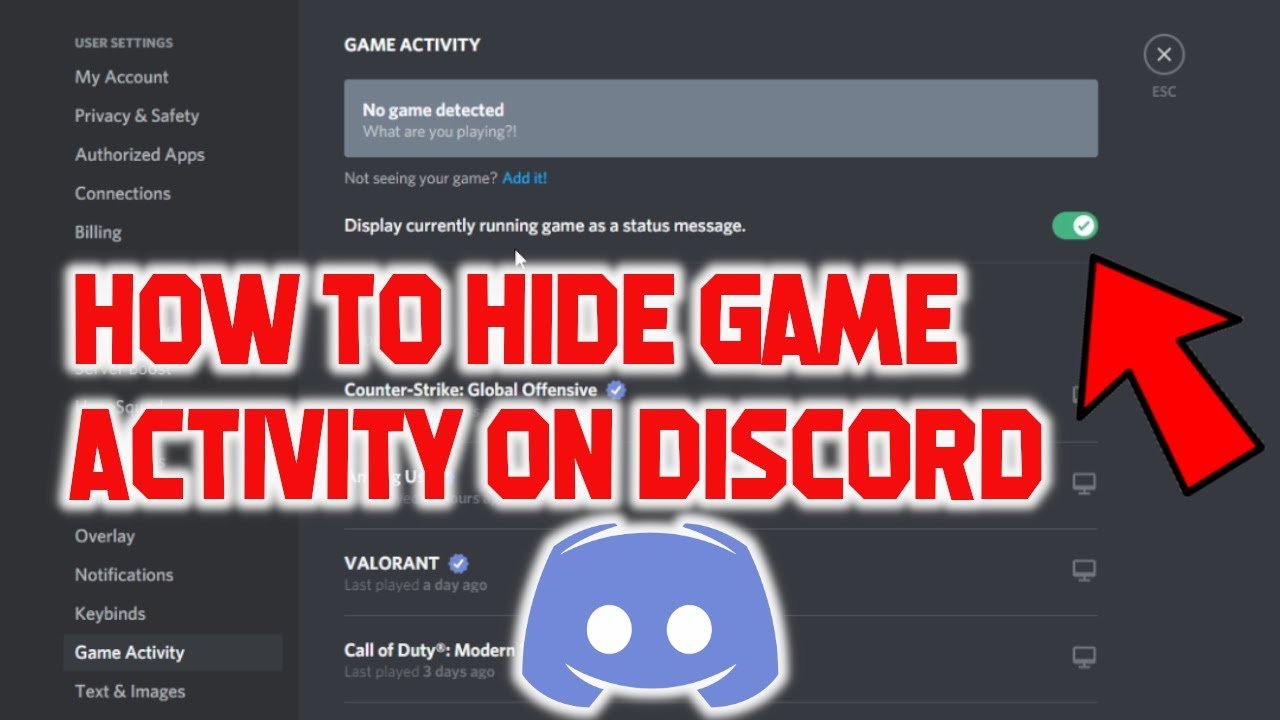
To hide games on Discord, navigate to User Settings > Activity Privacy and toggle off “Display currently running game as a status message.”
Ever felt like your Discord status is broadcasting your every gaming move? Sometimes, you want to keep your current game a secret, and that’s totally understandable. This guide explores how to hide games on Discord.
It’s a quick and simple setting change that gives you more control. No more unwanted game invites or status updates; keep your gaming habits private. Now you can use discord without the pressure of sharing what you are playing.

How to Hide Games on Discord
Ever been in a Discord server, maybe one for school or work, and you’d rather your friends not see that you’re deep into a video game? Maybe you’re trying to focus, or perhaps you’re just in the mood for some private gaming. Don’t worry! Discord has features that let you control what information is visible to others. Let’s walk through how to keep your gaming activity under wraps.
Understanding Discord’s Activity Status
Before we dive into hiding games, it’s good to understand how Discord shows what you’re doing. Discord automatically detects when you are playing a game and displays this information to your friends and anyone in the same server as you. The game’s name appears as your current activity status. This is great for showing off what you are playing, but what if you prefer a little privacy? That’s where hiding your game activity comes in. Think of it like having a “do not disturb” sign for your gaming.
The Simple Solution: Turning Off Activity Status
The easiest way to hide any game you’re playing is to disable the activity status feature completely. Here’s how to do it on both the desktop and mobile versions:
On Desktop:
- Open Discord on your computer.
- Click the little gear icon (⚙️) at the bottom left next to your username to access User Settings.
- In the left sidebar, find and click on Activity Privacy.
- Look for the setting called “Display current activity as a status message”.
- Click the toggle switch next to this setting to turn it off. The switch should be grayed out when it’s off.
That’s it! Now, Discord will not show any games that you play. Your friends will only see your online status (like “Online”, “Idle”, or “Do Not Disturb”)
On Mobile:
- Open the Discord app on your phone or tablet.
- Tap your profile picture at the bottom right corner.
- Scroll down and tap on Privacy & Safety.
- Look for “Activity Status” and tap on it.
- You’ll find the same “Display current activity as a status message” toggle. Turn it off.
Just like on the desktop, your game status will no longer be displayed. This action applies to all games, not just specific ones.
Hiding Specific Games Individually
Sometimes, you might want to show off a cool indie game but keep your playtime on a more mainstream title hidden. Discord lets you choose which games appear in your status, giving you more specific control.
On Desktop:
When you turn off the “Display current activity” option, it turns off your status for all the games. But let’s say you want to show your activity from the game called ‘Cool Game 1’, follow the below steps
- Go to User Settings again (the gear icon next to your name).
- Click on Registered Games in the left sidebar.
- Here you will see a list of all the games Discord has detected on your computer.
- Look for the games whose status you want to hide.
- Click the ‘x’ button next to each game’s name you don’t want to appear in your status. If you don’t see ‘x’ button, try to see if there is a toggle button next to each game, and then click it to hide the game
- This action removes the game from the list, ensuring it won’t show up as your status. If the game is running during this process, it might take a little time to disappear from your activity.
- To revert this action, if you want to show the activity status of the removed games, just run the game again and it will appear on the ‘Registered Games’ list, then you can enable it, if you want it to show in your activity status.
Note that this does not stop Discord from detecting when you are playing these games. It only prevents Discord from displaying their names on your profile.
On Mobile:
Unfortunately, the mobile Discord app doesn’t give you the option to hide individual games in the same way that the desktop app does. You will need to use the desktop app to manage the list of displayed games. You can however, hide the whole activity status on mobile if you wish as described in above ‘On Mobile’ section.
Using Invisible Status
Another strategy to prevent people from seeing what games you’re playing is to set your Discord status to “Invisible”. This setting doesn’t hide your game activity exactly, but it hides your presence, and your game activity is not shown when you are invisible.
On Desktop:
- At the bottom of the Discord app, next to your username, click on your current status (e.g., “Online”).
- In the menu that pops up, select “Invisible”.
On Mobile:
- Tap your profile picture at the bottom right corner.
- Tap on “Set Status”.
- Select “Invisible”.
When you are invisible, your status will appear as offline to everyone else, hiding your online presence. However, if you are using the “Display current activity as a status message” is enabled, there is a catch: If you are active in a chat, someone can click on your profile, and they may still see that you are in the game. Invisible status hides your online status, but not necessarily the game itself from someone actively looking.
Streamer Mode: An Option for Content Creators
Discord has a “Streamer Mode,” which has several benefits, one of which is concealing game info when you’re playing. This mode is aimed at gamers who create content and want to keep certain things private during streams or recordings. It’s not just for hiding games, but it does include that benefit.
How to Turn on Streamer Mode:
- Open your Discord settings by clicking on the gear icon.
- Click on the Streamer Mode section.
- Click the toggle switch to turn on Streamer Mode.
What Streamer Mode Does:
- It can hide personal information like email addresses and server invites.
- It can also hide your currently played game.
- You can choose what it hides and what not based on your needs.
Streamer Mode is a great, one-time-setting if you’re regularly doing recordings or live streams, but it is not necessary to use it if you simply want to hide your game from your friend list.
Why Hide Games on Discord?
You might wonder why someone would want to hide what they’re playing. Here are a few reasons:
- Privacy: Some people just like to keep their gaming habits private. They may not want everyone to know what games they enjoy, for various reasons.
- Focus: If you’re trying to study or work, you might not want friends seeing you playing a game, which could encourage them to invite you into a game.
- Avoiding Spoilers: If you’re playing a new single-player game, you might not want to share your playtime if your friends are in different parts of the game, especially because you don’t want spoilers from your friends.
- Casual Gaming: Maybe you just want to have some casual gaming time without people knowing. You can enjoy some alone time while playing game privately.
- Work and Play Balance: You might be in a work or school Discord server and you would like to keep your personal time separate and avoid distractions.
Whatever the reason, Discord’s options for managing your game activity status allow users to have a good control of what information is shared and what stays private.
Troubleshooting Common Issues
Sometimes, Discord might not behave exactly as you expect. Here are a few common problems you might encounter and how to address them:
Game Still Shows After Hiding
If you’ve hidden a game, but it still appears as your status, try the following:
- Restart Discord: Completely close and then open Discord. This can sometimes fix display issues.
- Restart the game: Close the game and then launch it again. This may help Discord recognize the change in the status visibility.
- Check the “Registered Games” list again: Ensure the game is still removed from the list. Sometimes when a game update happens, the game can get re-added to the list.
Game Not Being Detected
If Discord isn’t detecting the game you are playing, it might need some adjustments:
- Make sure the game is running: Discord can only detect a game that’s actively open.
- Add the game manually: Go to User Settings, then Registered Games. Click on “Add it!” and find the game in the list, this action will help Discord detect the game.
- Run the game with administrator privileges: Sometimes, Discord needs extra permission to detect the game. Right-click the game’s executable file and select “Run as administrator.”
Incorrect Game Being Displayed
If Discord is displaying the wrong game, it is possible that this happens because of the confusion between the launcher and the actual game, like when you play a game via steam and it can show the steam launcher as your activity status, to fix this, do the following:
- Close the launcher: Make sure you have the actual game running, and then close the launcher like steam, epic games or any game launcher, so that the actual game name is shown on the activity status.
Privacy is Key
Discord is a great way to stay connected with friends, but it’s also important to have control over what you share. Using these methods, you can keep your gaming activity as private as you want, allowing you to balance your social life with your personal gaming enjoyment. Understanding how Discord manages game activity gives you control over your digital footprint and helps you to have the experience that you want. Whether you’re a streamer, a student, or just want some quiet gaming time, Discord allows you to control the visibility of what you do.
Discord gives you the tools to manage your visibility and privacy. Whether you are trying to focus, or simply wanting to keep your gaming session private, understanding how these settings work can help you have a great experience in Discord.
How To Hide Game Activity On Discord | Turn Off Game Activity Discord
Final Thoughts
To hide games on Discord, simply disable the “Display currently running game as a status message” option. You find it within the User Settings, under Activity Privacy. This action prevents others from seeing your gaming activity.
Another method involves using Invisible status. This status makes you appear offline to other users. Your game activity will not be visible with this method. Remember you can always change it back.
In short, understanding the methods regarding how to hide games on discord gives you control over your activity status. Applying these setting changes is easy to do in discord settings.

