
To join a joinable game in Fortnite, navigate to the ‘Play’ screen, select a game mode marked as ‘Fill’, and then click ‘Play’ to be matched with other players.
Want to jump into a Fortnite match with a squad? It’s super easy to start playing with others. Knowing how to join a joinable game in Fortnite is key for those epic battles. You can quickly get into the action and team up with friends or new allies.
The game has a great system to get you playing quickly. Fortnite makes it simple to find and join ongoing matches. Forget waiting around; start playing now.

How to Join a Joinable Game in Fortnite
Fortnite is super fun, right? Playing with friends makes it even better! Sometimes, you want to hop into a game your friend is already playing. This is where joining a “joinable” game comes in handy. Let’s explore all the different ways you can jump into the action with your buddies in Fortnite.
Understanding Joinable Games
What does it even mean for a game to be “joinable”? It means that the player who started the match has allowed others to join them while they are playing. Not every game is like this. Some modes, like big tournaments or certain creative maps, might not let you join mid-game. But most of the regular modes, especially Battle Royale and Zero Build, usually allow it.
Why Would You Want to Join a Game?
- Play with Friends: The main reason! It’s way more fun to team up and take on the game together.
- Quick Action: Don’t want to wait for a new match to start? Joining an existing game gets you right into the action.
- Help Out: Maybe your friend needs a teammate? Joining is the perfect way to lend a hand.
How to Tell if a Game is Joinable
Before you can join, you need to know if your friend’s game is actually joinable. Here are a few ways to tell:
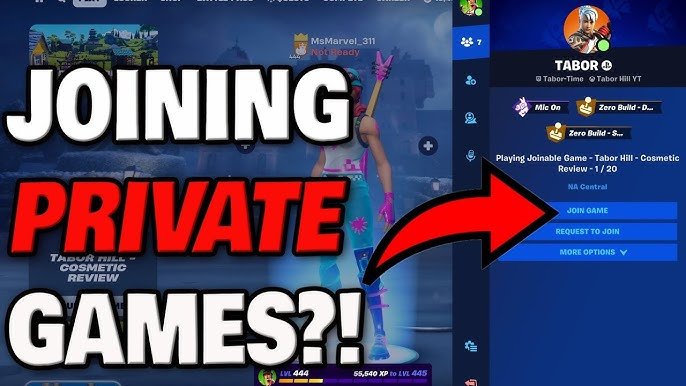
- The Social Panel: The best place to start is your social panel. If your friend is in a game that you can join, you’ll see a little “Join” button next to their name. This panel is in the game menu.
- Friend Status: Look at your friend’s name in the social panel. If it shows a number next to a little player icon (like “2/4” or “3/4”), it means they are in a squad and there might be open spots.
- Party Privacy Settings: Your friend’s party privacy settings must be set correctly to allow joining. If their party is set to “Private,” you won’t be able to join, even if they are in a match. The privacy settings are “Public”, “Friends” and “Private”. The “Public” is the easiest for anyone to join, “Friends” allows friends to join and “Private” setting makes a game non joinable.
Steps to Join a Friend’s Game
Now, let’s get to the actual joining part. Here’s a step-by-step guide to follow:
Step 1: Make Sure You’re Friends
This might sound obvious, but you can’t join someone’s game if you’re not friends with them on Epic Games. So, before anything else, make sure you are friends.
- Adding Friends: In the Social Panel, you can search for your friend’s Epic Games username. Send them a friend request, and wait for them to accept. Once they’ve accepted, you’re good to go.
Step 2: Go to the Social Panel
In the Fortnite game menu, you’ll find the social panel usually on the top left side or on the main menu. This is where you manage your friends and parties.
- Accessing the Panel: The button might look like a couple of people or two silhouettes. Click or tap on this to open the social panel.
Step 3: Find Your Friend
In the social panel, your friends will be listed. Find the friend whose game you want to join.
- Online Friends: Only your friends who are online will appear in the list.
Step 4: Look for the “Join” Button
This is the key step! If your friend’s game is joinable, you’ll see a button that says “Join” next to their name. It usually looks like an arrow pointing to the right or like a play button. If you don’t see a “Join” button, it means their game is probably not joinable at that moment.
- No Join Button? Don’t worry if you don’t see it. It could be that their game is full, the mode doesn’t allow joining, or they have their privacy settings set to private.
Step 5: Click “Join”
Once you see the “Join” button, click or tap it! If the game has space, you’ll start loading into their match.
- Loading Screen: You will see the loading screen while the game is preparing your character. This might take a few seconds.
- Joining the Game: Once loaded, you’ll appear in the match with your friend!
What to Do If You Can’t Join
Sometimes, things don’t go as planned. Here are some common problems you might encounter and how to fix them:
Problem: The “Join” Button Isn’t There
If you don’t see the “Join” button, it could be one of these reasons:
- Game is Full: The team might be full. Fortnite squads typically have 2-4 members, depending on the mode. If the team is full, you cannot join.
- Game Mode Restrictions: Certain modes don’t allow joining mid-game. Check if your friend is in a tournament match, a creative map that doesn’t support joining, or a limited-time mode with restrictions.
- Private Party: If your friend has set their party to “Private,” no one can join them without an invitation. They need to set their party to “Friends” or “Public.”
- Technical Glitch: Sometimes, a temporary game bug can cause issues. Try restarting Fortnite, your device, or your internet connection.
Problem: You Get an Error Message
If you see an error message when you try to join, it usually indicates a technical issue. Here’s what to try:
- Restart Fortnite: Close the game completely and relaunch it. This can fix many temporary glitches.
- Restart Your Device: Sometimes, the problem isn’t with the game itself, but with your computer, console, or phone. Restart your device.
- Check Your Internet Connection: Make sure you have a stable internet connection. If your internet is slow or unreliable, you might have trouble joining games. You can reset your router or modem.
- Update Fortnite: Ensure you have the latest version of the game installed.
- Try Again Later: If the error persists, try joining later. The server may be experiencing temporary issues that are being resolved.
Problem: You Get Kicked from the Game
If you do manage to join a game, but you are kicked back out, it usually means the game has some restrictions. Try the below options:
- Check game mode Some game modes do not allow you to join mid-game, so make sure you are playing a game mode that allows joining a session in progress.
- Check for connection issues If your internet connection is not stable, there is a probability of you getting kicked out of the session.
Party Privacy Settings: How They Affect Joining
Party privacy settings are super important when it comes to joining games. There are three main settings that players can choose from:
Public
- What It Means: If your party is set to “Public,” anyone can join your game as long as there’s space. This is the easiest way for friends to join you.
- When to Use: Use “Public” if you want random players and friends to be able to join you.
Friends
- What It Means: If your party is set to “Friends,” only your friends can join your game. This is a good option if you want a more private game but still want friends to be able to join.
- When to Use: Use “Friends” if you want to play with your friends only, without random people joining in.
Private
- What It Means: If your party is set to “Private,” no one can join your game unless you invite them. This is the most restrictive setting.
- When to Use: Use “Private” if you only want to play alone or with specific people you’ve invited.
How to Change Your Party Settings: You can change your party settings in the social panel, where you add friends. When in the social panel, you can look for a drop down on the top which will allow you to select the preferred option.
Tips for a Smooth Joining Experience
Here are some extra tips to make sure joining a game goes smoothly:
- Coordinate with Your Friends: Talk to your friends before joining. Make sure they have the correct party privacy settings and they are expecting you to join.
- Be Patient: Sometimes, loading into a game might take a few extra seconds, especially if the game is intense with lots of action. Don’t click the “Join” button again because that might lead to joining the game twice and the game might error out, and you need to start again.
- Communicate: Use voice chat to communicate with your friends in the game. This will improve team work. If you can’t communicate over voice chat, then make sure you have text chat available.
Joining a joinable game in Fortnite is very easy once you get the hang of it. It’s a great way to play with friends and enjoy all the action together. Just follow these steps, double check the privacy settings and you’ll be teaming up with your friends in no time.
How to Join Someone Else's Game on Fortnite (2024) | Join Fortnite Joinable Game
Final Thoughts
To join a friend’s game, navigate to the lobby and click their name. If their status says ‘Joinable’, select the option. This action sends a request to them. They must accept the invitation for you to play together.
You can also accept an invitation sent to you. A notification will appear on your screen. Accepting it will automatically put you in their lobby. This is the direct path on how to join a joinable game in fortnite.

