
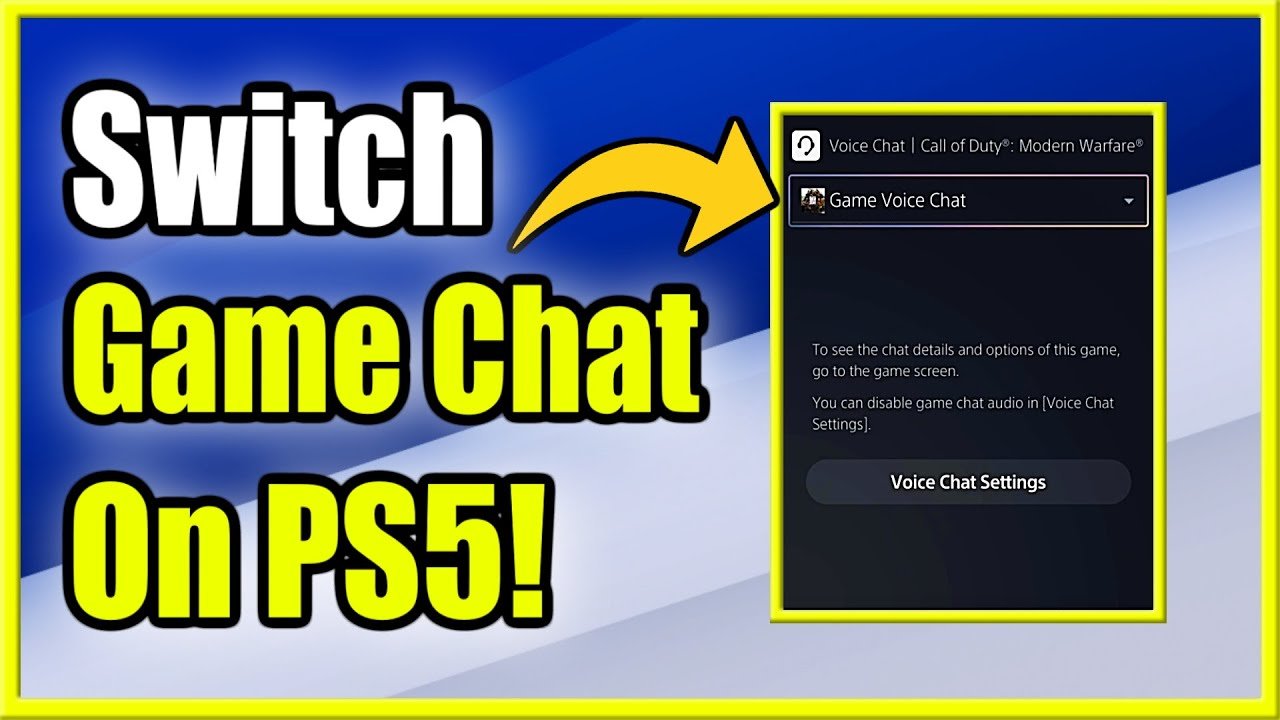
To join game chat on PS5, press the PlayStation button, go to the “Game Base,” select your desired party or the game chat itself, and then join.
Want to talk strategy with your teammates or just chat while you play? Figuring out how to join game chat on PS5 is simpler than you might think. The PlayStation 5 makes it easy to connect with your friends while gaming.
We will quickly show you the exact steps to get you chatting with your friends in no time. So, let’s jump into it, and get you speaking.

How to Join Game Chat on PS5
Getting into game chat on your PlayStation 5 is super easy and lets you talk to your friends while you play! It’s like having a built-in walkie-talkie just for gaming. Whether you want to team up for a big battle or just hang out while exploring a new world, game chat is the place to be. This guide will show you all the different ways you can join the conversation and start talking with your fellow gamers. We’ll go through everything step-by-step, making it simple even if you’re new to the PS5. So, let’s get started!
Understanding the Basics of PS5 Game Chat
Before diving into the specifics, let’s understand a few things about how game chat works on the PS5. Game chat is basically a way for you to talk to other players through your headset while you’re playing a game online. The PS5 lets you join different kinds of chats, depending on what you’re doing. You can chat with everyone in your game, just the people in your party, or even create a specific party just for your friends. The PS5 has two main types of communication channels:
- Game Chat: This is for chatting with everyone else in the game you are playing. For example, if you are playing Call of Duty, everyone in your match will be on the same Game Chat Channel (if they are using it).
- Party Chat: This is for talking with a group of friends that you invite to your ‘Party’. This chat is separate from game chat and it will let you talk to a closed group of friends, no matter which game you play (or if you are not playing).
It’s helpful to know the differences between these two so you always know who you’re talking with. Now, let’s find out how to get started with both.
Joining Game Chat: The Quick and Easy Ways
There are several straightforward ways to join game chat on your PS5. Let’s explore some of the most common methods:
Using the Control Center
The quickest way to join voice chat is through the Control Center. Here’s how:
- Press the PlayStation button on your DualSense controller. This will bring up the Control Center at the bottom of your screen.
- Navigate to the Microphone icon. This icon looks like a small microphone.
- You will see a few options. Select the option for ‘Game Chat‘ or ‘Party‘, depending on what you want to do. You can choose to be muted, use game chat, or party chat here.
- If you are not in a party, selecting ‘Party’ will start a new party. If you are already in a party, it will automatically place you into that party.
Using this method, you can quickly toggle your microphone, check who is in the chat, and make adjustments if necessary.
Using the Game’s Interface
Many games have their own built-in voice chat controls. These controls may be different from game to game but are usually similar to the Control Center’s functionality. Here’s how to typically join via a game’s menu:
- Open the game’s menu. This might be done by pressing the ‘Options’ button on your controller or a different button specific to the game.
- Look for chat or audio settings. There might be a specific tab or section for these.
- Find the option to enable voice chat. It might say something like “Voice Chat On/Off” or “Join Voice Chat”.
- Select the option you need, to enter voice chat.
Keep in mind that some games require you to be in a match before joining the game chat. This is often the case in online multiplayer games.
Creating or Joining a Party Chat
Party chat is fantastic for when you want to chat with a specific group of friends, and not everyone in the game. It helps you coordinate strategies or simply hang out while gaming. Let’s see how to create or join a party.
Starting a New Party
Here is how to start a new party chat on your PS5:
- Press the PlayStation button to open the Control Center.
- Go to the Game Base icon. This is usually to the left of the Microphone icon.
- Select ‘Parties‘ from the list.
- Select ‘Start New Party‘ .
- Choose the friends you want to invite.
- Select ‘Start‘.
- This will place you in a private chat room with your selected friends.
You can also access the party menu through the ‘Friends’ section of the main menu and selecting the ‘Party’ tab.
Joining an Existing Party
If one of your friends has already started a party, here’s how you can join them:
- Go to Game Base by pressing the PlayStation button on your controller and clicking on the icon to the left of the Microphone icon.
- Select the ‘Parties‘ section.
- You’ll see a list of available parties. Choose the party you want to join (if it’s not full or private, you will be able to join).
- Select ‘Join‘.
- You’ll then be connected to the party chat with your friends.
You can also receive party invites as a notification. To join a party this way, simply accept the invite when it pops up on the screen.
Adjusting Your Chat Settings
The PS5 has various options to manage your voice chat experience. Here’s how to adjust some key settings:
Microphone Input and Volume
You can control your microphone and how loud you sound to others:
- Open the Control Center by pressing the PlayStation button.
- Navigate to the Microphone icon.
- You’ll see options for your microphone device, input level, and whether you’re muted. You can select an external microphone (if you have one plugged in).
- Adjust the input level until your voice is at a good level. You want to avoid being too loud or too quiet.
You can also fine-tune these settings by going to Settings > Sound > Microphone. Here you can change the microphone, input volume, and even adjust whether your mic auto-mutes when you speak into it.
Adjusting Game Audio Balance
Sometimes, you might find the game audio too loud or the chat too quiet. Here’s how to adjust the balance between them:
- Open the Control Center by pressing the PlayStation button.
- Go to the Sound icon.
- Look for the Audio Balance options.
- Adjust the sliders to make the game louder or quieter compared to the chat audio.
Experiment to find the perfect audio mix that works best for you.
Mute and Unmute Options
Sometimes, you might need to quickly mute or unmute yourself. Here are some handy ways:
- Using the Control Center: As mentioned before, you can quickly mute and unmute your mic by going to the Microphone icon in the Control Center.
- Using Your Headset: Many gaming headsets have a mute button directly on the headset. This is a quick and simple way to cut your mic feed when you need to.
- Controller Button: The Dualsense controller has a dedicated microphone mute button below the PlayStation button. Just press it once to mute, and again to unmute.
Troubleshooting Common Game Chat Issues
Occasionally, you might face issues with game chat. Here are a few common problems and how to solve them:
Microphone Not Working
If your mic isn’t working, here’s what you should check:
- Check the connection: Make sure your headset or microphone is properly plugged into the controller or the PS5. If using a wireless headset, make sure it’s charged and connected.
- Check your microphone settings: Go to the Microphone settings in the Control Center or Settings menu. Ensure the correct microphone is selected and that it’s not muted.
- Try another device: If you have a different headset or microphone try that device. If the second device works then the original microphone device is most likely the cause of your issue.
- Restart the game or console: Sometimes, a simple restart can solve the problem.
Unable to Hear Others
If you cannot hear other players, here’s what to try:
- Check the volume: Make sure your game volume is turned up and that your voice chat volume isn’t muted.
- Check game chat settings: Ensure you’ve joined the voice chat in the game or party chat.
- Ensure you are not in party chat: Check the control center and make sure you are in the game chat for the game you are playing. Sometimes you might not hear other players because you are in a party chat instead of the game chat channel.
- Check your headset or headphones: Make sure your headset or headphones are connected to the controller or console, and that they are working.
- Restart the game or console: As with microphone problems, sometimes, a simple restart can solve the problem.
Echoing or Feedback Issues
If you hear echoes or feedback during voice chat, try these solutions:
- Lower your mic input level: Sometimes, the microphone is picking up the sound from your speakers and creating an echo. Reducing the input level can reduce this.
- Ensure you are using a headset: When using speakers, your microphone is more likely to pick up sound from the speaker and cause feedback/echo. When you use a headset, the microphone is physically closer to your mouth (and far from the speaker) which helps to eliminate feedback.
- Use headphones: If using speakers, the microphone can pick up your own voice and send it back through the chat. This creates a looping effect which causes an echo. Using a headset will solve this issue.
- Check your settings: Make sure there is not something on your playstation settings that is causing feedback. There are some settings that you can play with to help reduce or remove feedback and echo.
Tips for a Better Voice Chat Experience
To make your voice chat even better, here are a few tips:
- Use a good headset: Invest in a quality gaming headset for clearer audio and better mic quality.
- Find a quiet environment: Minimize background noise for a better chat experience. Close windows or go to a quiet room when you plan on chatting with your friends.
- Adjust your microphone properly: Take some time to adjust the input level of your microphone before starting the chat.
- Be respectful: Treat others in chat with kindness and avoid being disruptive.
- Speak clearly: Talk at a moderate level and pace to ensure your friends can easily understand you.
By following these tips, you can have a more enjoyable and clear communication experience with your friends while gaming on PS5.
Joining game chat on the PS5 is easy once you understand the different methods. Whether you’re using the Control Center, in-game menus, or creating party chats, the PS5 provides the tools you need to connect with your friends and fellow players. Always remember to adjust your settings as needed and troubleshoot any issues that arise so that you have the best possible gaming experience. Now, get out there and start chatting while you play!
PS5: How to Switch From Party Chat to Game Chat Tutorial! (For Beginners) 2024
Final Thoughts
To join a game chat on PS5, first make sure your microphone is connected and working. Navigate to the game’s menu and find the voice chat option. Select the chat you want to join.
Then confirm your choice. The system will automatically add you to the designated game chat. This guide provides a clear way how to join game chat on ps5.

