
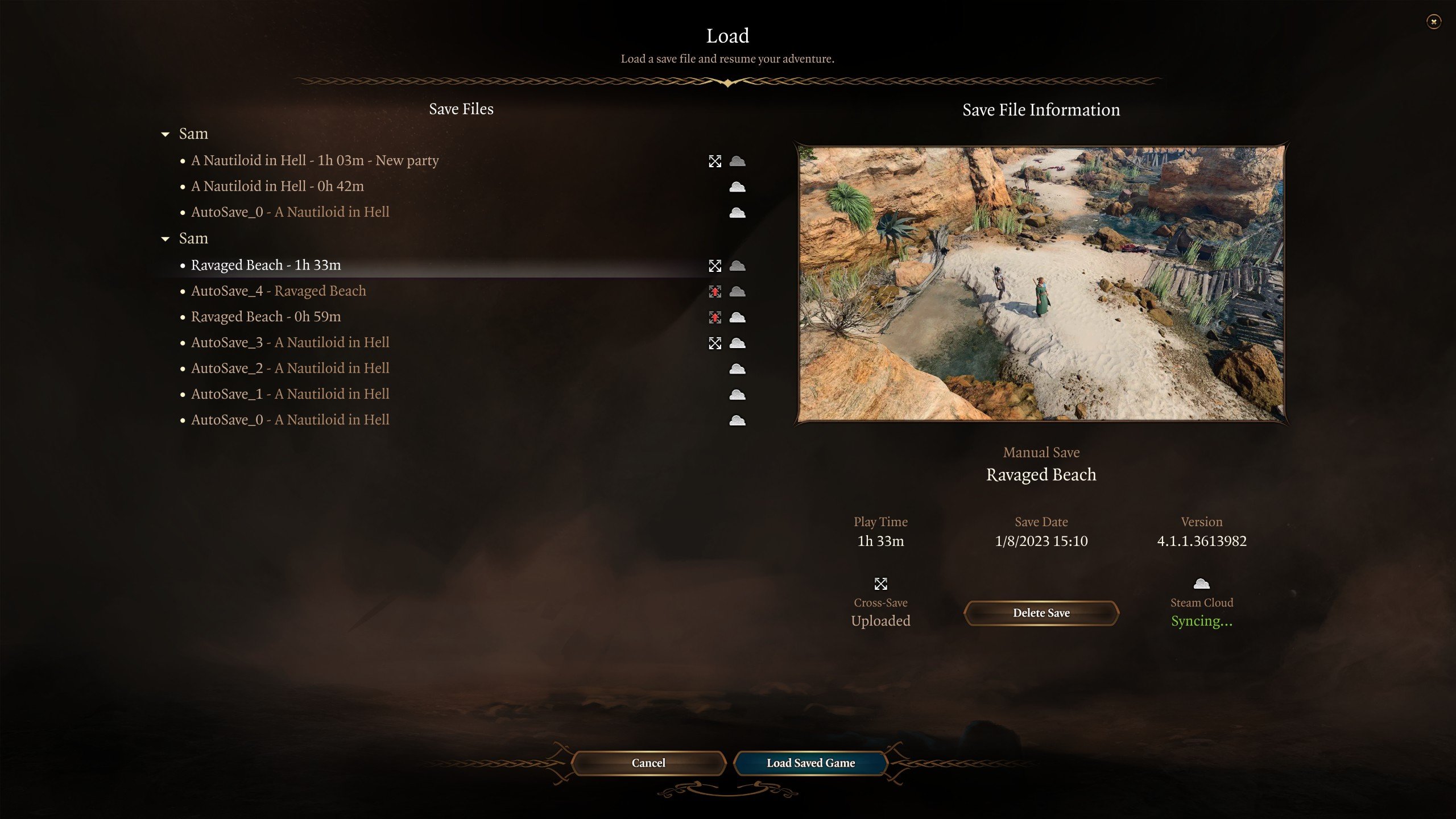
To load a multiplayer game in BG3, either the host must load the saved game and invite players, or other players will join the host’s lobby through the in-game invite system.
Ready to dive back into Faerûn with your friends? The adventure in Baldur’s Gate 3 is even better when shared, and understanding the process of how to load a multiplayer game bg3 is key. It’s straightforward but needs a little explanation, especially when coordinating who’s loading the game initially.
It often depends on who saved last; the host will pick up where they left off. Then, friends will connect through invites. This way everyone can continue together without issue.

How to Load a Multiplayer Game in BG3
Getting ready to play Baldur’s Gate 3 with your friends is super exciting! But sometimes, figuring out how to actually get into a multiplayer game can be a little confusing. Don’t worry, we’re here to help! This guide will walk you through everything you need to know to start playing BG3 with your buddies, from creating a new game to joining an existing one. We’ll cover different ways to connect, troubleshoot common problems, and make sure you and your friends are ready for an epic adventure in Faerûn.
Starting a New Multiplayer Game
The very first step is to decide if you’ll be starting a brand new adventure together. If that’s the plan, here’s what you need to do:
The Host’s Responsibilities
One of you will need to be the host. This person will start the game and invite others to join. Here’s how it works for the host:
- Start the Game: Launch Baldur’s Gate 3. From the main menu, pick “Multiplayer.”
- Choose a Game Type: You will see two main options: “Online” or “LAN.”
- Online: Select this if you and your friends are playing over the internet. It’s the most common way to play with people who are not on the same home network.
- LAN: Choose this only if everyone is on the same local network, like at a friend’s house all connected to the same router.
- Create a New Game: Click on the “Create” button to begin a fresh adventure.
- Game Settings: Now you’ll see a few game options.
- Difficulty: Pick a difficulty level that everyone will be comfortable with. If you’re new to the game or playing with people new to these types of games, you might want to start on “Explorer” or “Balanced.”
- Tav Character: This is where you will design your own character. Remember this character will be part of the adventure, so take your time! You can personalize everything from their appearance to their background.
- Other Character Slots: Once you’re happy with your character, move to the next screens to create other character or invite others to create their own.
- Invite Your Friends: Once you create your game and have configured your character you will see the option to invite your friends. There are a few ways this can happen:
- Direct Invitations: Usually you will send an invite to your friend through the game. If you are using Steam, you’ll invite them through the Steam overlay. On GOG, it will be through the GOG system. If you are playing using other game stores, you will have to look at how these stores handle invites.
- Wait for your friends to join: You will need to wait for everyone to join before you launch into the game.
Important Note: The host’s internet connection can affect the game for everyone. A strong, stable connection will mean a smoother gaming experience.
Joining a Newly Created Game
If you’re not the host, here’s what you need to do to join a new game:
- Start the Game: Launch Baldur’s Gate 3.
- Go to Multiplayer: Choose “Multiplayer” from the main menu.
- Accept the Invitation: Your friend who started the game should send you an invite. Accept it, either through the game or through the game store’s interface (like Steam or GOG). If your friend is hosting via LAN you may be able to find their game in the list of available games.
- Character Creation: The game will then take you to character creation screen, if the host has created all the characters, you will see an option to choose one.
- Wait for the Host: Once you have created your character or selected an existing one, wait for the host to start the game.
Loading an Existing Multiplayer Game
Sometimes, you won’t be starting fresh. You might want to continue a game you and your friends have already started. Here’s how to load an existing multiplayer game:
Host’s Steps to Load an Existing Game
- Launch the Game: Open Baldur’s Gate 3. Go to the main menu.
- Select Multiplayer: Select the Multiplayer option in the menu.
- Choose “Load Game”: Don’t select create this time. Now, find the option that says “Load Game”.
- Pick the Save File: You’ll see a list of your saved games. Choose the one that you and your friends played together previously. Make sure it’s the correct file for your multiplayer campaign!
- Invite Players: After the game loads, invite your friends like you would when starting a new one.
Joining an Existing Game
To join an existing game, the steps are similar to joining a new one:
- Start BG3: Launch the game.
- Go to Multiplayer: Select the multiplayer option from the main menu.
- Accept Invite: Accept the invitation sent by your host.
- Game Loading: The game should load you into the right campaign. Now get ready for some more fun!
Common Issues and Troubleshooting
Sometimes, things don’t go as planned. Here are some common issues you might run into when trying to play BG3 multiplayer and some simple ways to fix them:
Connection Problems
Sometimes, you might have trouble connecting to your friends or the game might disconnect. Here’s what to do:
- Check Your Internet: Make sure your internet connection is working correctly. Try restarting your modem and router.
- Firewall and Antivirus: Your firewall or antivirus might be blocking the game. Temporarily disable them to see if that fixes the problem (be sure to turn them back on after!). You can also add an exception for the BG3 application.
- Game Server Issues: If the game’s servers are down, there is not much you can do, except wait. Check the game’s official social media for updates.
- Restart the Game: Sometimes, closing and restarting the game can fix connection problems.
- Restart Your System: If restarting the game does not work, try to restart the computer.
Game Version Mismatch
If you are using a different version of the game than your friends, you might not be able to join or load a game together.
- Check for Updates: Make sure everyone has the latest version of Baldur’s Gate 3. Check for any updates on the game store you are using, be it Steam, GOG or otherwise.
Game Loading Problems
If the game is having trouble loading, you can try the following:
- Verify Game Files: If the game is failing to load, go to the game store and find the option to verify game file integrity.
- Reinstall the Game: If verification does not work, uninstall and reinstall the game.
- Low Memory or System Issues: If your device is having issues running the game, try closing some open apps or lowering the graphics settings of the game. If you do not meet the minimum specs, the game might not run smoothly.
Invitation Issues
If you can’t send or accept invitations, check these items:
- Check your Friend List: Make sure that all players are on each others friend lists in the game and the launcher platform.
- Try Different Methods: if the game invites are not working, try using steam invite or the invite method for whatever platform you are using.
Other Things to Consider
- Crossplay: Baldur’s Gate 3 currently doesn’t have crossplay between different platforms. This means that if you are playing on PC, you cannot play with someone on PlayStation or Xbox.
- Game Host: The person who hosts the game needs a stable internet connection to avoid game disconnections.
- Game Performance: The quality of the game and performance will be dependent on the person with the lowest spec device in the party.
Tips for a Great Multiplayer Experience
Here are some tips to make playing BG3 with your friends even more fun:
- Plan Together: Before starting a campaign, talk with your friends about what kind of story you want to create. Discuss character ideas and roles to avoid duplication.
- Communicate: Use voice chat or text chat to talk to your group. This makes coordinating during battles much easier.
- Be Patient: Sometimes, technical issues will happen. Be patient and help each other troubleshoot the problems.
- Have Fun: Remember that the most important thing is to have fun! Enjoy the adventure, the jokes, and the stories you make together.
Loading a multiplayer game in Baldur’s Gate 3 can be a very enjoyable experience with your friends. By following these steps and keeping our troubleshooting tips in mind, you will be ready for some epic adventures in Faerûn. Remember that a little communication and patience can go a long way in making sure everyone has a good time.
How to Create, Setup, Join, and Manage Multiplayer Sessions in Baldur's Gate 3
Final Thoughts
To load a multiplayer game, BG3 players should first ensure everyone has the same version. Next, one person creates a new game and invites others. Joined players then select their characters. This process allows seamless cooperative play.
Once all players are ready, the host starts the game. The game syncs automatically across all systems. That’s how to load a multiplayer game BG3 effectively.

