
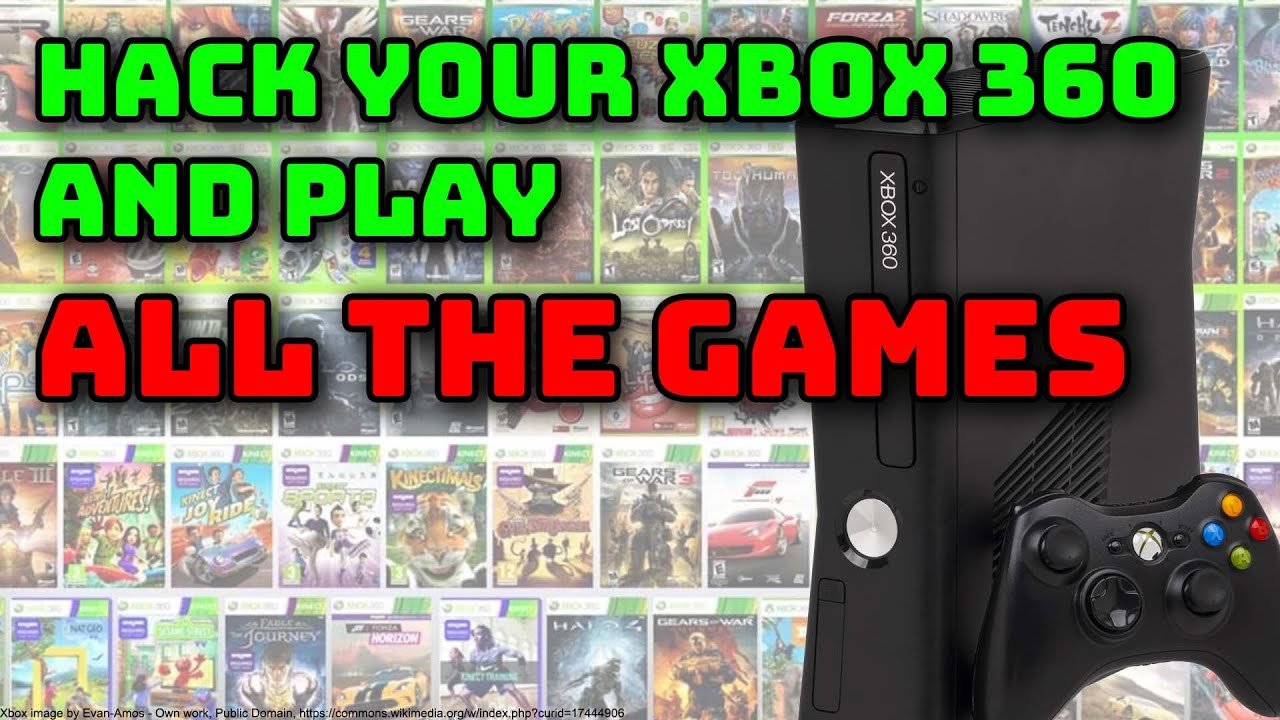
To mod Xbox 360 games with a USB, you typically need a modified console, specific software, and game save files; you then transfer these files via the USB drive.
Ever dreamt of playing your favorite Xbox 360 games with custom content or enhanced features? It’s a common desire among gamers. Many are curious about how to mod Xbox 360 games with a usb drive. The process isn’t as complicated as it might seem, but it does require some preparation.
This method lets you modify game saves, bringing custom experiences to your favorite titles. By transferring files from your computer to your console with a USB, you open a world of potential changes.

How to Mod Xbox 360 Games with a USB
Ready to make your Xbox 360 games even more fun? Modding, which means changing how a game works, can add new levels, characters, or even special powers! And guess what? You can often do this using a simple USB drive. It’s like giving your games a super cool upgrade. While it might sound a bit tricky, we’ll break it down step by step. It’s a bit like following a recipe, but instead of making cookies, you’re changing the game. Let’s get started on how to mod Xbox 360 games with a USB drive.
What You’ll Need Before You Begin
Before we dive in, let’s gather the tools you’ll need. It’s always good to be prepared. Think of it as getting your ingredients ready before you start baking. For modding your Xbox 360 games with a USB, you’ll require the following:
- An Xbox 360 Console: Obviously, you’ll need the console you want to mod games on.
- A USB Flash Drive: This will be your magic key. Make sure it’s formatted correctly. We’ll talk about that in just a bit. A USB 2.0 drive is often better because some older consoles have problems reading USB 3.0 sticks. For capacity a 2-16GB stick is mostly recommended, but you can use larger ones also.
- A Computer: You’ll need a computer with internet access to download the necessary tools and game mods. It could be a Windows, Mac, or even a Linux computer.
- Game Mod Files: You need to find the actual mod files for the games you want to modify. These are usually available in different websites. Make sure to get them from a trustable source.
- Modding Software: Certain games and mod types might require specific modding software, it will be discussed later in the text. These programs help you put the mods onto your USB.
- Patience: Modding can sometimes require some trial and error, so stay patient.
Preparing Your USB Drive for Xbox 360 Modding
Before your USB drive can work its magic, we need to get it in the right shape. This is called formatting. Think of it like cleaning a plate before you eat on it; it makes sure everything works correctly.
Formatting Your USB on a Windows PC
Most USB drives come pre-formatted with the FAT32 file system which is required for Xbox 360 game modding, but it’s still a good habit to check and format the drive, if needed, using the following steps:
- Insert the USB: Plug your USB into your computer.
- Open File Explorer: Click on the file explorer icon (looks like a folder) on the taskbar.
- Find your USB: In File Explorer, find your USB drive. It might be called “Removable Disk” or have a name you gave it.
- Right-Click: Right-click on the USB drive, and choose “Format”.
- Choose FAT32: In the Format window, make sure the “File system” is set to “FAT32”. If it’s already selected skip this step.
- Start Formatting: Click “Start”. You might get a warning that formatting will erase everything on the drive, so ensure to back up all the content from your USB if any. Click “OK” to confirm.
- Wait: Let the computer format the drive. It should be pretty fast.
- Ready to Go: Once complete, your USB drive is ready for modding!
Formatting Your USB on a Mac
The method to format a USB drive on a Mac is a bit different, but still easy to follow.
- Insert the USB: Connect the USB drive to your Mac.
- Open Disk Utility: Go to “Applications” > “Utilities” and open “Disk Utility”.
- Select your USB: Find your USB drive on the left-hand side of the Disk Utility window, and click on it.
- Erase: Click on the “Erase” button at the top of the window.
- Format: A pop-up window will appear. Choose “MS-DOS (FAT)” as the format. It’s the same as FAT32 on Windows.
- Erase Again: Give your drive a name (or keep the default), and click “Erase”.
- Wait and Done: The formatting should finish within a few seconds. Once it is completed, you’re good to go for Xbox modding.
Finding Game Mods for Your Xbox 360
Now comes the fun part! Finding the mods. Think of it as searching for the perfect toys for your games. You’ll need to be a little careful here, though, so make sure to use only the trusted modding websites or communities. Here are a few things to keep in mind.
- Trusted Websites and Forums: Search for popular modding websites or forums specific to Xbox 360 games. Check reviews and see what other players are saying about a site or mod.
- Game-Specific Mods: Look for mods made specifically for the game you want to change. A mod for one game usually won’t work on another one.
- Read Carefully: Always read the description and instructions for each mod. Some mods might have special rules or need specific tools to use.
- Avoid Suspicious Sites: Stay away from websites that look strange or ask for personal information, this is very important for keeping your computer and console safe from virus or malware.
Important Note About Modding Ethics
Before we go on, let’s quickly talk about something important: playing fair. Modding games is usually okay for single-player mode, but using mods online in multiplayer games can give you an unfair advantage. This can spoil the game for others and can lead to banning in most online games, so it’s best to use them only in offline gameplay. Let’s be good gamers and play fair!
Different Kinds of Xbox 360 Game Mods
Mods can come in different shapes and sizes. Here are a few common types you might find. It is like discovering different flavors of ice cream.
Save Game Mods
These mods change your saved games. You might find save files that start you with all the best weapons, level 99 characters, or in a specific part of the game. This helps to skip some parts of game that you don’t want to play.
Texture Mods
Texture mods change the appearance of things in the game. For instance, you could make the grass brighter, or give your character a cool new outfit. These mods change the look and feel of the games.
Game Play Mods
Game play mods can completely change how the game works. You might get new powers, change how fast you move or even alter how enemies behave. This type of mod can provide a brand new experience.
Custom Content Mods
Some games have mods that add totally new stuff, like different levels, characters, or objects that were never in the original game. They expand the games with new content.
Choosing the Right Kind of Mod
The type of mod you pick depends on what you want to achieve. If you like graphics, go for texture mods. If you like to play with power, try a gameplay mod. If you want a shortcut, then save games are your thing. Think of it as picking your favorite snack!
Transferring Mods to Your USB Drive
Now, after you’ve got your USB drive ready and found some cool mods, it’s time to move those mod files to your USB. Here is how to transfer the mods on your USB.
- Download the Mods: Download the mod files you want from the source. Usually the mod files are .rar, .zip or similar archives.
- Extract the Mod Files: Most mods are in compressed files (like zip or rar). You’ll need to extract these files to a folder on your computer.
- For Windows: Right-click on the compressed file and click “Extract All”.
- For Mac: Double-click the file, and it will usually extract automatically.
- Copy to USB: Open the folder with the extracted mod files. Select all the files and folders within and copy them.
- Paste to USB: Open your USB drive in File Explorer (Windows) or Finder (Mac) and paste the copied files directly into the USB.
- Safely Eject: Once the copying is complete, don’t just yank the USB drive out. Safely eject the USB from your computer to avoid any data loss.
- Windows: Click the small arrow icon in the bottom-right corner, and select the USB and click “Eject.”
- Mac: Drag the USB icon from your desktop to the trash icon (which turns into an eject icon).
Remember, you must have the mods in the correct format for your Xbox to recognize them. Certain mods might need a specific folder structure, so always read the mod’s instructions carefully.
Using the USB Drive on Your Xbox 360
You have now done all the necessary preparations for modding your game, now it’s time to use your USB to mod games in your Xbox. This might look like you are about to start a game, but with a slight modification.
- Turn on your Xbox 360: Switch on your console like normal.
- Plug in the USB: Find a USB port on your Xbox 360 (there are usually some at the front and back), and plug in your USB drive.
- Navigate to Storage: Go to the “Settings” part of the Xbox menu and then to “System Settings” then go to “Storage”.
- Select the USB: You should see your USB drive on the list of storage devices. Select it.
- Copy Mod Files: Depending on the mod, you may need to copy or move files from the USB to your game’s save data. This process changes from game to game, so consult specific mod instructions carefully.
- Start the Game: Now start the game you’re modifying. If it’s a save game mod, you may need to load a save file you just copied to the console.
- Play: Enjoy your modified game!
Specific Mod Installation Instructions
The method of applying mods varies depending on the kind of mod. Here are some common instructions:
Save Game Mods: These are typically copied into the game save data folder on the Xbox. Go to Storage, navigate to your game save, and copy the save files from your USB to the Xbox hard drive or internal storage. Then when you start the game, choose the modified saved game.
Texture Mods: Usually, texture mods require you to copy the texture files to the specific folder where the game stores its textures. Some require you to use third party programs on PC first. Follow mod specific instructions carefully.
Gameplay Mods: Many gameplay mods require you to use a PC tool to “patch” the game file. There are dedicated tools for specific games, use these tools to modify the game’s iso or file, then transfer these file back into your console, after that the mod should be activated.
Custom Content Mods: Custom content mods usually contain new game files that you’ll need to copy to the console’s internal storage or hard drive. Some mods might need third party applications to be installed. Again read the mod instruction thoroughly.
Troubleshooting Common Issues
Sometimes, things may not go as planned. It’s normal! Here are some common problems and how to handle them.
Xbox Doesn’t Recognize the USB
- Check Formatting: Ensure your USB is formatted to FAT32.
- Try Different Ports: Try another USB port on your console.
- Use a Different USB: It’s always a good idea to test with another USB drive, just in case.
- Console Restart: Sometimes, a restart will fix a lot of problems.
Mods Not Working
- Read Instructions: Double-check the mod instructions, and ensure all the steps are done as suggested.
- Check Compatibility: Make sure your mod is compatible with your specific game version.
- Game Updates: If your game updated, that may cause a problem for mods to work.
- File Structure: Double check that you’ve placed the mod files in the correct folders on your USB and Xbox.
Game Crashing or Freezing
- Mod Conflicts: It’s possible that different mods don’t work well together. Try one mod at a time to identify any conflict.
- Remove Mods: If your game constantly crashes after modding, try removing mods one by one to find the cause.
- Game Errors: Certain games might crash if the game files are modified beyond the recommended parameters. Avoid using mods that are outdated or that are marked as beta.
Seeking Help
If you still have trouble modding your game, don’t give up! Check the website where you found the mods or ask in the online game forums for tips and assistance from other players. Someone might have already fixed the same problem that you’re having.
Modding your Xbox 360 games with a USB can bring a completely new layer of enjoyment to your gaming experience. By carefully following these instructions, you will be able to add and implement different kinds of modifications on your favourite Xbox 360 games. Remember to have patience, and always use mods in an ethical way, specially when playing online games. Happy modding and have fun!
You can mod your Xbox 360 with just two wires!
Final Thoughts
In short, you need specific software and a compatible USB drive to mod Xbox 360 games. You’ll transfer save files to your PC, modify them, then copy them back to your console using the USB.
Remember, proper research is key for ‘how to mod xbox 360 games with a usb’. Always back up original files before making changes. This helps prevent data loss or console issues. Enjoy your modded gaming experience.

