
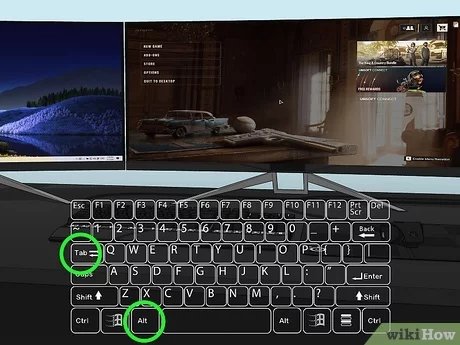
Simply use the Windows key + Shift + Left/Right arrow keys to move your game window to another monitor.
Ever found yourself wanting a wider view of your gaming world, but your game stubbornly stays put? It’s a common situation, and learning how to move my game to another monitor can dramatically improve your setup. We often get stuck on one display when we actually want the game to display on a different screen. It can be frustrating, but thankfully the solution is really simple. You can move the game easily to another screen and continue gaming on your preferred display.

How to Move My Game to Another Monitor
Having multiple monitors can really change how you play games. It’s like having a bigger window into your game world! Maybe you want to see your game on a bigger screen, or use one monitor for the game and another for chatting with friends. Whatever the reason, moving your game from one monitor to another is a useful skill. Let’s explore the different ways you can do this.
Understanding Display Settings
Before you start dragging windows around, it’s good to know how your computer sees your monitors. Your computer needs to know that you have more than one screen and how they are arranged. This is all controlled in your display settings. Think of it like telling your computer where each of your monitors are physically located – to the left, right, above, or below each other.
Accessing Display Settings on Windows
On Windows, getting to display settings is easy. Here’s how:
- Right-click on any empty space on your desktop.
- A menu will pop up. Click on “Display settings” (or sometimes just “Display”).
- A window will open, showing you how your computer sees your monitors. You’ll likely see numbered boxes representing each of your screens.
You can click on the numbered boxes to select a specific monitor. You can also rearrange them by dragging them around. This is important so that your mouse moves correctly between your screens. If you have a monitor on the left in real life, make sure the numbered box is on the left in the display settings.
Accessing Display Settings on macOS
If you are using a Mac computer, the process is slightly different, but still straightforward:
- Click the Apple logo in the top-left corner of your screen.
- Choose “System Preferences” (or “System Settings” on newer macOS versions).
- Click on “Displays”.
- You will see a window that shows how your monitors are arranged. Like in Windows, you can drag the boxes to represent the real placement of your screens.
Make sure the layout in your settings matches your physical setup for the best experience. This helps avoid your mouse disappearing off the edge of your primary screen.
Setting Your Main Display
One of your monitors will be the “main display” by default. This is usually where the start menu or Apple menu and other important things show up. But you can change this! Here’s how on both Windows and macOS:
Windows
- In the display settings window, select the monitor you want to be your main one.
- Scroll down a bit until you see the checkbox labeled “Make this my main display”. Click the box.
macOS
- In the Displays window, select the monitor you want to make main.
- Look for the “Use as main display” option. Usually this is a small bar or similar.
Making a new monitor the main one is helpful if you want to have things like notifications popping up on a different screen.
Moving a Game Window: The Basic Ways
Now that your monitors are all set up in your computer’s brain, let’s learn how to move your games between them. There are a couple of very common and simple methods for doing this.
Dragging the Window
The most simple method for moving a game to a new monitor is simply to drag the game window. This method typically works when a game is running in a windowed mode, rather than a full-screen mode.
- Make sure your game is running in windowed mode, or borderless windowed mode. If the game is in full screen, it may not move. You usually can find these settings in the in-game graphic settings options.
- Click and hold your mouse button on the game window’s title bar (the top part where the game’s name is).
- While holding, drag the window to the edge of the screen in the direction of your other monitor.
- Let go of the mouse button when the window is on the other monitor.
Sometimes, games can be a little sticky when dragging. If this happens, try making the game window a little smaller and try again. Or look for the next option.
Using Windows Key Shortcuts
Windows has some really helpful shortcuts that make managing windows between multiple monitors super easy. These shortcuts are a quicker and easier way to transfer a window, including games, to another screen. Here are some useful shortcuts:
- Windows Key + Shift + Left Arrow: Moves the current window to the left monitor.
- Windows Key + Shift + Right Arrow: Moves the current window to the right monitor.
These work whether your game window is maximized or not and it is very quick and easy. Make sure to press all keys at the same time. Once you get used to these shortcuts, you’ll be moving game windows in no time.
Game Specific Settings
Sometimes, games have their own settings for choosing which monitor to display on. This can make moving your game to another screen even simpler than just dragging the window, and is usually for when a game runs in full screen mode.
Looking Inside Game Options
Most games offer a lot of customization options inside their menus. Often times, there is a setting to tell the game which monitor to use. To find this option you will have to go inside the game’s graphic options and look there.
- Launch your game and get to the main menu screen.
- Look for “Options”, “Settings”, or something similar in the menu.
- Look for a section about “Graphics” or “Display”.
- Inside, you might find a dropdown or selection that allows you to pick a specific monitor. This will look something like “Monitor 1,” “Monitor 2,” or by the name of the monitor.
- Pick the monitor you want and save the setting.
After changing the setting, the game will often restart. Once it relaunches, it should show on your monitor of choice. If you have to go this route, it is a good idea to note that not all games use the same text or have the setting, but the setting is quite common.
Handling Fullscreen Games
Fullscreen games are when your game takes up the entire screen and nothing else is visible. This can be tricky when switching monitors. Here is how you handle that situation.
Switching to Windowed Mode Temporarily
If your game is running in fullscreen mode and you can not drag it to another screen. The most reliable way to move it is to change the settings within the game to switch it to windowed mode or borderless windowed. Usually you have to be in game menu to access this.
- Press Esc to get to the game menu if you are not already there.
- Go to the graphics options.
- Find the “Display Mode” option. It will probably say “Fullscreen”.
- Choose “Windowed” or “Borderless Windowed” from the drop down.
- Save the settings.
Once the game is running in windowed mode, you should be able to drag it easily, or use the keyboard shortcut to move it. Once it is where you want, you can usually switch back to fullscreen mode on the new monitor. Sometimes, you might have to change the monitor option mentioned in the Game Specific Settings if the game does not switch right away.
Borderless Windowed Mode
Borderless windowed mode is a great compromise. It makes the game appear full screen but still allows you to move the window around like it was in windowed mode. The game still takes up the whole screen, and you don’t see the Windows bar at the top of the game. Using this mode is a great way to move the game between monitors very easily. Also the keyboard shortcut mentioned earlier usually works very well with borderless mode.
- Make sure that the game is in borderless windowed mode using the method described above.
- Use the keyboard shortcut or drag the game to the monitor you want.
- The game will now look fullscreen on the other monitor but still be easy to move if you change your mind.
Troubleshooting Common Issues
Sometimes, things do not go as planned. Let’s look at some common problems that can come up when trying to move games to a new monitor, and how to fix them.
Game Refuses to Move
If a game will not move even when you try to drag it, try these tips:
- Double Check the Display Mode: Make sure it is not in fullscreen mode. Windowed or borderless are your friends here.
- Restart the Game: Sometimes, if a game gets stuck, restarting it can fix the issue.
- Restart the Computer: If the game restarting doesn’t work, a full computer restart can solve weird problems.
- Update Graphic Drivers: Old drivers can sometimes create problems with multiple monitors. Go to your graphic card maker’s website and download the newest version.
Game Window Off Screen
Sometimes the game window may move to a place off screen. You might not be able to see it, even though the game is still running. If this happens:
- Use Keyboard Shortcuts: Using “Windows Key + Shift + Arrow Key” may help to bring the game back in view to a monitor you can see. Try all of the arrow keys to find the game window.
- Change Screen Resolution: Try changing your display resolution. This might move the game back to a visible spot.
Game is Blurry or Wrong Size
If your game is blurry or does not fit right on your new monitor, these steps can help:
- Game Resolution: Look in the game’s graphics settings. Set the game resolution to the correct number for your monitor. For example, 1920×1080 is a very common resolution.
- Monitor Settings: Check the settings of your monitor using the monitor’s buttons. See if there are any options to adjust the image to make it fit correctly.
- Graphic Drivers: Sometimes, out of date graphic drivers can cause size and blurry problems. Check to make sure that your graphic drivers are up to date using the method mentioned above.
Game Only Plays on One Screen
If you have tried everything above and the game is stuck on one screen, try these:
- Set the Correct Primary Screen: Make sure the primary screen you chose in display settings is correct.
- Restart Again: Sometimes the computer just needs another reboot to make sure the changes stick.
- Game Support: You can always check the game’s support site or forums for solutions other players may have found.
Moving your game to another monitor doesn’t have to be hard. With these tips, you can usually get everything working just how you like.
With the right setup and a little know-how, playing games on multiple monitors can greatly improve your experience. You can have your games on a bigger display, keep chat windows on a different screen, and really customize your gaming experience. Don’t be afraid to explore your settings and find what works best for you. Happy gaming!
How To Move Full Screen Game To Other Monitor – Full Guide
Final Thoughts
To move your game, use Windows key + Shift + arrow keys. This method swiftly shifts your active window between displays. Alternatively, configure display settings to choose your primary monitor.
Sometimes, a game’s own settings will allow monitor selection directly. Knowing how to move my game to another monitor means a better gaming experience. Understanding these quick tips will make switching screens much easier.

