
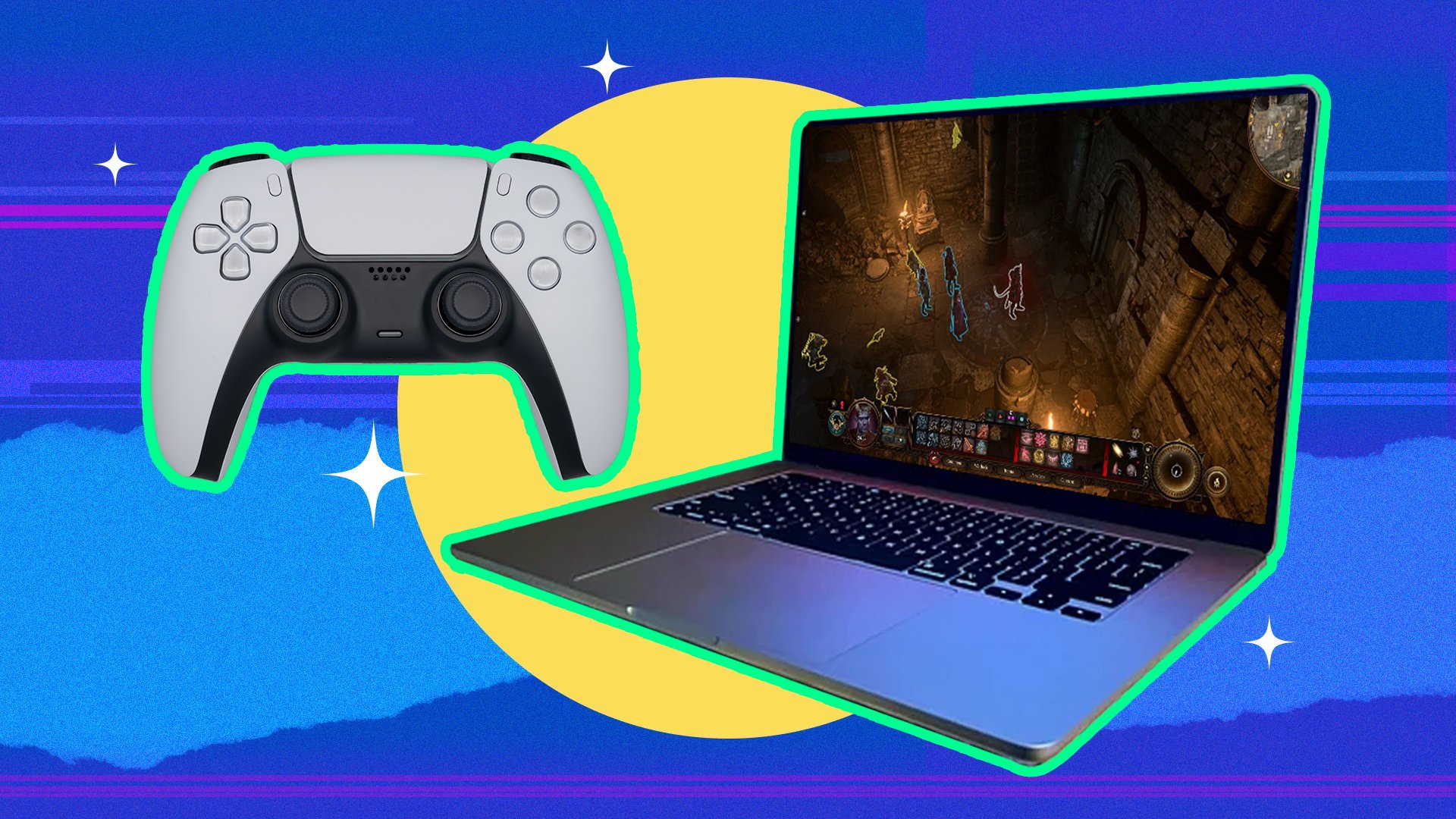
‘Playing a PC game on a Mac typically requires using software like Boot Camp, Parallels, or CrossOver, which allows you to run Windows or Windows-compatible applications.’
Dreaming of playing that new PC game but only have a Mac? Many believe that enjoying PC games is exclusive to Windows machines. However, it is entirely possible to learn how to play a PC game on a mac. There are several avenues you can explore to achieve this.
These solutions involve creating a Windows environment on your Mac, or utilizing software to translate Windows game code for your Mac. We will go through the options available so you can jump into your favorite game soon.

How to Play a PC Game on a Mac
Want to play that cool new PC game, but you only have a Mac? Don’t worry, it’s more than possible! While Macs and PCs use different systems, there are ways to bridge the gap and get your game on. Think of it like wanting to use a toy that only works with a different shaped battery. We need an adapter, and in this case, those adapters are tools and tricks to run PC games on your Mac. Let’s explore all the different paths you can take.
Understanding the Challenge: Why Can’t You Just Click and Play?
First things first, why isn’t it as simple as downloading a PC game and playing it on your Mac? It’s because of the operating systems. PCs mostly use Windows, while Macs use macOS. These operating systems are like different languages for computers. A game built for Windows speaks the Windows language, and your Mac speaks the macOS language. They don’t understand each other without a translator or a special helper.
Think of it like this: imagine trying to read a book written in Spanish when you only know English. You’d need a translation or a way to understand the words. That’s what we need to do when making a PC game work on a Mac. There are different ways to approach this. Some are simpler than others, and some work better for certain games. Let’s explore them.
The Virtual Machine Route: Creating a PC Inside Your Mac
One method is using a virtual machine. Imagine you have a small, pretend computer inside your actual Mac. This pretend computer can run Windows, and it can run your PC games like it’s a real PC! It’s like having a secret box where the Windows language is spoken, and your games feel right at home.
How Does a Virtual Machine Work?
A virtual machine uses special software that acts like a computer within your computer. This software lets you choose an operating system to install, like Windows. Then, you can install your PC games on that virtual Windows. It’s like having a separate, fully functioning computer inside a window on your Mac. Here’s a quick breakdown:
- You need to download virtual machine software. Popular options include Parallels Desktop and VMware Fusion.
- You’ll need a Windows license.
- Then, you install Windows inside the virtual machine.
- Lastly, you install your PC games in the virtual Windows.
Pros and Cons of Virtual Machines
Using a virtual machine has its good sides and some not-so-good sides. Let’s look at both:
Pros:
- Good compatibility: This method works for many Windows games.
- Isolated environment: Your Windows software is separate from your Mac, which can protect your system.
- Use of full Windows: You have all the features of a Windows PC.
Cons:
- Can be expensive: You usually need to pay for the virtual machine software and a Windows license.
- Performance issues: Games might run slower than on a real PC because your Mac is doing double duty.
- More demanding: This method uses a lot of your computer’s power.
A virtual machine is a good choice if you need to use Windows software and want a reliable way to play most PC games but be aware of the cost and performance requirements. It’s like having a second computer inside your main computer, which is really neat!
Boot Camp: Dual-Booting Your Mac Into Windows
Another method to play PC games on a Mac is using Boot Camp. With Boot Camp, you essentially split your Mac’s hard drive into two parts. One part stays with macOS, and the other part becomes Windows. When you turn on your Mac, you choose whether you want to start it in macOS or Windows. It’s like having two different houses on the same land, and you choose which house you want to live in each time you turn on the computer.
How Does Boot Camp Work?
Boot Camp is a tool Apple provides that helps you set up a Windows installation on your Mac. Here’s how it generally works:
- Use Boot Camp Assistant: This built-in Mac app guides you through the process.
- Download Windows: You’ll need to get a Windows ISO file from Microsoft.
- Partition your hard drive: Boot Camp will help you make space for Windows.
- Install Windows: Follow the on-screen instructions to install Windows.
- Restart and choose your operating system: When you start your Mac, you can select macOS or Windows.
Pros and Cons of Boot Camp
Like virtual machines, Boot Camp has its own advantages and disadvantages:
Pros:
- Better performance: Games generally run faster on Boot Camp compared to virtual machines because they have full access to your computer’s hardware.
- Less expensive: Boot Camp is free; you only need a Windows license.
- Full PC experience: It’s like having a real PC; you have access to the complete Windows system.
Cons:
- Restarting required: You must restart your Mac to switch between macOS and Windows.
- No access to macOS files when using Windows: You won’t be able to work on macOS files when you’re in Windows.
- More complex setup: Setting up Boot Camp can be more difficult for some users.
Boot Camp is a better choice for people who really want the best game performance and don’t need to switch between macOS and Windows very often. It is like having two completely separate computers in one, giving you maximum power for games.
Cloud Gaming: Streaming Games Directly to Your Mac
What if you didn’t have to install anything on your Mac? That’s where cloud gaming comes in! With cloud gaming, the game runs on a powerful computer somewhere else, and you stream the video to your Mac. Think of it like watching a movie on Netflix, but instead of watching a movie, you’re playing a video game and controlling what happens. It is the easiest way to play PC games without needing a super computer at home.
How Does Cloud Gaming Work?
Cloud gaming services work through special apps that stream the game directly to your computer. Here’s the basic flow:
- Subscribe to a cloud gaming service: Services like GeForce Now, Xbox Cloud Gaming, and PlayStation Plus Premium have game libraries.
- Start the app or play through the browser: Cloud gaming services usually have apps or web versions.
- Choose and play a game: The game runs on a powerful server, and you see the video on your screen while your inputs are sent to the server.
Pros and Cons of Cloud Gaming
Cloud gaming can be great, but it has its limits. Here’s a look at the pros and cons:
Pros:
- No powerful computer needed: You can play high-end PC games on a Mac without needing powerful components in your own Mac.
- Easy to use: You don’t have to install games; just subscribe and start playing.
- Access to many games: Cloud gaming services often have extensive libraries.
Cons:
- Internet dependency: Requires a stable and fast internet connection to avoid lag.
- Subscription costs: You usually need to pay a monthly fee to use the services.
- Limited game choices: You are limited to the games offered by the chosen service.
Cloud gaming is a good fit for players with good internet connections who want to try lots of games without the hassle of buying expensive hardware or installing them. It is like having a high-powered game console available to you with an internet connection.
CrossOver: Running Windows Games Without Windows
CrossOver is a special program that allows some Windows games to run directly on macOS without needing a full copy of Windows. It’s like using a special adapter to make Windows games and Mac games talk to each other better. It does this by using a compatibility layer instead of running a full version of Windows. It is a good mid way option for people who want to avoid running full version of windows
How Does CrossOver Work?
Instead of installing Windows, CrossOver creates a special environment called a ‘bottle’ where Windows applications can run. Here’s how it works:
- Install CrossOver: Download and install the software on your Mac.
- Install Windows applications in a “bottle”: CrossOver uses this bottle to run a Windows-compatible environment.
- Run supported Windows games and applications: Not every application or game is supported, but many are.
Pros and Cons of CrossOver
Like other solutions, CrossOver has its strengths and weaknesses:
Pros:
- No Windows needed: You don’t need a Windows license, reducing the costs.
- Good performance: Often runs games better than a virtual machine because it runs games with a compatibility layer.
- Less resource intensive: It uses fewer computer resources than Boot Camp or a virtual machine.
Cons:
- Compatibility can be limited: Not all Windows games will run correctly or at all.
- Can be complex: It might take some extra effort to get the games working smoothly.
- Paid software: CrossOver is not free to use.
CrossOver is a great option for people who want to play many windows game on mac without the hassle of a full Windows setup, but be aware that not all the games will work. It is a streamlined option for getting some windows games to work on your Mac.
Game Ports: Native Mac Versions of Games
Sometimes, game developers make a version of the game that is specifically for macOS. These are called game ports. When a game is ported to Mac, it is built to work perfectly with the Mac operating system, just like a puzzle piece that fits perfectly in the puzzle. They are often the best way to play if available since they take full advantage of mac’s technology.
How Do Game Ports Work?
Game ports are made by game developers or specialized companies who take the original PC game and modify it to work on a Mac. This process involves re-writing some of the game code so that it speaks the language of macOS. This makes it run smoothly and efficiently on Mac. Here are some key elements:
- Code adaptation: The game’s code is changed to work with the macOS.
- Testing and Optimization: This ensures that the game runs well on different Mac systems.
- Mac App Store or Steam Distribution: Game ports are made available through the Mac App Store or other digital distribution platforms like Steam.
Pros and Cons of Game Ports
Here are the main advantages and disadvantages of playing a game using a port:
Pros:
- Best Performance: Games are optimized for Mac and should run very smoothly.
- Easy to play: You don’t need any other software or Windows.
- Perfect compatibility: You don’t need any extra layer, because it is a game specifically for Mac
Cons:
- Limited availability: Not all games have a Mac version, and some might be delayed after the PC version is released.
- Can be more expensive: Some ports are more expensive due to the effort involved in porting the games to Mac.
If a game has a Mac version, it is the best choice. It is the most seamless and user-friendly way to play a game on a Mac.
Tips for a Smooth Gaming Experience on Your Mac
No matter which path you choose, here are some tips that can help you improve your gaming experience on your Mac:
- Close other programs: Before playing a game, close other open applications to ensure your game gets the most computer power.
- Update your drivers: Keep your computer’s graphics drivers up to date so that they work correctly.
- Adjust game settings: Lowering the graphics settings in the game may help if it is running slowly.
- Check game compatibility: Make sure the game is compatible with your chosen solution before you buy it.
By following these tips you can improve the game performance, no matter if you are playing through virtual machine or cloud.
Playing PC games on a Mac isn’t impossible – it’s just a matter of finding the method that works best for you. From virtual machines to cloud streaming, there’s a range of options that can let you enjoy a wide array of games on your Mac.
This (Free) App Lets You Play Windows Steam Games on MacOS
Final Thoughts
In summary, you can play PC games on a Mac using methods like Boot Camp, virtualization software, or cloud gaming. Each option has different performance levels and setup complexity. Choose the method that best suits your technical comfort and gaming needs. This is how to play a pc game on a mac effectively.
Consider the game requirements before selecting your chosen method. Cloud gaming provides accessibility without requiring much storage space. However, Boot Camp allows you to run windows natively, which gives better performance.

