
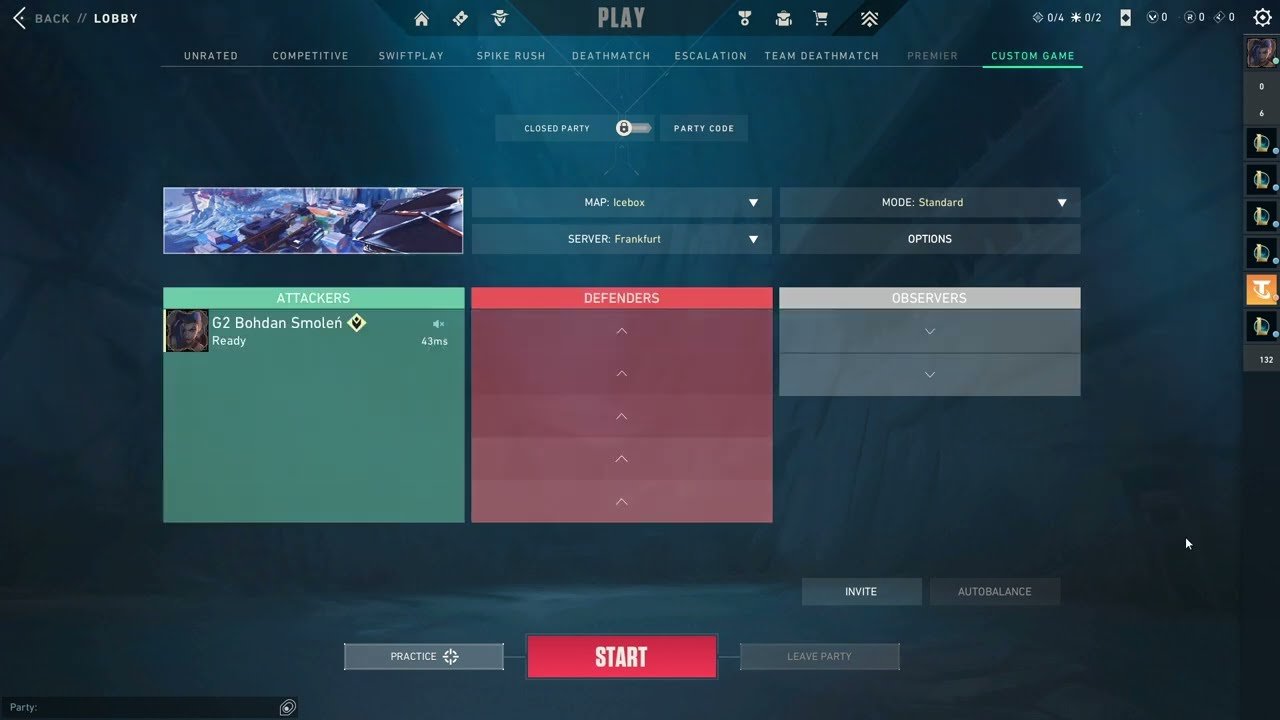
To play a custom game in Valorant, navigate to the ‘Play’ menu, select ‘Custom Game’, configure your settings, and invite friends.
Want a tailored Valorant experience? Learning how to play custom game in valorant lets you practice strategies with friends or just have some casual fun outside of standard modes. It’s easy to set up, and you control the map, agents, and even the game rules.
This functionality is perfect for experimenting and honing your skills. You can create very specific scenarios and work on your team play.
Playing a custom match means less pressure and more freedom. So, gather your friends and jump into your own customized Valorant world.

How to Play Custom Game in Valorant
So you want to get serious about Valorant, or maybe you just want to goof around with your friends in a private match? That’s where custom games come in! They are a super way to practice new agents, try out different strategies, or just have some fun without the pressure of a competitive match. Let’s explore how to start a custom game in Valorant, from setting it up to tweaking the settings to your liking.
Getting Started: Accessing the Custom Game Menu
First things first, you need to know where to find the custom game option. It’s pretty simple! When you first launch Valorant, you’ll land on the main menu screen. Look for the big “Play” button in the middle of your screen. Don’t press it yet! Instead, hover your mouse over the small text next to it. You’ll notice it says “Custom Game.” Click on it, and you’ll be taken to the custom game lobby.
Creating Your Custom Game: The Basics
Now that you’re in the custom game lobby, you’re ready to make your own game. It’s like setting up your own playground in Valorant. Here’s what you need to know:
Setting the Game Mode
The first thing you’ll see is the game mode selection. You can choose from:
- Standard: This is the classic Valorant experience, the same as you’d find in unrated or competitive modes. It is a great way to practice real game scenarios.
- Spike Rush: A faster-paced, shorter game mode where everyone starts with all abilities. This mode is good for quick practice or just having fun.
- Deathmatch: Free-for-all action where the first to reach a specific number of kills wins. This mode is ideal for aim training.
- Escalation: A team-based mode where the weapons and abilities change every round. This mode is fantastic for getting comfortable with a variety of weapons.
- Team Deathmatch: A team-based mode where the team that reaches a specific number of kills wins. This mode is also good for team practice.
- Premier: This game mode allows players to engage in a competition with other teams in the region, players need to have the premium pass to play this game mode.
Choosing Your Map
Next up is choosing the map. Valorant has several maps, each with its own unique layout. It’s a good idea to choose one you and your friends want to play on. Some popular maps include Ascent, Haven, and Bind. Pick one that everyone enjoys, or use the custom games to learn the layout of a new map. Knowing the maps really well will help you in normal matches.
Inviting Players
After you select your game mode and map, it’s time to invite your friends! On the right side of the custom game lobby, you’ll see a list of your friends. Simply click on the “+” icon next to their names to send them an invite. You can also invite other players you may have played with recently. Make sure everyone is ready before you start the game.
Diving Deeper: Custom Game Settings
Once you have your friends in the lobby, you can explore even more settings. This is where you can really tweak the game to your liking. Let’s check them out:
Options for Standard Mode
When selecting the standard mode you will see many setting options. Let’s explore them.
Cheats
With cheats option, you can enable many types of cheats in game that can help you to test out many strategies and skills.
These are the options inside cheats mode:
- Infinite Ammo: No need to reload! Your gun will always have bullets. Good for practice.
- Infinite Abilities: Use your abilities over and over! Great for trying out different combinations.
- Ghost Mode: Move through walls! This is helpful for exploring the map.
- No Clip: You can fly around! Another way to learn the map better.
- God Mode: You can’t die! Very useful to test things out without worry.
General
In this option you can change the game length and some other settings like team switch.
These are the options inside general setting:
- Number of Rounds: You can set how many rounds are played. It affects the total game length.
- Time Per Round: You can adjust the time limit for each round. This can help create a more fast-paced or slower game.
- Game Start Money: You can change the amount of money players start with. This lets you test out different early-game strategies.
- Team Switch: You can allow the teams to switch sides after a certain number of rounds or half time.
- Overtime Win By Two: You can allow overtime to continue until one team has a two round advantage.
Gameplay
In this option you can change settings related to gameplay.
These are the options inside gameplay setting:
- Disable Scoreboard: You can hide the scoreboard to play without any competitive pressure.
Match
In this option, you can restart the match, end the match, and quit the match.
Options for Other Game Modes
For game modes like Spike Rush, Deathmatch, Escalation, Team Deathmatch and Premier, the custom game settings are generally simpler. You might have options to change the time limit, the number of players, and other minor tweaks. These modes are designed to be quick and fun, so the settings are kept straightforward.
Tips for a Great Custom Game Experience
Now that you know how to set up a custom game, here are some tips to make sure it’s a blast for everyone:
- Communicate: Use voice chat or text chat to make sure everyone is on the same page. Talk about what you want to practice or what you want to try.
- Be Patient: Sometimes, things don’t go according to plan. Be patient with each other and try to stay positive.
- Have Fun: Remember, custom games are supposed to be fun! Don’t be afraid to experiment and try new things.
- Try different game modes: Don’t be afraid to try all the different game modes. Each one provides a unique playing experience.
- Practice specific things: Use custom games to practice very specific skills. If you want to get better at headshots, try a Deathmatch game. If you want to practice using a specific agent, use Standard mode.
Why Play Custom Games?
Custom games are a really useful tool for Valorant players. They can improve your game in many ways:
Practice Agent Abilities
Want to master a new agent? Custom games are the place to do it. You can practice using their abilities without worrying about losing a match. Use the infinite ability cheat to try different ability combos. For example, you can use this setting to practice Sova’s Recon Dart lineups or Raze’s Blast Pack jumps.
Learn Map Layouts
Knowing the map layout is super important in Valorant. Use ghost mode or no-clip mode to explore every nook and cranny of the maps. This can give you a huge advantage in regular games, as you will know the spots where enemies are likely to hide.
Test Out New Strategies
Want to try a risky strategy with your friends? Custom games are the perfect place to do it! You can test it out without harming your competitive rank or your unrated stats. You can try different types of rushes, defense strategies, and many more.
Aim Training
Deathmatch mode is awesome for improving your aim. You can practice hitting your shots without distractions. Use it to warm up before a real match or just to get your aim to another level.
Teamwork Practice
Custom games are perfect for team practice, especially if you have a group of friends you like to play with regularly. You can practice team communication, coordination, and working together. Doing so in a no-pressure environment helps your whole team improve faster. You can plan strategies before the game start and then execute in the match.
Just for Fun
Sometimes, you just want to play with friends without being worried about winning. Custom games are great for that. Have fun, try silly things, and don’t be worried about being serious.
Troubleshooting Custom Games
Sometimes, things might go wrong when setting up custom games. Here are some things to try:
Game Not Starting
If your game doesn’t start, it could be because of several reasons. Make sure all players in the lobby are ready. Also, check your internet connection to see if it’s stable. If the problem still occurs, exit the lobby and create a new one.
Players Not Joining
If your friends are having trouble joining, have them try restarting their game. Also, be sure they’re online in their friend list and in game. Ensure they are in the same region. If all else fails, the game host can try restarting the lobby.
Settings Not Saving
If the game settings are not saved, try saving the settings again. If the problem occurs, try creating the lobby again.
Voice Chat Problems
If you have issues with voice chat, make sure that your microphone is configured correctly in the game settings. Also check your operating system settings.
Playing custom games in Valorant is a great way to improve your skills, have fun with friends, and try out new things. Use custom games to practice and you’ll soon get better in real matches, as you now know how to set them up and make the most of them. You now have a very detailed guide on how to start and make the best of custom matches.
How to Create a Custom Game in Valorant #tutorial
Final Thoughts
To play custom games, first create a lobby and invite friends. Then, choose the desired map and game mode from the available options. You can also adjust various settings such as cheats, overtime, and round numbers.
After configuring all options, click the start button to begin your custom match. Playing with friends in custom matches is a fantastic way to practice strategies or have a relaxed fun time. Remember these steps when figuring out how to play custom game in valorant.

