
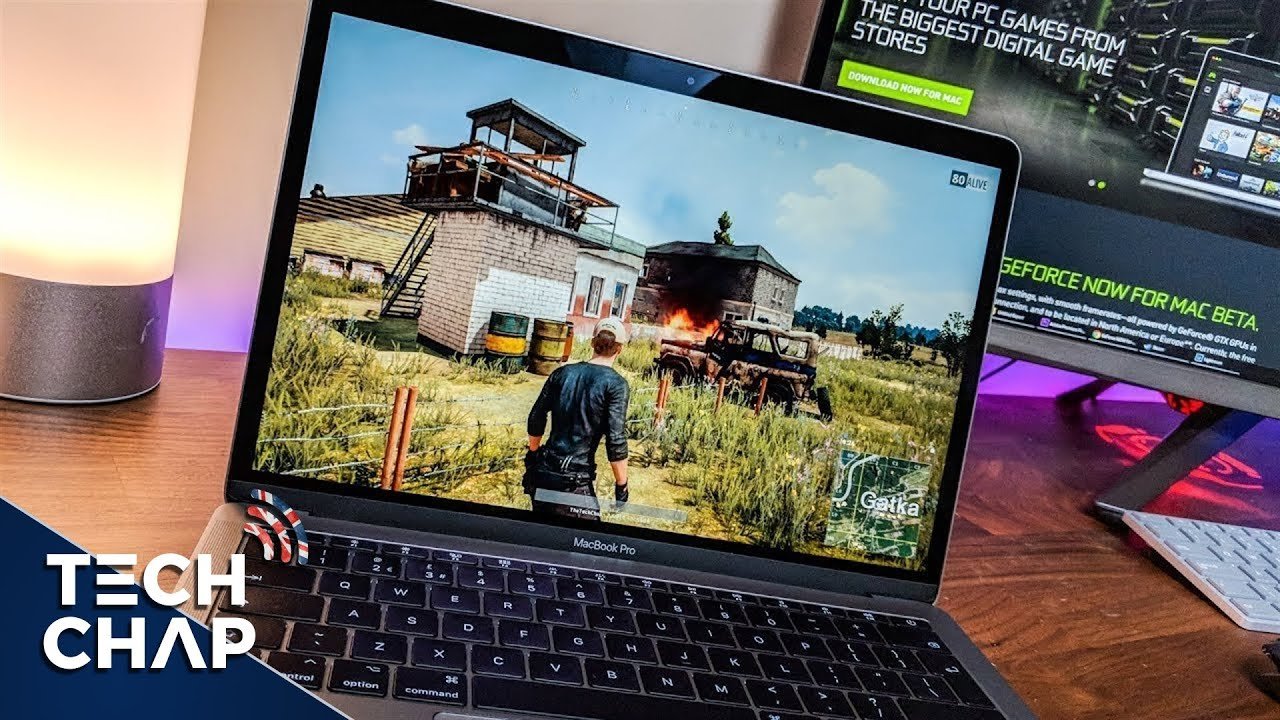
Playing games on a Mac typically involves downloading them from the App Store, Steam, or other platforms, or using a cloud gaming service.
Curious about how to play games in mac? It’s easier than you might think! Many people believe Macs are just for work, but they are also capable of handling plenty of games.
The Mac App Store has a growing selection of titles. Plus, you can explore options from third-party stores like Steam and others, so there is variety available for any gamer. Cloud gaming offers another way to enjoy games on a Mac without needing a powerful setup.

How to Play Games on a Mac: A Gamer’s Guide
So, you’ve got a Mac and you’re itching to play some games? Great choice! Macs aren’t just for work; they’re pretty good for gaming too, even though they sometimes get a reputation for being less gamer-friendly than Windows PCs. The world of Mac gaming is bigger and better than ever, and it’s easier than you might think to get started. This guide will walk you through all the ways you can enjoy games on your Apple computer.
Understanding Mac Gaming
Before we jump into the “how,” let’s talk a little about the “what.” Mac gaming has changed a lot over the years. There was a time when very few games were available for Macs. Now, things are different. Many popular games are available for macOS, and there are more ways than ever to play. We’re no longer limited to just titles that are made specifically for Macs.
The Mac Advantage
Even though Macs are not designed specifically for gaming, they have several things going for them. First off, the graphics on Macs have improved a lot. The screens are beautiful, and the colors are bright and clear. Plus, the processors (the “brains” of the computer) are usually powerful enough to handle many kinds of games smoothly. Apple also makes its own operating system (macOS), which is known for being stable and secure. This can help prevent crashes and bugs while you are playing.
The Challenges
It’s important to be aware of the challenges, too. While things have improved significantly, not every game is available for macOS. This is usually because more games are initially developed with Windows as the primary target. Also, some Mac computers don’t have the beefy graphics cards you’d find in many high-end gaming PCs. This means that you might need to adjust the graphic settings in some games to get them to run smoothly. Don’t worry though, we will cover that too!
Where to Find Games for Your Mac
Now for the fun part! Where do you actually get your hands on these games? There are several great places to look.
The Mac App Store
Just like on your iPhone or iPad, you can find games in the Mac App Store. This is a great place to start because all the games are checked by Apple, and you can be sure they are safe. Here’s what the process looks like:
- Open the App Store app on your Mac. It looks like a blue “A” inside a circle.
- Click on the “Games” tab in the left menu.
- Browse the different categories or use the search bar to find a specific game.
- When you find a game you like, click on it.
- Read the description and look at the reviews.
- If you decide to buy the game, click the “Get” button.
- You might need to enter your Apple ID password to confirm your purchase.
- Once the game is installed, you can play it from your Launchpad or Applications folder.
Steam
Steam is a very popular platform for gamers. It has a huge library of games, many of which are available for Mac. To use Steam, you will need to make an account.
- Go to the Steam website and download the Steam client app.
- Install the app and open it.
- Create a new account or sign in with your existing account.
- Use the store to browse games, or use the search.
- Purchase the games you like.
- Download and install them in your library.
- Click the play button to start your gaming adventure.
Other Digital Game Stores
Besides the Mac App Store and Steam, there are other online stores where you can purchase games for your Mac. Some good examples include:
- GOG.com (Good Old Games): Known for classic and DRM-free games.
- Epic Games Store: Offers a growing collection of games, often with freebies.
- Itch.io: A platform for indie games and experimental projects.
Physical Game Copies
Although digital downloads are the most popular method these days, you can still find physical copies of some games for Macs, sometimes. You will typically find them in older collections, but these are becoming rare. The games will be on CD or DVD, and you’ll install them from the disc. If you don’t have a disc drive, you will need to use an external drive or download the game online using a code that comes with the physical copy.
Different Types of Games
The gaming world is vast, and there are tons of different kinds of games you can play on your Mac. Let’s look at some popular categories:
Strategy Games
These games make you think hard. You’ll need to plan ahead and make smart moves. Some popular examples include:
- Civilization VI
- StarCraft II
- XCOM 2
Adventure Games
If you love stories and exploring, adventure games are for you. These games often have puzzles and interesting characters. Some examples include:
- Life is Strange
- The Secret of Monkey Island
- Tomb Raider
Simulation Games
Sim games let you experience things in a virtual world, like managing a city, building a farm, or even flying a plane. Popular ones include:
- The Sims 4
- Stardew Valley
- Microsoft Flight Simulator (Available on Mac via Cloud Services like Xbox Cloud Gaming)
Action Games
Action games are all about excitement and fast-paced gameplay. They can range from platformers, to shooters, and fighting games. Some action games available on the Mac are:
- Fortnite
- Diablo III
- Hades
Indie Games
Indie games are made by smaller teams, and often offer unique and creative experiences. They can be any genre, and there’s a lot to explore, such as:
- Disco Elysium
- Hollow Knight
- Among Us
How to Play Windows Games on a Mac
One of the biggest questions people have is how to play Windows games on a Mac. Since many games are designed for Windows, this can seem tricky. But don’t worry, there are ways to do it.
Boot Camp
Boot Camp is a program made by Apple that allows you to install Windows on your Mac. This means you can have both macOS and Windows on the same computer, and you can choose which system you want to use each time you start your computer. If your goal is to play demanding games, it’s a good route to take, because your computer will be running Windows natively. Here’s how it works:
- Use Boot Camp Assistant (located in Utilities folder) to set up a new partition for Windows.
- Follow the steps to download the drivers and install windows.
- Restart your computer and choose to boot into Windows.
- Install the game you want to play and start playing.
- Restart again and switch back to macOS.
Keep in mind that you need a valid Windows license for this to work.
Virtualization Software
Virtualization software lets you run Windows inside macOS as if it were just another app. This makes it easy to switch back and forth between operating systems, but games will not perform as well as with Bootcamp.
- Popular virtualization programs include Parallels Desktop and VMware Fusion.
- You’ll need to install the virtualization software and then install a copy of Windows within it.
- Once Windows is set up, you can install Windows games just like you would on a regular Windows PC.
- However, remember that games will not perform as well as when using Boot Camp.
Cloud Gaming
Cloud gaming is an exciting way to play games without needing a powerful computer. With cloud gaming, the game runs on a server somewhere else, and you stream the gameplay to your Mac. This means you can play many high-end games even if your Mac doesn’t have a powerful graphics card. The only real requirement is a good, stable internet connection.
- Popular cloud gaming services include Xbox Cloud Gaming, NVIDIA GeForce Now, and Google Stadia.
- You’ll need a subscription to one of these services and a compatible game.
- Then, just open the cloud gaming platform app or your browser on your Mac and choose the game.
Crossover
Crossover is an option that lets you run some Windows applications and games on macOS without using a full copy of Windows. It does this by translating Windows commands to macOS, allowing some Windows software to run. It doesn’t work with all Windows games, but it’s a useful option to have.
- Purchase and install a copy of CrossOver.
- Use the application to install your Windows game.
- Some games run better than others.
- You will have to experiment.
Game Ports
Game ports are versions of the game that have been specifically made to work on the Mac. These games work great because they were made specifically to run on macOS. They can typically be found in the Mac App Store or other game stores online.
Using Game Controllers
Using a game controller can greatly improve your experience playing games on your Mac. Most games will support a variety of controllers and there are several ways to connect them.
Connecting Controllers
Here’s how to connect some common controllers:
- PlayStation Controllers (DualShock 4, DualSense): You can connect PlayStation controllers via Bluetooth. Open System Preferences, click Bluetooth, and then set your controller to pairing mode. The controller should then appear in the list of devices.
- Xbox Controllers: Just like PlayStation controllers, you can also connect them using Bluetooth or USB. Follow the same steps as above for connecting through Bluetooth. USB will be plug and play.
- Other Controllers: Some controllers will require their own software to be installed. Check the manufacturer’s website to download the appropriate drivers.
Configuring Controllers
Many games will automatically recognize your controller, but some may require a little setup. Within the game settings you can configure your controller layout and set the actions you want. This will vary from game to game.
Adjusting Game Settings for Optimal Performance
If your game is running slowly, or if it looks bad you might need to tweak some game settings. The following are some of the common settings that can help you achieve optimal performance.
Graphics Settings
Most games offer you the ability to change the graphics. Common adjustments you can make include:
- Resolution: Lowering the resolution will make the game run smoother, but it might look less clear.
- Texture Quality: Lower the texture quality to make the game run smoother.
- Anti-Aliasing: Reduce or turn this off to make the game run smoother.
- Shadows: Turning off or lowering the quality of shadows can also improve performance.
Audio Settings
Lowering the audio quality can sometimes improve performance. Here are some things you can adjust:
- Sound Quality: Changing the quality to a lower setting might help.
- Number of Audio Channels: Switching from surround sound to stereo sound could help.
Experimenting
The best approach is to try different settings one by one. Start with lowering all settings, and then adjust them up one by one to get the best balance of visual quality and smooth gameplay.
Keeping Your Mac in Top Shape for Gaming
Just like a car, your Mac needs a little maintenance to perform at its best, and this is especially important for gaming. Here are some helpful tips.
Regular Software Updates
Make sure that your macOS system is up to date. Apple releases updates regularly, and these often include performance improvements and bug fixes. These changes could make games run better, and improve security.
Keep your Drivers Up to Date
Your graphics card drivers need to be kept updated to get the most performance out of your system, and to ensure compatibility with newer games. Depending on whether you are using an AMD or Intel system or the apple silicon chipsets you can find the needed drivers and download them.
Close Unnecessary Apps
Before you start playing a game, close other apps that you’re not using. These background apps could use up valuable resources. This way the game will have all the resources it needs.
Make Sure You Have Enough Storage
Games can take up a lot of space on your hard drive, so make sure you have enough free space for your games and for the system. Having too little space can slow down your computer, and cause problems.
Use Activity Monitor
If your Mac is running slow, you can use the Activity Monitor app (found in your Utilities folder) to see which programs are using the most resources. This will help you identify programs to close. You can also see how much free memory and storage you have.
Mac gaming has come a long way, and there are more ways to play than ever before. From Mac-specific titles to cloud gaming and Windows games, you can find plenty of games to enjoy on your Mac. By following the tips in this guide, you’ll be well on your way to having a great time. Remember to experiment with settings, keep your system updated, and most of all, have fun!
This (Free) App Lets You Play Windows Steam Games on MacOS
Final Thoughts
In conclusion, you can play various games on your Mac through the App Store or by using gaming platforms such as Steam. For more demanding titles, consider using a cloud gaming service to improve performance. Another option to expand your library of choices is through installing emulators to play older games. Remember to check compatibility requirements before installing. These tips offer different ways on how to play games in mac.

