
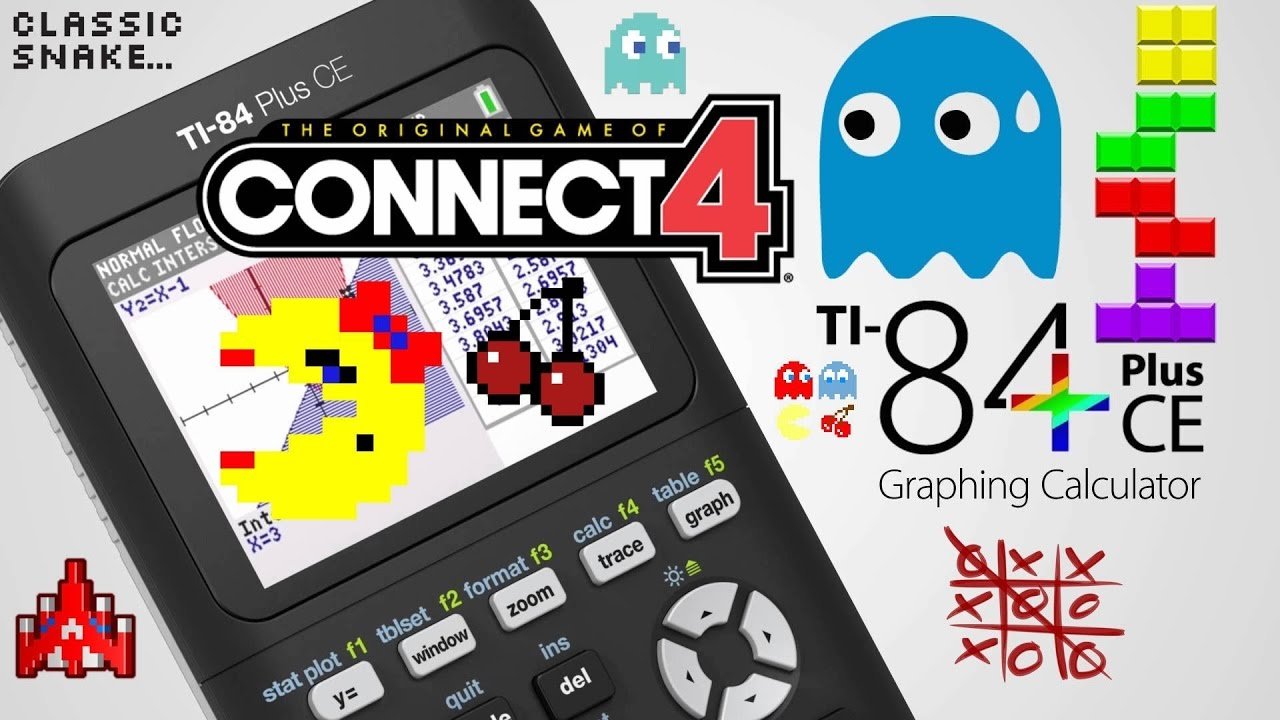
Playing games on a TI-84 Plus CE requires transferring compatible game files to your calculator using a computer and then executing them from the calculator’s program menu.
Ever wonder if your trusty TI-84 Plus CE calculator could be more than just a tool for math? It absolutely can. Many are curious about how to play games on TI-84 Plus CE, and it’s easier than you might think.
This seemingly simple calculator has a hidden capacity for a variety of fun games. You just need the correct files and a few simple steps. This is a very cool feature.

How to Play Games on TI-84 Plus CE: A Complete Guide
So, you have a TI-84 Plus CE graphing calculator, and you’re not just using it for math class? Awesome! These calculators are secretly powerful little machines that can run some pretty fun games. You might be surprised by what this tool, mainly used for equations and graphs, is capable of when it comes to gaming. Let’s dive into how you can get your game on using your TI-84 Plus CE.
Understanding Your TI-84 Plus CE
Before we jump into loading up games, let’s get to know your calculator a little better. Think of your TI-84 Plus CE like a mini-computer. It has a processor, memory, and a screen, just like your phone or laptop, but it’s designed primarily for mathematical computations. However, clever programmers have found ways to create games that run within its limitations.
The Basics of Calculator Programs
The games you’ll play on your calculator are actually programs, often written in a language called TI-BASIC or Assembly. TI-BASIC is simpler and easier to understand, while Assembly allows for more complex and faster games but requires some more advanced skills to write. Don’t worry; we’re not making games from scratch here. We’ll be using games that others have already created and shared.
- TI-BASIC: easier to learn but programs can be slower.
- Assembly: More complex, can achieve faster performance and more features in games.
File Types You’ll Encounter
When you download games, you’ll see files with specific extensions. Knowing these extensions can help you understand what you are downloading. Here are the two common file types you will see:
- .8xp: These are program files written in TI-BASIC. They are the easiest type to use and are the most common.
- .8xk: These files are usually assembly programs. They typically run faster and offer a wider range of features, but the transfer process may be slightly different.
Finding Games for Your TI-84 Plus CE
Now that you understand the basics, the next step is getting your hands on some games. Here are some of the places you can look for calculator games:
Online Repositories and Forums
Several websites and online forums host games specifically designed for TI calculators. Some popular places to look include:
- Ticalc.org: This website is a classic and an excellent place to find an immense library of games, programs, and other tools for TI calculators. This is often the first place people look and for good reason.
- Cemetech.net: Another great site that has lots of forums and game downloads as well.
- United-TI.org: A community driven site with plenty of programs and helpful people to assist you.
- Omnimaga.org: Another active forum dedicated to TI calculators and gaming.
When browsing these websites, use the search bars and filter by your specific calculator model (TI-84 Plus CE) to make sure you get games that will work for your device. Look for titles that sound interesting, and pay attention to the ratings or user comments to get a feel for the quality of the game.
Safe Downloading Practices
While downloading games is fun, it is important to be cautious. Always make sure you are downloading from reputable sources. Here are a few tips:
- Look for websites that have been around for a while and have active communities.
- Read reviews or comments about the games before downloading them.
- If a game looks too good to be true or asks for too much personal information, avoid it.
- Scan downloaded files with antivirus software before transferring them to your calculator, just to be extra safe if your antivirus supports it.
Transferring Games to Your TI-84 Plus CE
So you’ve found a game you want to play? Awesome! Now it’s time to get it from your computer to your calculator. You will need a USB cable that is compatible with your calculator. Most of the time, that is a USB-A to Mini-USB cable. The process involves using TI Connect CE software from Texas Instruments. Here are the detailed steps:
Step 1: Download TI Connect CE Software
You need TI Connect CE to communicate with your calculator. It’s a free program from Texas Instruments, and it is essential for transferring files. You can find the official download for your operating system on the Texas Instruments website. Once downloaded, install the software by following the installation prompts.
Step 2: Connecting Your Calculator
Now, plug your calculator into your computer using the USB cable. Make sure your calculator is turned on. After that, the computer should detect it. Sometimes, it might take a little while for the computer to recognize the calculator the first time. If it doesn’t show up, try restarting both devices and check the cable connections.
Step 3: Transferring Games via TI Connect CE
Follow these steps once your calculator is connected and detected by TI Connect CE:
- Open TI Connect CE: Launch the TI Connect CE program on your computer.
- Select “Send to Calculator”: In TI Connect CE, there will be an option to “Send to Calculator” or a similar command. Click on that.
- Choose the .8xp or .8xk File: Browse and select the game file (the one you downloaded and want to play) that is stored on your computer.
- Send: Click the “Send” or “Transfer” button. TI Connect CE will start transferring the file to your calculator.
- Wait for Transfer Completion: A progress bar will display on both your computer screen and calculator. Once the transfer is completed, you will receive a confirmation message.
Troubleshooting Transfer Issues
Sometimes things can go wrong during the transfer. Here are some common problems and how to fix them:
- Calculator not Recognized: Make sure the cable is plugged in firmly and try a different cable. You can try restarting both devices. Check device drivers for your operating system to make sure they are current.
- Transfer Fails: Check your calculator’s memory to see if it is full. If your memory is full, delete some old programs before transferring new ones. Ensure that the file you are trying to transfer is compatible with your TI-84 Plus CE.
- Software Problems: Make sure you have the latest version of TI Connect CE and restart it if needed.
Playing Games on Your TI-84 Plus CE
Congratulations, you’ve successfully transferred a game to your calculator! Now for the fun part, let’s start playing!
Accessing Your Games
To find the games you just transferred, follow these steps:
- Press the PRGM Button: Press the “PRGM” button on your calculator.
- Select the Game: You will see a list of available programs. Use the arrow keys to navigate to the game you wish to play.
- Press ENTER: Once the game is selected, press the “ENTER” button. This will initiate the program/game.
Game Controls
Most games use the standard calculator buttons for controls. Here are common keys and what they do in games:
- Arrow Keys: The arrow keys are used for movement (up, down, left, right).
- ENTER: Typically, the “ENTER” button acts as a ‘select’ button or an ‘action’ button.
- CLEAR: This key is often used to pause or exit the game.
- Number Keys: Some games might use number keys for different actions.
- 2nd: This key may be used for an extra game function in some games.
Take a look at the game instructions if there are any given as some games may have unique controls. Many games provide instructions within the game itself or within a .txt file that you may have downloaded alongside the program.
Types of Games You’ll Find
There are a wide variety of games available for your TI-84 Plus CE, each offering a unique experience:
- Puzzle Games: These involve strategic thinking and problem-solving skills. Examples might be number-based puzzles or mazes.
- Arcade Style Games: These are classic-style games like platformers, shooting games, and space invaders clones.
- Text-Based Games: These are narrative adventures driven by text commands.
- Platformers: Jump through levels and avoid obstacles in these fun games.
- Strategy Games: Plan your moves wisely in games like chess or checkers.
Tips for a Better Gaming Experience
- Adjust Screen Contrast: If the game appears too dark or light, adjust the contrast of your calculator screen through settings. This can make a big difference in visual clarity.
- Check Battery Level: Make sure your calculator has enough battery before starting a gaming session.
- Explore Different Games: Try out different games to see what you like. There are many genres to discover.
- Take Breaks: Don’t play for too long at a time. Give your eyes and mind a break.
Managing Calculator Memory
As you install more games, your calculator’s memory can become full. It’s a good idea to occasionally manage your memory by deleting games that you no longer play.
Deleting Programs
Follow these steps to remove programs you no longer use:
- Press the MEM Button: Press the “2nd” and then the “+” key. This opens up the memory menu.
- Select “Mem Mgmt/Del”: Use the arrow keys to highlight this option, then press ENTER.
- Choose “Program”: Select the “Program” option.
- Select the Program to Delete: Use the arrow keys to navigate to the game/program you want to delete.
- Press the DEL Button: Press the “DEL” button. The calculator will ask you to confirm.
- Confirm Deletion: Select “Yes” using the arrow keys and press “ENTER” to confirm the deletion.
By occasionally deleting old games, you make space for new ones, and you also keep your calculator organized.
Archiving Programs
You can also archive programs to store them without having them in the main program list. You would archive a program, if you don’t want to use it for a little bit, but do not want to delete it. To do this, follow these steps:
- Press the PRGM Button: Press the “PRGM” button on your calculator.
- Select the Game: You will see a list of available programs. Use the arrow keys to navigate to the game you wish to archive.
- Press 2nd then the down arrow: Press the 2nd key, then the down arrow key. This will archive the program. The program will no longer appear on the main program list.
To unarchive programs, follow these steps:
- Press the MEM Button: Press the “2nd” and then the “+” key. This opens up the memory menu.
- Select “Mem Mgmt/Del”: Use the arrow keys to highlight this option, then press ENTER.
- Choose “Program”: Select the “Program” option.
- Press 2nd then the down arrow: Press the 2nd key, then the down arrow key. This will unarchive the program. The program will appear again on the main program list.
Playing games on your TI-84 Plus CE can be a really fun and rewarding experience, as long as you have a good understanding of the calculator and the steps to download, transfer, and play them. Now that you know how to do it, it’s time to start exploring the world of calculator games! Have fun and game on! Remember to use online forums and communities to find more games and to get help if needed.
How to Put Games on the TI 84 Plus CE
Final Thoughts
To play games on your TI-84 Plus CE, transfer compatible game files using the TI Connect CE software. This usually involves connecting your calculator to your computer via USB. Select the file and send it to the device.
After the file transfer, access the program menu on the calculator. You can find your games listed there. Select your desired game to start playing it. Learning how to play games on TI-84 Plus CE is straightforward.

