
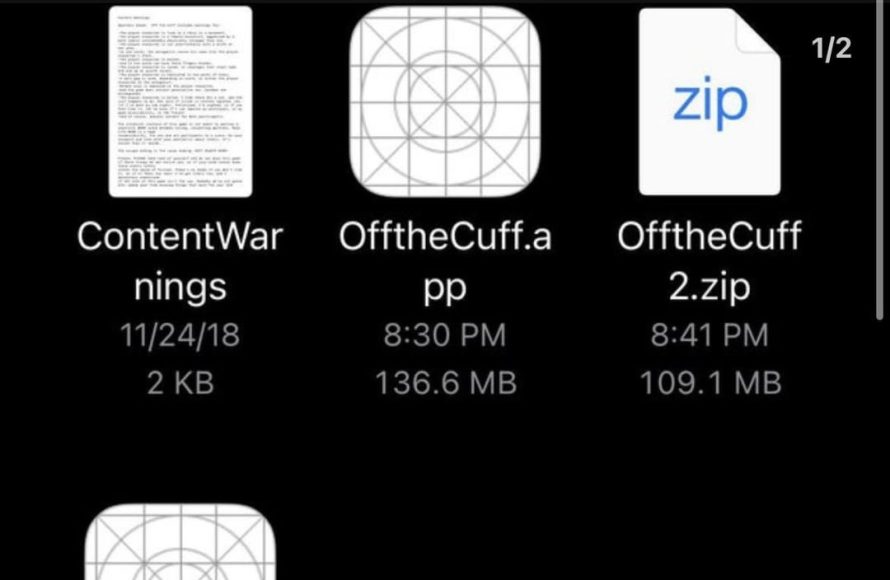
Itch.io games often require a dedicated app or browser access to play on iPhone, not all games are compatible with iOS.
Ever wanted to enjoy those cool indie games from itch.io on your iPhone? It’s a common question, and the process can seem a little confusing at first. Many fantastic games are available there. Figuring out how to play itch.io games on iphone is easier than you might think.
The first hurdle is that many itch.io games aren’t designed as typical iOS apps. You won’t find most of them in the App Store. So we need a workaround.

How to Play Itchio Games on iPhone
So, you’ve stumbled upon the amazing world of Itchio, a place brimming with cool indie games. You’re ready to dive in, but you’re on your iPhone and wondering, “How do I get these games to work on my little pocket computer?” It’s a fantastic question and we are here to guide you! Unlike apps from the App Store, Itchio games often require a slightly different approach, but don’t worry it’s easy once you get the hang of it. This guide will break it all down, making sure you can enjoy your favorite Itchio titles on the go.
Understanding Itchio and iOS
Before we start, let’s understand what we are working with. Itchio is an online platform where independent game developers share their creations. It’s like a giant digital playground filled with unique and experimental games you won’t find anywhere else. However, these games aren’t always built to directly work as apps on your iPhone. They often come in different formats, and that’s where things get a bit interesting.
Common Game Formats on Itchio
Itchio games come in several different forms, and knowing them is a key to playing them on your iPhone. Here are the most common types:
- HTML5 Games: These games are made using web technologies, meaning they run directly in your web browser. Think of them as mini-websites that are also games. These are generally the easiest to get working on your iPhone.
- Downloadable Files (like ZIP or RAR): These are files containing all the game’s stuff like code and pictures that you need to extract and run. They’re not directly designed for iPhones and require a bit more work, often with additional software.
- Executable Files (.exe): These files are specifically for Windows computers and will not work on an iPhone. These are not the kind of games you can play natively on your iPhone.
Playing HTML5 Games Directly on Your iPhone
The easiest way to play Itchio games on your iPhone is when the game is HTML5. Here’s how to get started:
- Find an HTML5 game: Browse on the Itchio website using Safari or any other browser on your iPhone. Look for games that say “Run in browser” or similar. You can often identify these games by their game page as they usually say that they’re for the web.
- Open the game page: Tap on the game’s name, then find the button to run the game. Sometimes it will say “Play” or “Run game” or some similarly themed language.
- Start playing: The game will load directly into your browser, and you can begin playing. Some games might require you to hold your phone horizontally for landscape mode.
Tips for playing HTML5 Games:
- Internet connection: You need a stable internet connection to play HTML5 games.
- Fullscreen Mode: Some browsers will allow you to enter fullscreen mode for a more immersive experience. Look for a button with two outward pointing arrows or similar to toggle fullscreen mode.
- Browser performance: If the game slows down, try closing other apps and restarting your browser tab.
- Control Issues: Some HTML5 games might not work well with touch controls, as they are often designed for a keyboard and a mouse, so playability can vary between games.
Dealing with Downloadable Game Files
Many Itchio games don’t run in a browser. They come as downloadable files. Because iPhones have specific restrictions on installing things outside of the App Store, we need to get a little creative. Here’s how to tackle those files.
Using Cloud Storage and Remote Desktop Applications
A good method to play downloaded games involves using a combination of cloud storage and a remote desktop application. It’s a bit more technical than HTML5 games, but it opens the doors to many more Itchio titles. You’ll basically be running the game on another computer and looking at that computer through your iPhone’s screen.
Step 1: Setting Up Your Computer
First, you need a computer. It can be a Windows PC or a Mac. You also need to download the game files onto this computer.
- Download Game: Download the Itchio game you want to play onto your PC or Mac.
- Extract Files: If the game is in a ZIP or RAR file, you’ll need to extract the files. If you are using windows, you can usually just double click the .zip file and it will open up in the standard file browser. If you are on Mac, you can do the same, or you might have to right click and choose open. There will be an extract button somewhere in the UI that comes up after opening.
Step 2: Setting Up Cloud Storage
Cloud storage lets you access files on your computer from other devices. Google Drive, Dropbox, or OneDrive work great for this.
- Install Cloud Storage Application: Install cloud storage app on your computer.
- Upload the Game Folder: Place the extracted folder (where the game files reside) inside your cloud storage folder on your computer.
- Wait for Syncing: Make sure the game files sync to the cloud before moving on to the next step.
Step 3: Setting Up a Remote Desktop App
Remote desktop apps allow you to control your computer from your iPhone. Some free and paid options include Google Remote Desktop, Microsoft Remote Desktop, or TeamViewer.
- Install the Remote Desktop App: Install both the computer and iPhone versions of the same app, like Google Remote Desktop.
- Setup on Computer: Follow the app’s instructions to allow access to your computer. You will likely have to log in using the same google account on both applications.
- Setup on iPhone: Open the app on your iPhone, and you should see your computer in the list.
Step 4: Playing the Game
- Connect to your Computer: Open the remote desktop app on your iPhone and connect to your computer. You will see your computer’s screen on your iPhone.
- Navigate and Run the Game: Using the remote desktop app, use your cursor and double click the main game executable file on your computer to start the game.
- Play the Game: Play the game, controlling it from your iPhone.
Important Considerations:
- Strong internet connection needed: Playing games via remote desktop will require a fast internet connection on both your iPhone and your computer.
- Lag can occur: You might experience some lag, which depends on how fast your connection is and the amount of resources the game requires.
- Touch vs Mouse Control: Many games are built for mouse and keyboard controls, and using a touch screen to replace that might be difficult to get used to.
Dealing With .exe Files on iPhone (Not Directly Possible)
It’s essential to know that you can’t run .exe files directly on an iPhone. These files are meant for Windows operating systems. To play games with these files, you absolutely must use the cloud method as we described earlier, or find another way to play it on a PC. There is no emulator for iOS that will play .exe files at this time.
Alternatives if You Can’t Use Cloud Method
If the remote desktop method doesn’t work for you, or you have no access to a personal computer, here are some other things you could try:
- Ask a Friend: If you have a friend with a computer, perhaps they can set the game up for you so you can use the cloud method with their computer.
- Public Computers: Some public computers might allow for remote access. However, you’d have to be mindful of security and data privacy.
- Contact the Game Dev: If you really love a game and would like to play it on your iPhone, get in contact with the game developer and let them know about your request. This can give them good feedback for future releases or inspire them to develop a version for your preferred operating system.
Tips for a Better Itchio Gaming Experience on iPhone
Getting Itchio games running on an iPhone can be a little complex. Here are some extra tips to improve your gaming experience:
- Keep Your iPhone Updated: Make sure your iPhone’s operating system (iOS) is updated to the latest version. This often includes performance improvements that can help games run smoother.
- Close Other Apps: Having too many apps open in the background can cause your phone to slow down or get buggy. Close any apps that you’re not using before playing.
- Adjust Browser Settings: If you are playing a web based game, you can try turning on and off certain browser settings (such as “prevent site tracking” or “use hardware acceleration”) to see if it affects game performance.
- Use a Game Controller: Some Itchio games support controllers, especially when played using the remote desktop option. If your chosen game supports it, try using a Bluetooth game controller to play.
- Check Game Pages: Read through the game’s page and its comments or community threads on Itchio. You might find other helpful tips or tricks about getting it to play on your iPhone.
- Be Patient: Playing Itchio games on an iPhone might require some patience, but the unique games are worth it.
Playing Itchio games on your iPhone opens up a world of unique and amazing gaming experiences. Although it might not be as simple as just downloading an app from the app store, the process is manageable if you know the different game types and their workarounds. Whether you’re playing HTML5 games directly in your browser or utilizing cloud storage and a remote desktop app for those games that come as downloadables, you can dive into Itchio’s diverse library from the convenience of your mobile device.
How to Download Itch.io Games on iPhone – Step by Step
Final Thoughts
In essence, playing itch.io games on your iPhone involves a couple of key methods. You can access some games directly through the Safari browser. Alternatively, you might need to sideload apps using a computer.
This will allow you to experience games that developers have not published on the App Store. The process, though not always ideal, enables ‘how to play itchio games on iphone’. Remember that the experience may vary based on the specific game and your method of accessing it.

