
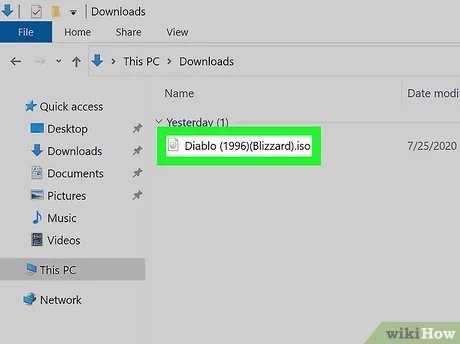
To play PC ISO games, you’ll need to mount the ISO file using software like Daemon Tools or a similar program. Then, run the game setup from the mounted drive.
Ever wondered how to play PC ISO games that you’ve downloaded? It’s not as complicated as it might seem at first. Many older games and some newer ones often come in this disc image format.
The process mainly involves using some software to trick your computer into thinking the ISO is a physical disc. Once that is done, you can install and play just like you would with any other game.

How to Play PC ISO Games
So, you’ve got your hands on a PC ISO game, and you’re excited to start playing! But, what exactly is an ISO, and how do you turn it into a playable game? Don’t worry; it’s not as tricky as it sounds. Think of an ISO file like a digital copy of a game disc – everything the game needs to work is packed inside. This guide will walk you through all the steps you need to get those ISO games running smoothly on your computer. We’ll look at what tools you’ll need, how to set things up, and even some troubleshooting tips if things don’t go exactly as planned. Let’s get started!
Understanding ISO Files
Before we jump into the how-to, it’s important to understand what an ISO file actually is. Imagine you have a CD or DVD game. An ISO file is like taking a snapshot of that disc. It’s an exact copy of all the data, including the game files, artwork, and any other things that are needed to make the game work. This “snapshot” is saved as a single file, usually with a .iso extension. This way of saving is great for sharing and keeping backup copies, but your computer can’t play the game right from the ISO file itself. We have to make it usable through few tricks.
Why Use ISO Files?
- Backup Copies: ISO files are fantastic for making backups of your physical game discs. If your disc gets scratched or damaged, you still have a working digital copy.
- Convenience: Instead of keeping track of many physical discs, you can store your games as ISO files on your hard drive. This makes starting a game faster and easier.
- Easy Sharing: ISO files are easy to share with your friends or family (just be sure you’re following all laws and rules regarding copyright!).
Tools You’ll Need
To play PC ISO games, you’re going to need a few simple things on your computer. It’s like having the right tools in your toolbox; you need the right software to make your ISO game work.
Mounting Software:
Mounting software lets your computer act like it has a real disc drive even though the game is a file. You need this software to read the ISO file. It’s like pretending you put the disc in the computer.
- Daemon Tools Lite: One of the most popular options and its free. It’s simple to use and works very well.
- Virtual CloneDrive: This is another free and easy-to-use program that does the job well.
- WinCDEmu: A very lightweight and open-source mounting program, ideal for those who want something simple.
For this guide, we will be using Daemon Tools Lite as it’s one of the most popular and user-friendly options. But feel free to choose the one you feel more comfortable with. The steps will be very similar with other mounting softwares.
Game Installation Software:
Once you have mounted the ISO game, you might still need to install it. Some ISO games install right after you mounted the game. Others you may need an additional installer like:
- Games setup files: most of the game has their installer (setup.exe) file after mounting the game.
PC Compatibility
Before you get too excited, make sure that your computer meets the minimum requirements for the game. Check the game’s box or online listings for details like:
- Operating System: Does it work on Windows, Mac, or Linux?
- Processor: Is your CPU fast enough?
- RAM: Do you have enough memory?
- Graphics Card: Does your graphics card support the game?
Playing a game on a system that doesn’t meet these requirements can cause the game to lag or not work properly.
Step-by-Step Guide: Playing Your ISO Game
Okay, let’s get down to it! Here’s how you can play your PC ISO game, step by step.
Step 1: Download and Install Mounting Software
First, you need to get the mounting software. Go to the official website of Daemon Tools Lite (or the one you’ve picked) and download it. Run the installer, following the on-screen instructions. Most of the time, you can stick with the default settings.
- Go to the official website of your chosen mounting software (e.g., Daemon Tools Lite).
- Find and download the installer.
- Run the installer and follow the steps.
Step 2: Mount Your ISO File
Now that you have installed the mounting software, it’s time to mount your ISO game. This step will make your computer think that the ISO file is a real game disc in a disc drive. Here’s what you need to do:
- Open your mounting software: Launch Daemon Tools Lite, or the mounting software you have installed.
- Find the “Mount” option: In Daemon Tools Lite, there is a “Mount” option or a “+/add” icon. This is what you will use to find your ISO file.
- Browse to your ISO file: Navigate to the folder where you saved the ISO file. Select it and click open.
- Select the mount option: In Daemon Tools Lite you can select the drive and the game ISO file, click on the Mount option or the button that represents the mounting, mostly a play icon.
- Check for new virtual drive: Now your ISO game is mounted to a virtual drive. Now go to “This PC” or “My Computer”. You’ll see a new drive letter appear (like D: or E:). This virtual drive now contains the content of the game.
Step 3: Install the Game
Most of the ISO games need to be installed to your computer. To install the game, go to the newly created virtual drive from previous step. Look for the setup file, usually named “setup.exe” or “install.exe”. This is the program that will install the game on your computer.
- Open the virtual drive: Open “This PC” or “My Computer” and open the new virtual drive created from previous steps.
- Find the setup program: Search for the “setup.exe” or “install.exe”. If there are multiple files or folders, then check for the setup file inside the folders.
- Run the setup: Double click on the setup program to start the installation. Follow the instructions displayed on the installer screen. Most of the time you just have to keep clicking “next” or “ok” to complete the installation.
Step 4: Playing the Game
Once the game is installed, you’re nearly there. You can normally find the shortcut icon on the desktop, or in the start menu. Once the game is successfully installed you can launch the game through the shortcut and begin playing.
- Look for the shortcut: Check your desktop or Start menu for the game shortcut.
- Launch the game: Double-click the shortcut to start the game.
- Enjoy: Have fun playing your game.
Troubleshooting Common Problems
Sometimes, things don’t go as smoothly as we hope. Here are some common problems you might face and how to fix them.
Game Doesn’t Start After Installation
If the game doesn’t launch after install, you can follow these steps.
- Check compatibility: Make sure your PC meets the game’s minimum requirements.
- Run as Administrator: Right-click the game shortcut and select “Run as administrator.” This can solve permissions issues.
- Reinstall the game: Uninstall the game and install again, in case there was an issue during installation.
- Check game files: Make sure that the files from the virtual drive were copied to the install directory.
Error Message During Mounting
If you have any error during mounting the game, then follow these troubleshooting steps.
- Incorrect ISO File: Make sure you have the right ISO game file. Check if there were any issues while you were downloading the file. Try to download from different source if your original ISO was corrupt.
- Mounting Software Issues: Close and restart your mounting software. You can even try uninstall and install the software again. You can also try using a different mounting software.
- Antivirus interference: Antivirus may cause issues in mounting ISO, try to disable the antivirus temporarily and then check if your mounting software works now.
Game is Lagging or Running Slow
If the game is running slowly, try these steps to solve this issue.
- Close other programs: Close any other programs that you are not using to free up system resources.
- Update Graphics Drivers: Make sure your graphics card drivers are up to date.
- Lower Graphics Settings: Reduce the in-game graphics settings. This will reduce the load on your graphics card.
- Upgrade your system: If your computer is very old, then you may need to upgrade your computer parts.
Legality and Ethical Considerations
It’s important to talk about the legal and ethical aspects of using ISO files. While ISO files themselves aren’t illegal, how you use them can be. Here’s a quick rundown:
Copyright Law
Most games are protected by copyright. You can make a backup copy of a game you own, but you usually can’t legally distribute copies to others. Sharing ISO files online is a copyright infringement and illegal.
Supporting Game Developers
Game developers spend a lot of time and money to create games. Buying a genuine copy of a game helps support them so they can make more awesome games in the future. Try to buy games if you can, and only use ISOs for backup purposes. If you want to play old games then you can search for the old games in places where you can purchase old/retro games.
Playing PC ISO games can be a lot of fun and a convenient way to enjoy older games or protect your physical game discs. Remember to always respect copyright laws and support the game creators. Now that you know all the steps, you can get started and enjoy playing your favorite games on your PC. Remember to follow all the steps correctly and you should have a great time! If you run into any issues don’t worry and try to search for your issues on search engine. There are thousands of gamers who might have already solved the same issue that you are facing. Enjoy your game!
How To Install and play .iso games on a Windows PC
Final Thoughts
To play PC ISO games, you’ll typically need a virtual drive program. Mount the ISO file using this software. Then, run the setup or game executable file, like you would with any disc based game.
Make sure your PC meets the game’s requirements. Proper installation is necessary for correct functionality. You might also require extra software, if the game has copy protection.
Successfully learning how to play PC ISO games involves using a mounting tool and completing the usual installation steps. Remember to always obtain games legally.

