
To play PS3 games from Vimm’s Lair, you’ll need to download the game’s ISO file, transfer it to your jailbroken PS3 console, and then use a homebrew application to run the game.
Ever wondered how to play PS3 games from Vimm’s Lair? Many gamers seek ways to access classic titles they may have missed. The process involves a few key steps, mainly due to the nature of console gaming.
First, you must obtain a jailbroken PS3 console. This allows you to use homebrew applications, which is essential for this method to function. Next, get the game files from Vimm’s Lair and transfer it to your console.

How to Play PS3 Games from Vimm’s Lair
So, you’ve found your way to Vimm’s Lair, a treasure trove for retro game lovers, especially those seeking PlayStation 3 titles. That’s awesome! But downloading a game is just the first step. Now, how do you actually get those games running on your PS3? It might seem tricky, but with a bit of patience and the right steps, you can be playing your favorite games in no time. Let’s break it all down so it’s super easy to understand.
Understanding the Basics: What You Need
Before we jump into the steps, let’s make sure you have everything ready. Think of it like gathering your ingredients before you start baking a cake. Here’s what you’ll need:
- A PlayStation 3 Console: Obviously! It’s best to have a model that supports custom firmware (CFW). Certain older models can easily be modded, but later ones require more steps, or can’t be modded at all. If you are confused, you can check the internet for your PS3 model to see if it’s compatible for CFW.
- A Way to Install Custom Firmware (CFW): This is important. CFW lets you run unsigned code, meaning you can play games from sources other than official discs. Without CFW, playing downloaded games won’t be possible.
- A USB Drive: Make sure it’s formatted to FAT32. This is the file system the PS3 understands when using USB storage. It needs to be big enough to hold your game files, usually 8GB or 16GB minimum. Some games need more space.
- The Game Files: These are the files you get from Vimm’s Lair. Usually, they’ll be in ISO or folder format.
- A File Manager for your PS3: After installing CFW, this helps move game files from your USB drive to your PS3’s internal hard drive. MultiMan is a popular one.
- A Computer: This will be your main tool to download the games from Vimm’s Lair and prepare your USB drive.
- Internet Connection: You’ll need this to download the game files and any software or tools required.
Finding Your Game on Vimm’s Lair
Okay, let’s get to the exciting part – finding your games. Vimm’s Lair is a website dedicated to retro gaming. Here’s how you can find what you’re looking for:
Navigating the Site
When you go to Vimm’s Lair, you’ll see lots of different consoles listed. Look for the PlayStation 3 section. You can browse games by title or use the search function if you know exactly what you want to play. Remember that downloading games from the site means you should own the physical copy of the game.
Downloading the Game
Once you’ve found your game, you’ll see a download button. When you click the download button, your browser will start downloading the game to your computer. Depending on the game size and your internet speed, this might take a while. Be patient! Games from Vimm’s Lair are usually big, sometimes multiple gigabytes in size.
Understanding the File Formats
After downloading, you’ll usually have either an ISO file or a folder with game data. An ISO is like a digital copy of a disc, and a folder is simply a folder containing all of the game files. Both can be used to play games on your PS3, however, you need to make sure the game’s folder is set correctly, usually it has to be named according to the game’s ID to be recognized by the PS3. If you get an ISO, you’re good to go, as the PS3 will be able to read that file format.
Preparing Your USB Drive
Now that your game is downloaded, you’ll need to get it onto your USB drive. It’s like putting the frosting on a cake before serving. Here’s how to prepare your USB drive correctly:
Formatting to FAT32
The most important step is to format your USB drive to FAT32. Your computer might try to format it to something else, like exFAT or NTFS. But the PS3 only reads FAT32. Here’s how to do it on Windows:
- Plug your USB drive into your computer.
- Open “This PC” or “My Computer.”
- Right-click on your USB drive.
- Select “Format”.
- In the “File system” dropdown menu, choose “FAT32”.
- Click “Start”. You’ll see a warning that formatting erases all data. If you have anything important on the drive, back it up first!
- Once complete, click “OK”.
If you’re using a Mac, the process is similar. Use the “Disk Utility” to format your drive to FAT32.
Copying the Game Files
Now that the drive is ready, it’s time to copy the game files. Simply drag and drop the ISO file or the game folder to your USB drive. Make sure your USB drive is big enough to hold the game. If it’s a large game, it may take some time to copy everything over.
Setting Up Your PS3 with CFW
This is a key step and can be tricky. Installing CFW is more involved and slightly risky, so do some research and follow all the steps carefully. This section is not a step-by-step guide to CFW installation as it varies by PS3 model and firmware, and doing it wrong can be harmful to your system. Do NOT attempt to install CFW without prior research.
Choosing the Right CFW
There are a few CFW options available, like Rebug, Ferrox, and Evilnat. Pick one that’s compatible with your PS3 model and the firmware version. Often, people use Rebug or Evilnat.
Following Installation Guides
Look for a guide specific to your console model. There are lots of videos and text tutorials available on forums and sites dedicated to PS3 modding. Follow the instructions very carefully.
Important Considerations
- Backup your current firmware: Always make a backup of your current firmware before doing any modifications. This is in case something goes wrong.
- Be patient: Don’t rush the process. Take your time and follow instructions carefully.
Transferring the Game to Your PS3
With your PS3 set up with CFW, it’s time to transfer the games from your USB drive to the console. Think of this like moving furniture into your new home.
Installing a File Manager
You’ll need a file manager like MultiMan or IrisMan to copy files on the PS3. Usually, these are bundled as part of the CFW, so check your CFW installation. If you have to install it manually, you will have to copy the file onto the usb in the same way that you will have to copy the game files, and install it from the package installer on the PS3.
Copying Games from USB to Internal Drive
Here’s how it’s typically done with MultiMan:
- Plug your USB drive into your PS3.
- Start MultiMan.
- Navigate to the “File Manager” section.
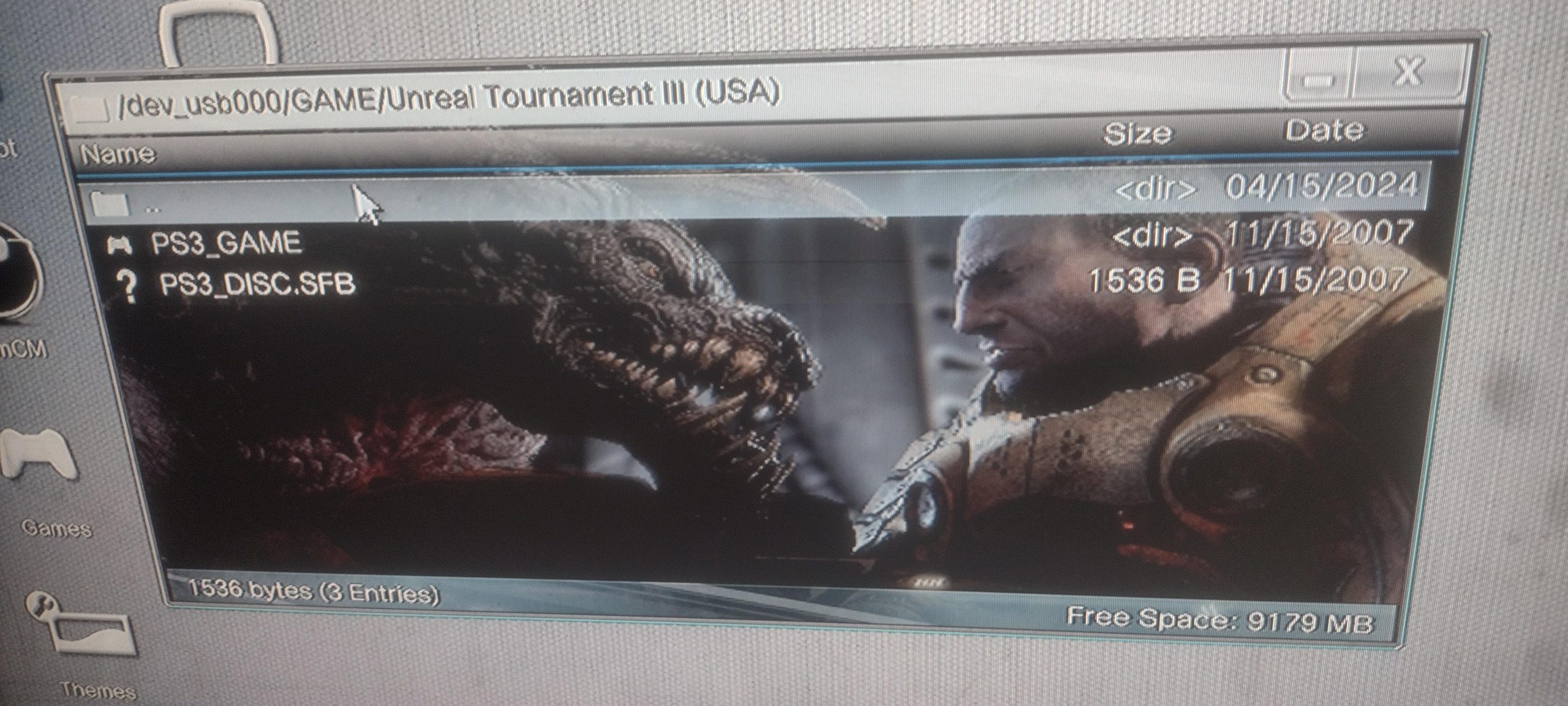
- Find your USB drive (usually called “dev_usb000”).
- Locate the game ISO or game folder that you put on your USB drive.
- Copy the game to the PS3’s internal hard drive to a folder named GAMEZ or GAMES. This location is usually “/dev_hdd0/GAMEZ” or “/dev_hdd0/GAMES”.
- Wait until the file transfer is finished. It might take some time.
Game folders
If the game is in folder format, then you need to make sure the game is named according to its game ID so that it can be identified by the console. To do that, you can open the folder and check if there are two files named ‘PS3_GAME’ and ‘PS3_DISC.SFB’. Now check for the game ID inside the ‘PS3_DISC.SFB’ file by opening the file with a text editor. The game ID is usually like BLES-00000 or BLUS-00000. Now rename the game folder to that ID.
Playing Your PS3 Games
Now for the best part! Your game should be playable from your console’s XMB menu.
Finding Your Games
After copying your game, the game should be listed in MultiMan, or on your main console menu, usually in a folder called “Game”. If your game doesn’t appear, you might need to refresh the list of games. You can do this through MultiMan.
Launching Your Games
Select the game you want to play. The game should boot up as normal. You can now start playing just like you would with any regular PS3 disc game. There are some instances when you will have to start the game from MultiMan if it doesn’t boot properly from your console menu.
Troubleshooting
If the game doesn’t start, it could be due to various reasons, such as incomplete game files, incorrect folder structure, or a problem with the game. Make sure all files are in the right place, and that the files are not corrupted. In rare instances, the game will need to be fixed to run on the console.
Some games will require you to activate the game with a tool from the internet, in this case, you should search for the game on internet forums to see what other people are doing.
Important Notes and Tips
A few extra things to keep in mind that will make things easier and help you along the way:
- Always Back Up: It’s always a good idea to back up important data from your PS3 or computer before you make changes.
- Be Careful with Downloads: Always download games from trusted sources like Vimm’s Lair to avoid malicious files. Be careful to not click any adds.
- Update Your Firmware: Make sure your CFW is up to date and compatible with the games you want to play.
- Game Compatibility: Some games might not work perfectly with all CFW setups. It’s always good to check online forums for compatibility information.
- Don’t Share the Games: Always remember to support game developers by owning the games you download. Share the love for games with others and talk about the game, but try not to distribute them, and make sure to acquire the games you play from retail stores to support game creators.
Playing PS3 games from Vimm’s Lair is an exciting way to experience classic games, but it’s not hard to do if you take it one step at a time. With patience, you can get your PS3 games working and enjoy many hours of gaming. Just remember to research and take the steps very carefully. Happy gaming!
How to install and play games from vimm's lair, idiot edition
Final Thoughts
To play PS3 games from Vimm’s Lair, you first need to download the game ISO. Then, install a PS3 emulator on your computer. Finally, load the ISO file into the emulator to begin playing. You must ensure your computer meets the emulator’s requirements.
The process is simple once you understand the steps. This guide helps with understanding how to play ps3 games from vimms lair. Enjoy the vast library of PS3 titles on your PC. This is a great way to experience classic games.

