
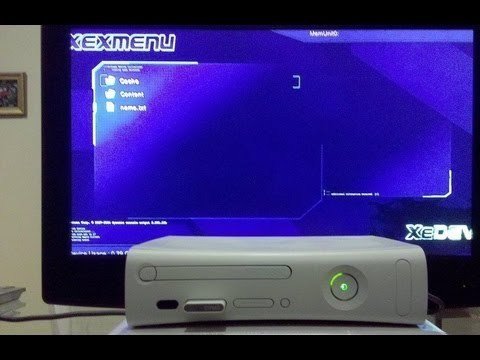
Unfortunately, you cannot directly play Xbox 360 games from a USB drive without modding the console.
Ever wondered how to play Xbox 360 games from usb without modding? Many gamers have, hoping for an easy way to expand their library without physical discs. The dream of loading games from a flash drive seems convenient, but the Xbox 360 system has built-in limitations.
The console’s architecture prevents running game files directly off external storage devices. This restriction forces gamers to use either original discs or digital downloads through the Xbox Live service. This is why modifications have historically been the workaround.

How to Play Xbox 360 Games from USB Without Modding
Playing your favorite Xbox 360 games can sometimes feel limited by physical discs. What if you could easily carry your game library on a USB drive and play them without changing your console’s software? It might sound like magic, but there are ways to get closer to this without going through the complexities of modding. While direct play from a USB isn’t exactly supported, there are some clever approaches to make your digital game life easier on your Xbox 360. Let’s explore these methods.
Understanding Xbox 360 Storage and Limitations
Before we dive into the “how-to,” it’s crucial to understand how the Xbox 360 handles storage. This console was designed to primarily play games from discs or its internal hard drive. It uses a specific file system, and directly loading game files from a USB isn’t a feature built into the system for playing retail games. However, the USB ports are used for many things like storing game saves, player profiles, and downloading content from Xbox Live. It also supports playing some digital content which we’ll see later in the article.
Internal Hard Drive: This is the main storage space for your games and saves.
USB Storage: Officially used for game saves, profiles, demos, and some Xbox Live Arcade titles.
Disc Drive: This is for physical game discs.
No Direct USB Game Play: The Xbox 360 doesn’t natively support booting games directly from a USB drive. This means you can’t simply copy game files to a USB and play them.
Understanding these limitations is important to manage your expectations, and how we are going to use USB for this purpose.
Using a USB Drive for Xbox 360 Game Content
Although you cannot play full retail games directly from a USB, you can use a USB for other things that bring you closer to the experience. The Xbox 360 lets you download Xbox Live Arcade games, game demos, and DLC (downloadable content). These types of games can be stored and played from a properly formatted USB drive. Here’s how this works:
Formatting Your USB Drive
The Xbox 360 uses a FAT32 file system for USB devices. Most USB drives come formatted differently. This means you might need to reformat your USB drive. Keep in mind that reformatting will erase everything on the drive.
Backup: First, back up anything important on your USB drive.
Connect: Plug the USB drive into your Xbox 360.
Go to Settings: Go to “Settings” on the Xbox 360 dashboard.
Storage: Then select “Storage.”
Select USB: Find your USB drive from the list of storage devices.
Configure: Choose “Configure” and then “Yes” to allow the Xbox to format your drive.
Confirm: Follow the on-screen prompts. Your Xbox 360 will format the drive.
Important Note: After you reformat the USB, the Xbox 360 will only see a portion of its storage. For example, if you have a 16GB USB, it might only show 14GB. This is normal. The Xbox 360 reserves some space for its system.
Storing and Playing Downloaded Games
Once your USB drive is ready, you can download and store smaller games and content directly onto it:
Xbox Live Arcade: Download Xbox Live Arcade games from the Xbox Marketplace. When the download completes, you can choose to save the game on your USB drive, or your console’s hard drive.
Game Demos: Download free demos and try new games. You can also choose where to save game demos. If your hard drive is full, a USB drive comes in handy.
DLC Content: Download extra content for games you own (like additional characters, maps, or levels). You can choose to store this content on your USB, too.
Managing Content: To see what’s on your USB, just go back to “Storage” under “Settings” on your Xbox 360. Choose your USB drive, and you’ll see a list of everything it contains, such as games, game saves and other downloadable content.
Using a Transfer Cable for Game Data
Another way to manage your games without modding is through a transfer cable. This cable allows you to copy data between two Xbox 360 hard drives. If you have an older Xbox 360, you might have an external hard drive. With a transfer cable, you can move games and save data between different hard drives. This isn’t playing from the USB itself but it helps managing and swapping your digital game library.
What you Need
Xbox 360 Transfer Cable: These cables are available online and at some electronics stores. They have special connectors that work with the Xbox 360.
Two Xbox 360 Hard Drives: One original or aftermarket hard drive that is connected to your console, and another hard drive for swapping the data.
An Xbox 360: Your original Xbox 360 that you play games on, and another console if you are planning to transfer to another console’s hard drive, or the Xbox 360 console itself if you are just swapping hard drives.
How to Use the Transfer Cable
1. Turn off both Consoles: Start by turning off both Xbox 360s. If you are swapping data within same console, then just power off that console only.
2. Connect the Cable: Connect one end of the transfer cable to the hard drive you want to transfer from and the other end to the receiving hard drive.
3. Turn on the Source Console: Power on the Xbox 360 that has the games you want to copy. The Xbox 360 will identify the hard drive you have connected to it through the cable.
4. Go to System Settings: Go to the “System” tab and then select “Storage.”
5. Initiate the Transfer: The Xbox 360 will give you an option to transfer data to or from a connected hard drive. Follow the on-screen prompts.
6. Select Data to Transfer: Select the game data, game saves, and DLC that you want to move to another hard drive.
7. Complete the Transfer: Wait for the transfer to finish. The time depends on how much data you are moving.
8. Turn Off and Disconnect: Turn off the Xbox 360 and remove the transfer cable.
9. Swap the Hard Drive: If you are moving data to the hard drive of another console, then remove the external hard drive with your games from the old console and attach it to the new console.
With a transfer cable, you can move bigger games and DLC between consoles or extra hard drives. It’s not playing from USB but it is a useful way to move game data around.
Why Direct USB Game Play Isn’t Supported
It’s important to know why the Xbox 360 does not allow playing full games directly from a USB. This limitation is due to many reasons:
Game Security: Microsoft’s Xbox 360 was designed to protect games from piracy. This is why games were only released on physical discs, or directly through the console’s Xbox marketplace. Loading games from a USB drive makes it easier to copy and share games, which affects game developers and publishers.
File System: As mentioned earlier, the Xbox 360’s system uses a FAT32 file system for USB devices. The Xbox 360’s game files are usually too big and too complex for a FAT32 system. These game files often require the more advanced file formats such as the ones used on the hard drive.
System Design: The Xbox 360 console was built to boot games from the disc drive, or from its internal hard drive. It would require a major change in how the system works to allow games to boot from external drives.
Performance: USB 2.0 ports on Xbox 360 are relatively slow compared to the internal hard drive. Running a game from a USB could cause loading problems and poor game performance.
These are some of the reasons why you cannot use USB for direct game play. But the methods we discussed do offer useful alternatives to store, transfer and use your games easier.
Using a USB for Game Saves and Profiles
Even though you can’t play games directly from USB without modding, using a USB to manage your game saves and player profiles can be very helpful. This can help you keep your game progress safe. Here is how to manage your game saves and profiles using USB:
Saving Game Progress
Play Games: Play a game as you normally do on your Xbox 360.
Save the Game: Go to the game’s menu and select “Save Game.”
Select USB: When the system prompts you for the location, choose your USB drive.
Confirm Save: Your game save will now be saved to the USB drive.
Loading Game Saves
Start the Game: Launch the game you want to play.
Load Game Option: In the game menu, select “Load Game” or the equivalent option.
Choose USB: Your saved game from your USB drive will show on the list.
Start Playing: Select your save and continue from where you left off.
Moving Game Saves
Copy Saves: You can copy a game save from your internal hard drive to your USB. Go to storage settings, choose the game and select “copy” or “move” to your USB drive.
Move Saves: To use these saves on another Xbox 360, simply plug in the USB drive into that Xbox.
Load Saves: Now, you can load the saves in the game and start from the saved point.
Profile Management
Copy Profile: Copy your profile to the USB in the “Storage” setting, the same way you copy game saves.
Move Profile: You can move your profile from one console to another with the USB stick. Your gamertag, achievements, and other profile data will go with you.
Helpful Tips for Managing Your Xbox 360 Games
Here are a few extra tips to improve your experience without modding:
Organize Your Storage: Use folders to organize games or save files on the USB drive.
Keep it Clean: Be sure your USB drive is protected to ensure no physical damage, since it can hold valuable information.
Regular Backups: It is a good idea to back up your games, saves and profiles to a USB often. This can be very useful in case your console has a hard drive problem or failure.
Know Your USB: Find a high-quality USB that works well with your Xbox 360, and it is fast enough to handle multiple game saves.
Check for Updates: Keep an eye on Xbox updates as sometimes these may add new features or improve storage functionality.
Avoid Overloading USBs: Don’t store too many items on a single USB drive, to avoid slowing the USB down. This can also cause corruption issues.
Use Clear Labels: Label your USB drive clearly, to avoid getting confused between different USB sticks.
Format Carefully: When reformatting the USB, always check if the backup has been properly done to avoid losing important data.
Although the Xbox 360 doesn’t allow playing full games directly from a USB drive without modding, there are still ways to manage and enjoy your digital library more effectively. By using a USB drive for Xbox Live Arcade games, demos, game saves, and profiles, you can make your game experience much more convenient. You can also use a transfer cable to manage larger game files and save data between hard drives. While these methods aren’t direct game play from USB, they offer many ways to make the most of your Xbox 360 without modifying its system. Remember to always back up your important game data and profiles to avoid losing anything valuable. With these simple tips, you can have a better and more enjoyable gaming experience.
How to play games on Xbox360 using USB drive
Final Thoughts
In short, playing Xbox 360 games directly from a USB drive without console modifications isn’t possible. Microsoft designed the console to read games from discs or official downloads only. Trying to circumvent this by directly loading files from USB will not work.
Therefore, ‘how to play xbox 360 games from usb without modding’ remains an unachievable goal. You will need to explore other methods to enjoy your titles.

