
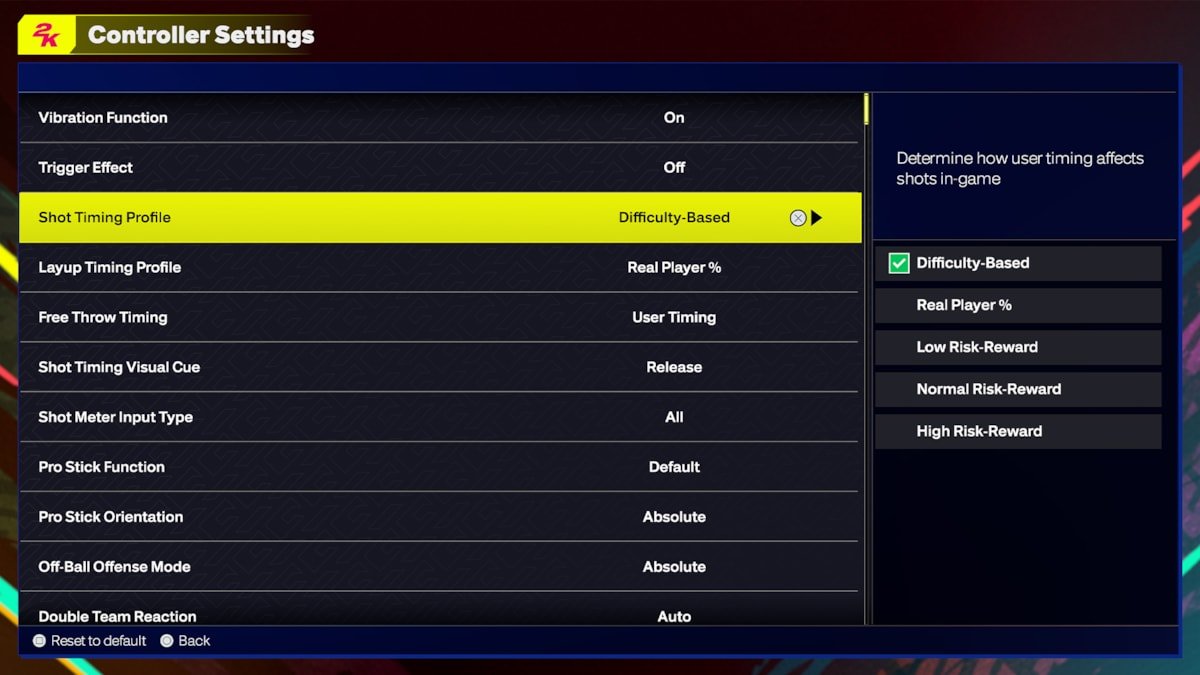
NBA 2K25 in game settings allow players to customize gameplay elements like difficulty, camera angles, and controller preferences.
Tired of the default settings in NBA 2K25? You’re not alone. Many players want to tweak the experience to match their play style. Finding the perfect NBA 2K25 in game settings can make all the difference in how much you enjoy the game.
Adjusting things like game speed, AI difficulty, and even the visual presentation lets you tailor your matches. This level of control means you get a unique playing experience. Now, you have the tools for a more personal and engaging game.

NBA 2K25 In-Game Settings: Your Guide to Total Control
Hey there, basketball fans! Getting ready for NBA 2K25? It’s not just about the fancy graphics and amazing players. It’s also about making the game feel just right for you. That’s where the in-game settings come in. These settings are your secret weapon to making the game more fun and challenging, just the way you like it. Let’s dive into all the cool things you can change to make NBA 2K25 the best experience possible.
Controller Settings: Making Every Move Count
Your controller is like your hands on the court, so it’s super important to have it set up perfectly. NBA 2K25 offers many ways to adjust how your controller works. This means you can change everything from how sensitive the sticks are to which buttons do what. Let’s explore these controller settings to see how you can make your game feel right.
Basic Controller Options
First, let’s look at the basic stuff. This is where you can switch around the buttons. If you prefer shooting with the square button instead of the X button, you can absolutely do that. You can also change how hard you need to press the buttons for actions like sprinting or passing.
- Button Mapping: Change which button does what. This is great for folks who like a different layout or are used to other games.
- Vibration: Turn it on for extra feeling or off for less distraction.
- Trigger Effects: If your controller supports it, you can adjust how the triggers feel during shooting and other actions.
- Controller Speaker: This will allow you to listen to the game through the controller, turn this on or off to your liking.
Advanced Controller Adjustments
Ready to get a bit more serious? The advanced settings let you adjust things that make a big difference in how the game feels. For example, you can change the sensitivity of the analog sticks. This means you can make your player move faster or slower with the same stick movement. It’s all about making it fit with your playing style. If you like quick cuts, you will want a higher sensitivity. If you are more of a strategic player you might like a lower sensitivity.
- Analog Stick Sensitivity: How far do you need to push the stick to make a player move? Change this to make your player more responsive.
- Shot Meter Style: Choose your preferred shot meter style, whether it’s the traditional bar, a timing meter, or something else altogether.
- Shot Aiming: You can choose to aim your shots, or let the game decide. This change can have a large impact on your accuracy.
- Pro Stick Function: This setting helps determine what the right stick will do. Options are dribble moves, shots, and more.
Gameplay Settings: Shaping Your On-Court Experience
Okay, let’s move on to gameplay settings. This area is where you really can mold how the game plays. These settings affect everything from how your AI teammates act to how challenging the game is. It’s about finding that sweet spot where the game is fun and not too hard or too easy.
Difficulty Levels: Finding Your Challenge
Choosing the right difficulty is key to a fun experience. NBA 2K25 offers several difficulty options, from Rookie to Hall of Fame. Rookie is great for learning the ropes, while Hall of Fame is for those who want a serious challenge. You can also customize the difficulty further for a unique experience.
- Rookie: For brand new players just learning the game.
- Pro: A good starting point for players who have some experience with basketball games.
- All-Star: A fun experience that provides a bit of challenge.
- Superstar: A more serious difficulty setting that requires good game knowledge.
- Hall of Fame: For experts seeking a true test of their skills.
Game Speed and Simulation
Want a faster-paced game, like an arcade style? Or a slower, more realistic pace? You can adjust the game speed to your liking. You can also turn on or off simulation settings. Simulation settings make the game play more like real NBA games. This impacts things like shot percentages and how often fouls occur. If you love statistics, the simulation setting is for you.
- Game Speed: Adjust the speed at which the game unfolds.
- Simulation Mode: You can adjust the simulation mode or turn it off. This helps control game realism.
- Fatigue: Change how quickly players get tired, forcing you to use your entire roster.
- Injuries: Turn injuries on or off, adding realism and roster management strategy to the game.
- Fouls: Adjust how often fouls are called, making it more or less important to play proper defense.
Offense and Defense Settings
These settings give you control over how the offense and defense are played. You can change how your players move on the court or how often they double team. These are great for setting up your own playstyle. You can make your players move exactly how you want them to. For example, you can have your players make specific plays, or even tell them how to defend against certain situations. This helps give you a more tailored experience.
- Offensive Playcalling: Decide how often you want to call plays or let your teammates be free.
- Defensive Assist: Adjust how much help the AI gives you on defense, great for beginners.
- Double Team Frequency: Control how often your teammates will double team the ball handler.
- Off-ball Movement: Change how your teammates move when you do not have the ball.
Camera Settings: Finding Your Perfect View
The right camera angle can make a big difference in how you experience the game. NBA 2K25 provides a range of camera options to pick from. Whether you prefer the classic broadcast view or something closer to the action, there’s a view for you. Your camera will impact how well you can see your players and the overall court.
Default Camera Views
The game comes with several default camera settings. These are good to try if you’re just starting out. You have the classic broadcast angle, which is like watching a game on TV. You also have a baseline view, which gives you a close-up look at the action. Try different views to see which one works the best for you.
- 2K Camera: The standard broadcast view, great for general gameplay.
- Broadcast Camera: The most common view, emulating the feeling of watching on TV.
- Baseline Camera: A close-up view of the court, putting you right on the sidelines.
- Zoom Camera: A view that zooms in to give you an up-close view of the action.
Customizing Your Camera
If you are picky about your view, you can create your own camera angle. These settings let you adjust everything, from the height of the camera to how much it zooms in. This allows you to create the perfect camera angle for you. You can make the camera follow the ball, stay in one spot, and much more.
- Camera Height: Raise or lower the camera’s position for your preference.
- Zoom Level: Control how close or far the camera is zoomed in.
- Camera Angle: Adjust the angle at which the camera views the court.
- Camera Movement: Change how the camera follows the action, including options to be fixed, follow the ball, or focus on the player.
Audio Settings: Hearing the Game
The sounds of the game are just as important as the graphics. Audio settings allow you to adjust everything from the commentary volume to the crowd noise. Get your audio tuned just right so that you can feel like you are really on the court. You can even adjust the volume of the sneakers squeaking.
Volume Controls
The game gives you the ability to adjust a variety of audio options, like the background music and game sounds. This is a simple but very useful feature that can help you focus on what is important.
- Master Volume: Adjust the overall game volume.
- Commentary Volume: Adjust the level of the commentators, so you can hear them clearly or turn them down.
- Crowd Volume: Make the arena roar or keep it a soft hum.
- Sound Effects Volume: Adjust the volume of sounds on the court, like dribbling, shooting, and passing.
- Music Volume: The background music can be very distracting, you can adjust the volume so it’s not interfering with your focus.
Additional Audio Options
You can also adjust more specific audio options. For example, you can adjust how the game uses the controller speaker. You can also control other audio settings as well to make the game sound the best for you. Adjusting these settings will make the game feel more engaging.
- Controller Speaker: Turn the controller speaker on or off or adjust its volume.
- Headset Output: Decide which audio elements are played through your headset.
- Team Specific Sounds: Enable or disable special sounds, like team chants.
Presentation Settings: Visuals and More
The presentation settings let you control how the game looks beyond the basic graphics. You can make adjustments to things like the replay settings. You can even change the on screen visuals during game time. Making these adjustments can change how you experience the game.
Replay Options
Replays are a great part of sports games. You can change how the game shows replays or turn them off all together. These choices allow you to control when and how you see those cool plays again.
- Replay Frequency: Decide how often replays show up.
- Replay Length: Adjust how long the replays last on screen.
- Replay Camera: Choose different angles to watch the replay from.
On-Screen Display
The on screen display shows you helpful information like the score and player stats. This display can sometimes be distracting, so you can adjust the settings to better help with your gameplay. These settings let you clear away any screen clutter you don’t want.
- Score Display: Show or hide the score in your game.
- Player Icons: Show or hide the player icons during gameplay.
- Shot Meter Visibility: Turn the shot meter on or off to provide yourself an additional challenge.
- User Interface Size: Adjust the size of the text and other on screen elements, for easier viewing.
Accessibility Settings: Making the Game for Everyone
NBA 2K25 includes a variety of accessibility settings to make the game easier for everyone to play. These settings are helpful for players who have disabilities or are still new to the game. These accessibility settings make sure the game is fun for all.
Visual Accessibility
These options help players with visual impairments to experience the game easier. This may include things like colorblind settings and changes to the size of text.
- Colorblind Modes: Options that make the colors in the game easier for colorblind players to see.
- Text Size: Adjust the size of text in menus and on-screen displays.
- Contrast Adjustments: Make the game easier to see with higher contrast.
Hearing Accessibility
For those who have trouble hearing, these options may be useful. These settings give players with hearing problems better ways to experience the game.
- Subtitle Options: Turn on subtitles for commentary and other voice overs.
- Visual Cues: Extra visual cues for important game events.
- Audio Customization: Adjust the audio mix to better suit different hearing levels.
Controller Accessibility
This section lets you set up controller options to make it easier for people who may not be able to use a controller the normal way. These include options like single button controls and more. These accessibility options ensure everyone can have a fun time playing the game.
- Single Button Controls: Option to play the game with very few buttons.
- Button Remapping: Change what button does what.
- Simplified Controls: An easier control scheme for those who are new or have trouble with many controls.
These are just some of the in game settings in NBA 2K25. By taking the time to adjust these settings, you can create an experience that is just perfect for you. Don’t be afraid to try new settings, and see what works best for you. This will help you get the most out of your game.
BEST SETTINGS, TIPS and TRICKS on NBA 2K25 (NEW SHOT TIMING PROFILE)
Final Thoughts
Optimizing NBA 2K25 in-game settings is key to improving your gameplay. Experimenting with camera angles, controller layouts, and gameplay sliders allows you to tailor the experience to your specific play style. Finding what works best for you makes a significant difference in your performance.
Adjusting difficulty, game speed, and fatigue settings can fine-tune the challenge you face. Player tendencies and AI behavior offer further control of the experience. These crucial factors within NBA 2K25 in game settings affect your success.

