
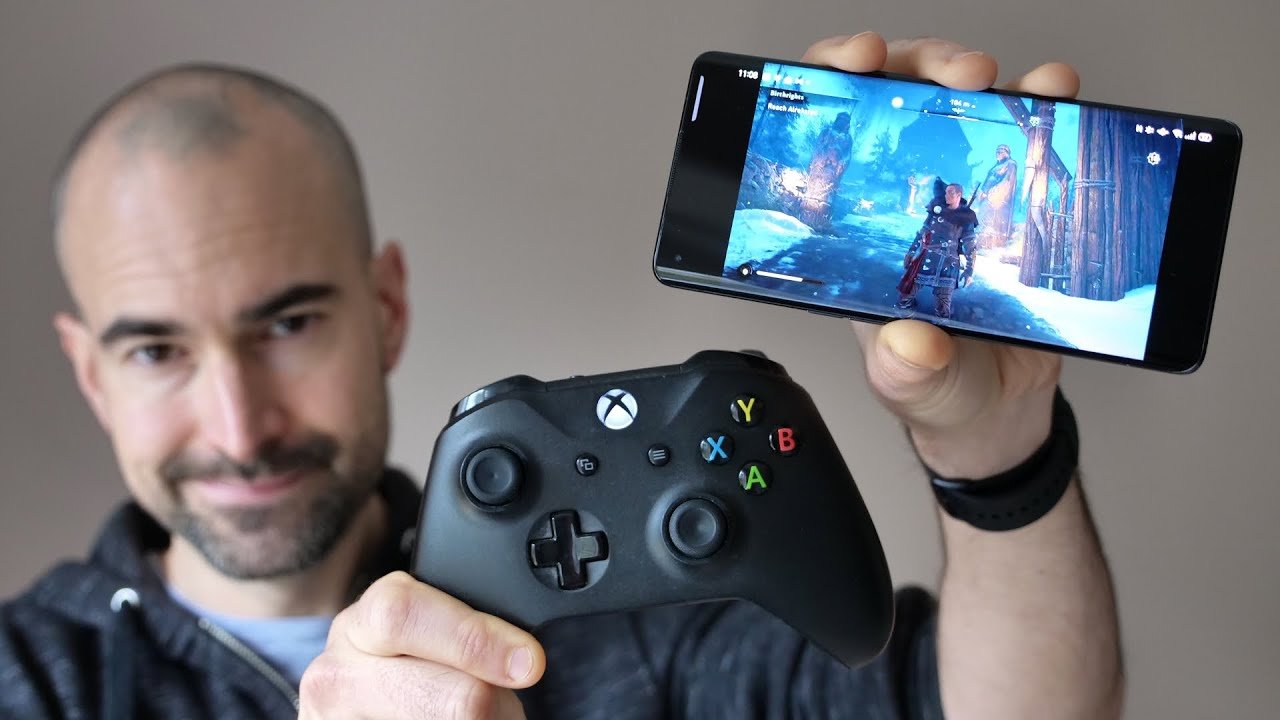
To play Xbox games on mobile, use the Xbox app with cloud gaming (Xbox Game Pass Ultimate required) or remote play from your console.
Imagine having the power of your Xbox in your pocket. It’s actually possible now, and more convenient than ever before! Ever wondered how to play Xbox games on mobile? Many are now doing it, and it’s simpler than you might think.
This guide quickly breaks down the easiest ways to bring your favorite Xbox titles to your smartphone. No more being tied to the TV; game on the go. With a few steps, you can start playing your Xbox library on your mobile device.

How to Play Xbox Games on Mobile
Ever dreamed of playing your favorite Xbox games while you’re waiting for the bus, on a long car ride, or just chilling in your backyard? Well, good news! You can absolutely play Xbox games on your phone or tablet. It’s like having your Xbox in your pocket. It’s not magic, but it’s pretty cool technology. We’re going to explain all the ways you can make this happen, so get ready to bring your Xbox gaming wherever you go.
Understanding the Basics: Cloud Gaming and Remote Play
Before we dive into how, let’s talk about two main ways you can play Xbox games on your mobile: Cloud Gaming and Remote Play. They both let you play Xbox games on your phone, but they work a little differently.
Cloud Gaming with Xbox Game Pass Ultimate
Think of cloud gaming like streaming movies or music. The game doesn’t actually run on your phone. Instead, it’s running on powerful Xbox servers somewhere far away. Your phone sends your controller commands, and then receives video of the gameplay. It’s like watching a live video where you get to control what’s happening. This means you don’t need a super powerful phone, but you do need a really good internet connection because everything happens in real-time.
- How it Works: Your phone sends your button presses to the Xbox servers, which process them and send the game visuals back to your device.
- What You Need: An Xbox Game Pass Ultimate subscription, a compatible mobile device, a strong Wi-Fi or mobile data connection, and a Bluetooth controller.
- Key Advantage: Play a wide variety of games without downloading them onto your phone.
- Key Limitation: Requires a very stable and fast internet connection for a smooth experience. Lag (delay) can be a problem if your internet isn’t fast enough.
Xbox Game Pass Ultimate is key here. It’s a subscription service from Microsoft that gives you access to hundreds of Xbox games. Some of these games, the ones with the little cloud icon, can be played through the cloud on your mobile device. It includes a library of different games, that are added or removed monthly. Therefore, the games that you can play via the cloud will vary.
Remote Play from Your Own Xbox Console
Remote Play is different because it uses your own Xbox console at home. Your phone acts like a remote screen and controller, letting you play any game installed on your actual Xbox. This means that your Xbox needs to be on. It’s like having a second screen for your Xbox that you can take with you. This is great because you can play games that aren’t in the cloud library, or if you have a disc version of game that you don’t have on your cloud library.
- How it Works: Your mobile device connects to your home Xbox through your network. Your Xbox runs the game, and your phone displays the video and takes controller input.
- What You Need: An Xbox console (Xbox Series X/S or Xbox One), the Xbox mobile app, a strong Wi-Fi network (both for your Xbox and your mobile device), a Bluetooth controller is optional but recommended for easier playing.
- Key Advantage: Play all your games installed on your Xbox console, no matter if they are part of the Game Pass or not.
- Key Limitation: Requires your Xbox console to be on and connected to the internet. The quality and latency of the connection depend on the home network.
Setting Up Cloud Gaming: A Step-by-Step Guide
Ready to try cloud gaming? Let’s get you started! Here is how to make it work:
Step 1: Get Xbox Game Pass Ultimate
First, you need a Game Pass Ultimate subscription. You can buy this from the Microsoft website or through your Xbox console. Make sure it’s the ‘Ultimate’ version, as the standard Xbox Game Pass won’t give you cloud gaming. It’s like a key that opens the door to a lot of games.
- Go to the Xbox website or your console’s store.
- Find the Xbox Game Pass Ultimate subscription.
- Choose a subscription plan and sign up.
Step 2: Install the Xbox App on Your Phone or Tablet
Next, download the Xbox app from your device’s app store. This app is your portal to the cloud. It’s free and super useful. Search for “Xbox” in the App Store (for iPhones and iPads) or Google Play Store (for Android devices). Once downloaded, make sure to sign in with the same Microsoft account you use for your Xbox and Game Pass subscription.
- Open the App Store or Google Play Store.
- Search for “Xbox”.
- Tap “Install”.
- Open the app and sign in with your Microsoft account.
Step 3: Find Cloud-Enabled Games
Open the Xbox app, you’ll see a ‘Cloud’ section or similar. This is where all the games you can play in the cloud will appear. Browse through the library and pick a game with the cloud symbol on it. Not all Xbox games can be played via cloud, so make sure that you select the game with a cloud symbol attached to it, this icon indicates that game can be played on your phone using the cloud gaming service.
- Open the Xbox app on your mobile.
- Look for the Cloud gaming section.
- Select a game with the cloud icon.
Step 4: Connect a Bluetooth Controller
For the best experience, you’ll want to connect a Bluetooth controller to your phone. It’s much easier to play most games with a proper controller instead of using touch controls on the screen. Many different Bluetooth controllers will work. This includes the official Xbox Wireless controller, or some other popular controllers such as Playstation controllers or some third party brand controllers. You have to connect the controller by pairing it to your phone via the bluetooth menu.
- Put your Bluetooth controller into pairing mode.
- Go to your mobile device’s Bluetooth settings.
- Find your controller and connect to it.
Step 5: Start Playing!
Now you’re all set! Select a game with cloud icon from the app and start playing. The game will load and you’ll see it on your phone’s screen. Don’t forget to be connected to a stable, fast internet connection for the best experience. If you find that the game lags or is slow, then you may have an issue with your connection, not with your phone or subscription. Also, if you want to use touch control, the Xbox app includes controls displayed on the screen, however, a controller is always recommended for a better and easier playing.
- Choose a cloud game in the app.
- Wait for the game to load and enjoy!
Setting Up Remote Play: Connecting to Your Home Xbox
If you prefer playing games directly from your own Xbox, Remote Play is the way to go. Here’s how:
Step 1: Enable Remote Play on Your Xbox
First, you need to turn on Remote Play in your Xbox settings. This tells your Xbox that it’s okay to connect to your phone. The Xbox console needs to be on and connected to your network for the remote play to work.
- Turn on your Xbox.
- Go to “Settings”.
- Then select “Devices & connections”.
- Find “Remote features”.
- Check the “Enable remote features” box.
Step 2: Make Sure Your Xbox Is On and Connected
For Remote Play to work, your Xbox needs to be powered on and connected to your home Wi-Fi. You can’t start a game on the Xbox, and then power it off. The Xbox needs to stay on, and needs to be connected to the internet while you are using remote play.
Step 3: Install the Xbox App on Your Phone
If you haven’t already, get the Xbox app on your mobile device. Make sure you are signed in with the same Microsoft account you use on your Xbox. It’s essential that you sign into the app with the same Microsoft account that is used on your Xbox to correctly use the remote play feature.
- Open your app store (Google Play store or App Store).
- Search for “Xbox app”.
- Download it and install.
- Open the app and sign in.
Step 4: Connect to Your Xbox
Open the Xbox app, go to the “Consoles” tab, and select the name of your Xbox console. If it is correctly connected, it should connect to your Xbox on your home network. If your Xbox doesn’t show up, make sure both your phone and Xbox are on the same Wi-Fi network and are connected to internet.
- In the Xbox app, find the “Consoles” tab.
- Select your Xbox.
- The app will try to connect.
Step 5: Connect Your Controller and Start Playing
Connect your Bluetooth controller to your mobile device and choose a game to play from your console library in the app. This game will then stream to your phone and you will be able to control it with your Bluetooth controller. It’s like you are holding a handheld version of your Xbox console. If you encounter errors, please make sure that you have correctly connected your Xbox to your network, and that both the console and phone are connected to the internet, and that they are on the same local network.
- Connect your Bluetooth controller to your phone.
- Choose a game from the Xbox app.
- Enjoy playing your Xbox games!
Optimizing Your Mobile Gaming Experience
To make sure your mobile gaming experience is the best it can be, keep these things in mind:
Internet Connection is Crucial
A good, stable internet connection is key for both cloud gaming and remote play. Lag can ruin the fun, so make sure your Wi-Fi is strong, or you have a stable mobile data connection. If you are using a Wi-Fi connection, make sure that you are near your router. If you are using a mobile connection, make sure you are in an area with good mobile reception.
- Use a 5GHz Wi-Fi network if possible (2.4GHz is often more crowded and slower).
- Try to be close to your router if using Wi-Fi.
- If using a mobile data connection, check the data speeds and coverage.
Controller Recommendations
While touch controls are available, a controller will always be a better experience. Any Bluetooth controller that is compatible with your phone or tablet should work, but the official Xbox controller is a great choice because it’s specifically designed for Xbox games.
- The Xbox Wireless Controller is a great option.
- Consider other popular Bluetooth controllers that you have used before and are comfortable with.
- Use a mobile controller clip to attach your phone to the controller for easier handling.
Mobile Device Compatibility
Most modern smartphones and tablets should work fine for playing Xbox games, but make sure that your device is relatively new. Older devices may struggle to run games smoothly. Always check compatibility of your devices in the app store of Google Play Store (for Android), or App Store (for iOS). Microsoft usually updates requirements when a new OS is released, so make sure you keep updated and check device requirements on the app’s official store page.
- Make sure your device has enough memory (RAM) for games to run smoothly.
- Check the minimum requirements for the Xbox app on your app store.
- Newer devices will usually have better performance.
Adjusting Video Settings
Sometimes you can make the games run better on your device by changing the settings. You might be able to lower the game’s resolution, or adjust the frames per second (fps) to improve performance. Usually the Xbox app manages this for you, but sometimes there might be an option to make some adjustments.
Keep Everything Updated
Always make sure your Xbox, Xbox app, and your mobile operating system (Android or iOS) are up to date. Updates often include performance improvements and bug fixes that can make gaming a better experience. An outdated device might not work properly and could produce errors. The mobile gaming software is continually improving, so always try to keep up to date to ensure smooth gaming.
Managing Data Usage
Cloud gaming and remote play can use a lot of data, especially if you’re not on Wi-Fi. Keep an eye on your data usage and make sure you have enough, or you might face some unexpected charges. If you use mobile data to play, be careful and make sure your plan is sufficient for the usage. Monitor your data plan, or use Wi-Fi, whenever possible.
Playing Xbox games on your mobile device is now easy, enjoyable, and accessible. Whether you use cloud gaming or remote play, you can now enjoy your favorite games everywhere. With the right setup and a good internet connection, you can transform your mobile into a handheld Xbox gaming console. Remember to check all the settings and compatibility so that you are ready to go. Get gaming now, and bring the power of the Xbox to your fingertips!
How To Play Xbox Games On Your Phone – A Guide
Final Thoughts
Playing Xbox games on your mobile involves using Xbox Cloud Gaming via the Xbox app or a browser. You need a Game Pass Ultimate subscription. Ensure you have a stable internet connection for smooth gameplay.
To get started, download the Xbox app, sign in, and find available cloud games. Alternatively, use a web browser for Xbox Cloud Gaming. ‘how to play xbox games on mobile’ becomes simple with these steps. A good controller can improve your gaming experience significantly.

