
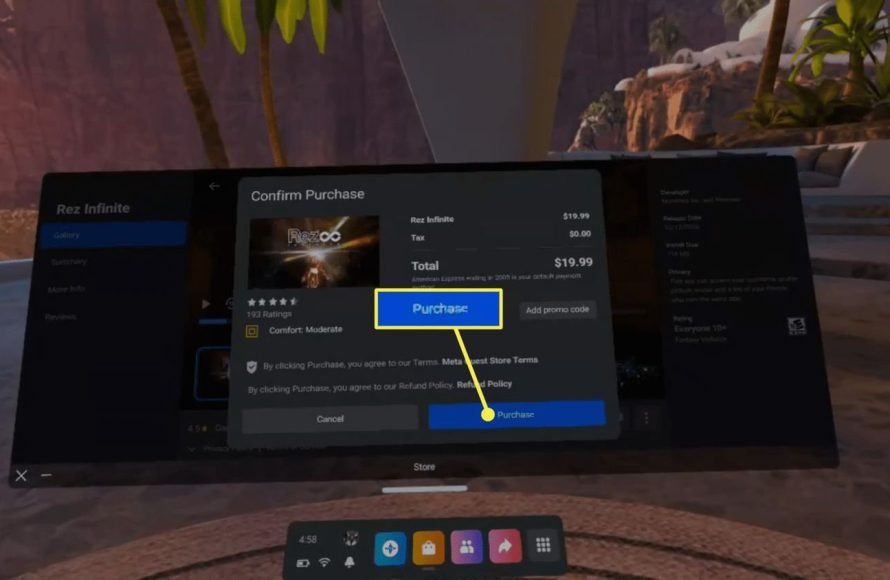
You purchase Meta Quest 2 games through the Meta Quest app on your phone or directly within the headset’s store.
Ready to dive into incredible virtual worlds? The Meta Quest 2 offers a fantastic library of games and experiences, but knowing how to purchase Meta Quest 2 games might seem a little confusing at first. Don’t worry, it’s easier than you think.
We’ll walk you through the simple steps to get those awesome games onto your headset, so you can start exploring new realities.

How to Purchase Meta Quest 2 Games
Getting new games for your Meta Quest 2 is like going to a candy store – there are so many fun options! But where do you start? Don’t worry; it’s actually quite simple once you know the ropes. This guide will walk you through all the ways you can buy awesome new virtual reality adventures for your headset, so you can get playing quickly. We’ll talk about everything from using the Meta Quest app to navigating the store on your headset itself. Let’s get started!
Using the Meta Quest App
The Meta Quest app is like your remote control for all things Meta Quest. It lives on your smartphone or tablet. It’s super useful, not just for buying games, but for managing your headset and checking out new VR content. Here’s how you can get games using it:
Downloading and Setting Up the App
First things first, you need to get the app if you don’t have it already. Here is what you need to do:
- Find the App: Go to your device’s app store (like the Apple App Store or Google Play Store).
- Search: Type in “Meta Quest.” You’ll see the official Meta Quest app.
- Download and Install: Click the install button. Once it’s done, open the app.
- Log In: Use your Meta account info (the same one you use for your headset) to log in.
After you log in, make sure your headset and the app are connected to the same Wi-Fi network. You should see your headset listed in the app.
Navigating the Store in the App
Now that the app is ready to go, let’s find some games:
- Find the Store: In the app, you’ll see different tabs at the bottom. Look for the one that says “Store” or “Shop” and tap on it.
- Browse: You’ll see lots of games organized into categories like “New Releases,” “Popular,” “Action,” “Adventure,” and many more. Scroll through or use the search bar at the top to find something specific.
- Read Reviews and See Details: Before you buy, tap on a game to see pictures, videos, a description, and what other people think of it (reviews). Look at the game rating and what age it is appropriate for.
Purchasing a Game
Ready to get that new game? Here’s what you need to do:
- Add to Cart: Tap the “Price” button, and it usually shows the button “Add to cart.” If you want to buy right now, click on that button.
- Go to Checkout: You’ll go to a page that says “Checkout” or “Cart”. Click on the button.
- Review Your Purchase: Make sure the game and price are correct, then click the ‘Continue’ or ‘Next’ button.
- Payment Information: You might need to add a payment method like credit card or PayPal if you haven’t already. Follow the steps to add payment details.
- Buy Now: Tap “Buy” or “Pay Now” when you’re ready. The game will begin downloading to your Meta Quest 2.
After the download, you can find the game in your app library. This is where you’ll see all of your games, apps, and experiences. The app will also show you games you can install to your headset.
Buying Games Directly on Your Meta Quest 2 Headset
You don’t always need your phone to get new games. You can also buy games right inside the headset. This can be a great option because you can see the game’s immersive environment before buying it.
Accessing the Store in VR
Put on your Meta Quest 2 headset and follow these steps:
- Open the Menu: Press the Meta button on your right controller. It’s the one with the Meta logo. This opens your main menu.
- Find the Store Icon: Look for the icon that looks like a shopping bag or a storefront. Click the icon using your controller.
- Welcome to the Store: You’re now in the Meta Quest Store in VR.
Finding Games and Checking Details
Inside the store in VR, you will find all the same games that you see on the app. Here’s how you navigate the store in VR:
- Explore Categories: Look at the top of the store and you will find different categories you can select, such as “Action,” “Adventure,” “Multiplayer,” and “New.”
- Search: Use the search bar if you want to find a specific title. You can type in the game name using the virtual keyboard.
- View Game Information: Select a game to view pictures, videos, and read its description. You can also see what other users have to say about it.
Purchasing a Game in VR
When you’re ready to buy, follow these steps:
- Add to Cart: Click on the game and select the button that says “Add to Cart”.
- Proceed to Checkout: Select the “Cart” button, and click the button that says “Checkout.”
- Verify Payment: You will see your payment information. If you need to add a payment method, you will be prompted.
- Confirm and Buy: Click “Buy Now,” and the game will start downloading to your headset.
You will be notified after the download and you can locate the game in your app library.
Understanding Payment Methods
Before you start adding games to your collection, it’s important to know about the different payment methods. Meta accepts several payment options, making it convenient to buy what you want. Here’s a run down of the options available:
Credit and Debit Cards
The most commonly used payment method is using a credit card or debit card. Here’s the typical process:
- Add your card info: When you check out, you can add your card info, such as the card number, expiration date, and the CVV (the three-digit code on the back).
- Save info: Your info is saved, so you don’t have to enter it every time.
- Accepted cards: Meta accepts most major credit and debit cards, like Visa, MasterCard, American Express, and Discover.
Using PayPal
If you use PayPal, you can link it to your Meta account. Here’s how it works:
- Link your PayPal account: When you select “PayPal” as your payment method, you will be directed to log in to your PayPal account.
- Authorize the payment: Once logged in, you have to give the permission for Meta to be able to use your PayPal account to pay for your purchases.
- Easy payments: Once linked, you can use PayPal to pay without entering your card info every time.
Meta Quest Store Credits
Meta store credits are gift cards, or rewards, that you can use towards the purchase of new games. These can be given to you via promotions, or from someone gifting you a Meta Quest gift card. Here’s how you use them:
- Redeem Credits: To redeem credits, you can enter a gift card code on the Meta website or app.
- Automatic Use: When you go to buy a game, any store credits you have will automatically be applied to your purchase.
- Check your Balance: You can check your store credit balance in the app or on your Meta account page.
Exploring Free Games and Demos
Not all VR fun costs money. The Meta Quest store has free games, apps, and demos. Demos are like samples of games, which allow you to test before you buy. Here’s how to find them:
Finding Free Content
- Search the Store: In the app or on your headset, browse the store. Look for a category called “Free” or “Free to Play.”
- Use Filters: Filter your search by “Price: Low to High” to see free games first.
- Check the Game Details: Just like with paid games, you can tap or click on a free game to learn about it before you download it.
Why Try Demos
- Try Before You Buy: Demos let you play a part of a game so you can see if you like it.
- Learn New Things: Sometimes demos teach you how to play games in the virtual environment.
- Explore New Genres: Demos can help you see different types of VR games.
Managing Your Game Library
After you purchase or download games, keeping them organized is key. This makes it easy to find the game you want to play. Here’s how you can do that:
Viewing Your Games
- In the App: Go to the “Library” tab. This is where you can see all the games and apps you own, whether they are installed or not.
- In VR: Open the main menu on your headset, then click on the “Library” icon.
Downloading and Installing Games
- Ready to Install: In your library, you’ll see which games need to be downloaded to your headset.
- Start Downloads: Tap or click the download button for any games you want on your headset.
- Track Progress: You can check the download progress in the app or your headset.
Uninstalling Games
If you need space on your headset, you can uninstall games you aren’t playing:
- In the App: Go to your library, click on the three dots next to the game, and select “Uninstall.”
- In VR: Go to your library, click on the game, and find the “Uninstall” option.
Tips for a Smooth Purchasing Experience
Buying games for your Meta Quest 2 should be easy. Here are some tips for a better experience:
Check Your Internet Connection
A good internet connection is key. If your Wi-Fi is slow, downloads will take longer, and you may have issues purchasing games. Make sure you have good Wi-Fi signal.
Review Games and Ratings
Before buying any game, read user reviews and ratings. They can give you an idea of what to expect. Look at the game rating to make sure that the game is appropriate for your age.
Keep Your Payment Info Up-to-Date
Make sure your payment info is current. Expired cards or out of date PayPal information can cause problems when buying games.
Regularly Check for Deals
Meta often has sales and deals on games. Check the store every so often so you don’t miss a chance to save money. Look out for bundles, holiday sales, and special offers.
Be Aware of Storage
Your Meta Quest 2 only has a certain amount of storage. Check how much space you have before buying a lot of big games. If your device starts to get full, it is time to uninstall games or apps that you are not using.
Buying games for your Meta Quest 2 is a fun part of the VR experience. Whether you use the app or your headset, you’ll find plenty of ways to get the latest games. Make sure you keep your payment info updated, and check out the free demos. Happy gaming, and enjoy all of your new virtual adventures!
How to Buy Games on Meta Quest 2
Final Thoughts
To purchase Meta Quest 2 games, visit the Meta Quest Store using your headset or a web browser. Find your desired game and click the price button. Payment options include credit/debit cards, or PayPal.
After payment confirmation, your game will start downloading. You can access your games within the headset’s library. This is the quick way how to purchase Meta Quest 2 games. Enjoy gaming!

