
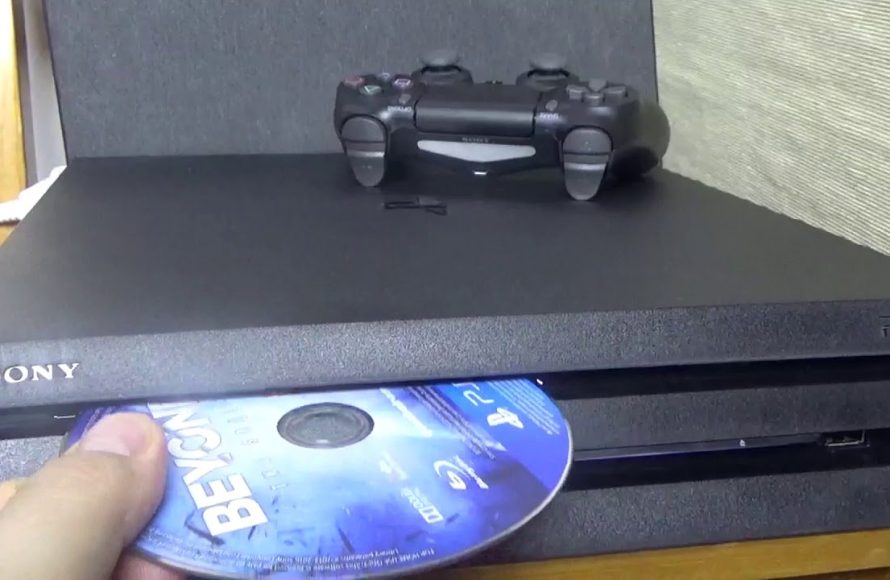
To put a game in your PS4, insert the game disc into the disc drive or download the game from the PlayStation Store.
Have you ever eagerly anticipated a new game only to find yourself wondering how to put game in ps4? It can be a bit confusing at first, but the process is actually quite straightforward. We will guide you through the simple steps you will need to follow.
Whether you’re using a physical disc or downloading digitally from the PlayStation store, getting your new game ready to play takes only a few moments. You can easily start your gaming journey. Let’s get started.

How to Put Game in PS4
So, you got a brand new game for your PlayStation 4! That’s awesome! Now, you’re probably wondering, “How do I get this game onto my PS4 so I can start playing?” Don’t worry, it’s super easy, and we’re here to guide you through every step. Think of it like putting a puzzle piece into the right spot. We’ll cover everything from physical discs to digital downloads.
Using a Physical Game Disc
This is probably the most common way to get a game onto your PS4. It’s like putting a movie into a DVD player, but for games! Here’s how it works:
Step 1: Finding the Disc Slot
First things first, locate the disc slot on your PS4. It’s a long, thin opening on the front of the console. You’ll see a small symbol above or next to it, usually a little triangle pointing downward. This shows you where the disc goes in.
Step 2: Positioning the Disc Correctly
Now, grab your game disc. It’s super important to hold it so the picture or game title faces up. This is the way the PS4 needs to “read” the disc. Make sure it’s not upside down! Also, check to see if the disc is clean and doesn’t have any scratches or smudges on it. A dirty disc can cause problems.
Step 3: Inserting the Disc
Gently push the disc into the slot. You’ll feel it slide in easily. Don’t force it! The PS4 will automatically pull the disc the rest of the way in. You should hear a soft click or whirring sound, that’s your PS4 saying, “Got it!”
Step 4: The Game Starts Installing
Once the disc is in, your PS4 will start reading it. A screen should appear on your TV showing the game’s icon or title. Then the game will begin installing to your PS4’s hard drive. This can take some time, depending on the game’s size. Be patient! Don’t turn off your PS4 during this time.
Step 5: Starting the Game
Once the installation is complete, your game is ready to play! Select the game from the PS4 home screen, and get ready for some fun!
Downloading a Digital Game
Many games today are available digitally, meaning you download them straight to your PS4 without a disc. It’s like getting a book on a tablet instead of buying a paper copy. Here’s how this works:
Step 1: Accessing the PlayStation Store
First, you need to go to the PlayStation Store. You can find it on the PS4 home screen. It’s usually a shopping bag icon with the PlayStation logo. Click on that, and you’re in!
Step 2: Finding the Game
Once in the PlayStation Store, you can look for the game you want. You can search by title, browse different categories, or check out the newest releases. If you already know what game you want, typing the title in the search bar is the quickest way to find it.
Step 3: Purchasing the Game
After you’ve found your game, you might need to buy it. Some games are free-to-play, but most you need to purchase using a credit card, debit card, or a PlayStation Network gift card. Simply follow the instructions that appear on the screen, and you’ll be set. Make sure you have enough money in your account or gift card before you try to purchase it. Sometimes a payment may be declined because of insufficient funds.
Step 4: Downloading the Game
After your purchase is complete, the game will start downloading automatically. You’ll see a notification on your screen that shows the progress. Like the installation with a physical disc, this download process can take some time depending on the size of the game and the speed of your internet connection. It is good to have a stable internet connection. Don’t turn off your PS4 during this download.
Step 5: Playing Your Downloaded Game
When the download is finished, the game’s icon will show up on the PS4 home screen. Select the icon, and you’re ready to play!
Managing Your Game Library
Your PS4 keeps track of all the games you have, both disc-based and digital. This is called your ‘Game Library’.
Finding Your Game Library
On the PS4 home screen, go all the way to the right. You’ll see an icon that says “Library.” Click it and you’ll see all the games you own.
Organizing Your Games
In the Library, you can organize your games in different ways. You can sort them by date added, alphabetically, or by category. This makes it easier to find what you want to play.
Removing Games
If you want to remove a game from your PS4, you can do this from the Library. This frees up space on your hard drive. Keep in mind that if you remove a disc-based game, you need the disc to play it again. If you remove a digital game, you can re-download it later from the library.
Troubleshooting Common Issues
Sometimes things don’t go exactly as planned. Here are some common issues you might experience and how to handle them:
Disc Won’t Read
If your PS4 isn’t reading a disc, try these things:
- Make sure the disc is clean and doesn’t have any scratches. Use a soft, lint-free cloth to gently wipe it.
- Try ejecting and re-inserting the disc.
- Restart your PS4. Sometimes a simple restart can solve the problem.
- If these steps don’t work, the problem might be the console itself. If that’s the case, you may need to consult your Playstation support or the original store where you bought the console.
Download Stuck or Slow
If a game is downloading very slowly or is stuck, here’s what to do:
- Check your internet connection. Make sure you are connected to Wi-Fi, and your internet is working well.
- Pause and restart the download. Sometimes, this helps to refresh the connection.
- Close other applications that may be using the internet.
- Restart your PS4.
Not Enough Storage Space
If your PS4 is saying there isn’t enough storage space to download or install a game, you need to make room. You can delete games you’re not playing or move some data to an external hard drive. Here are few steps for making space:
- Go to Settings: From your PS4’s home screen, navigate to Settings. This is represented by a toolbox icon.
- Select Storage: In Settings, find and select “Storage.” This will show you how much space you are currently using on your console.
- Review Your Storage: Check to see which types of items are taking up the most space. Typically, it will be applications and saved data.
- Deleting Applications (Games): If you need more space for a new game, you may need to delete the games you’re not playing. Go to your “Applications” section and select the game you want to remove. Press the options button on your controller. Then select “delete,” and confirm your decision. Remember, you can re-download digital games at any time if you need them again. If you delete disc based games, you will need to insert the disc again, in order to play.
- Deleting Saved Data: If needed you can also delete saved data, but be careful about deleting it if you need it, or if it was saved from your current game progress.
- Moving Data to an external storage: Connect your external storage to the PS4, navigate to the storage section of your settings. Choose to move games or application from your system storage to your external storage.
Using PlayStation Plus
PlayStation Plus is a subscription service that gives you access to online multiplayer gaming, free monthly games, and exclusive discounts. If you have PlayStation Plus, you can often download free games that are added each month.
Accessing PlayStation Plus Games
To get the free PlayStation Plus games, go to the PlayStation Store and find the PlayStation Plus section. You’ll see the games that are available for download. Make sure to add the free games to your Library, even if you don’t play them immediately, as they are only free for a certain time period.
Playing PlayStation Plus Games
Once you’ve downloaded a PlayStation Plus game, you can find it in your Library just like any other digital game. You need an active PlayStation Plus subscription to keep playing these games.
Game Updates and Patches
Sometimes games will need updates, these updates are called “patches”. These updates fix errors or add new features to the game. Your PS4 will usually download them automatically when you have an internet connection, if not automatic, you will be prompted to download them.
Why Are Updates Important
These updates make games work better. So it’s a good idea to download them as soon as you can.
Automatic Updates
Your PS4 is usually set to download game updates automatically. But, sometimes, you might need to manually start an update. You will see a download arrow near your game icon on the home screen if there’s a new update. Choose the game, press the options button on your controller, and then select “check for updates”.
Putting games on your PS4 is easy once you know the steps. Whether you prefer physical discs or digital downloads, you’re now ready to load up and play! Remember to manage your game library and keep your console updated for the best gaming experience. Now go have some fun!
PS4 ~ How to insert DISC into Your Playstation 4 (PRO) ~ Tutorial ~sort version
Final Thoughts
To play a physical game, insert the disc into the PS4’s disc slot. The system will automatically read the disc and start the installation. For digital games, download from the PlayStation Store.
After purchase, the game will appear in your library. Select the game to download and install it. That’s how to put game in ps4, and remember, a stable internet connection is must for digital titles.

