
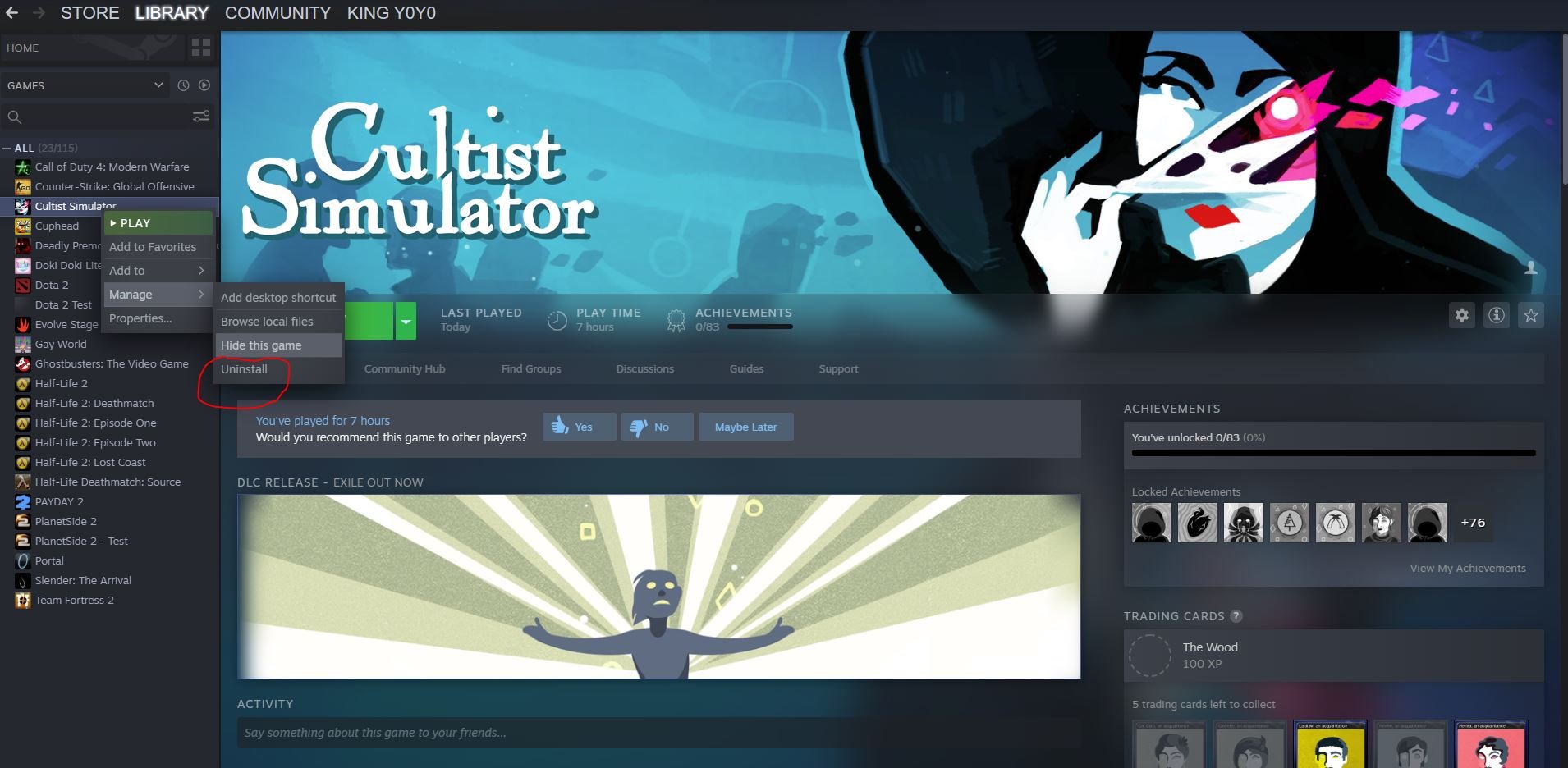
To remove a Steam game, you can either right-click the game in your library and select “Manage” then “Uninstall,” or access it through your computer’s control panel and uninstall from there.
Ever find your Steam library cluttered with games you no longer play? It happens to the best of us. Sometimes you need space or just want to clean up. So, we will talk about how to remove a Steam game easily. It is a straightforward process.
You have a couple of simple methods to choose from when removing games. You can do it within the Steam application, or through your computer’s system settings. Both ways are easy and effective.

How to Remove a Steam Game: A Complete Guide
So, you’ve got a Steam game that’s taking up space, causing lag, or maybe you just don’t play it anymore. Whatever the reason, knowing how to remove a Steam game is a handy skill. This guide will walk you through all the different ways you can get rid of those unwanted titles, from simple uninstalls to dealing with stubborn files.
Understanding the Different Ways to Remove a Game
Before diving into the how-to, let’s talk about the various methods of removing a game from your Steam library. You see, there are more than one ways you can get rid of the games. Sometimes, you just want the game off your computer, and sometimes, you want it gone from your Steam account completely.
Uninstalling a Game: The Standard Method
This is the most common way to get rid of a game. When you uninstall, you’re removing the game files from your hard drive. This frees up space and stops the game from launching. But, it doesn’t remove the game from your Steam library. Think of it like putting a book back on the shelf – it’s not on your desk anymore, but it’s still in the library.
Removing a Game Permanently from Your Account
Sometimes, you might want a game completely gone from your account. Maybe you bought it by mistake, or you just don’t want to see it in your library anymore. Steam allows you to permanently remove games, but this is something you should do carefully, because you can’t get it back easily if you want it back. This is like removing the book from the library entirely.
Dealing with Leftover Game Files
Even after uninstalling a game, some files might still be hiding on your computer. These files are generally small, things like settings and save data. Removing them manually can be a good way to free up a tiny bit more space and ensure that everything is truly gone. We’ll look at how to find these extra files and remove them safely.
Step-by-Step Guide to Uninstalling a Steam Game
Okay, let’s get to the action. This part of the guide will teach you how to do the standard uninstall process. It’s fairly easy, and should work for most of the games.
Using the Steam Client to Uninstall
This is the most common and recommended way to uninstall a game from your computer. Here’s how it works:
- Launch Steam: Open the Steam application on your computer. Make sure you’re logged into your account.
- Navigate to your Library: Click on the “Library” tab at the top of the Steam window. You will see the list of all games you own.
- Find the Game: Scroll through your list or use the search bar to locate the game you want to uninstall.
- Right-Click and Select Uninstall: Right-click on the game’s name. A menu will pop up. Click on the “Manage” then on the “Uninstall” option.
- Confirm the Uninstall: Steam will show a confirmation window. Click “Uninstall” to start the process.
Steam will start removing the game files from your computer. The time it takes will depend on how big the game is and how fast your internet is. After the process is done, the game is uninstalled, but will still show up in your game library. You can reinstall anytime you want.
Uninstalling via the Control Panel (Windows)
This is another way to remove a game using your Windows operating system. But, it is not as recommended as the Steam Client method because some of the game files can be left behind by this uninstallation method. Here’s how you do it:
- Close Steam: Make sure the Steam application is not running. You may have to close it by right clicking its icon and selecting “Exit.”
- Open Control Panel: Click on the Start button and search for “Control Panel” and then open it.
- Select Programs and Features: Look for an option called “Programs and Features” or just “Programs”, depending on how your control panel looks.
- Find Your Game: Scroll through the list of installed programs to find the game you want to uninstall.
- Click Uninstall: Click on the game’s name and then on “Uninstall” option.
- Follow On-Screen Prompts: Windows will guide you through the uninstall process. Follow the prompts, and the game should be removed.
Remember, this is like uninstalling a program in general. It does not guarantee a clean and perfect uninstall.
How to Permanently Remove a Game from Your Steam Account
If you want a game completely gone from your account, Steam does give you the option to remove it, but this process is different from simply uninstalling a game. This means the game will not show up in your game list anymore. This process is not recommended if you just want to free space on your computer. If you remove a game from your Steam account, you can’t just simply re-add it again. You will have to purchase it again from the Steam store.
Removing a Game: A Step-by-Step Approach
Let’s walk through the process of removing a game from your Steam Account. Remember, you can’t undo this easily.
- Open Steam Support Page: Open your web browser and go to the Steam Support page. You can usually find the Steam support link in the footer of Steam website or by searching in google.
- Log In: Log into your Steam account on the website.
- Select Games: On the Support page, select the option that relates to “Games, Software, etc”.
- Find the Game: Look through the list of your game titles and click the title you wish to remove from your account.
- Choose “I want to permanently remove this game”: Select this option from the list.
- Confirm Removal: Steam will ask if you are sure. Once you confirm, the game is gone.
Please note that this removes the game completely from your account, not just your computer. The game will no longer appear in your library. If you want to play it in future, you will have to purchase it again.
When to Consider Removing a Game Permanently
Here are some reasons you might want to consider removing a game permanently from your Steam account:
- Accidental Purchase: You purchased a game by mistake and don’t want it.
- Unwanted Game in a Bundle: You got a game as part of a bundle that you don’t want.
- Cleaning up Your Library: You want to keep your library very clean, and free of unwanted titles.
- Family Sharing Concerns: You don’t want to share a game to another user using family sharing options.
Always be very careful before removing a game permanently from your account. Only remove the game if you’re absolutely sure you don’t want it.
Dealing with Leftover Game Files After Uninstall
Sometimes, even after uninstalling a game through Steam, some files may still be hanging around on your computer. These are usually small, and might be things like configuration files, saved game data, or other small files. If you are a bit of a perfectionist, or have some space issues, you can also remove these files. This is generally not necessary.
Finding Leftover Game Files
These files are typically located in two main places:
- Steam Install Directory: Go to where Steam is installed (usually C:\Program Files (x86)\Steam). Then, go to “steamapps\common”. Here you will find folders for games you’ve installed. Check for the folder that bears the name of the game you uninstalled.
- Your Documents Folder: Some games store save data and settings in your “Documents” folder. Check in the “Documents” folder under “My Games” or other subfolders that might have your game’s name on them.
You can also try searching the name of the game on your whole computer to see if there are any extra files or folders remaining after the uninstall.
How to Remove the Leftover Files
Once you locate the leftover files or folders, removing them is very simple:
- Right Click and Delete: Right click on the file or the folder and select the “Delete” option.
- Empty Recycle Bin: Make sure you empty your computer’s recycle bin to make the changes permanent.
Always be careful when deleting files. Make sure you know exactly what you are deleting, and only delete those that are related to your uninstalled game.
Using Third-Party Uninstaller Tools
Sometimes, you can use third-party uninstaller tools. These tools are made to remove all traces of software. Using these can help if you’re having trouble removing a game fully. But you need to be very careful about what kind of programs you install and make sure that the uninstaller you are using is trustworthy.
Additional Tips and Troubleshooting
While uninstalling games is usually very easy, you may sometimes run into some issues. Here are some tips and troubleshooting to consider.
What to do if a Game Refuses to Uninstall
Sometimes, a game might be stubborn and refuse to uninstall. Here’s what you can try if that happens:
- Restart Your Computer: A simple reboot of your system often fixes issues that prevent programs from uninstalling.
- Close Steam Processes: Close Steam completely. Look in the System Tray (bottom right corner of your screen) and make sure it’s not running. You may have to manually end processes from the Task Manager, but this is usually not necessary.
- Run Steam as Administrator: Right-click on the Steam shortcut and select “Run as administrator.” This can give Steam the permission it needs to uninstall the game.
- Try Uninstaller Tool: Third party uninstallers can often force uninstall programs that Steam and Windows have trouble uninstalling. Use with care.
Managing Storage Space Effectively
Keeping an eye on your storage space is always a good idea. Here are some tips to help you:
- Uninstall Games you are Not Playing: If you have many games on your computer and not playing all of them, uninstall those you no longer play.
- Use Steam to Manage your Storage: Steam provides its own interface to manage storage. You can see which games are using the most space.
- Consider External Storage: If your hard drive is very full, think of getting an external hard drive to install your games there.
Reinstalling a Game After Uninstall
Reinstalling an uninstalled game is usually simple. The game will still be on your Steam Library, and all you have to do is:
- Select the Game from your Steam Library: Click on the game from the list in your Steam library.
- Click the Install button: You will see the “Install” option on the game page. Click on it.
- Confirm Download: Confirm the installation and Steam will begin to download the game to your computer.
The download and install time will depend on the size of the game, and the internet speed you are using. If the game does not show up on the list, then you have likely removed it permanently from the Steam account, and you may have to repurchase the game again.
By following this guide, you should now know how to remove a steam game either by uninstalling from your computer, or by removing it from your steam account. Remember that uninstalling a game frees up space on your computer, but still keeps the game available in your account. But removing a game from your account will permanently remove the game and you will have to buy it again if you want to play it again. You should always choose the right option according to your situation.
How to permanently remove a game from Steam – Quick Guide
Final Thoughts
To remove a steam game, simply navigate to your library, right-click on the game, and select “Manage.” Choose “Uninstall” from the options provided. This process effectively removes the game files from your computer.
You can reinstall the game later if you desire. This action frees up valuable disk space. This method works for most titles in your library.
Remember this simple process, if you need to free up disk space and understand how to remove a steam game.

