
To reset Game Bar, you must navigate to Settings, then Gaming, and finally select the Game Bar option where you can find the reset functionality.
Is your Game Bar acting up? Maybe it’s not displaying correctly, or perhaps it’s causing some unexpected hiccups. When things go sideways with this handy tool, knowing how to reset game bar is crucial. We get it, frustration happens! Sometimes, a simple restart of the program isn’t enough.
Don’t worry, the fix isn’t complicated. We will guide you through the process step-by-step. With just a few clicks, you can have your Game Bar back to its smooth, functional self.

How to Reset Game Bar: A Step-by-Step Guide
The Game Bar in Windows is a super helpful tool for gamers. It lets you record gameplay, take screenshots, chat with friends, and even check your computer’s performance while you’re playing. But sometimes, like any other program, it might get a little glitchy. Maybe it’s not opening correctly, some features are acting weird, or it just feels slow. That’s when resetting it can be a great idea. Think of it like giving your Game Bar a fresh start, cleaning out any cobwebs, and getting it back to working its best. So, let’s dive into how you can reset the Game Bar and get back to gaming smoothly!
Understanding Why Resetting the Game Bar Might Be Necessary
Before we get into the “how,” let’s talk about the “why.” Why would you even need to reset the Game Bar? Well, there are a few common reasons:
The Game Bar Isn’t Opening: Sometimes, you press the Windows key + G, and… nothing happens! The Game Bar just refuses to appear. This can be super frustrating when you want to quickly record something awesome.
Features Aren’t Working Right: Maybe the capture button isn’t capturing, the audio settings are messed up, or the overlay is showing incorrectly. These little issues can make using the Game Bar pretty annoying.
Performance Problems: If the Game Bar is running slowly or making your games lag, it’s a sign that it might need a reset.
General Glitches: Sometimes, software just gets buggy for no apparent reason. A reset can often fix those mysterious issues.
Think of it like restarting your game console or computer; sometimes, a fresh start is all it needs to work correctly.
Different Ways to Reset Game Bar
Now that you know why you might need to reset the Game Bar, let’s explore the different methods you can use. We have several options, from the simplest to a bit more advanced, so choose the one that you feel most comfortable with.
Method 1: Using the Settings App
The Settings app is your go-to place for managing almost everything on your Windows computer, and that includes the Game Bar. This is often the easiest and safest way to reset the Game Bar.
Clearing App Data for the Game Bar
First, click on the Start button (that’s the Windows logo in the bottom-left corner).
Then, click on the Settings icon (it looks like a gear).
In the Settings window, click on Apps.
On the left sidebar, click on Installed Apps.
Now, you’ll see a list of all the apps on your computer. Scroll down until you find Xbox Game Bar. If you don’t see it in the initial list, use the search bar on top. Just type “Xbox Game Bar”
Click the three dots that are next to “Xbox Game Bar”.
From the menu, select Advanced Options.
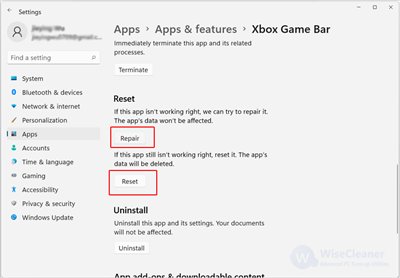
Scroll down to the section called Reset.
You will see two buttons there: Repair and Reset. First, click Repair. This action tries to fix the game bar without deleting any data. Wait for it to complete.
After Repair, If the issue is still present, click Reset. When you click reset, a small window will pop up asking you to confirm if you want to reset the app, Click Reset again to confirm. When you reset, your app data will be deleted.
Wait a little while it works its magic.
Once completed, restart your computer and try opening the Game Bar again by pressing Windows key + G.
What Happens When You Clear App Data?
Clearing app data is like cleaning the slate for the Game Bar. It gets rid of any stored settings, temporary files, and other bits that might be causing problems. When the Game Bar starts up again, it’s like it’s running for the very first time.
Method 2: Reinstalling the Xbox Game Bar
If resetting through the settings does not work, reinstalling the Game Bar can be an option. Sometimes files can get corrupted, and a fresh install will fix the issues.
Uninstalling the Xbox Game Bar
Go to your settings by clicking on the Start button and then clicking on the Settings icon (the gear icon).
In the Settings window, click on Apps.
On the left sidebar, click on Installed Apps.
Scroll down until you find Xbox Game Bar. Use the search bar if you cannot find it. Type “Xbox Game Bar”
Click the three dots that are next to “Xbox Game Bar”.
From the menu, select Uninstall.
A small pop-up window will ask if you want to uninstall the app. Click Uninstall to confirm.
Reinstalling the Xbox Game Bar
Open the Microsoft Store. You can find it by clicking on the Start button and then typing “Microsoft Store”
In the search bar at the top of the Microsoft Store, type “Xbox Game Bar”
Click on the Xbox Game Bar from the results.
Click the Install button.
Wait for it to download and install. Once done, try opening the Game Bar again by pressing Windows key + G.
Method 3: Using PowerShell Commands
For those who are a bit more comfortable with using commands, you can reset the Game Bar with PowerShell. This method is more hands-on but can also be effective.
Opening PowerShell
Click on the Start button (that’s the Windows logo in the bottom-left corner of your screen).
Type PowerShell.
Right-click on Windows PowerShell (or PowerShell) from the search results, and choose Run as administrator. This is important because some commands need admin privileges to work.
Using PowerShell to Reset the Game Bar
Once PowerShell is open, you will see a blue window with a blinking cursor. Here’s what you need to type, one command at a time, pressing Enter after each:
1. First, paste or type the below command and press enter:
Get-AppxPackage Microsoft.XboxGamingOverlay | Remove-AppxPackage
This command finds the Game Bar package and removes it from your computer.
2. Wait for the command to complete. You might not see any direct visual confirmation, but the command will execute.
3. After that, paste or type this command and press enter:
Get-AppxPackage -AllUsers | Foreach {Add-AppxPackage -DisableDevelopmentMode -Register “$($_.InstallLocation)\AppXManifest.xml”}
This command re-registers all the apps on your system. It will essentially reinstall all the system apps.
4. Wait for this command to complete as well. This might take some time.
5. Close PowerShell and restart your computer.
After restarting, try opening the game bar again to see if the issue has been resolved.
Method 4: Checking for Windows Updates
Sometimes, the issue with the Game Bar is not with the Game Bar itself, but with the Windows operating system itself.
How to Check for Updates
Click on the Start button (the Windows logo).
Click on the Settings icon (the gear icon).
Click on Windows Update from the left side bar
Click Check for Updates.
If there are any updates available, Windows will download and install them.
After the update process completes (it may require a restart), check the Game Bar again.
This ensures that the Windows system and all the associated apps are working with the newest updates, which might resolve Game Bar issues.
Method 5: Disabling and Re-enabling the Game Bar
Sometimes, simply turning the Game Bar off and back on can help fix problems. Here’s how you can do it:
Click on the Start button and select Settings (the gear icon).
In the Settings window, click on Gaming.
On the left sidebar, click on Xbox Game Bar.
Turn the switch at the top to Off.
Restart your computer.
After your computer restarts, follow steps 1-3 again and this time, turn the switch to On.
Now check if the Game Bar works by pressing the Windows key + G.
This method forces a refresh of the game bar and sometimes can fix simple glitches.
Troubleshooting Additional Problems
Even after trying all the methods above, you might still run into some issues. Here are some common problems and how you can tackle them:
The Game Bar is Still Not Opening
If the Game Bar still refuses to open after a reset, here are some additional things you can try:
Check if Game Mode is Enabled: Make sure that Game Mode is turned on in the Windows settings.
Check Xbox Services: Ensure that Xbox services are running properly on your computer.
Update Graphics Drivers: Make sure your graphics drivers are up to date. Outdated graphics drivers can interfere with Game Bar functionality.
Run System File Checker (SFC): This tool can help repair corrupted system files.
Open Command Prompt as administrator.
Type sfc /scannow and press Enter.
Wait for the process to complete and then restart your computer.
Create a new user account: Sometimes issues can be caused by user profile, creating a new user account and testing can solve this.
Game Bar Features Not Working Correctly
If some of the Game Bar features like capturing screenshots or recording gameplay are not working, you might want to check these:
Permissions: Make sure the Game Bar has the necessary permissions to capture and record.
Storage: Check if you have enough space available in your system.
Compatibility: Ensure the game you are playing is compatible with the Game Bar recording feature. Some very old games might not work perfectly with it.
Game Bar Performance Issues
If you are experiencing performance issues with the Game Bar, try the following:
Close Unnecessary Programs: Close any unnecessary programs that might be running in the background.
Adjust Game Bar Settings: Customize the Game Bar settings for best performance. For example, you can lower the recording quality to reduce the impact on your system.
Hardware Upgrades: If your computer is old or does not meet the minimum specs, you might need hardware upgrades.
Tips for Keeping Your Game Bar Running Smoothly
Once you’ve managed to reset the Game Bar and get it running perfectly, you’ll want to keep it that way. Here are some tips to help you maintain optimal Game Bar performance:
Keep Windows Updated: Regularly check for Windows updates and install them.
Update Your Graphics Drivers: Keep your graphics card drivers updated.
Avoid Running Too Many Apps: Don’t have too many resource-intensive apps running in the background.
Regularly Restart Your Computer: Restart your computer regularly to clear out temporary files.
By following these simple maintenance tips, you can help prevent issues and keep the Game Bar working smoothly.
Resetting the Game Bar is usually a straightforward process, and you now have several options to try if you encounter any issues. Whether you choose the quick reset through the Settings app or you need to use PowerShell, you have the tools at your disposal to get the Game Bar working correctly. Remember to follow the steps carefully, and always restart your computer after making changes. Now that you know how to reset it, you will be able to get back into your games without any interruptions. Happy gaming!
How to Reset the Xbox Game Bar to Default on Windows 10/11
Final Thoughts
To reset Game Bar, you can try restarting your computer first. This often solves minor glitches. If that doesn’t work, find Game Bar in settings, then app settings, and select reset option. This action clears all settings and data.
Alternatively, you can uninstall and reinstall the app completely. This guarantees a fresh setup. For detailed guidance on how to reset game bar, refer to specific troubleshooting guides if needed.

