
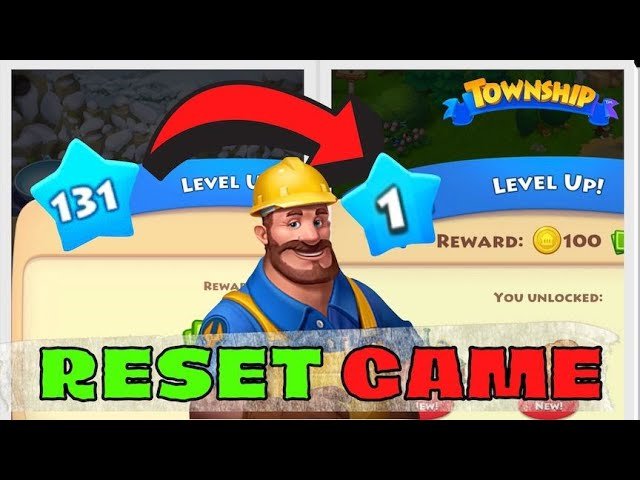
Unfortunately, Township does not offer a direct in-game option to restart. To effectively start over, you typically need to uninstall the game and then reinstall it, possibly using a different account.
Ever felt the urge to rebuild your thriving Township from scratch? Maybe you want a fresh start or a completely new design. The idea of how to restart township game often comes to mind for players seeking a different challenge. This guide will explore the typical steps to take because the game itself does not have a reset button.
Reinstalling the app is the most common route. This allows a clean slate, erasing the existing progress, and allows you to begin anew. Remember that your progress is usually tied to an account; often Google Play or Facebook, so consider this before beginning. You should think about your preferred way before starting the journey of how to restart township game.

How to Restart Township Game: A Comprehensive Guide
Ever wished you could start your Township journey fresh? Maybe you made some early mistakes, or perhaps you just want to experience the game from the very beginning again. Whatever your reason, restarting Township can seem tricky, but it’s totally possible. Let’s explore all the ways you can begin your farming adventure anew.
Understanding the Basics: Why Restart?
Before diving into the “how,” let’s think about the “why.” There are several reasons why you might want to restart Township:
- Early Mistakes: Maybe you built the wrong factories early on, or spent your Township cash on things you now regret. Starting over gives you a chance to make better choices from the get-go.
- A New Challenge: Sometimes, even if you’re far into the game, you might crave the early-game challenge. Restarting lets you relive those initial moments of growth and strategy.
- Fresh Perspective: Perhaps you’ve learned more about the game mechanics. A restart lets you apply this knowledge right from level one.
- Changing Platforms: If you’re switching from an old phone or tablet to a new one and want to start fresh without transferring data, restarting can be a good option.
- Just for Fun: Sometimes you just want a change of pace and starting over can feel like a completely new game experience.
Is There a Direct “Restart” Button?
Okay, so here’s the thing: Township doesn’t have a simple button that says “Restart.” Unlike some games that offer an easy reset option, Township saves your progress to your device or a linked account (like Facebook or Google Play). This means you need a different approach to start over. The solution involves working around this save system. It isn’t difficult, but it is different from just hitting “reset.”
The Most Common Method: Clearing Game Data
The most common way to restart Township involves clearing the game’s data from your device. This essentially erases all your saved progress and makes the game think it’s being opened for the first time. This method works for both Android and iOS devices, but the exact steps might be slightly different. Here is how to do it on both Android and iOS.
Restarting Township on Android
Here’s how to clear data and restart on an Android device:
- Go to Settings: Find the “Settings” app on your Android device (usually a gear icon).
- Find Apps: Scroll down and find something like “Apps,” “Applications,” or “Application Manager.”
- Find Township: In the list of your installed apps, find the “Township” game.
- Storage: Tap “Storage” (or “Storage & cache” on some devices).
- Clear Data: Tap on “Clear Data” or “Clear Storage”. A warning might pop up, confirming that you will delete the game’s data. Click “OK”.
- Clear Cache (Optional): You can also tap on “Clear Cache” for extra measure. This removes temporary files the game uses.
- Start the Game: Now, go back to your home screen and open Township. The game should start as if you were a new player, guiding you through the introductory tutorial.
Important Note for Android: Some versions of Android might have slightly different names for the settings. Just look for similar wording, and you’ll be able to find the right options.
Restarting Township on iOS (iPhone/iPad)
Here are the steps to clear data and start over on an iOS device:
- Go to Settings: Find the “Settings” app on your iPhone or iPad (usually a gray gear icon).
- General: Scroll down and tap on “General.”
- iPhone Storage: Tap on “iPhone Storage” (or “iPad Storage”).
- Find Township: Find the “Township” game in the list of apps.
- Offload App (Recommended) or Delete App: Tap on “Offload App.” This removes the app but keeps its documents and data. If you want to completely erase everything, you can also select “Delete App,” and then re-install it from the App Store. Note that deleting the app is a more complete way to clear data, but it does require you to re-download the game, so Offload App can be a faster alternative.
- Reinstall the App (If Deleted): If you deleted the app in the previous step, go to the App Store and download Township again. If you have only “Offloaded” the app, just click on “Reinstall App” option.
- Start the Game: Now, go back to your home screen and open Township. The game will load as if you were starting for the first time.
Important Note for iOS: When using “Offload App,” your progress is usually still connected to Game Center. If you want a fully clean start on iOS, deleting the app is the best method. However, if you have a linked account, such as through Facebook, your previous progress will be there even if you clear the local data. In these cases, consider creating a separate account if you want to ensure there’s no previous data present.
Considerations Before You Restart
Before you take the plunge and clear your game data, there are a few things you should think about:
- Loss of Progress: Clearing data will erase everything: your progress, your resources, your friends and all. You’ll be starting from level one. Make sure this is what you want. There is no going back once you clear the data.
- Linked Accounts: If your Township game was linked to a social media account like Facebook, your previous progress might be restored if you link your account again. In this case, be sure that you aren’t logged in using any account that was connected to your previous town.
- Township Cash: Any Township cash you purchased will generally be available to you even after restarting as the purchase is linked to your account, and not to the specific game save. However, some third-party platforms or unofficial game stores may cause some purchases to not be restored after data clear, but generally the officially stores will not have issues with restore.
- Saved Progress: If you want to keep your old progress, you will not be able to use this method to restart without losing your old game data. There are other methods like using an another device and create a new account that doesn’t lose your old town.
Starting Fresh: Tips for Success
After you successfully restart Township, here are some tips for making the most of your new town:
Early Game Strategies
- Focus on the basics: During the early levels, focus on fulfilling the game’s quests, and prioritize resources to build your town slowly.
- Balance your resources: Don’t spend all your coins on decorations. Balance your spending between farms, factories, and community buildings.
- Be patient: Don’t rush building things too quickly. Wait for tasks and quests to tell you what you should be doing.
- Use the Market: Use the market place to buy items that are hard to produce and to trade for what you need most at the time.
- Complete Orders: Focus on completing the helicopter and train orders to gain experience and coins. They are very important to move up the game.
Resource Management
- Stock up early: Don’t sell off all your crops or products immediately. Store them for future use.
- Plan your production: Try to plan in advance what you are going to need based on the requirements of your town. For example, if you need a lot of bread, make sure you are producing wheat early on.
- Upgrade storages: Always upgrade your barn, and other storage capacities, so you won’t have problem with storing goods.
Community and Social
- Join a Co-op: Joining a co-op early can provide support, advice, and extra help when participating in events.
- Make friends: Having friends can help you grow, too. Send gifts to friends to get helpful items and keep playing together.
When to Consider an Alternative Approach
While clearing the data is the most common method, there may be situations when you want to keep your old progress, or simply start a new town without fully clearing the application data.
Using a Different Device
If you have another phone, tablet, or an emulator for a PC, you can download Township on that device and start a brand new town using a different account (for example, a new Google or Apple account) . This allows you to enjoy the game from the beginning, while keeping your original progress on your old device.
Using a Different Account
If you have multiple Google Play or Game Center account, or Facebook accounts, you can link your new game to a different account. This method also lets you have separate towns that you can easily switch between, without any data loss or complex work arounds. Note that it is advisable to not use different accounts on the same device to play Township to be compliant with the game developer’s policies.
Troubleshooting Issues
Sometimes, things might not go as smoothly as planned. If you have issues after restarting, consider these troubleshooting steps:
- Restart Your Device: Sometimes, a simple restart of your phone or tablet can fix unexpected problems.
- Reinstall the App: If just clearing the data or offloading the app doesn’t work, uninstalling and then reinstalling the Township app can sometimes resolve the issue.
- Check your Internet Connection: Make sure your internet connection is stable when downloading and installing the game. Poor connections can cause issues.
- Contact Support: If all else fails, reaching out to Township’s customer support is a good idea. They can provide specific assistance with your problem.
Advanced Techniques (Use with Caution)
There are some techniques that experienced players can use that can help them on their restart. However, make sure that you completely understand these techniques before trying them as they can lead to unwanted results if not done correctly.
Multiple Towns
Some players use special Android emulator software that can handle multiple instances of the game. This allows them to maintain multiple active towns that they can play at the same time. This method is much more complex, and requires a good understanding of device settings.
Third-Party Apps and Tools
There are various apps and tools that claim to help with Township restarts, they also claim to help provide free items or cash. However, it is important to note that most of these are not official, and may contain malicious software or damage your game. Always be careful using unofficial apps, and be aware of the risks.
Starting over in Township can be a great way to refresh your gaming experience. By using the steps above, you can restart your town and build your dream village. It lets you experiment with different strategies and get back to the fun of the game. Remember, if you have questions, you can contact the Township customer support team for assistance.
Township How to RESET GAME? | Restart Level 1
Final Thoughts
To restart your Township game, you’ll generally need to clear the app’s data through your device’s settings. This action will remove all progress, allowing you to begin fresh. Remember, this is permanent, so be absolutely certain you want to start anew.
Alternatively, for ‘how to restart township game’, some devices allow you to create a new user profile. This would be like having a completely separate game instance. Always back up your game or link with an email id before reset/delete.
Thus, those are the main ways you can begin your Township journey again. You can choose either method to restart the game.

