
To run a game on Steam as administrator, right-click the game’s shortcut, select “Properties,” go to the “Compatibility” tab, and check the “Run this program as an administrator” box.
Ever wondered if you needed extra permissions to get your game working smoothly? Sometimes, certain titles require administrative access for optimal performance or to save data correctly. This might be the reason you find yourself searching for ‘how to run a game on steam as administrator’.
It’s a pretty common situation, especially with older games. Don’t worry, it’s a simple fix and I will show you the steps to achieve it.

How to Run a Game on Steam as Administrator
Sometimes, games on your computer need a little extra permission to work correctly. It’s like asking your parents if you can stay up a bit later – you need their approval! Running a game as an administrator on Steam is like giving that game special permission. This can help fix issues, like games not saving your progress or having trouble connecting to the internet. Let’s explore how you can give your games this extra power!
Why Run a Game as Administrator?
You might be wondering, “Why would I ever need to do this?” Well, think of your computer as a well-organized city. Regular programs, like your web browser, have certain streets and buildings they’re allowed to access. But some games need access to areas that are usually restricted. These areas might include special system settings or files. If a game doesn’t have permission to access these areas, it might not work the way it should.
Here are some common reasons why you might need to run a Steam game as administrator:
Fixing Save Game Issues: Sometimes, games can’t save your progress if they don’t have the right permissions. Running as administrator can solve this.
Troubleshooting Game Crashes: Games might crash because they can’t access the resources they need. Admin rights can sometimes prevent these crashes.
Making Mods Work: Some game modifications (or “mods”) need administrator access to install and run correctly.
Correcting Compatibility Problems: Older games, especially, might need admin rights to work well on newer computers.
Resolving Error Messages: If your game shows error messages related to files or permissions, running as administrator might clear them up.
Methods to Run Steam Games as Administrator
There are a few ways to give a Steam game administrator powers. Let’s go over each method step by step, so you can pick the one that feels easiest for you.
Method 1: Running Directly From the Game’s .exe File
This method involves finding the game’s main file (the one that starts the game) and giving that file special permissions. Think of it as giving that one specific car a special key to a special gate.
1. Find the Game’s Installation Folder:
Open Steam.
Go to your Library.
Right-click on the game you want to run as administrator.
Select Manage, then click on Browse local files. This will open the folder where your game is installed.
2. Locate the Game’s Executable (.exe) File:
Look for a file that ends in “.exe”. This is the file that starts the game. It often has the same name as the game.
3. Right-Click and Choose “Run as administrator”:
Right-click on the .exe file.
Select Run as administrator from the menu.
The game should now start with administrator permissions.
Important Note: This method only runs the game as administrator this one time. If you close the game and start it again through Steam’s shortcut, it won’t have admin rights. You need to repeat this process each time you want to play with admin permissions.
Method 2: Setting the Game to Always Run as Administrator
If you always want a game to have admin rights, you can change its settings so that it always runs as administrator. This is like permanently giving the car a special key.
1. Follow steps 1 and 2 from Method 1 to find the game’s .exe file.
2. Right-Click and Select “Properties”:
Right-click on the .exe file again.
Choose Properties from the menu.
3. Go to the “Compatibility” Tab:
In the Properties window, click on the Compatibility tab.
4. Check the “Run this program as an administrator” Box:
You’ll see a checkbox that says Run this program as an administrator. Click on this box to put a check mark inside it.
5. Click “Apply” and “OK”:
Click the Apply button, then click OK to save your changes.
Now, whenever you start the game through its shortcut or Steam, it will always run with admin rights.
Important Note: Remember, giving any program admin rights can be a security risk if you’re not careful. You should only give admin rights to games from trusted sources.
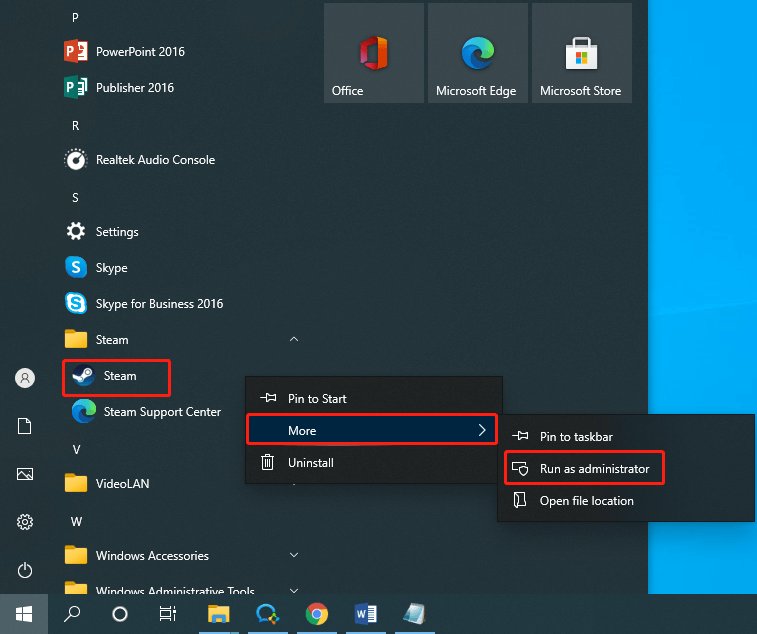
Method 3: Running Steam Itself as Administrator
Sometimes, the problem isn’t with a specific game, but with Steam itself. Running Steam as administrator can help fix issues that affect all your games. This is like giving the entire city hall special permissions.
1. Find the Steam Shortcut:
Look for the Steam icon on your desktop or in your Start menu.
2. Right-Click and Choose “Run as administrator”:
Right-click on the Steam shortcut.
Select Run as administrator from the menu.
Steam will start with administrator rights.
Important Note: Running Steam as administrator might cause problems with other programs or cause other features not to work as expected, so only do this when needed to address specific issues.
Method 4: Using Steam’s Game Properties (Less Common)
There’s another, less direct way to try running a game as administrator through Steam’s own interface, although it’s not specifically designed for this purpose. Sometimes, this approach can help with compatibility issues.
1. Open Steam and go to your Library:
2. Right-click on your game and select ‘Properties’:
3. In the Properties window, navigate to the ‘Local Files’ tab:
4. Click ‘Browse Local Files’: This will take you to the game’s installation folder.
5. Locate the game’s .exe file: As described in previous methods.
6. Right click on the .exe file:
7. Click ‘Properties’: As described in method 2.
8. Navigate to the ‘Compatibility’ Tab: As described in method 2.
9. Check ‘Run this program as an administrator’:
10. Click ‘Apply’ and ‘OK’: As described in method 2.
Important Note: This method is similar to Method 2 but starts from the game’s Steam Properties.
Understanding Compatibility Settings
Sometimes, running a game as administrator isn’t enough to solve the issue. You might also need to adjust the compatibility settings for that game. This is like giving a car a tune-up to make sure it runs smoothly.
Here are some compatibility settings you might consider:
Compatibility Mode: If you have an older game that was designed for an older version of Windows, you might need to set it to run in compatibility mode. This makes your computer act like it’s running an older operating system for that game.
In the Compatibility tab (see Method 2), you’ll see a box that says Run this program in compatibility mode for:. Click this box and select the older version of Windows that the game was designed for.
Reduced Color Mode: Older games might have trouble with newer graphics cards. If you see visual problems or garbled colors, you might need to reduce the color mode.
In the Compatibility tab, you’ll see a box that says Reduced color mode. Click this box and select a color mode from the drop down menu (usually 8-bit or 16-bit).
Run in 640 x 480 Screen Resolution: Some very old games are designed for a much smaller screen resolution than modern monitors. Try checking this box in the compatibility tab if the game has resolution issues.
Disable Fullscreen Optimizations: This option can help with game crashes or unexpected behavior when running a game in fullscreen mode.
In the Compatibility tab, click the box that says Disable fullscreen optimizations to enable this setting.
Override High DPI Scaling Behavior: If the game’s interface appears too small or blurry on your high-resolution monitor, try checking this option and experimenting with the different scaling options in the dropdown.
In the Compatibility tab, click the button that says Change high DPI settings, then select the relevant options from the next popup window.
Important Note: It’s important to experiment with these compatibility settings to see what works best for your game. Sometimes one option works great, and sometimes a combination of settings will make all the difference!
Potential Problems and Solutions
While running games as administrator is often helpful, it can sometimes cause new issues. Let’s look at some of these problems and how to fix them.
Game Won’t Start: If the game still won’t start after setting it to run as administrator, try turning off any antivirus software temporarily (just while you test the game). Your antivirus might be blocking the game from running with admin permissions. Remember to turn your antivirus back on afterwards.
Steam Overlay Issues: Sometimes when a game is run with admin rights, the Steam overlay (the in-game menu) might not work correctly. This can prevent you from chatting with friends or accessing other Steam features.
Try disabling the Steam Overlay for that specific game in the game’s Steam properties.
Permissions Conflicts: If you’re still having problems, there might be a conflict with other program permissions. Ensure the other programs or applications that you have open, aren’t attempting to access the same files or resources as the game. Close any unnecessary programs before testing the game again.
UAC Prompts: UAC (User Account Control) prompts are the pop-ups that ask for permission when you do things that require administrator rights. Sometimes, these can interrupt the game.
You can try to adjust UAC settings within windows, but be careful doing this as it can lower your computer’s security.
Malware Concerns: If a program is not from a trusted source and asks for administrator access, there’s a chance it could be malware. Only give admin access to programs you know are safe. Always download games and programs from reliable sources to avoid malware.
Important Note: Troubleshooting can sometimes be a process of trial and error. It’s not always clear what will fix the problem, and you might have to try a combination of solutions to get your game working correctly.
When Not to Run as Administrator
While running as administrator can fix problems, it’s not always necessary and might not be the best approach in all situations. Here are some scenarios where you might not need administrator rights:
Most Modern Games: Many modern games are designed to work without needing administrator privileges. If a game is running fine, don’t change it.
If You Don’t Have Problems: If your game is working perfectly, there’s no need to mess with administrator settings.
Unnecessary Security Risks: Generally, it’s best to avoid giving any program admin rights if you don’t need to. This helps keep your computer more secure. Always evaluate whether a game needs these elevated privileges, or if the problem can be resolved another way.
Running a game as an administrator on Steam can seem confusing at first, but with a little practice, you’ll find it’s quite simple. Knowing how and when to give games these extra permissions can fix a wide variety of issues and make your gaming experience smoother. Remember to always be careful about giving programs administrative rights and only do so when it’s really needed. When you encounter issues, it’s important to try different solutions and not get discouraged. Each computer and game can present unique challenges, so learning how to navigate the different troubleshooting methods is key to having a great gaming experience!
How To Run Steam Games As Administrator
Final Thoughts
To run a game with elevated privileges, first locate the game’s executable file. Right-click it and select ‘Properties’. Then, navigate to the ‘Compatibility’ tab.
Within that tab, check the box that says ‘Run this program as an administrator’. Click ‘Apply’ and then ‘OK’. Now, the game launches with admin rights.
Following these steps, you will effectively achieve how to run a game on steam as administrator. This method ensures that the game gets required permissions.

