
To run Steam games as admin, right-click the game’s executable file, select “Properties,” go to the “Compatibility” tab, and check “Run this program as an administrator.”
Ever encountered a game that seems to need more power to operate smoothly? Sometimes, this is because it requires administrative privileges. That’s where learning how to run Steam games as admin comes into play, granting games the necessary permissions to function correctly.
Many players find some titles work much better when given these extra rights. It’s often a straightforward process, but knowing the right steps is crucial for optimal gaming. We’ll guide you through how to do that so you can avoid future game issues.

How to Run Steam Games as Admin
Have you ever tried to play your favorite Steam game, only to find it’s not working quite right? Sometimes, games need special permission to access certain parts of your computer. This is where running a game as an administrator comes in. It’s like giving your game a VIP pass, allowing it to do its job better. But what exactly does this mean, and how do you do it? Don’t worry, it’s not as complicated as it sounds! Let’s explore this topic step-by-step. We’ll cover why some games need admin rights, how to give them, and some important things to keep in mind.
Why Some Games Need Admin Privileges
Think of your computer as a building with many rooms. Some rooms, like the main office, require special keys to enter. Similarly, some parts of your computer are protected, and programs, including games, need permission to access them. These protected areas might contain important files or settings. Running a game as an admin grants it the “keys” it needs to work smoothly.
Permissions and Game Functionality
When you run a game normally, it operates with limited permissions. This is a good thing because it helps keep your computer safe from any bad programs. However, some games might require more access to:
- Modify configuration files: Some games need to change settings outside of their normal game folders. These settings are sometimes stored in areas that require admin rights to modify.
- Access specific hardware: For example, a racing game might need direct access to your joystick or steering wheel settings.
- Install updates or patches: Some games might not be able to apply updates if they don’t have the right permissions.
- Interact with other programs: Certain games need to communicate with other software on your PC, which may require extra permissions.
Common Problems When Admin Rights are Missing
If a game doesn’t have the necessary admin rights, you might experience various issues. These problems include:
- Game crashes: The game might suddenly close or freeze unexpectedly.
- Save game issues: Your game progress might not be saved correctly.
- Missing features: Some game features might not work correctly or be disabled completely.
- Installation problems: The game might fail to install completely.
- Error messages: You might see error messages indicating permission or access problems.
These issues can be very frustrating, but they often have a simple fix – running the game as an administrator.
How to Run Steam Games as Admin – Different Methods
Luckily, there are multiple ways to run your Steam games as an admin. Let’s go over these methods step-by-step.
Method 1: Running a Game as Admin Just Once
This method is perfect for when you only need to run a game with admin rights occasionally. It’s quick and straightforward.
- Find the Game’s Executable: First, you need to find the actual game file, usually called an executable file. This is the file that starts the game. It usually has a .exe extension. For most Steam games you can right-click on the game name in your Steam Library, select “Manage,” then select “Browse local files.” This will open the game’s folder in file explorer.
- Right-Click and Select “Run as Administrator”: Once you find the .exe file, right-click on it. You’ll see a menu pop up. From this menu, select “Run as administrator.”
- Confirm the User Account Control (UAC) Prompt: A window will appear asking if you want to let the game make changes to your device. This is normal, since you’re giving the game special permissions. Click “Yes.” The game will then start up with admin rights.
This method is useful when you only need admin rights for a specific game session. However, if you want the game to always run as admin, you can use another method below.
Method 2: Setting a Game to Always Run as Admin
If you often find yourself needing admin rights for a game, it can be tedious to right-click and select run as administrator each time. You can set the game to always run as an admin by modifying the game file’s properties. This is a more permanent solution.
- Find the Game’s Executable File: Again, go to the game’s install folder. Right-click the game in Steam Library > Manage > Browse Local Files.
- Right-Click on the Executable and Select “Properties”: Right-click on the game’s .exe file. A menu will appear. Click on “Properties” at the very bottom of the menu.
- Navigate to the Compatibility Tab: In the game’s Properties window, click on the “Compatibility” tab at the top.
- Check the “Run this program as an administrator” Box: In the “Settings” section, find the checkbox that says “Run this program as an administrator.” Click on it to check it.
- Click “Apply” and “OK”: Click the “Apply” button, followed by the “OK” button to save these changes.
Now, the game will automatically run as administrator each time you launch it from Steam or directly from its folder. This can save time and avoid compatibility issues.
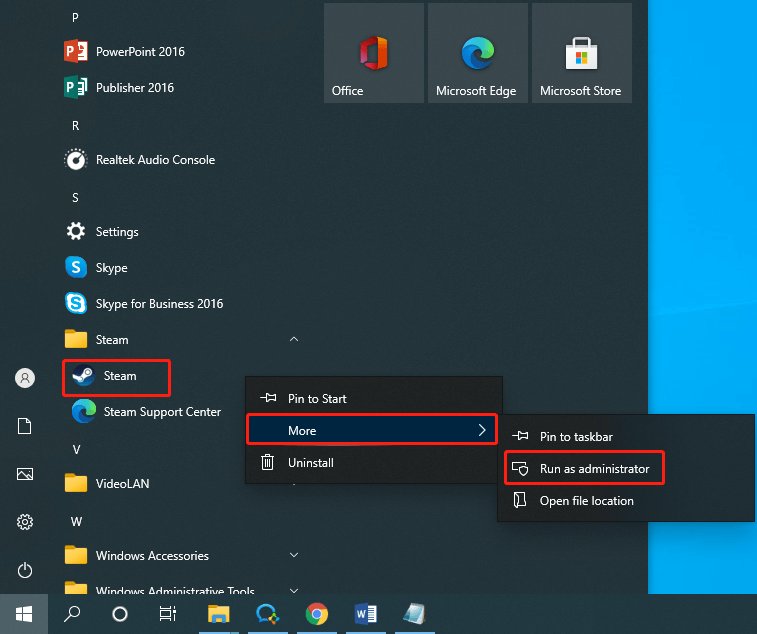
Method 3: Running Steam Itself as Administrator
Sometimes, even running the game as an admin may not resolve every issue. In some specific cases, you may also want to run Steam itself as an administrator, especially if you’re experiencing problems with game updates, installations, or interactions with Steam’s interface. This gives Steam and the game more system access for installation and other tasks.
- Close Steam: Before you start, make sure Steam is completely closed. To do this, right click on the steam icon in the system tray (usually on the bottom right corner of your screen) and click “Exit Steam”.
- Find the Steam Executable: The steam executable is normally located in C:\Program Files (x86)\Steam\Steam.exe.
- Right-Click and Select “Run as Administrator”: Right-click on the Steam.exe file, and then select “Run as administrator.”
- Confirm the User Account Control (UAC) Prompt: As before, click “Yes” in the UAC prompt.
Now Steam will run with admin rights, and all the games launched through it may also get better permissions.
Method 4: Setting Steam to Always Run as Admin
If running Steam as admin once worked for you, you can also configure steam to always run as administrator, like you did with a game.
- Close Steam: Make sure Steam is completely closed.
- Find the Steam Executable: Find the Steam.exe file, usually located in C:\Program Files (x86)\Steam\.
- Right-Click on the Executable and Select “Properties”: Right-click on the Steam.exe file and select “Properties.”
- Navigate to the Compatibility Tab: Click on the “Compatibility” tab.
- Check the “Run this program as an administrator” Box: Check the box that says, “Run this program as an administrator” inside the “Settings” section.
- Click “Apply” and “OK”: Save these changes by clicking “Apply” and “OK”.
Now, every time you launch Steam, it will do so with administrator rights. This could help prevent various issues that can occur when Steam and its games lack proper permissions.
When to Use Admin Rights
While running games as admin can be helpful, it’s not always necessary. Here’s a guide to help you determine when to use it and when to avoid it.
Situations Where Admin Rights are Helpful
- Games with older coding: Some older games aren’t designed to work well with Windows’ security features. Running them as admin can sometimes solve incompatibility problems.
- Games that install drivers: Some games require you to install special drivers or software. Admin rights help with those installations.
- Multiplayer games with issues: If you’re experiencing problems connecting to multiplayer servers, admin rights can sometimes help. This happens if the game needs to modify network settings.
- Games with mods: If you’re using mods that need to modify game files, running the game as admin can help the mods work properly.
- Games that can’t save progress: If you can’t save your game or its settings, that’s a strong sign that it needs admin rights.
When You Probably Don’t Need Admin Rights
- Games that work fine: If your game runs well without any problems, you don’t need to give it admin rights.
- When a game doesn’t ask for admin rights: If the game doesn’t request admin rights or give any error about permissions, then you most likely don’t need to.
- When you’re just playing: If you’re just playing the game and not changing any settings or updating it, admin rights may not be needed.
Potential Risks and Things to Consider
Running programs as an admin does come with some potential risks. It’s important to understand them.
Security Concerns
When you run a program as an admin, it has more control over your system. This means:
- Malware Risk: If you accidentally run a virus-infected file as an admin, it can cause more damage than if it ran normally. Always be sure you are running legitimate game files.
- Potential Instability: Some programs can cause system instability or errors if they have too much permission.
Best Practices
To minimize security risks while using administrator rights, follow these tips:
- Use Admin Privileges When Needed: Don’t set every application to always run as an admin. Only do it for games or programs that actually need it.
- Get Games From Reliable Sources: Always download and install games from Steam or other reputable sources. Avoid downloading them from random, unknown websites.
- Keep Antivirus Updated: Make sure your antivirus software is active and updated. It will help detect threats.
- Be Cautious: If you have doubts about a particular game, run it normally first before granting admin access.
Troubleshooting Common Issues
Sometimes, running games as an admin still doesn’t fix the problem. Here’s some things to try when you’re experiencing problems.
Game Still Crashes After Running as Admin
- Check Your System Requirements: Ensure that your computer meets the minimum requirements for the game.
- Update Graphics Drivers: Make sure your graphics drivers are up to date. Old drivers can sometimes cause problems.
- Verify Game Files: In Steam, right-click on the game, click on Properties > Installed Files, then select “Verify integrity of game files”. This will check if any files are missing or corrupted.
- Disable Overlays: Some overlays like Steam, Discord, or other can conflict with games, and cause crashes. Try disabling these.
Game Won’t Save Settings or Progress
- Check for File Permission Problems: Make sure that the game folder isn’t write-protected, and that the game has permissions to write to it.
- Make sure that the Documents folder isn’t write-protected: Often, games will save to the user’s Documents folder, so make sure it isn’t read-only.
Other General Tips
- Restart your computer: Sometimes, simply restarting can fix many problems.
- Check the game forums: If you are still having issues, it may be a common problem with the game, and other players might have a solution in the forums.
Running Steam games as administrator isn’t a solution for every issue, but it can be a helpful tool when you need it. By understanding when and how to use admin rights, you can get your game running smoothly and safely.
How To Run Steam Games As Administrator
Final Thoughts
To run your games with admin rights, simply locate the game’s .exe file. Right-click it and choose “Run as administrator.” This action grants the game necessary permissions, which can sometimes solve issues.
You can also set the game to always run as admin. To do this, access properties, then compatibility, and check the box. Remember, doing this every time is vital for some games that need extra permissions to run correctly.
Ultimately, understanding ‘how to run steam games as admin’ and applying these methods is crucial for gamers. This will help you avoid common game problems and have a better experience.

