
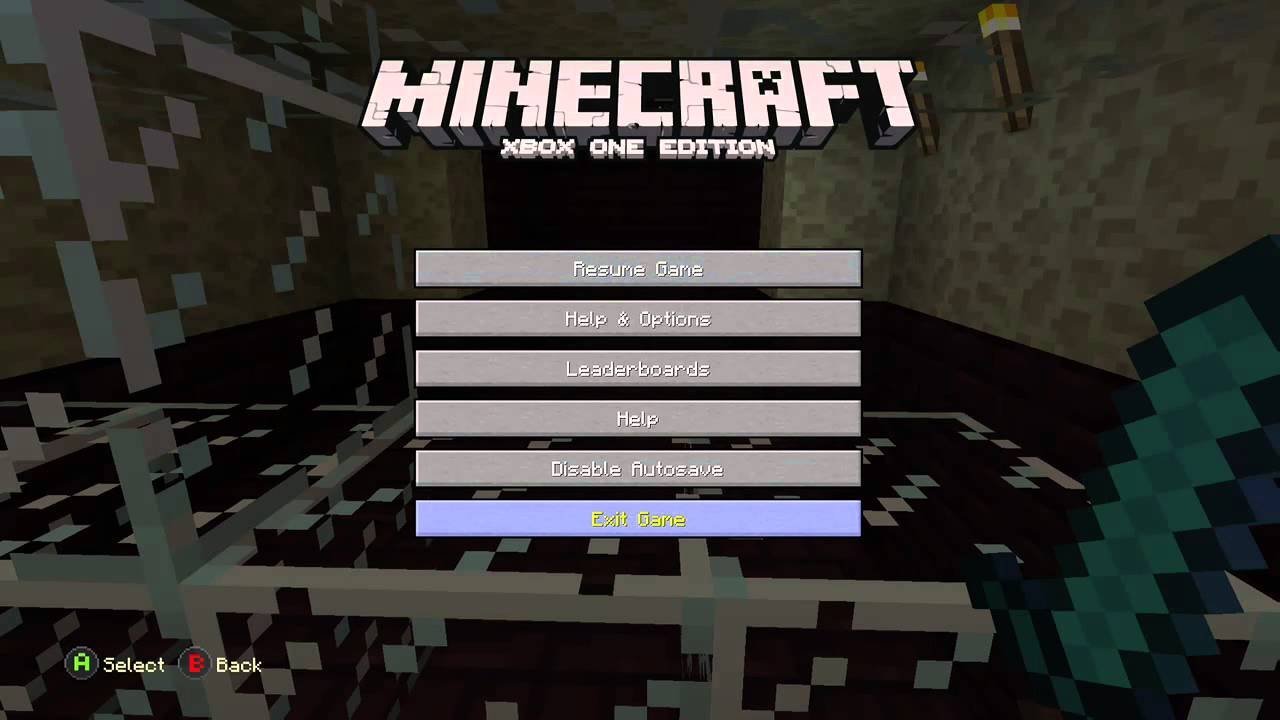
To save a Minecraft game, simply press the ‘Esc’ key and click ‘Save and Quit to Title’ or ‘Save and Exit to Menu’.
Ever been deep in a cave, about to find diamonds, only to worry you might lose it all? Learning how to save a Minecraft game is really crucial. Imagine the frustration of losing hours of building or exploration due to a sudden power outage. You can easily avoid this.
This process ensures your progress is safely stored. So, you can pick up exactly where you left off next time you play. By saving correctly, you protect all your hard work in Minecraft.

How to Save a Minecraft Game
Minecraft is awesome! You can build amazing castles, explore mysterious caves, and even fight dragons. But what happens if you spend hours creating something incredible and then… poof… it’s gone? That’s where saving comes in. It’s like hitting the pause button on all your hard work. This article will walk you through all the important ways to save your Minecraft worlds so you never lose your progress!
Understanding Minecraft Saves
Before we jump into the how-to, let’s talk about what actually happens when you save a Minecraft game. Think of your Minecraft world like a giant digital LEGO creation. When you play, the game constantly changes: you place blocks, mine ores, and defeat monsters. All these changes are tracked by the game. Saving is like taking a snapshot of your current world. The game writes all that information to a file, storing it safely on your computer or console. That way, next time you play, you can start right where you left off. Pretty neat, huh?
The Importance of Regular Saving
Saving isn’t just a one-time thing; you should get into the habit of saving regularly. Imagine building a massive skyscraper, and then suddenly your computer crashes or the power goes out! Without saving, all that work will be lost. Frequent saves act as a safety net. They mean that even if something unexpected happens, you only lose a little bit of progress, not your entire world.
Where Are My Saves Stored?
The location where your Minecraft saves are kept depends on the version you’re playing (Java Edition or Bedrock Edition) and the device you’re using. This can be a bit like a treasure hunt! Let’s look at some common places:
- Java Edition (PC): These are typically found in the “.minecraft” folder, which is hidden in your user folder. It’s a bit tricky to find, but here are the general steps. On Windows, search for “%appdata%” and you should find the folder .minecraft, it’s then inside a folder called “saves”. On macOS, open Finder, go to Go then “Go to folder”, enter ~/Library/Application Support/minecraft. Then it’s in the folder called “saves”. Linux varies based on distro but generally you can search for .minecraft.
- Bedrock Edition (Windows 10/11): These saves are stored in a different location, usually in a folder that’s a mix of letters and numbers, in this path: C:\Users\YourUsername\AppData\Local\Packages\Microsoft.MinecraftUWP_8wekyb3d8bbwe\LocalState\games\com.mojang\minecraftWorlds. It’s very important to be careful in these folders, messing with the wrong file can mess up your game.
- Bedrock Edition (Consoles – Xbox, PlayStation, Switch): Console saves are usually managed through the game and the console’s built-in storage management. You can’t access the save files directly like you can on a PC.
- Bedrock Edition (Mobile – iOS/Android): These saves are usually stored in the game’s data folder on your device.
Knowing where your saves are located is helpful if you want to back them up or transfer them between devices. Just remember to be super careful when looking in these folders! You don’t want to accidentally delete or change anything important.
Saving Your Game: The Basics
Now let’s get to the actual saving process. The good news is that saving in Minecraft is pretty easy. It’s like taking a photo, and the game keeps a copy to use later.
The Automatic Save
Minecraft is good at helping you. By default, it does something called an “automatic save.” This means that Minecraft automatically saves your world every few minutes. This is a safety net, so if something goes wrong, you likely won’t lose too much progress. The time between saves can change based on your device or if you have changed some settings in Minecraft. It’s very useful, but don’t rely on just automatic saves. Make manual saves also.
The Manual Save: The Most Important Way
While automatic saves are great, manual saves are the real stars. When you manually save, you make a fresh copy of your game exactly as it is. It’s very useful, especially before doing something risky, like going into the nether or a boss fight. Manual saves are great if you want a “safe point” to go back to. Let’s look at how to do them:
How to Manually Save in Java Edition
Saving your Java Edition world is very easy. Simply follow these steps:
- Open the game menu: While playing, press the
Esckey on your keyboard. This will bring up the game menu. - Click “Save and Quit to Title”: This option will save your game and take you back to the main menu.
How to Manually Save in Bedrock Edition
Saving in the Bedrock Edition is even simpler:
- Open the pause menu: While playing, press the pause button on your controller or the Esc key on your keyboard.
- Click the “Save and Exit” option: This will save your world and take you back to the main menu.
Remember, always manually save before you quit the game, and even during your play sessions when you achieve something important. This method is simple, but it’s the single most important thing you can do to protect your worlds.
Advanced Saving Techniques
Okay, now we know the basics. But there are some extra tricks for keeping your world extra safe. They are useful for special occasions.
Creating Backups of Your Worlds
Backing up your world means making a copy of the save file in another location. This way, if something terrible happens to your main save, you have a spare copy to use. It’s like having a backup of your photos. If you accidentally delete your photo, you can still use the backup photo. The method for doing this depends on which version of the game you’re playing. Here’s what you should do:
Backing up Java Edition Worlds
Since Java saves are in your “.minecraft” folder (we talked about this earlier), here is how to make a backup:
- Find your save folder: Go to your .minecraft folder and open your “saves” folder.
- Copy the world folder: Find the folder with the name of the world you want to backup. Copy this whole folder.
- Paste the folder: Paste this copied folder into a safe location, like another folder on your computer or an external USB drive.
Now you have a spare copy of your world! If something goes wrong, you can copy this folder back into the “saves” folder, and you can play with your old world like nothing ever happened!
Backing Up Bedrock Edition Worlds
Backing up Bedrock worlds is a little different. The way to do it depends on the platform you’re playing on. Here’s a general approach.
- Windows 10/11: The easiest way to back up is to copy the world folder from the location we talked about before. This is generally located in the following path: C:\Users\YourUsername\AppData\Local\Packages\Microsoft.MinecraftUWP_8wekyb3d8bbwe\LocalState\games\com.mojang\minecraftWorlds. Find the folder you want to backup, copy it, and paste it somewhere safe, like a folder on your computer or a USB drive.
- Consoles and Mobile: For these devices, you usually can use the in-game menu to export a copy of the world. It might save to a cloud or your console/device storage, then you can transfer it from there. Every console is different, so check your console’s menus for specifics.
Remember to back up your world regularly, especially when you’ve made a lot of progress or built something important.
Using Minecraft Realms or Servers
If you play with friends, you might be using a Minecraft Realm or a dedicated server. These are like special online worlds that others can join too. When using Realms or Servers, your saving works a bit differently. They use an automatic saving system, but you can still make backups if necessary. For Realms, these save copies are stored by Mojang and can be downloaded. For servers, you would need to talk to the server administrator about backup options. The important point is that you are always more protected because your work is also saved on the realm or the server.
Saving in Creative Mode vs. Survival Mode
Saving works the same way in both Creative and Survival modes. Whether you’re building amazing things without limits (Creative) or trying to survive with limited resources (Survival), your progress is always saved the same way. The only difference is what you might be saving. In Creative, you might be saving huge structures, and in Survival, you might be saving your progress on exploration or some big project. The important is to make use of manual saves in both modes, because it is the most useful to keep your game safe.
Troubleshooting Save Issues
Sometimes things can go wrong. You might have problems saving your game or loading a save correctly. Here are some common issues and how to fix them:
- Game crashes while saving: This could happen if there is something wrong with the game. Try closing the game and reopening it, then try saving again. If it keeps crashing, try backing up your save and doing a fresh install of the game.
- Save file gets corrupted: If your save file seems like it doesn’t work anymore, you might need to restore it from a backup. This is why regular backups are so important!
- Save file not appearing in the game menu: Make sure that the save is located in the right place. If you copied files, sometimes the folder is not in the correct location. Check the folders very carefully and paste the backup files into the correct directory.
- Not enough space on the hard drive: If your hard drive is full, the game might not be able to save. Delete some unnecessary files to make some space.
If you keep having save issues, you can find help on the Minecraft forums or talk to a gamer friend for extra advice.
Best Practices for Saving
Let’s wrap it up with some best practices. Saving your game can be a habit that keeps you feeling calm because you know that your work is protected:
- Save regularly: Don’t wait until the last minute to save. Get into the habit of saving every 15-20 minutes, especially before doing something risky.
- Make manual saves before quitting: Before you close the game, make a manual save to ensure you don’t lose progress.
- Backup your worlds regularly: Make backups every few days, or even every day if you’re working on something big.
- Use cloud backups if available: If your platform supports cloud saves, use them! They provide an extra layer of safety.
- Keep your game updated: Minecraft updates often include fixes for bugs that can cause save problems.
By following these practices, you will have less stress related to your Minecraft worlds. It is all about playing and enjoying the game, not getting worried for losing your progress. This small habit will make big difference for your game time.
Saving your Minecraft game is super important for keeping all your hard work safe. It’s like making a map of your progress, so you can always find your way back. By doing a mix of manual saves and backups, you can protect your creations and have a much more enjoyable time playing Minecraft. Remember, saving is not just a good habit, it’s the key to keeping your Minecraft adventures alive!
Minecraft Bedrock PE: How to Save and BACK UP your World
Final Thoughts
To save your Minecraft progress, the game autosaves periodically. You don’t need manual saves usually. However, when you quit, always exit properly through the menu; this ensures your current progress saves correctly.
For Bedrock edition, exiting the game usually saves. But for Java edition, select “Save and Quit to Title” option. If you still have doubt about how to save a minecraft game, just quit properly through the menu for safety.

