
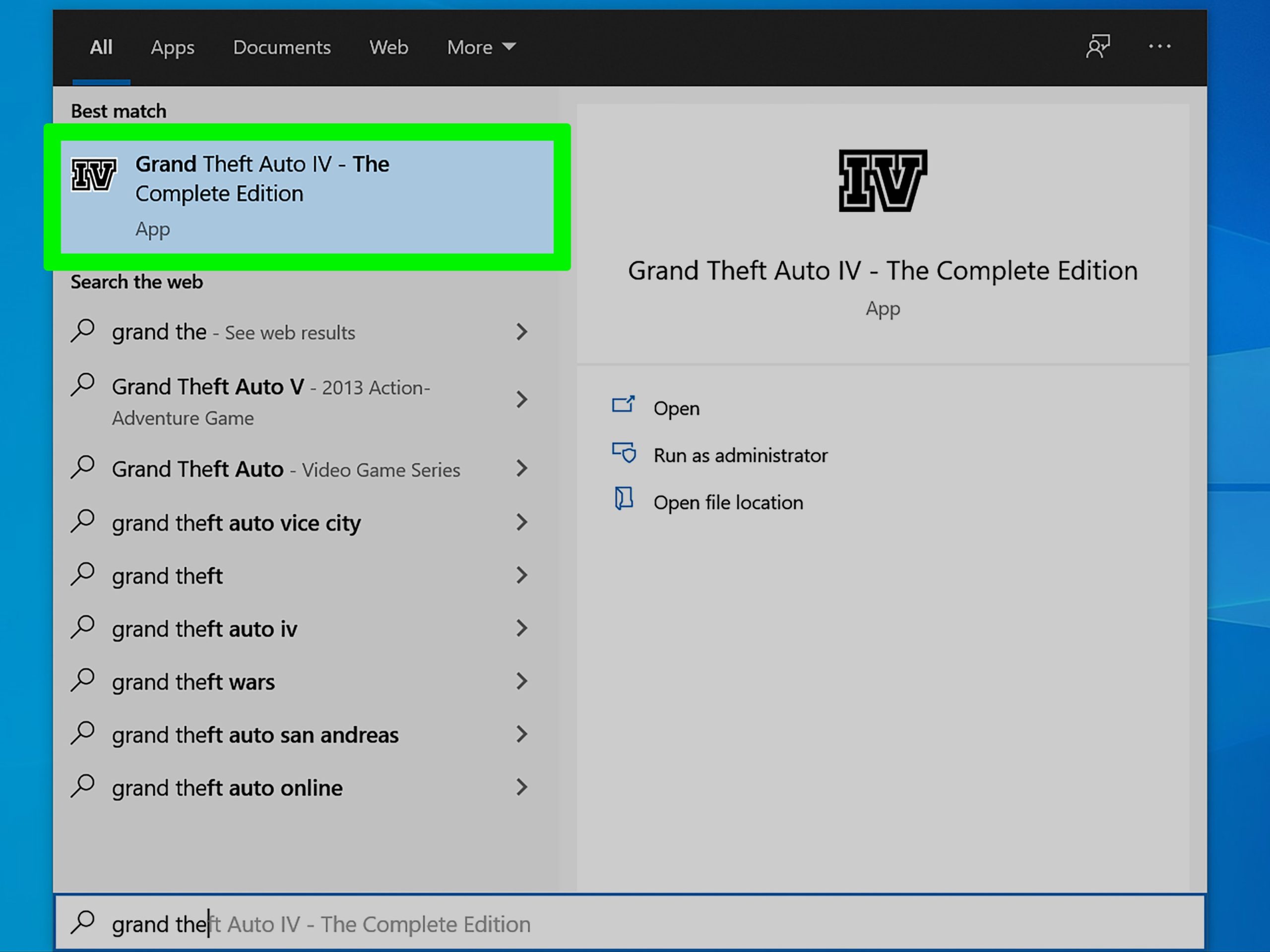
You save game in Grand Theft Auto 4 by entering your safehouse and interacting with the bed.
Losing progress in Liberty City can be frustrating, right? We all know the feeling of a mission gone wrong and having to redo everything. That’s why understanding how to save game in Grand Theft Auto 4 is essential for a smooth gameplay experience.
Thankfully, the saving mechanic is simple. You don’t need complicated menus or options. You’ll be progressing quickly and efficiently by following the steps.

How to Save Game in Grand Theft Auto 4
Okay, so you’re cruising through Liberty City in Grand Theft Auto 4, causing a bit of mayhem (or maybe you’re being a law-abiding citizen, for now!), and you want to make sure all your hard work isn’t lost. Saving your game is super important in GTA 4, just like it is in real life when you’re doing something important, you want to save it. Let’s go through the simple steps on how you can keep your progress safe, so you can pick up right where you left off later on. It is very very important to understand the basic game mechanics to keep your in-game progress safe and sound.
Understanding the Save System
Grand Theft Auto 4 doesn’t save automatically every second. It’s not like saving a word document or a presentation on computer where the auto-save feature is enabled. You, the player, need to initiate the save. Think of it like this: you need to manually tell the game, “Hey! Remember this!” This is different from some other games, where everything just saves in the background. In GTA 4, you have control over when and where your game is saved. This makes a big difference, so you need to know how it works!
The Importance of Saving Regularly
Why is saving your game so important? Imagine this: you just finished a super long mission, you’ve earned a ton of money, and you’ve finally gotten that super cool car you always wanted. Then, BOOM, power goes out! Or, maybe the game crashes. If you didn’t save, all that progress is gone. It’s like your favorite sandcastle washed away by the tide. That’s why saving frequently is a smart move. It’s like putting money in a piggy bank, the more you put in, the more you have saved. If you do not save frequently, you might regret it later, especially if you accomplish something big. Saving makes your progress safe.
Saving at Your Safehouse
The main place you’ll save your game is at your safehouse. Think of your safehouse as your base of operations. It’s where Niko, the main character, lives, sleeps, and, most importantly, saves his game. Each time you progress through the story and unlock another hideout, you will be able to save your game from these locations. So here is what you have to do:
- Go to Your Safehouse: First, you need to make your way back to your safehouse. It shows on your game map as a little house symbol, it varies with the safehouse as you go along. Make sure you know your route to that place.
- Find the Bed: Once inside, look for the bed. Niko uses this bed to sleep and to save. It’s generally located in the bedroom area, you will not miss it.
- Interact with the Bed: Walk up to the bed. You’ll see a prompt appear on your screen, usually telling you to press a specific button. The button is usually shown on-screen, but it might depend on your gaming platform. For example, on a console you’ll have to press one button, and on PC there is another one.
- Confirm the Save: Once you press the right button, the game will ask if you want to save. Click yes. And voila, your progress is now saved.
It’s that simple! Remember to always save before you start a tough mission or after making a big accomplishment in the game. It might take you a few seconds to reach your safehouse, and then a few more seconds to save your game. But it is worth it, as you will not have to repeat your work.
Different Safehouses
As you progress through the game, Niko will move to different safehouses. The same concept of saving will be followed for the new safehouses. It does not matter how many different safehouses you obtain. They all have a bed, which is important. So, keep an eye on the map for that little house icon, and remember each of them will have the saving option available. It is like moving from one home to another, your game will be saved using the same procedure.
Saving During Missions
Now, what if you’re in the middle of a mission and need to stop playing? This is where things get a bit tricky. Grand Theft Auto 4 doesn’t let you save during an ongoing mission. You cannot save game when you are in the middle of a mission. You have to complete the mission first. So, it is better to plan the game accordingly. If you are beginning a lengthy mission, make sure you have enough time to finish it, because you will not be able to save it halfway. It will be very annoying if you stop in the middle and find that all your progress for the mission was lost.
Why Can’t You Save During Missions?
This might seem unfair, but there’s a good reason for it. Missions in GTA 4 often have specific triggers and sequences of events. If you could save mid-mission, the game might get confused if you load back up. So, the game makes sure everything is stable and in order. You have to complete the mission first, and then go to your safehouse to save the game after finishing the mission. It makes more sense that way, as you will have the progress for the completed mission saved, instead of saving at halfway.
Strategies for Mission Management
So how to deal with the fact that you can’t save in the middle of the mission? Here are some strategies:
- Plan Ahead: If you know you’re short on time, avoid starting a long mission. Stick to smaller side activities until you have more free time.
- Focus: When you do start a mission, try to focus and complete it without stopping. Avoid distractions, like going to the internet or talking on the phone in between the mission.
- Use the Pause Menu: If you need a break, at least pause the game so it’s not running. This isn’t saving, but it lets you step away for a bit without having to start the mission again.
Saving After Completing Missions
Once you finish a mission, the game will typically show you a screen or message indicating that the mission has been completed. Now, that you have finished your mission, you are free to travel back to your safehouse to save your progress. It is always a good idea to do so, because otherwise you can potentially lose the time and effort you spent in the game by making progress in the mission.
Saving After Exploration
It’s easy to get caught up in exploring Liberty City. You can drive around, discover new places, participate in side activities, and just have fun. You will also be collecting resources along your way. Remember to head back to your safehouse after such fun sessions. This will keep your progress safe and sound. Your discoveries and your accumulated resources will be saved as well. Always remember to save your game in GTA 4.
The Save Menu
When you interact with the bed, you’ll see a screen where you can choose to save the game. It’s pretty straightforward, and there are not many options in there. You’ll usually just see the option to save, which overwrites your last save. However, you can create more than one save file. The game usually shows you the date/time, and the area where you saved. This helps you to decide which file you want to load.
Overwriting Saves
When you save, you are typically overwriting the previous save game. This means the old save is gone, and your current progress is saved over it. This is why it’s a good idea to have multiple save files, if you want to go back to a particular time in the game. Having multiple save files is easy, as you can manually choose it from the save menu. This will create a new save file, without deleting your previous one.
Creating Multiple Save Files
To create multiple saves, always choose a different save slot every time you decide to save. It is like having multiple separate files, and each file is like separate chapter in your story. The game lets you create multiple save files, so that if you want to go back to an earlier stage in the game, you can choose the relevant save file from the menu.
Save Files on Different Platforms
How you handle saves on different gaming systems is slightly different. The basic steps are the same, but how they are managed internally on different platforms is different. You don’t have to worry about that, just remember to use the in-game method, and your data will be saved automatically.
Saving on Consoles (PlayStation and Xbox)
On consoles like PlayStation and Xbox, saving is handled through the system’s storage. Your save files are stored within the console’s storage system. It works seamlessly, as you don’t have to manage files yourself. When you play the game, your saved data will automatically be loaded, if you choose to load from the main menu.
Saving on PC
On PC, the save files are typically stored in a specific folder within your documents or game installation directory. While you don’t need to mess with them, you can usually find them and even back them up if you’re feeling extra careful. However, you don’t have to touch these files, unless you want to make a backup.
Tips for Saving Effectively
Now that you know how to save, here are some quick tips to make sure you never lose your progress:
- Save Often: Make it a habit to save regularly, especially after doing something important.
- Multiple Saves: If you can, create multiple save files in different save slots, so you have more than one save to go back to.
- Before Big Missions: Always save before starting a big, complex mission, as it will not let you save in the middle of the mission.
- After Achievements: Did you just get a new car? Did you buy a cool new suit? Save the game so you can keep it!
- Before Quitting: Of course, you should always save before you quit the game. Make it a golden rule to save your game before closing it.
Common Problems and Solutions
Sometimes, you might have problems while trying to save. But don’t worry; here are some common issues and how to fix them:
Game Not Saving
If the game isn’t saving, make sure you’re at your safehouse and interacting with the bed. Also, make sure you are not in the middle of a mission. If the problem still occurs, try restarting your game or the gaming system. Check your system storage, it should not be completely full.
Corrupted Save Files
If you get an error about a corrupted save file, it might be due to issues with the storage device or how the system shut down. In such cases, you will have to load an older save file, which means you might lose a little bit of progress. However, it’s better than losing all of your progress. This is why having multiple save files is always a great idea.
By understanding how the save system works in Grand Theft Auto 4, you’ll be able to keep your progress safe and enjoy the game to the fullest. Saving your progress is like creating your own history in the game. Remember to save often and enjoy your adventures in Liberty City. Happy gaming!
GTA IV save game file location
Final Thoughts
To save your progress in GTA 4, find a safe house. Enter it, and the game prompts you to save. Choose a save slot and confirm.
Saving is crucial to keep your progress. Remember this process, so you don’t lose your game. The primary way to save game in grand theft auto 4, is through safe houses.
Always save after completing missions or significant events. This way you keep your progress secure.

