
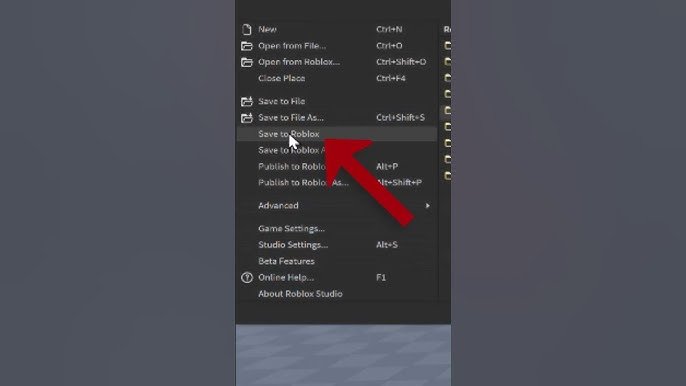
To save your Roblox game, click the “File” tab, then select “Save to Roblox” or “Save to File” from the dropdown menu.
Losing progress in your creations can be frustrating, right? So, you are probably wondering how to save roblox game. It is a simple process once you get familiar with the steps. This way you can always go back to the game without any worries about losing what you’ve made.
Saving your game often is crucial, so consider this a core task when you are working on any games on Roblox platform. It keeps your work safe and lets you share with others if you like to do so.

How to Save Your Roblox Game: A Complete Guide
Saving your creations in Roblox is super important! Imagine spending hours building an awesome castle, only to have it disappear because you forgot to save. That would be a bummer, right? Don’t worry, saving your game is easy once you know how. This guide will walk you through everything you need to know about saving your Roblox game, keeping your hard work safe and sound. We’ll cover different ways to save, what to do if things go wrong, and even some extra tips for keeping your game safe. So, let’s get started!
Saving Basics: Roblox Studio
The main way you’ll save your Roblox creations is through Roblox Studio. Think of Roblox Studio as your workshop where you build and edit your games. It’s where all the magic happens! Here’s how to use it to save:
Saving a New Game for the First Time
When you start a new game, it doesn’t automatically have a name or location to save to. Here’s how to save a completely new game:
- Open Roblox Studio: Start Roblox Studio and open your game. If you haven’t created one yet, just select “New” and pick a template.
- Find the “File” Menu: Look at the top left corner of the Studio window. Click on “File”.
- Select “Save As”: In the dropdown menu, choose “Save As”. This is key when saving a new game.
- Name Your Game: A window will pop up asking you to name your game. Pick a fun and memorable name that helps you know what the game is about.
- Click “Save”: Hit that “Save” button and your game is now saved in your Roblox account!
Saving Changes to an Existing Game
After saving your game once, you’ll want to keep saving all the cool changes you make. Here’s how to save changes to a game you’ve already saved before:
- Work on Your Game: Make changes, add cool items, build bigger structures, do everything you want.
- Go to the “File” Menu Again: Just like before, click on “File” at the top left corner.
- Choose “Save”: This time, simply select “Save.” It’ll overwrite the previous save of the game and add your new changes. This is a quick way to save.
- Or Choose “Save As”: If you want to save a copy of your game with a new name, select “Save As”. You can save different versions of your game this way, which is great when you try out big changes.
Understanding the Importance of Regular Saving
Saving often is very important in Roblox studio. Imagine building a magnificent city over several hours, and your computer suddenly turns off. If you haven’t saved recently, all of your hard work is lost. You should get into a habit of saving every 15-20 minutes or after making any major changes. It’s much better to be safe than sorry! Regular saving will help keep your game safe. This process is very easy, so do not forget to save often.
Auto-Saving: The Safety Net
Roblox has a helpful feature called auto-saving. This means that Roblox Studio automatically saves your game every few minutes. This is helpful, especially if you sometimes forget to save manually.
How Auto-Save Works
Auto-save runs in the background when you create games in Roblox Studio. It’s like a helpful friend making sure your work is always safe. This feature automatically backs up your game for every few minutes so you don’t lose your hard work if your computer crashes.
Where To Find Auto-Saved Games
The auto-saved versions of your game are not saved in the usual place. Instead, they are saved in a special area so you can find them if anything bad happens. To locate them:
- Go to the “File” menu.
- Select “Open from File.”
- In the new window, look for “Recover Auto-Save Files.”
- You might see some time stamped files. These are your auto-saved files. You can open these to recover your game from a previous save.
Important Note About Auto-Save
Auto-save is a great backup, but you should still manually save your work regularly. Auto-save is good at preventing data loss, but it should not be the primary method of saving. Remember manual save always the best method.
Saving to Roblox Online
Saving your game in Roblox Studio is great for working on it, but to share it with the world, you need to save it online. This step publishes your game so other players can try it out.
Publishing Your Game
Publishing your game makes it available on Roblox. Here’s how to do it:
- Go to the “File” Menu: Look at the top left corner of Studio. Click on “File”.
- Select “Publish to Roblox”: Find and click on “Publish to Roblox”.
- Create a Game If Needed: If this is the very first time you are publishing your game, a new window will pop up. You will need to create the game. Fill in all the details like name, description and a thumbnail picture.
- Update an Existing Game: If you’ve already published the game, this will update the version online with your latest changes.
- Set Your Game Settings: Adjust all the settings like who can play and what’s allowed in your game.
- Click the Publish button: Your game will now be live on Roblox!
Updating Your Published Game
After publishing, you may make changes that you want to share. Here’s how you update your live game:
- Make Changes: Open your game in Studio and make the changes you want.
- Go to the “File” Menu: Click on “File” in the top left.
- Select “Publish to Roblox”: Just like before, click on “Publish to Roblox.”
- Review the updates: The system will show you what changes you have done. You can review here, before you publish it again.
- Publish again: After reviewing just click on “Publish” button again. This will replace the old version with the new one.
Saving Private Games
If you’re not ready to share your game publicly, you can save it as a private game. This means only you and people you allow can access it. This is helpful when you’re still working on the game. Follow the steps to save your game and then:
- In the game settings area, change the setting of the game to be private.
- Only you and selected users will have the access to your game.
Using Team Create for Collaboration
Team Create is a feature in Roblox Studio that allows you to work on a game with other players at the same time. This can be really helpful if you’re working on a big project or have friends who want to help you build.
Enabling Team Create
To use Team Create, first you need to turn it on. Here’s how:
- Open Your Game: Open the game in Roblox Studio.
- Go to the View Tab: Look at the top of the Studio and click on the “View” tab.
- Click on “Team Create”: Find and click on “Team Create.” A new Team Create window will pop up on the side.
- Turn On Team Create: In the team create window, click on the big “Turn On” button.
- Invite Friends: The next window will allow you to invite other users to work with you.
Saving While Using Team Create
When using Team Create, saving works a little differently. Everyone is working on the same game, and saving from one person updates the game for everyone.
- The Game is Automatically Saved: Roblox studio auto saves your game when multiple people are using team create. This ensures that you don’t lose your progress.
- Publish Often: Publish your game when you finish any big changes. This keeps the main version of the game updated for everyone.
Best Practices for Team Create
Team create is very useful but can create problems sometimes. Here are a few tips for using team create:
- Communicate With Your Team: Before making any major changes, talk with your team members to avoid conflicts.
- Avoid Overlapping work: Do not work in the same area as your team members to avoid mistakes and overwriting other’s work.
- Always save after a change: Make sure everyone saves their progress often to ensure that no work is lost.
Troubleshooting Saving Issues
Sometimes, things don’t go as planned. Here are some common issues you might run into when saving your Roblox game and what to do about them:
Game Doesn’t Save
If your game isn’t saving:
- Check your internet connection: Make sure your internet is working properly. Saving to Roblox requires a stable internet connection.
- Restart Roblox Studio: Sometimes, closing and reopening Studio can fix saving issues.
- Check for error messages: Look for error messages in the output window (View -> Output). These might tell you what’s going wrong.
- Try Save As: Use the “Save As” option instead of “Save”. It might be able to save if the normal save fails.
Lost Game Progress
If you lost your game progress:
- Look for Auto-Saves: See if you can find any auto-saved versions. Go to “File” -> “Open From File” -> “Recover Auto-Save Files.”
- Check Recent Updates: Check the Roblox website to see if your game was recently saved.
Game Takes a Long Time to Save
If your game takes a long time to save:
- Reduce Game Complexity: if your game is very complex with a lot of objects, it can take longer to save. Try simplifying your game by having less items in it.
- Close Unnecessary Programs: Close other applications on your computer to free up memory.
- Upgrade your Computer: If your computer is old, it may slow down Roblox studio. Upgrading to a newer device will help.
Saving Tips and Tricks
Here are some tips and tricks to keep in mind when saving your Roblox games:
- Keep a Backup: Save your game in a few different slots. This will help if your game gets corrupted or doesn’t save properly.
- Use Proper Naming Convention: Use a good naming method for your game so you know what is each save file is about.
- Save Regularly: Make it a habit to save often, you won’t regret it.
Saving to Different File Formats
While Roblox primarily uses its own game file format (.rbxl and .rbxlx), understanding how to export and save your creations in other formats can be helpful.
Saving as .rbxl and .rbxlx Files
The two common file formats for Roblox games are:
- .rbxl: This format is the standard binary file format for Roblox games. It’s a compact and efficient way to save your games.
- .rbxlx: This is a newer XML-based format. It’s a text-based file, which makes it more readable. This type of file can be helpful to check and debug if it has issues.
Both file formats are generally used for saving games for personal use, but they are great to back up your games on the personal computer.
Exporting Parts and Models
In addition to saving the entire game, you can also save individual parts or models.
- Select the Model or Part: Go to the game and select the item you want to save.
- Right Click on the Item: Right click on the item you selected. A menu will pop up.
- Click “Export Selection”: In the menu that popped up, select “Export Selection.”
- Choose a Location: Select the location on your computer where you want to save the file.
- Save as a File Type: Select the file type, then click save. The item is now saved in your PC.
These files can be used in other games. You can reimport these items in your own games as well.
Understanding different ways to save your Roblox games, and different techniques is important. This guide has given you all the knowledge you need to confidently create and save your games in Roblox. Remember to save often and use all these tools to keep your game safe and sound. Enjoy creating amazing games!
Saving your game is not a hard process, it is a very simple one. So, do not get worried when you try to save the game. Just follow these steps and you will be good to go.
How To SAVE Your Roblox Studio Games! | Roblox Studio
Final Thoughts
To save your Roblox game, ensure auto-save is enabled in Studio’s settings. Regularly press Ctrl+S (or Cmd+S on Mac) to manually save changes. Remember, saving often prevents data loss.
Publishing your game to Roblox also acts as a save. To make sure your work persists, always save or publish frequently. This is very vital for your progress.
Ultimately, to know how to save roblox game effectively, utilize both auto-save features and manual save. Regularly publish to Roblox platform for extra security.

